Baserow Password Management: Change and Reset Guide
Every Baserow account is protected by a password, so it deserves to be long, unique, and refreshed from time to time - this guide walks through the strength requirements, setting a password at signup, changing it from account settings, and recovering access, including the workaround for a local Docker instance with no email configured.
Overview
Password management lives on a single tab in account settings and needs no admin involvement - only the account owner can change it, by entering the old password and choosing a new one. Anyone setting up an account for the first time may want to work through getting started with Baserow first and come back to the password tab afterward.
Password Requirements
Baserow enforces a minimum of 8 characters when an account is created and whenever the password is changed - that’s a hard technical floor, not a strength recommendation.
Best practices worth following on top of the minimum:
- aim for 12 characters or more - length does more for resistance to guessing than any other single factor;
- mix uppercase and lowercase letters, numbers, and symbols;
- skip common words and personal details such as birthdates or names;
- keep it unique - never reuse the same password across different sites;
- let a password manager generate and store it instead of memorizing something weak.
Setting the Initial Password
A new account’s password is chosen right in the signup form:
- Enter an email address.
- Choose a password (8 characters minimum).
- Confirm it by typing it a second time.
- Finish creating the account.
From that point on, that email and password combination is what signs in to Baserow.
Changing the Password
The password can be changed at any time from account settings, reachable from any page in Baserow. A few situations call for it: suspected unauthorized access to the account, the same password turning up in a breach elsewhere, reusing it across multiple sites, more than six months since the last change, or having logged in from a shared device.
Steps to Change It
- Click the workspace icon or workspace name in the top-right corner.
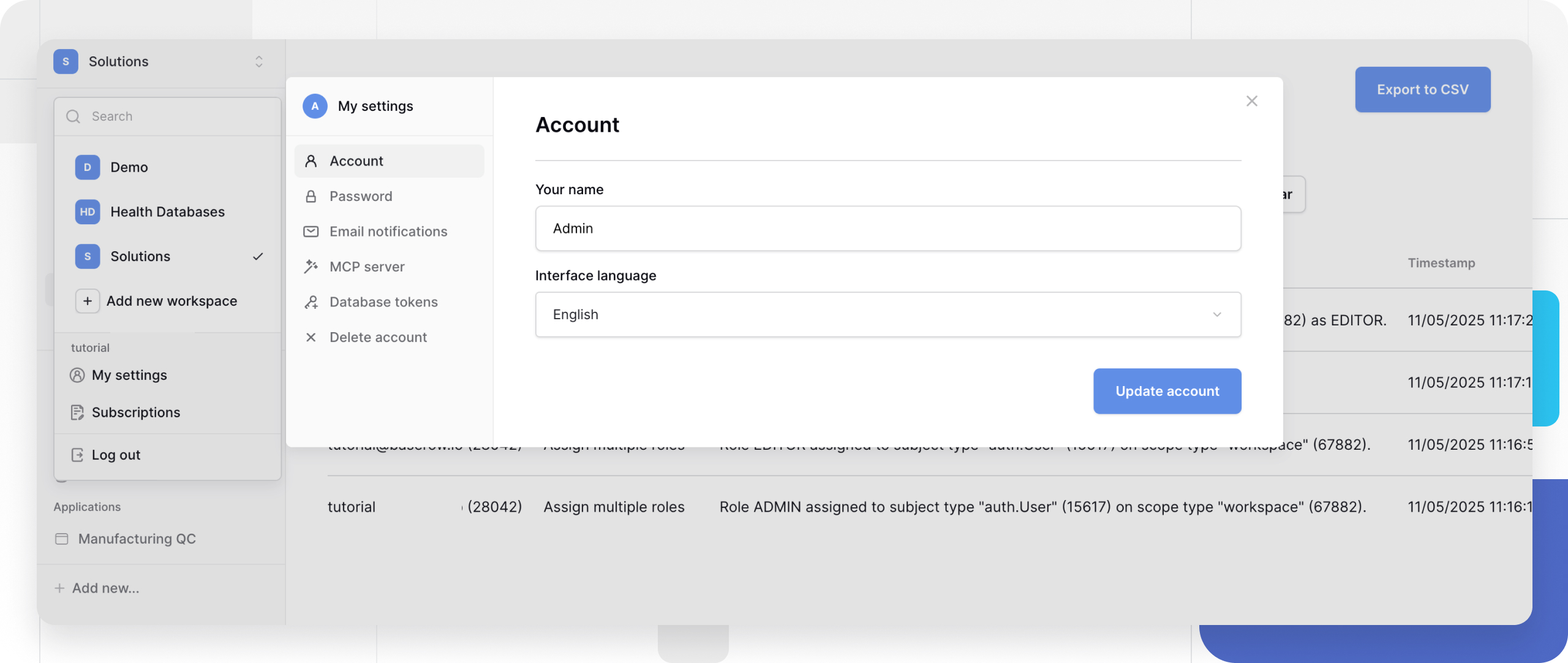
- Choose My settings from the dropdown - the account settings page opens with a tab for each category.
- Open the Password tab.
- Enter the current password.
- Enter the new password.
- Re-enter the new password to confirm it.
- Click Change password.
The new password applies right away. The current device stays signed in without re-entering credentials, but every other device will need the new password on its next login.
Resetting a Forgotten Password
A forgotten password is recovered through a link sent by email.
Steps to Reset It
- Open the login page of the Baserow instance.
- Click Forgot password?.
- Enter the account’s email address.
- Click Send reset link.
- Check the inbox for a message from Baserow.
- Follow the link in that email.
- Enter a new password.
- Confirm it by typing it again.
- Click Reset password.
The reset link stays valid for 24 hours. Once it expires, requesting a fresh one through the same form works just as well.
Local Docker Instance Without Email
When Baserow runs locally through Docker and SMTP hasn’t been set up, the reset link doesn’t go out by email - it shows up in the container logs instead.
Finding the link in the logs:
- Submit the forgot-password form with the account’s email.
- Open the container logs:
docker logs [container_name]. - Search the output for
reset-password. - Copy the full URL out of the log line.
- Paste that URL into a browser.
- Set a new password and sign in.
Quick log searches by platform:
Linux/Mac:
docker logs [container_name] | grep "reset-password"Windows CMD:
docker logs [container_name] | findstr "reset-password"Windows PowerShell:
docker logs [container_name] | Select-String "reset-password"Swap [container_name] for the actual Baserow container name (for example, baserow or baserow-1).
Frequently Asked Questions
The reset email never arrives - what now? Check the spam folder first. If it isn’t there, double-check the email address was typed correctly - reset messages only go to a registered account’s address. Wait a few minutes and try the form again.
Can a workspace admin reset someone else’s password? No. Workspace admins have no access to other members’ passwords and can’t reset them - only the account owner can start a reset, through the forgot-password form. That boundary protects account privacy and security.
How long is the reset link good for? 24 hours. Once it expires, request a new one through the same forgot-password form - there’s no limit on how many times that can be repeated.
Does changing the password sign out other devices? No, changing the password on its own doesn’t end sessions on other devices or browsers. If unauthorized access is suspected, change the password first, then sign out of each device manually afterward.
Is reusing an old password allowed? Baserow doesn’t technically block it, but treating every new password as unique is the safer habit. A password manager removes the temptation to fall back on something already used before.
Security Tips
Keep it unique. Don’t reuse the Baserow password on any other site or service.
Refresh it periodically. Change the password every 6-12 months, or right away if compromise is suspected.
Store it properly. A password manager beats writing passwords down or keeping them in a plain text file.
Watch for phishing. Baserow never asks for a password by email - only type it into the instance’s own login page.
Skip public Wi-Fi for login. Use a trusted network when entering the password, especially anywhere with open public access points.
Reach for a token instead of a password for scripts. Programmatic access to data over the REST API shouldn’t depend on the account password at all - Baserow offers a database token instead, scoped to specific permissions and revocable on its own.
Next, read Baserow Basics for the core concepts behind workspaces, databases, and tables, useful right after an account has just been created.