Baserow Automation Settings: Rename, Duplicate, Delete
Every automation and every workflow inside it in open-source Baserow is managed through the ⋮ menu next to its name: from there, rename, duplicate, or delete the object, and at the automation level, connect the integrations that action nodes use as their data sources.
Overview
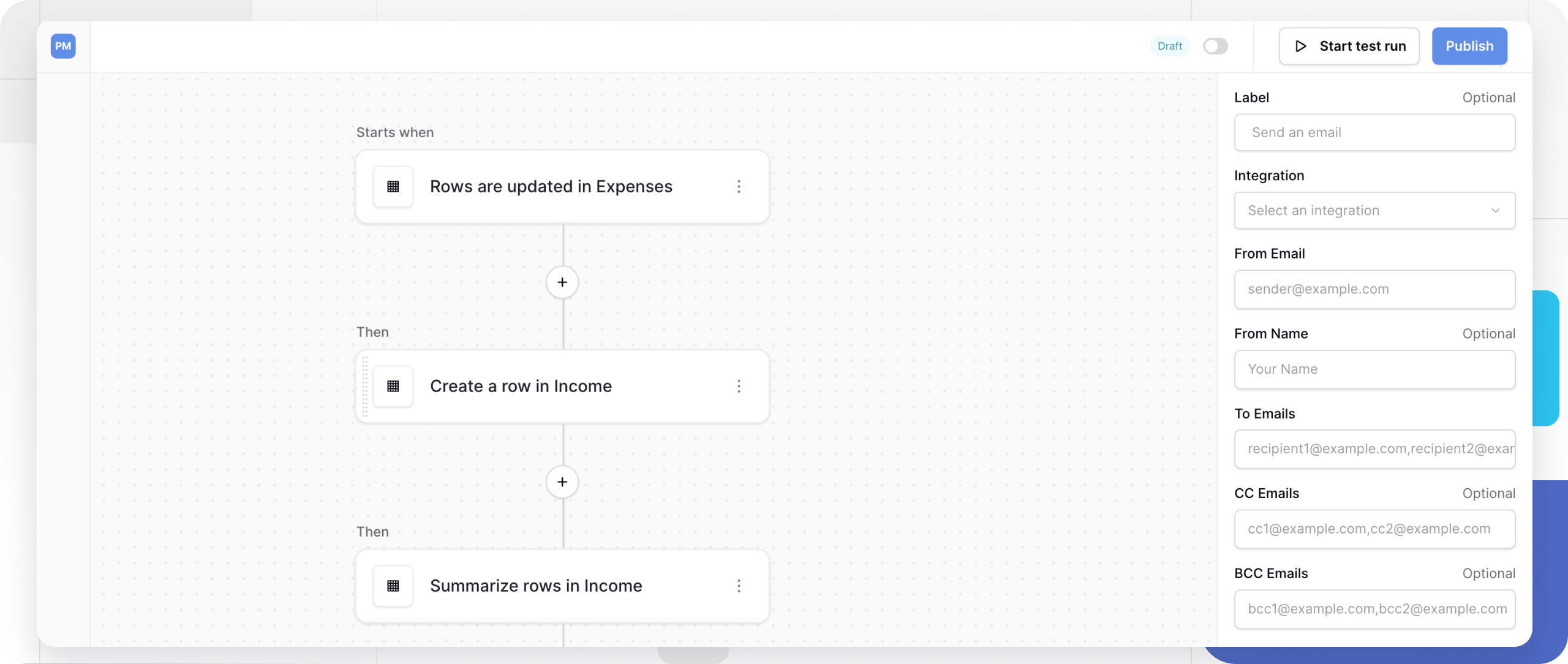
A Baserow workflow is built from a trigger that reacts to a table event, followed by one or more actions that then change data. While a workflow is still being built, test runs make it easy to check before publishing; management throughout that cycle happens through context menus for the automation and for each individual workflow, available right on the builder canvas.
An automation lives inside a specific workspace , so who can reach its settings is governed by the same membership as the workspace itself.
Automation Settings
The three-dot menu next to an automation’s name opens these options:
- Rename automation - change the display name so workflows stay organized and easy to find within the workspace.
- Settings - connect integrations: data sources, actions, and credentials that the workflow’s nodes will use when they run. It works on the same principle as webhooks - an external system sends or receives data through a connection configured ahead of time, except a workflow does this through action nodes rather than a single HTTP endpoint.
- Duplicate automation - copy the entire automation along with every workflow inside it, so the copy becomes a starting point for a similar process.
- Delete automation - remove the automation completely, along with all of its workflows.
Workflow Settings
The three-dot menu next to an individual workflow’s name (inside an automation) offers a narrower set of actions:
- Rename workflow - give the workflow a descriptive name. A clear label like “Send welcome email on signup” orients people far better than a generic “Workflow 1,” especially once a workspace has several automations running.
- Duplicate workflow - copy the workflow within the same automation, so a copy can be edited without touching the working version.
- Delete workflow - deletion moves the workflow into the workspace trash with a limited recovery window rather than erasing it outright. The mechanics match deleting a workspace : the recovery period gives time to change course, but once it lapses the data is gone for good.
Frequently Asked Questions
What happens to a workflow the moment it’s deleted? Execution stops immediately - no new runs start. Any run already in progress at the moment of deletion is allowed to finish rather than being cut off midway.
Can a workflow be duplicated into a different automation? There’s no direct way to move a single workflow between automations. If the same trigger-and-action setup is needed elsewhere, duplicate the whole automation instead, then remove the workflows that aren’t needed from the copy.
What carries over when an automation is duplicated? Duplicating copies every workflow inside the automation along with its triggers, actions, and integration settings - the result runs independently of the original, and changes to one copy don’t affect the other.
The automation and workflow menus are primarily an organizational tool - they don’t replace the separate article on managing workflow states within a workflow itself.