Baserow Workflow Triggers: Types and Configuration Guide
Every Baserow workflow begins with a trigger - the event that starts an automation on a schedule, when table data changes, when an HTTP request arrives, or when another workflow calls it; this article covers every trigger type available in open-source Baserow, how to configure each one, and why testing is required before publishing.
What Are Workflow Triggers?
Triggers define when and why an automated workflow should start, ensuring tasks run exactly when they are needed.
Every Baserow workflow begins with a trigger, the event that initiates the entire automation sequence. Without a trigger, a workflow has no way to know when to execute. Triggers can be time-based (run every hour), data-driven (when a row is created), or external (when an API request is received).
How Triggers Work
Once configured and tested, a trigger generates a data payload containing information about the triggering event. This payload can include:
- the row that was created, updated, or deleted;
- data sent in an HTTP request;
- timestamp information from periodic triggers.
All subsequent action nodes in the workflow can access and use this trigger data to perform their tasks.
| Characteristic | Description |
|---|---|
| Always first | Triggers must be the first node in every workflow |
| Cannot be deleted | A trigger can only be replaced with a different trigger type |
| Generates data | Creates a payload that subsequent actions can reference |
| Must be tested | Requires testing to populate sample data for building the workflow |
Available Trigger Types
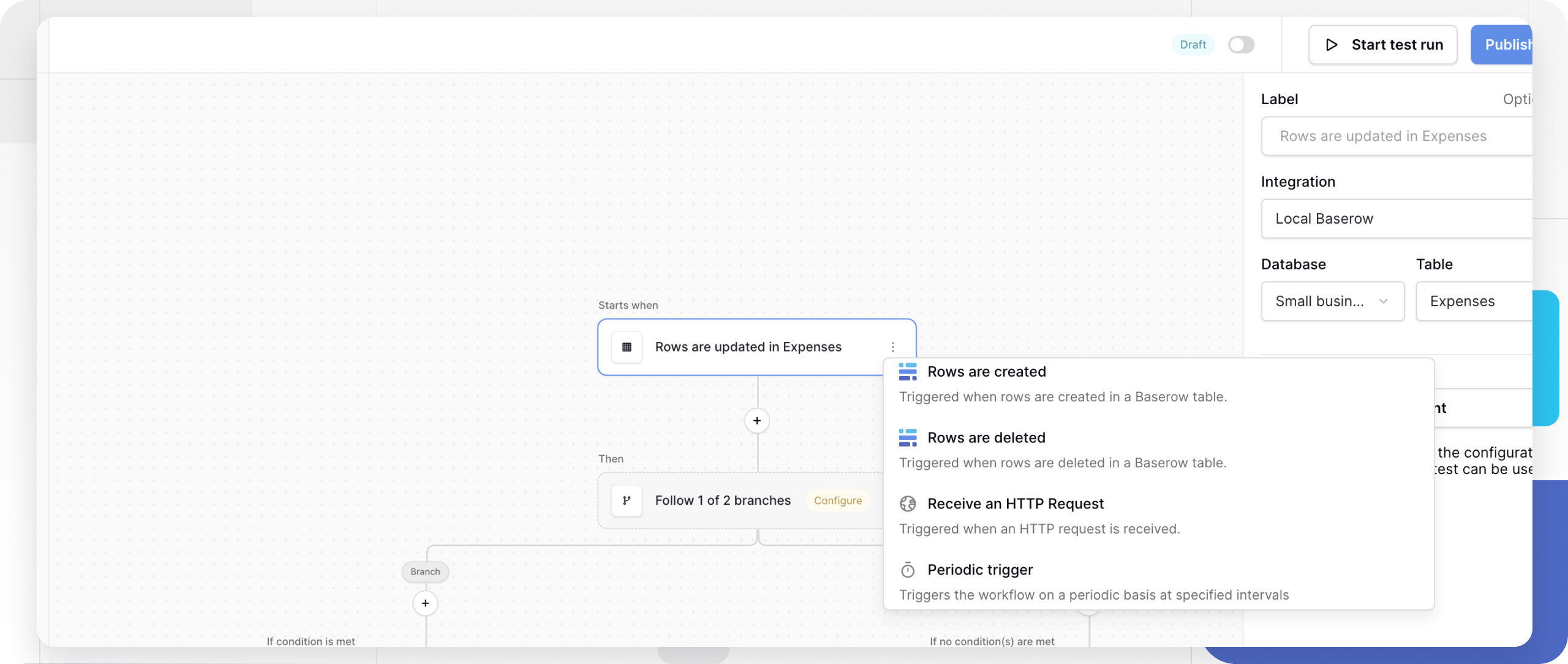
Baserow provides several categories of triggers to match different automation needs:
- periodic trigger (time-based);
- table-change triggers (data-driven);
- receive an HTTP request (webhook);
- manual trigger (on demand).
Periodic Trigger (Time-Based)
The periodic trigger executes a workflow on a fixed schedule without requiring any external input. It is useful for scheduling daily reports or cleaning up stale data overnight.
Configuration:
| Setting | Description | Example |
|---|---|---|
| Label | Descriptive name for the trigger | “Daily Sales Report” |
| Interval | How often the workflow runs | Every hour, daily at 9 AM, weekly on Monday, monthly |
The periodic trigger can be scheduled to run at every specified minute. In Baserow Cloud, the minimum interval is 15 minutes; on a self-hosted deployment, the interval can be set as low as every minute.
This trigger is useful for sending weekly summary emails to a team, archiving completed tasks every night, checking for expired records hourly, or generating monthly reports automatically.
Table-Change Triggers (Data-Driven)
These triggers monitor Baserow tables and fire immediately when a specified change occurs - useful for reacting to database changes in real time, such as notifying users when data is added, updated, or removed.
| Trigger type | Starts when | Example use case |
|---|---|---|
| Rows are created | New rows are added to a table | Welcome new customers, assign tasks to team members |
| Rows are updated | Existing rows are modified | Notify stakeholders of status changes, log edit history |
| Specific field values are updated | One or more selected fields are updated | Trigger approvals when a status changes, notify assignees, react only to important field changes |
| Rows are deleted | Rows are permanently removed | Archive deleted data elsewhere, send deletion confirmations |
Configuration (applies to all table-change triggers):
- Label - give the trigger a descriptive name.
- Integration - select the integration that connects to the workspace. Authorizing the account gives everyone with edit permissions on the application full access to the data it can reach.
- Database - choose the database containing the target table.
- Table - select the specific table to monitor.
Batch Behavior
When rows are created or updated through the API, the trigger’s behavior depends on how the rows are sent:
Single request creating multiple rows: if one API request creates several rows (for example, 10 rows in a single batch), the workflow trigger fires once, passing an array of all affected rows.
Multiple requests creating individual rows: if separate requests are sent for each row (for example, 10 individual requests), the workflow trigger fires once per request, resulting in 10 separate workflow executions.
Specific Field Values Are Updated
The “Specific field values are updated” trigger starts a workflow only when selected fields in a Baserow table are updated.
Instead of running every time a row changes, one or more fields can be chosen to watch. Changes to any other fields will not trigger the workflow.
This is useful for workflows that should run only when important information changes, such as a status, assignee, or approval field.
Configure the trigger by selecting:
- Integration - the Baserow integration to use;
- Database - the database containing the table to monitor;
- Table - the table to watch for changes;
- Fields - one or more fields that should trigger the workflow when their values change.
The workflow runs only when one of the selected fields is updated.
Example
An expense approval workflow should run only when the Status field changes.
Configure the “Specific field values are updated” trigger to watch the Expenses table and select the Status field. The workflow starts whenever the status changes, but not when other fields, such as the description or amount, are edited.
Receive an HTTP Request (Webhook)
This trigger creates a unique webhook URL that external services can call to start a workflow. When Baserow receives a request at that URL, the workflow executes with the request data as its payload. See Baserow Webhooks for the underlying mechanics.
This connects external applications and services to Baserow workflows, including integrations with tools such as Zapier or Make .
Configuration:
| Setting | Description | Recommendation |
|---|---|---|
| Label | Descriptive name for the webhook | “Stripe Payment Webhook” |
| Webhook URL | Auto-generated URL that receives requests | Copy this URL into the external service |
| Allowed HTTP methods | Which request types trigger the workflow | Select “Exclude GET” for security |
Why Exclude GET Requests?
GET requests are used by browsers and crawlers for ordinary page visits. Excluding GET prevents the workflow from accidentally triggering when someone opens the URL in a browser or a search engine crawls it. Use POST, PUT, or other methods for intentional triggers.
Common use cases:
- process payments from Stripe or PayPal;
- receive form submissions from a website;
- sync data from external CRM systems;
- start a workflow from a Zapier or Make automation.
Manual Trigger
The manual trigger creates a workflow that runs only on demand.
Unlike other triggers, it does not run on a schedule, react to row changes, or fire on an HTTP request. It runs only when another workflow or an application calls it using the “Start workflow” action.
This is useful for building reusable workflows that run whenever they are needed.
Configure the trigger by setting:
- Label (optional) - a custom name for the trigger.
No additional configuration is required.
Limitations
- A workflow with a manual trigger can only be started using the “Start workflow” action.
- It cannot be started by a periodic trigger, another manual trigger, or any other trigger directly.
- To run a manual workflow automatically, start it from another workflow with the “Start workflow” action.
Example
Create a “Send monthly report” workflow with a manual trigger. The workflow gathers project data and sends a Slack notification.
A scheduled workflow runs every month and uses the “Start workflow” action to start the “Send monthly report” workflow. The same workflow can also be started from an application when a user clicks a button, so the reporting logic is reused without being duplicated.
How to Test a Trigger
Testing generates sample data that is then used to configure the workflow’s actions. Always test a trigger before adding actions.
Testing Time-Based Triggers
- Configure the periodic trigger settings.
- Click “Test event” in the trigger configuration sidebar.
- The trigger executes once immediately.
- Review the generated timestamp data in the trigger node.
Testing Table-Change Triggers
- Configure the table-change trigger.
- Manually perform the action in the table (create, update, or delete a row ).
- Click “Test event” in the trigger configuration sidebar.
- Baserow captures the most recent matching event.
- Review the row data now available in the trigger node.
If no data appears, verify that the triggering action, such as creating a row, was performed in the correct table.
Testing Webhook Triggers
- Configure the webhook trigger.
- Copy the generated webhook URL.
- Send a test HTTP request to that URL using a tool such as Postman or cURL, an external service’s test feature, or a simple form submission.
- Click “Test event” in Baserow.
- The trigger captures the data from the request that was sent.
Example test request (using cURL):
curl -X POST [YOUR_WEBHOOK_URL] \
  -H "Content-Type: application/json" \
  -d '{"customer_name": "John Doe", "amount": 99.99}'
Frequently Asked Questions
Can a workflow have multiple triggers? No. Each workflow can have only one trigger. To react to several different events, create separate workflows, one per trigger type. After a single trigger, conditional logic (Router nodes) can still handle different scenarios.
What happens if a trigger fires while the workflow is already running? Each trigger event creates a new workflow execution. If the workflow is still processing when a new trigger fires, Baserow starts a second, concurrent execution. Both run independently, each with its own data payload.
Can a workflow be triggered manually without waiting for the event? Yes, use the “Start test run” button to execute the workflow once with test data - useful for debugging and development. Manual test runs do not replace actual trigger events in production.
How can I see when a trigger last fired? Check the History tab in the automation. It logs every trigger event with a timestamp, the workflow’s execution status, and the outcome.
Can a trigger be temporarily disabled without deleting the workflow? Yes, use the toggle switch to pause a published workflow. This stops the trigger from firing while keeping the configuration intact. Toggle it back on to resume the automation.
What is the difference between testing and publishing a workflow? Testing executes the workflow once with sample data for development purposes. Publishing activates the workflow indefinitely - it keeps responding to trigger events until it is paused or unpublished.
Can external webhooks use authentication? The webhook URL itself does not require authentication by default. For security, exclude GET requests to prevent accidental triggers, validate request data inside the workflow’s actions, use query parameters or headers that the external service provides, and keep the webhook URL private rather than publishing it.
All API requests must use JSON. Other formats, such as XML, are not accepted.
Troubleshooting Common Issues
Trigger test shows no data. Cause: the triggering event has not occurred yet. Solution: for table-change triggers, manually create, update, or delete a row in the specified table, then test again; for webhooks, send a test request to the URL first.
Workflow does not fire after publishing. Cause: the workflow is paused, or the trigger event is not occurring. Solution: check that the toggle switch shows “Live” rather than paused, and verify the trigger event is actually happening in the database or that external services are sending requests.
Webhook returns an error. Cause: the external service is using an excluded HTTP method or sending invalid data. Solution: verify the HTTP method is allowed under “Allowed HTTP methods,” and review the History tab for specific error messages.
Once a trigger is configured and tested, the next step is building the actions Baserow runs in response; see the Baserow automation section for the rest of the series.