Baserow Workflow Automation Guide - Triggers and Actions
Baserow Automation lets a table event trigger a chain of actions without writing any code: a trigger fires a workflow, one or more actions then change data, a Router node can split the workflow into branches, and a run history log records the outcome of every step - all of it available in the open-source edition without premium nodes.
Overview
Baserow Automation builds no-code workflows that carry out tasks automatically whenever specific database events occur, connecting triggers and actions so that data entry, notifications, and record updates happen without a single line of code. The point of the feature is turning a repetitive manual edit into a workflow that gets configured once and then runs on its own.
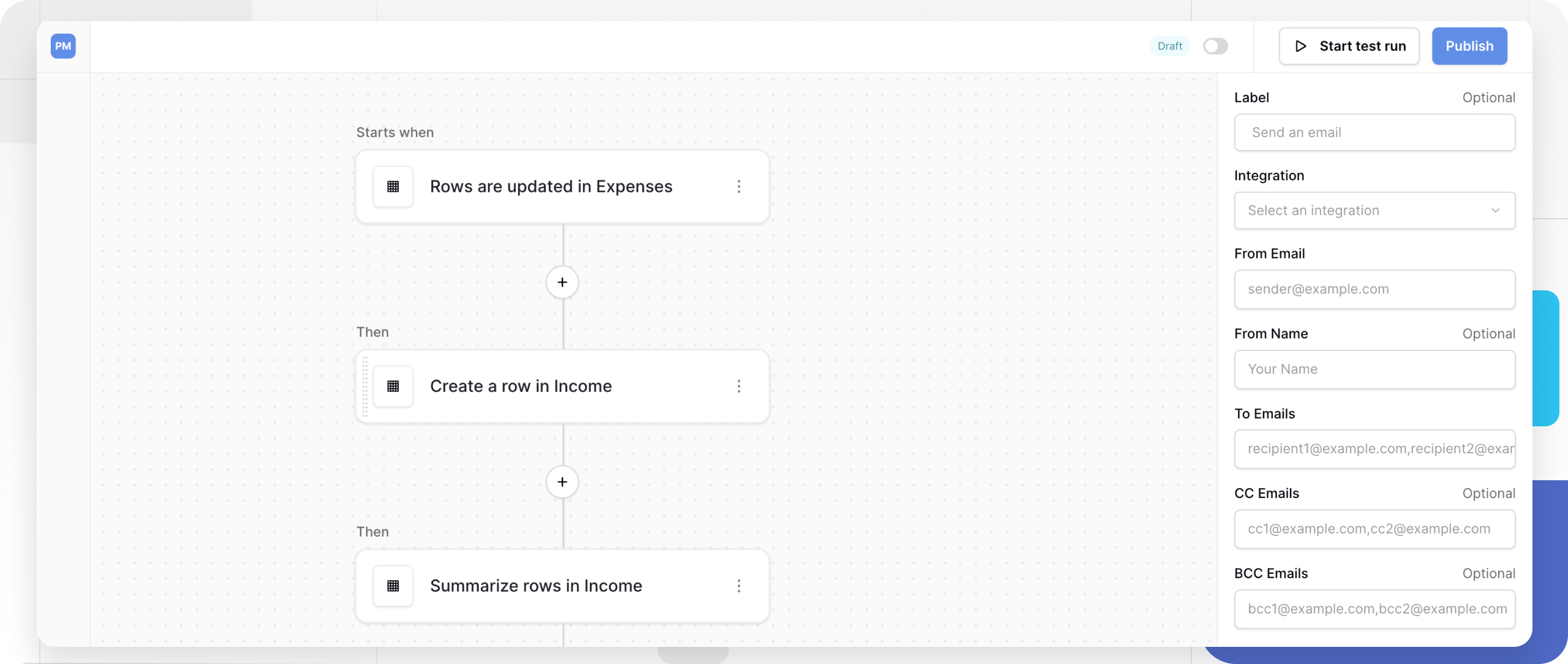
Structure: Automation, Workflow, and Node
The automation system is built on three nested levels:
| Level | Description | Example |
|---|---|---|
| Automation | Top-level container inside a workspace | “Customer Onboarding Automation” |
| Workflow | A sequence of nodes that defines one process | “Send a welcome email when a customer signs up” |
| Node | A single step - either a trigger or an action | “When row is created” -> “Send email” |
Triggers and Actions
- Triggers - the starting events that fire a workflow; a trigger is always the first node and cannot be deleted.
- Actions - tasks that read or modify rows and can also control how the rest of the workflow proceeds; unlike a trigger, actions can be added or removed freely.
Workflow States
| State | Purpose | Behavior |
|---|---|---|
| Draft | Default state for a new workflow | Does not run automatically |
| Test run | Verifies the configuration before publishing | Runs once, triggered manually |
| Published | The live, working state of the automation | Runs continuously each time the trigger fires |
A new workflow always starts in Draft and ignores table events until it gets published.
Building a Workflow
Create an Automation
- Open the workspace where the automation should live.
- Click + Add new.
- Select Automation from the dropdown.
- Optionally rename the automation or duplicate an existing one as a starting point.
Assemble the Process
- Start from the trigger node - it’s added to the workflow automatically.
- Click the + icon to add an action or a Router node.
- Drag and drop nodes to change the order they run in.
- Configure each node from the sidebar on the right.
Testing a Workflow
Individual nodes can be tested before running the entire workflow: a tested node fills itself with sample data that subsequent nodes can then reference. This is a quick way to confirm filters and field values are set up correctly before publishing the process.
A test run performs real actions on live table data - every row it creates, updates, or deletes is applied permanently, and the workflow itself offers no way to undo it.
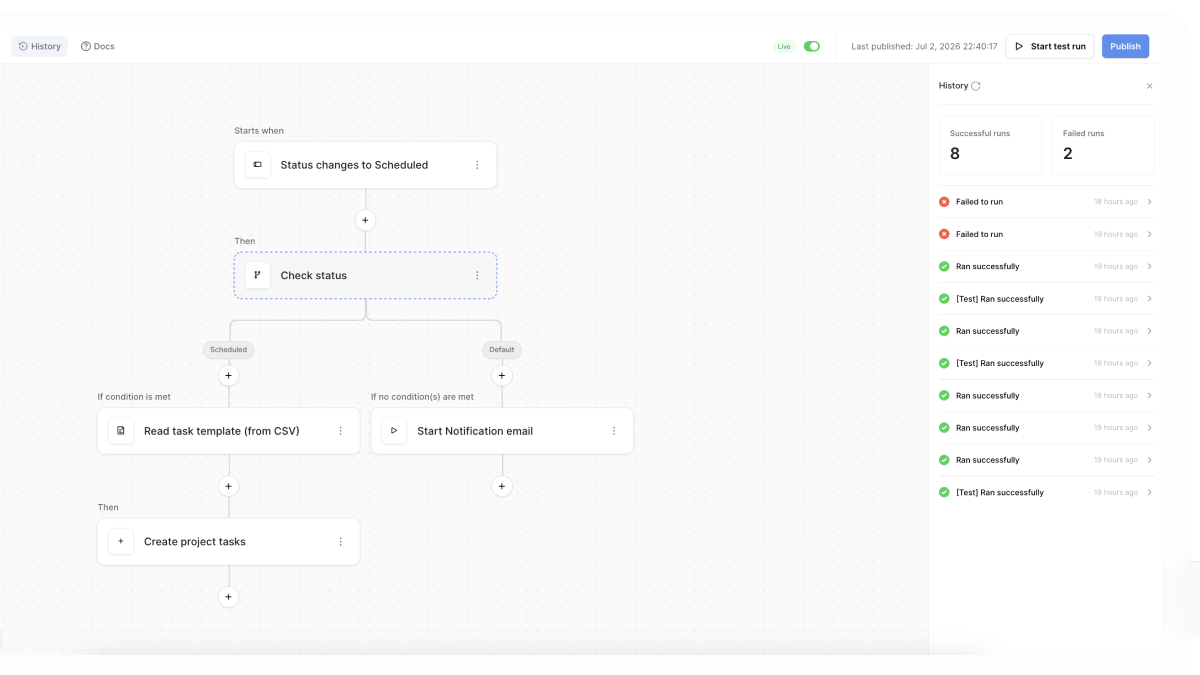
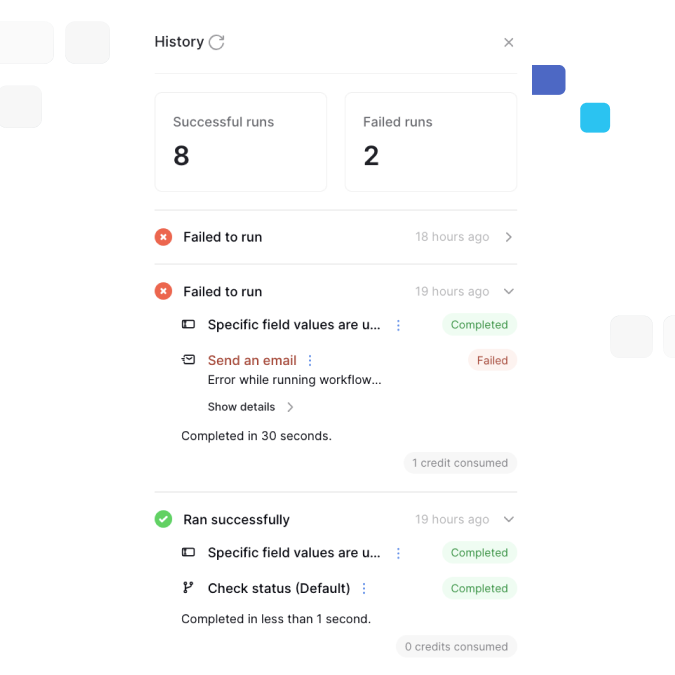
Node history logs every workflow execution and shows:
- the total count of successful and failed runs;
- an execution timeline;
- the status and output of each individual node;
- which actions ran and whether each one succeeded;
- the error message for any node that failed.
Branching with the Router Node
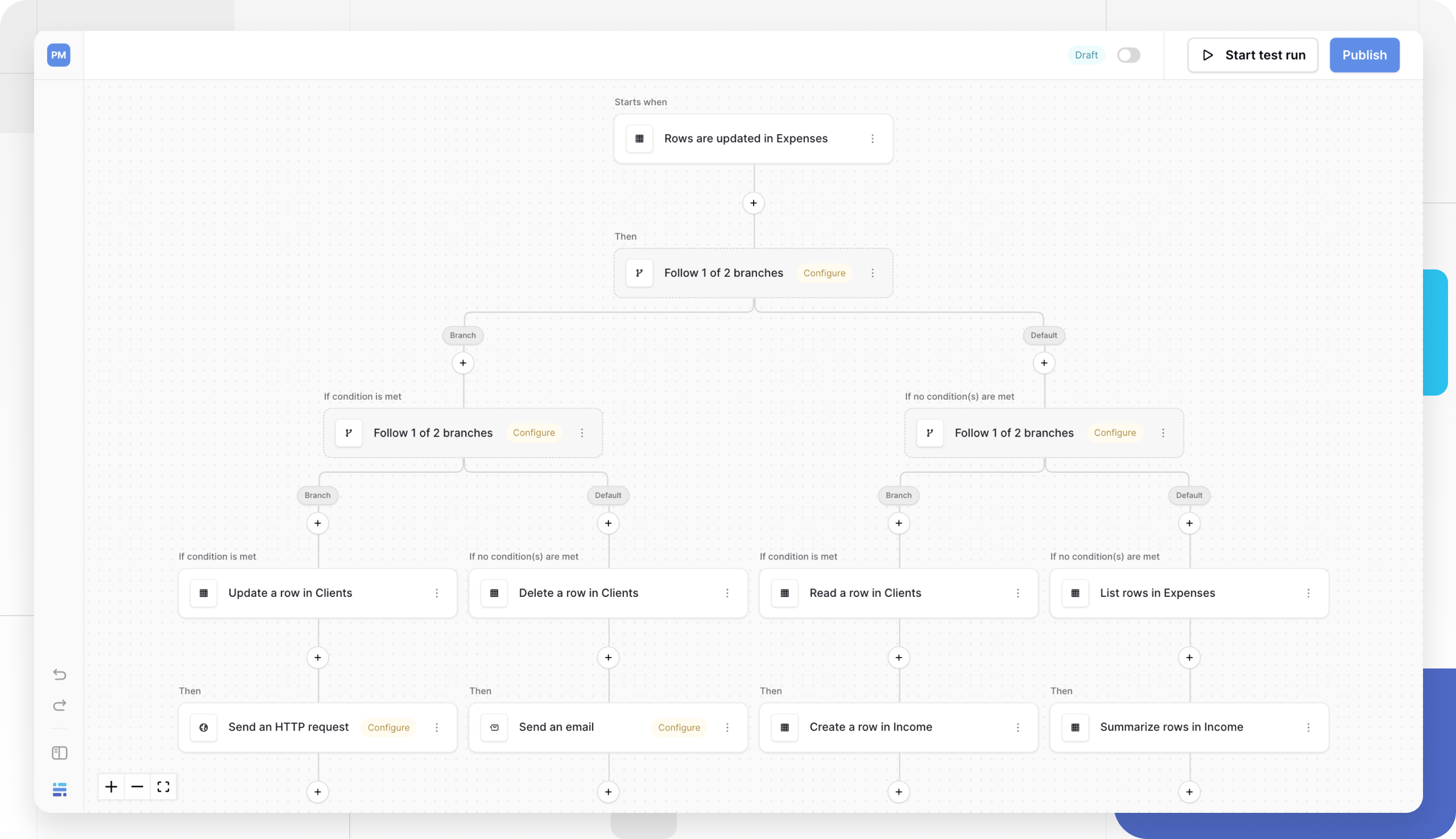
A Router node splits a workflow into several branches based on a condition and sends execution down just one of them - useful for handling different rows differently inside a single process instead of building a separate workflow for every scenario.
Where Automation Pays Off
Reacting to table changes. A row-event trigger removes the need to check a table manually and repeat the same edit after every change; for a closer look at what actually changed on a given row, see row revision history - it tracks that metadata separately from the workflow itself.
Reaching outside services. When an event in Baserow needs to reach something outside the database, an action can call an external service through webhooks ; for longer, more branching chains than the built-in Router handles, an external builder such as the n8n integration is usually a better fit.
Bulk field updates. An action can update a field value across every row that matches the trigger’s condition, replacing what would otherwise be repetitive manual edits after each event.
Frequently Asked Questions
What’s the difference between an automation and a workflow? An automation is the top-level container inside a workspace, while a workflow is one specific process inside it. A single automation can hold several workflows for different scenarios.
Can a workflow have more than one action? Yes, actions run sequentially, one after another, in the order they appear in the workflow.
Can the same trigger type be reused across different workflows? Yes, a trigger type can be reused in any number of separate workflows.
What happens if one of the nodes fails? The workflow stops at the node where the error occurred, and the details get logged to node history for later review.
Does a test run really change my data? Yes, a test run performs real actions on the table’s current rows - treat it with the same care as publishing the workflow itself.