Baserow Workspace Roles - Managing Admin and Member Access
Open-source Baserow controls access with two basic roles - admin and member: a workspace admin sees the full member list, changes roles, and removes access, while a member works within their own permissions without reaching the team settings.
Who Can Manage Members
Only a workspace admin can view the member list, change roles, or remove members. A member cannot see the member list and cannot change anyone’s role.
If you have the member role and need to manage the team, ask a current admin to either make the change for you or upgrade your role to admin.
Important: keep at least two admins in every workspace - if the only admin loses account access or leaves the team, nobody is left to manage the workspace. See Leave a Workspace for why the last admin cannot leave a workspace.
Viewing the Member List
The member list is reachable in two ways.
From workspace settings:
- Open the workspace you want to manage.
- Open the workspace settings dropdown from the home page.
- Select the Members section.
From the sidebar:
- Locate the workspace in the sidebar.
- Open the Members tab.
- The members page opens directly.
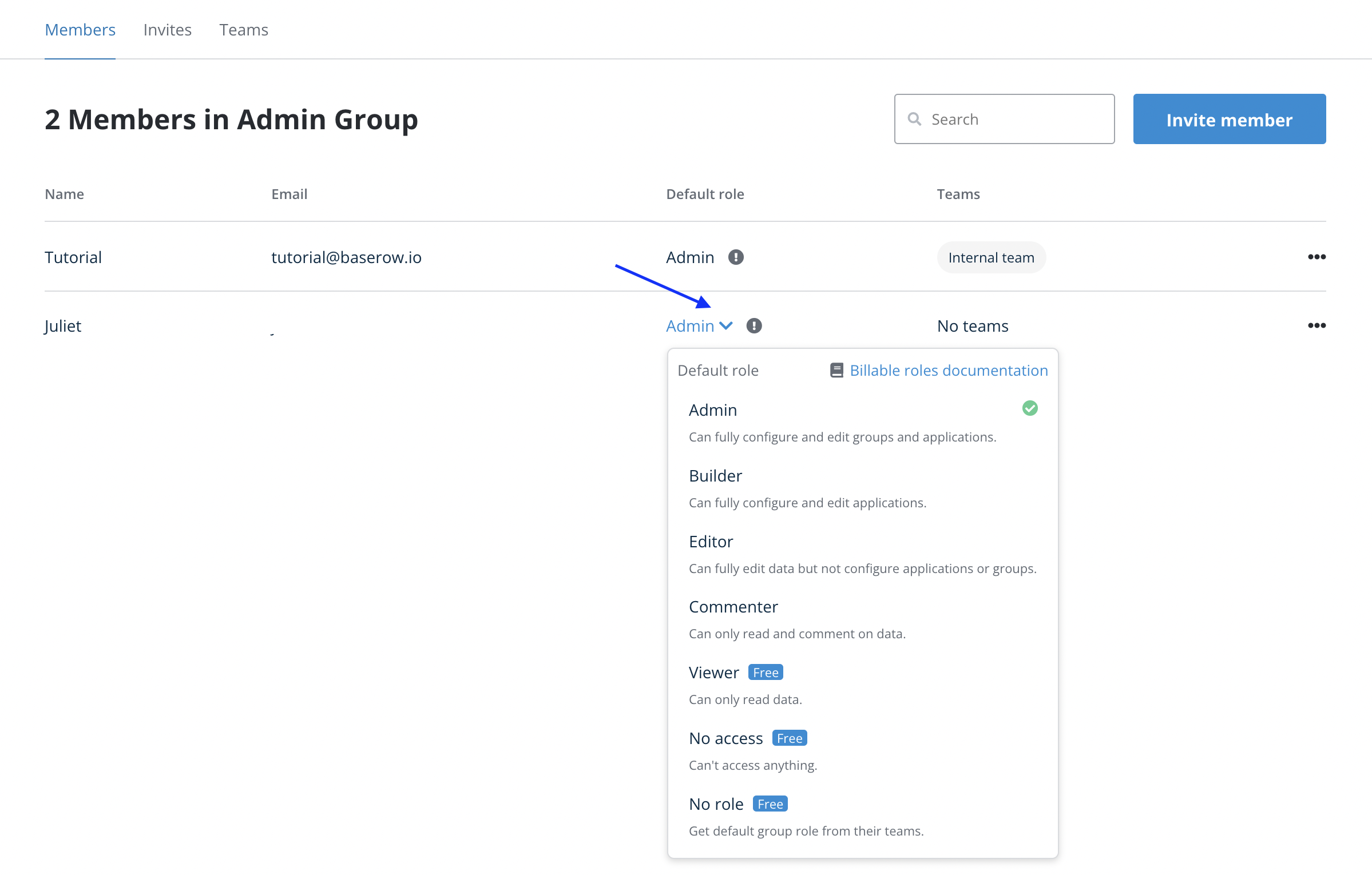
The members page shows each member’s display name, contact email address, and current role.
Admin and Member Roles
The free edition of Baserow offers two roles at the workspace level:
| Role | What it can do |
|---|---|
| admin | Full access to every database and table in the workspace, inviting and removing members, changing roles, renaming and deleting the workspace, and exporting or importing data. |
| member | Working with the workspace’s databases and tables within the access granted, exporting data, and leaving the workspace on their own - without managing members or workspace settings. |
See Setting Up a Workspace for what an admin configures when a workspace is first created.
Changing a Member’s Role
An admin can change a member’s role at any time as access needs change:
- Open the Members page in workspace settings.
- Find the member whose role needs to change.
- Click the role dropdown next to their name.
- Select the new role.
The change takes effect immediately: the member’s access across every database and table in the workspace updates to match the new role.
Searching and Sorting Members
In larger teams, search and sort make it faster to find a specific member - useful for checking someone’s access, finding every member from a particular email domain, or preparing a list for an access review.
Search by Name or Email
- Locate the search box at the top of the members page.
- Type a name or email address - partial matches work too.
- The list filters automatically as you type.

Sorting the Member List
Clicking a column header sorts the member list by that criterion; clicking again reverses the order:
- Name - alphabetical, either direction.
- Email - alphabetical, either direction.
- Role - grouped by role.

Invitations and Removing Members
Managing a team goes beyond changing the role of members who already accepted. Sending invitations and handling pending requests are covered in Working with Collaborators , and the full process for taking away a member’s access is covered in Remove a User from a Workspace .
Frequently Asked Questions
Can a regular member see the full member list? No. Viewing the member list, changing roles, and removing members are all admin-only.
What happens to a member’s data after they’re removed? Their contributions - data changes, databases and tables they created - stay in the workspace untouched; only that member’s own access is revoked.
Can several members’ roles be changed at once? No, roles are changed one member at a time from the Members page.
Does a role change in one workspace affect roles in other workspaces? No. Roles are independent per workspace - a member can be admin in one workspace and member in another.
What’s the difference between a workspace admin and an instance admin? A workspace admin manages one specific workspace - its members and settings. An instance admin (available only on a self-hosted Baserow deployment) manages the entire deployed instance - every user and every workspace. One person can hold both roles.
Next, read Remove a User from a Workspace to see how access is revoked and what happens to a member’s data afterward.