Baserow Team Collaboration: Free Features Overview
Open-source Baserow ships four free collaboration mechanics that live inside a workspace: several people can edit the same table at the same time without conflicts, a workspace owner invites collaborators and assigns each one an admin or member role, a row can be pinned to a specific person through the Collaborator field, and notifications keep everyone aware of what changed - this article walks through each mechanic and links to the detailed how-to guides.
Overview
Collaboration in Baserow centers on the workspace - a shared environment where a team organizes its databases and controls who can reach them. The open-source edition includes four free collaboration mechanics:
- Inviting collaborators - adding people to a workspace with an admin or member role.
- Real-time editing - multiple people see each other’s changes and work in the same table simultaneously without conflicts.
- Collaborator field - pinning a row (a task, a lead, a project) to a specific workspace member.
- Notifications - alerts about assignments, invitations, and other workspace events.
Workspace member roles
Everyone invited into a workspace gets one of two basic roles: an admin manages the member list and workspace settings, while a regular member works with the databases and tables already available to them. Once someone accepts an invitation, they see every database in the workspace according to their role. The step-by-step invitation process is covered in a separate article in this section.
Real-time editing
Multiple team members can work on the same database simultaneously without conflicts - Baserow shows who is currently viewing a table and which cells are being edited, making it easier to coordinate work.
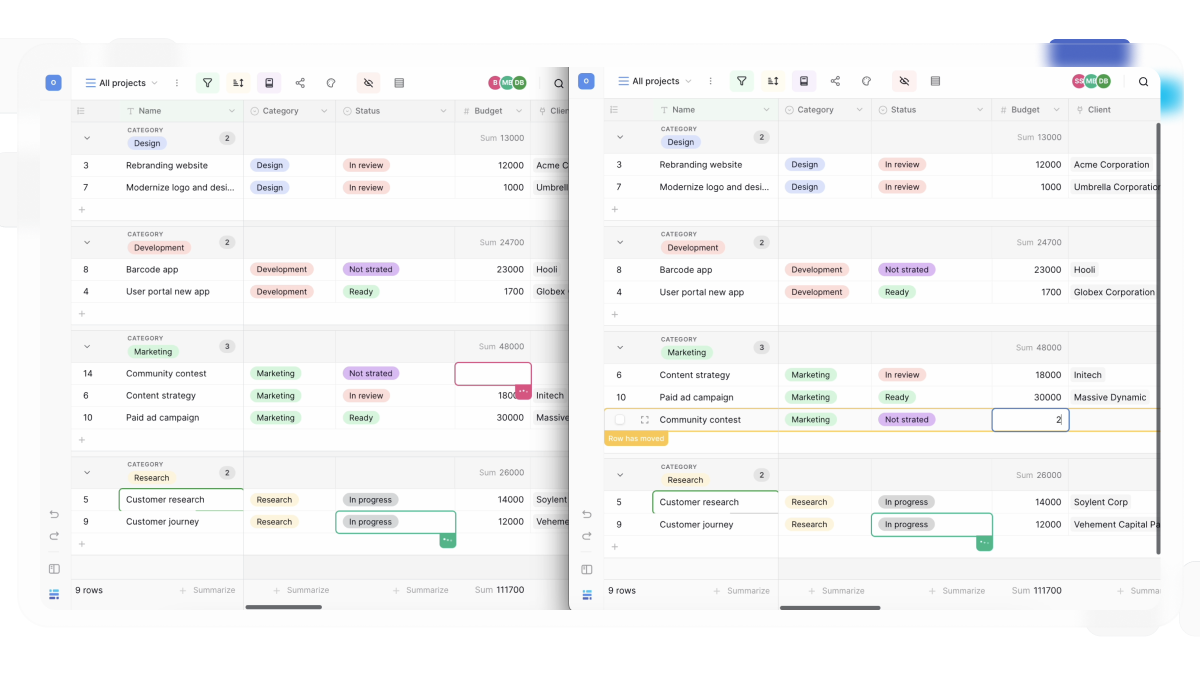
What happens instantly:
- Changes appear right away for everyone viewing the same table.
- Rows can be added, edited, and deleted collaboratively.
- You can see who currently has the table open.
- You can see which cells other people are editing.
- Collaborative view settings - filters, sorts, grouping, field visibility - update automatically for everyone looking at that view.
- Work continues through a brief connection drop, with automatic reconnection once it’s back.
What doesn’t sync instantly: undo and redo only apply to a user’s own actions, and an occasional browser refresh may be needed to see the very latest state.
Editing the same cell at the same time
If two collaborators edit the same cell at nearly the same moment, whichever save lands last is the one that’s kept - the earlier change is overwritten. For anything that matters, coordinate outside the table or agree in advance on who owns which rows.
Assigning rows with the Collaborator field
The Collaborator field pins one or more workspace members to a specific row right from the table cell - the most direct way to assign a task, a lead, or a project to the person responsible for it. See Baserow Collaborator Field for how to add and configure it, how to turn on assignment alerts, and how it differs from the automatic Created by field.
Notifications for workspace activity
Collaborators get notified when they’re assigned through the Collaborator field, invited into a new workspace, or otherwise involved in an assignment-related event. Each person sets their own notification frequency - instant, daily, weekly, or never - in their account settings.
Frequently Asked Questions
Is there a limit on how many people can join a workspace? The open-source edition doesn’t impose a separate cap on invited collaborators, and performance stays solid even when several dozen people are active in the same workspace at once.
Can I see who’s currently viewing a table? Yes. Baserow shows real-time presence indicators, so it’s clear who has the same table open and which cells they’re editing.
What happens if two people edit the same cell at the same time? Whoever saves last wins - Baserow uses a last-write-wins strategy, so an earlier change from the same period gets overwritten.
How do I remove someone’s access to a workspace? A workspace admin opens the workspace settings, finds that member in the list, and removes them - access disappears immediately, while their prior changes and assignments in the data stay intact.
Can someone belong to more than one workspace? Yes. A single account can belong to several workspaces at once, and permissions in each one are independent - being an admin in one workspace grants no admin rights in another. Switching between workspaces happens through the switcher in the sidebar.
Inviting collaborators and assigning them admin or member roles is covered step by step in the next article in this section.