Remove a User from a Baserow Workspace - Admin Guide
A workspace admin in Baserow can remove a member from the member list at any point - access is cut off instantly and cannot be reversed, though the removed person’s account keeps working normally in any other workspace they belong to.
Who Can Remove a Member
Only a workspace admin can remove a member from a workspace - regular members don’t have that option and won’t even see the menu entry for it. Removal typically comes up when a project team changes shape, a contractor’s engagement ends, or access simply needs to close quickly. The admin and member roles that govern a workspace are covered in Manage Workspace Permissions .
How to Remove a Member
- Open the workspace that contains the member to remove.
- Click Members in the sidebar.
- On the Members page, find the person to remove.
- Click the three-dot menu (⋮) next to their name.
- Select Remove from workspace.
- Confirm the removal in the dialog.
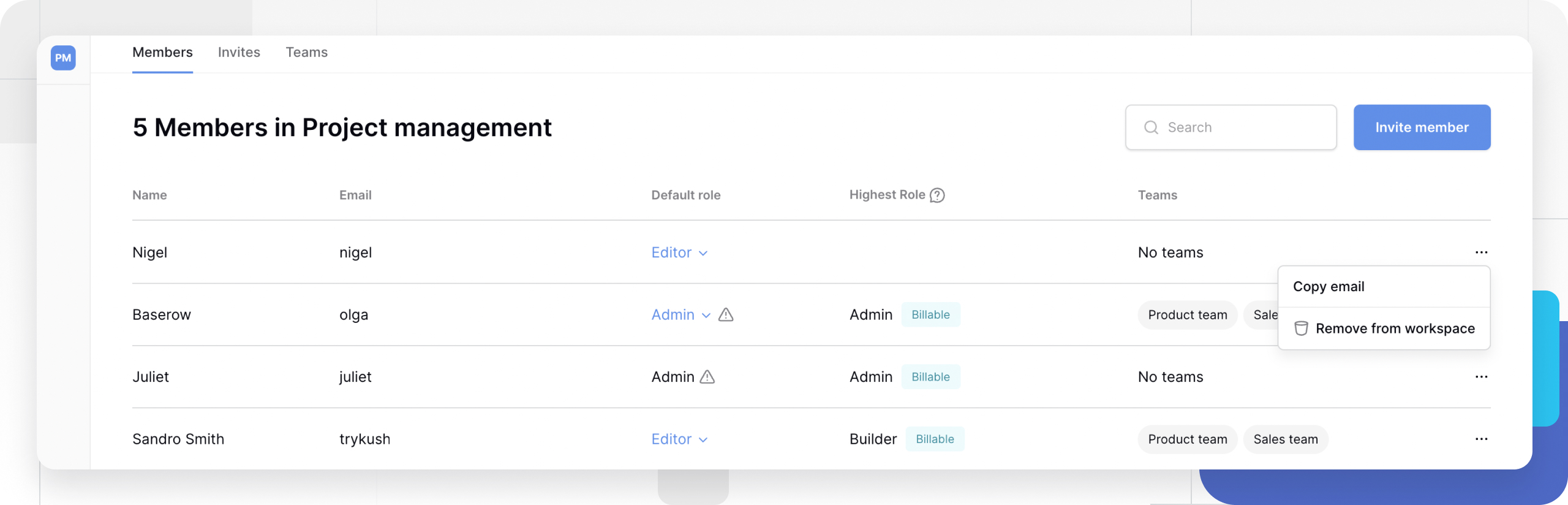
The search box at the top of the Members page finds people by name or email, which is faster than scrolling a long member list.
What Happens After Removal
- Access ends immediately - the person can no longer open any database or table in the workspace.
- Their workspace role is cleared - whatever admin or member role they held in this workspace no longer applies.
- There’s no undo - restoring access means re-inviting them just as if they were joining for the first time.
- The account stays active - the removed user’s Baserow account keeps working in any other workspace they’re part of.
- No automatic notice goes out - Baserow doesn’t email or notify the person, so tell them directly if that matters.
Rows, tables, and views the removed member created stay exactly where they were and remain visible to the rest of the team - the one exception is the Collaborator field , which automatically drops their name from any row assignment.
Removing from a Workspace vs. Deleting an Account
| Action | Scope | Account status | When to use it |
|---|---|---|---|
| Remove from workspace | One workspace only | Account stays active | Cut off access to a single workspace |
| Delete user (instance admin) | The whole self-hosted instance | Account is permanently deleted | Remove someone from a self-hosted install entirely |
Removing someone from a workspace only touches that one workspace - they can still work in any other workspace they’re a member of. Deleting an account outright is reserved for a self-hosted instance admin (a separate role from a workspace admin - see Setting Up a Workspace for how the two differ) and it cuts the user out of every workspace at once.
Frequently Asked Questions
Can removing a member be undone? No. Removal clears their role in that workspace right away, and the only way back is a fresh invitation with the role set up again.
Does the removed member get notified? No, Baserow sends no automatic notice when someone is removed from a workspace - reach out to them directly if that’s appropriate.
What happens to data the removed member created? Every row, table, and view they created stays in the workspace untouched - only their personal access is revoked.
Can I remove myself from a workspace? Yes, as long as you’re not the sole admin - a workspace always needs at least one admin standing. If you’re the only one, hand the admin role to someone else first, or delete the workspace outright. The self-service steps are in Leave a Workspace .
How is a workspace member different from a Collaborator field? A workspace member is an invited person holding an admin or member role; the Collaborator field is a table field type used to assign a specific workspace member as responsible for a row.
Next, Account covers the settings that apply to a person’s own Baserow account - profile details, password changes, and notification preferences.