Invite Users to a Baserow Workspace: Step-by-Step Guide
Inviting someone into an open-source Baserow workspace takes a handful of steps: an admin sends an email invite, the invited person accepts it - either by creating a new account or logging into an existing one - and immediately gets access to the workspace’s databases; this article walks through that whole path, from sending the email to the new member showing up in the workspace member list, plus how to cancel an invite that hasn’t been accepted yet.
Who Can Invite Users
Only a workspace admin can invite new users. If you’re not an admin, ask an existing one to send the invite for you or to upgrade your role. The admin role is assigned to the owner when a workspace is set up and can be handed to other members later.
How to Invite a User to a Workspace
- Open the workspace you want to add someone to.
- Click the Members tab in the sidebar.
- Select Invite Member in the top-right corner.
- Enter the invited user’s email address.
- Choose a role (permission level) for this user.
- Optionally add a personal message with context or instructions.
- Click Send Invite.
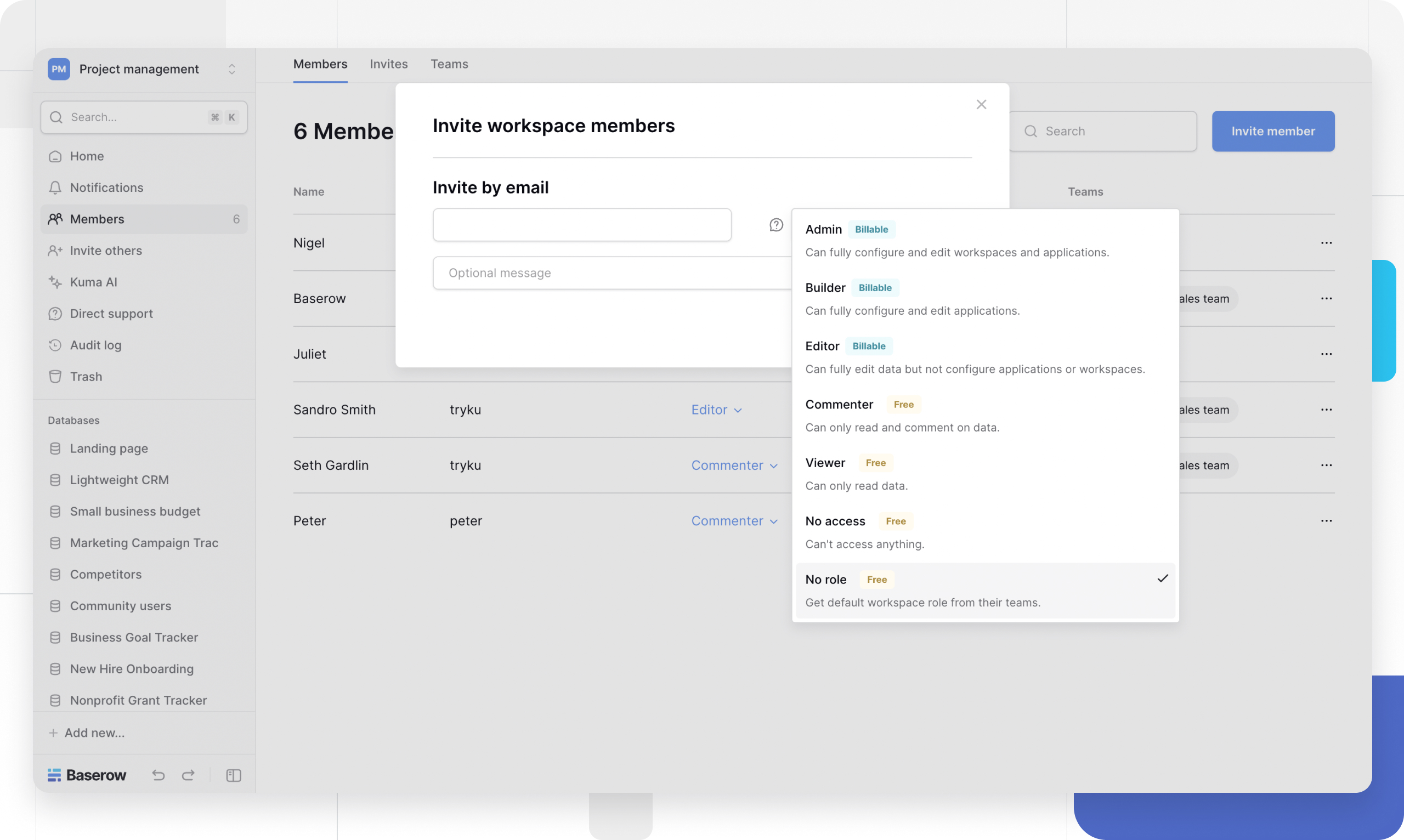
An invitation can’t be sent to someone already in the workspace - remove them first if the email address needs to change or a fresh invite is needed. The invited person receives an email with an “Accept invitation” button; what happens next depends on whether they already have a Baserow account.
How an Invited User Accepts
New to Baserow
Anyone without an existing account can create one straight from the invitation email:
- Check the inbox for the Baserow invitation email.
- Click Accept invitation in the email.
- Baserow pre-fills the email address the invite was sent to.
- Create a password for the new account.
- Finish creating the account.
- Confirm the email address via the link in the confirmation message.
- Log in and land in the workspace.
If the email never arrives, check the spam folder first; if it’s still missing, ask the workspace admin to resend the invitation. To use a different email than the one Baserow pre-fills, ask the admin to send a fresh invite to the preferred address instead.
Already Has a Baserow Account
For someone who already has an account, accepting is even quicker:
- Log into the existing Baserow account.
- A notification about the workspace invitation appears in their Baserow notifications.
- Click Accept to join right away.
- Or click Reject if joining isn’t needed.
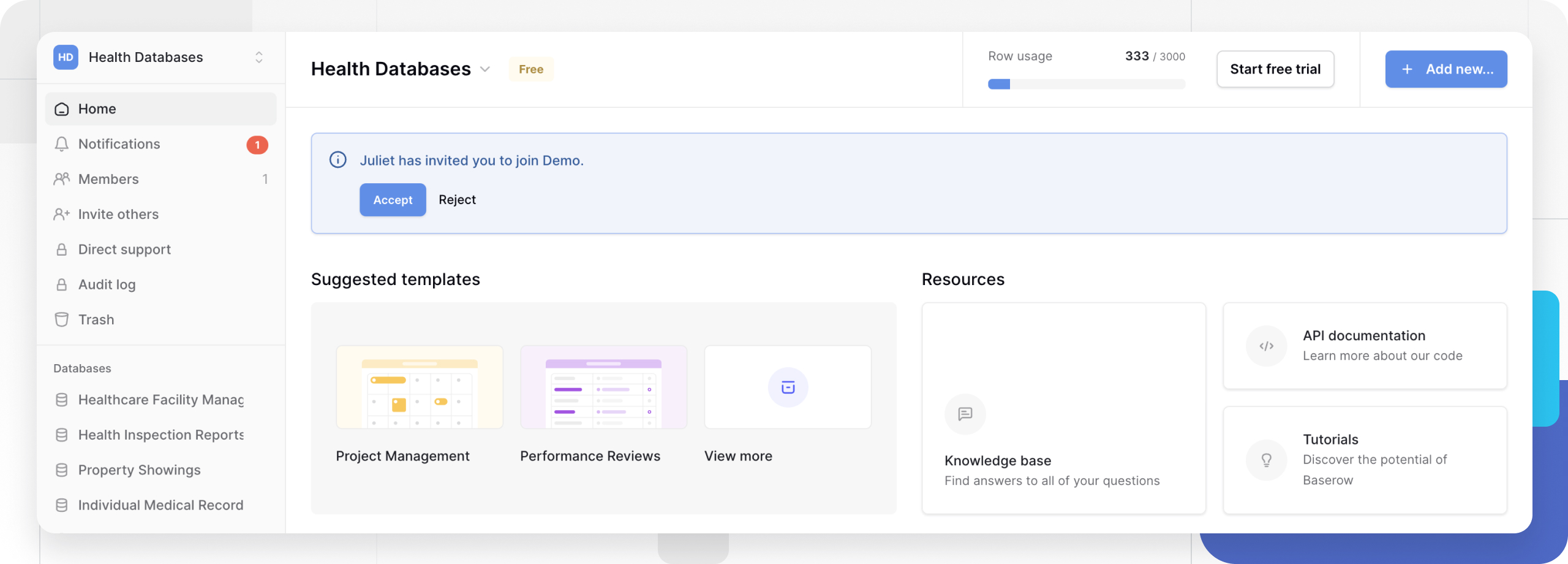
The invite can also be accepted from the email link instead - both routes work the same way. Once accepted, the workspace shows up in the account immediately, and access to its databases and tables follows the assigned role.
Managing Pending Invitations
Viewing Pending Invites
A workspace admin opens Workspace → Members → Invites to see every invitation that hasn’t been accepted yet - each entry shows the email address, the role that was assigned, and any message sent along with it.
Canceling an Invitation
If an invite was sent by mistake or access is no longer needed, cancel it before it gets accepted:
- Go to Workspace → Members → Invites.
- Click the
⋮icon next to the invitation. - Select Cancel invite.
A canceled invitation can’t be accepted afterward - send a new one if access is needed again.
Workspace Member Visibility
Anyone with access to the workspace can see the full list of members already in it. That list is worth checking before sending new invites, and it’s also where the collaborator field pulls its options from when assigning a table row to a specific person. For the bigger picture of what a workspace is and how it organizes collaboration, see Intro to Workspaces .
Frequently Asked Questions
Can non-admin workspace members invite users? No. Only workspace admins can send invitations. If invites are needed regularly, ask an admin about upgrading the role instead.
How many users can be in one workspace? The software itself doesn’t enforce a hard cap on member count, and performance stays solid even with several dozen members working at once.
What happens if someone accepts an invite to a workspace they’re already in? Nothing does - Baserow blocks sending a new invitation to an existing member. If a different role is needed, an admin changes it directly in the member settings instead.
Can several users be invited at once? Not yet - invitations go out one at a time. For larger teams, inviting a couple of admins first, who can then send the rest of the invites, tends to work well.
Does an invited user get access to every database right away? Access follows the role assigned at invite time and covers the workspace’s databases according to that role.
How long does an invitation stay valid? Invitations don’t expire on their own - they stay valid until accepted or canceled. If someone hasn’t responded in a while, canceling and resending gives them a fresh link.
Can a member’s role change after they’ve joined? Yes, a workspace admin can change it at any point, and the change takes effect immediately.
What if the invited user can’t find the email? Check the spam folder first. If it’s still not there, the admin should cancel the original invite and send a new one, double-checking the email address for typos.
Next up: managing member roles and removing someone from the workspace once their access is no longer needed.