Baserow Data Recovery and Deletion - Trash and Undo Guide
Deleted items in open-source Baserow don’t vanish right away - they sit in trash for 3 days before permanent removal, and recent actions can be undone instantly, giving multiple ways to walk back a mistake. This guide covers recovering accidentally deleted workspaces, databases, tables, fields, and rows through Baserow’s trash system, undo/redo, and the quick restore popup.
How data recovery works
Baserow builds in several layers of protection against permanent data loss. Deleted items don’t disappear immediately; they stay recoverable through trash (3-day retention), undo/redo (recent actions), and a quick restore popup right after deletion. Knowing which method applies to a given mistake helps fix it fast.
Recovery methods:
- Trash - holds deleted workspaces, databases, tables, fields, and views for 3 days.
- Undo/redo - instantly reverses recent actions like a cell edit or a row deletion.
- Restore popup - a quick undo link that stays on screen for about 7 seconds right after a deletion.
- Row change history - shows how values in a specific row changed over time.
What can be recovered
Recovery options differ depending on what got deleted.
| Deleted item | Trash recovery | Undo/redo | Retention period |
|---|---|---|---|
| Workspace | + | + | 3 days |
| Database | + | + | 3 days |
| Table | + | + | 3 days |
| View | + | + | 3 days |
| Field | + | + | 3 days |
| Row | + | + | 3 days |
| Cell value | - | + | Until the session ends |
A single cell value deletion never lands in trash - the only way back is undo, right after the change. Track how a row’s values changed over time in row change history .
Undo and redo
Undo and redo instantly reverse recent changes - a cell edit, a row deletion, a field change, and most table operations.
How to undo or redo
Keyboard shortcuts (the fastest route):
- Undo:
Cmd/Ctrl + Z - Redo:
Cmd/Ctrl + Shift + Z
Toolbar buttons:

- Click the undo and redo icons in the bottom-left corner of the screen.
- Undo reverses the most recent action.
- Redo re-applies an action that was just undone.
The quick restore popup
Deleting a workspace, table, or row - or making a significant change - triggers a “Restore deleted” popup that stays at the bottom of the screen for roughly 7 seconds. Click Undo in that popup to reverse the deletion immediately.
This is the fastest fix for a mistake noticed the moment it happens.
What undo covers
Undo reverses:
- cell value changes;
- row additions and deletions;
- field creation, edits, and deletion;
- view creation and deletion;
- table operations;
- database and workspace deletions.
Undo limitations:
- undo history clears when the browser tab closes;
- some bulk operations may not be fully reversible;
- imports and exports typically can’t be undone;
- changes made by other workspace members never show up in your own undo history.
Finding deleted items in trash
Trash holds deleted workspaces, databases, tables, views, and fields for 3 days before they’re removed for good.
Opening trash
- From the home screen, open Trash in the sidebar.
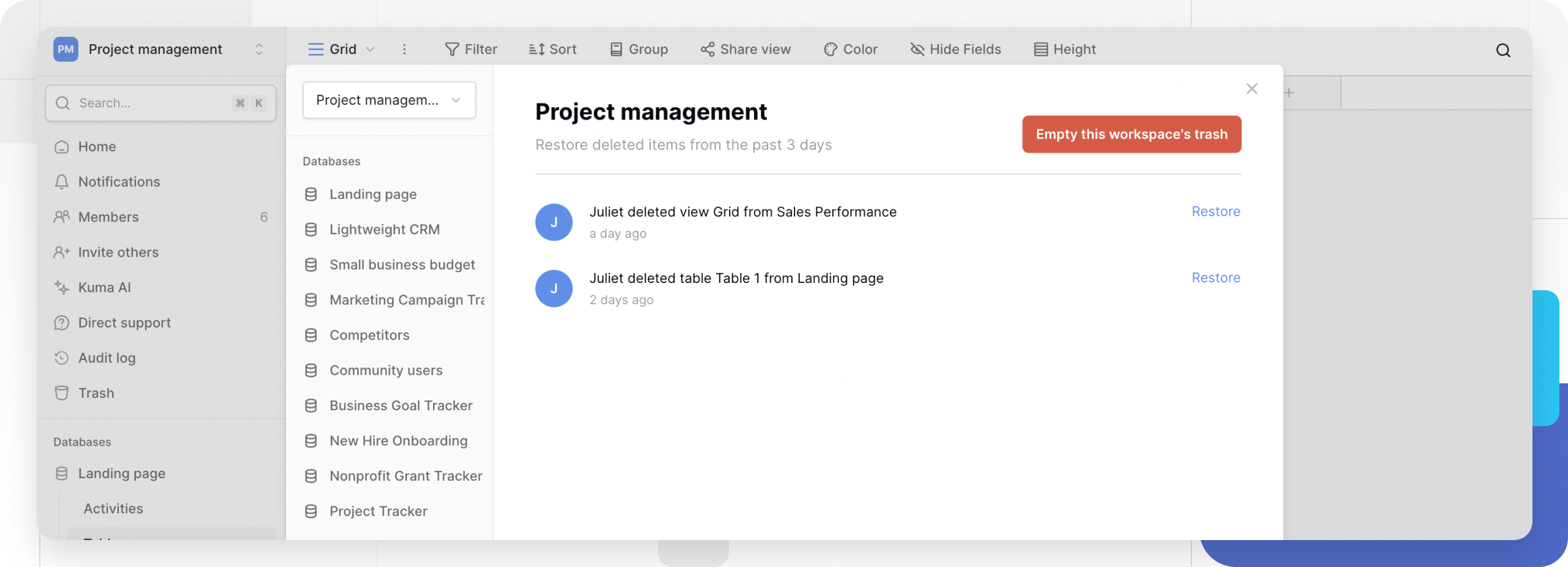
- Trash lists every item deleted in the past 3 days.
- Each entry shows what was deleted, where it came from, when, and who deleted it.
How trash is organized
Trash groups items by workspace. Navigate into a specific workspace to find its deleted databases, tables, views, or fields.
Each trash entry shows:
- deletion timestamp (date and time);
- item type (workspace, database, table, view, field);
- its original location before deletion;
- the member who deleted it;
- how many days remain before permanent removal.
Restoring items from trash
Bring a deleted item back to its original spot straight from the trash view.
How to restore an item
- Open Trash in the sidebar.
- Find the item that needs restoring.
- Click Restore next to it.
- The item returns to its original location right away.
Restored items come back with everything they had:
- workspaces restore with all their databases, tables, and data;
- databases restore with all their tables, views, and fields;
- tables restore with all their rows, fields, and views;
- views restore with all their configuration and filters;
- fields restore with every value in that column.
Who can restore
Workspace admins can restore any deleted item within their workspaces - workspaces, databases, tables, views, and fields alike.
Members with sufficient access can restore items inside the databases or tables they can already reach, but they can’t bring back an entire deleted workspace or database. See Manage Workspace Permissions for how member roles work.
Restore limitations
Past the 3-day mark. Once trash removes an item for good, nothing - not trash, not any other method - brings it back. Export important data regularly to keep a copy outside that 3-day window.
Cell value edits. A changed cell value never reaches trash - reverse it with undo right after the edit, or check row change history if it’s available.
Permanently deleting from trash
Emptying trash removes items for good before the 3-day window would have expired on its own. This action can’t be undone.
Emptying trash
Delete a single item:
- Open Trash.
- Find the item.
- Click Delete permanently next to it.
- Confirm the permanent deletion.
Empty an entire workspace’s trash:
- Open Trash.
- Navigate to the workspace.
- Click Empty this workspace’s trash.
- Confirm to permanently remove everything sitting in that workspace’s trash.
Nothing brings back a permanently deleted item, not even Baserow support - double-check the data really isn’t needed before emptying trash.
When emptying trash makes sense
Freeing up storage. Trashed items still count against storage limits until they’re gone for good.
Clearing sensitive data. Emptying trash is how confidential information actually leaves the system rather than just the visible interface.
Cleaning up mistakes. Permanently remove test data or items created by accident.
Ahead of a workspace handoff. Clear trash before transferring ownership so the new owner can’t pull back old data.
How deletion works for each item type
Every item type has its own deletion flow, with the full steps and consequences covered separately.
- Delete a Database - needs database-level access; removes every table, view, and field inside it.
- Delete a Table - needs table-level access; removes every row, field, and view inside it.
- Delete a Workspace - needs admin rights; removes every database, table, and byte of data in the workspace.
- View Customization - deleting a view removes only its configuration, not the underlying table data.
- Field Customization - deleting a field permanently removes it and every value stored in that column.
Frequently Asked Questions
What happens once the 3-day trash window closes? The item is gone from Baserow’s servers for good and can’t be recovered by any method, including through support. The 3-day period is fixed, with no extension - export anything important before deleting it, or on a regular schedule as a backup habit.
Can I see who deleted a given item? Yes, trash shows the username of whoever deleted each item alongside the deletion timestamp, which makes tracking down accidental deletions straightforward.
Does trash count against my storage limit? Yes, items sitting in trash still count toward workspace storage until they’re permanently removed or the 3-day window closes on its own. Emptying trash is one way to reclaim space when a limit is close.
Can a single field be restored out of a deleted table? Only after the whole table is restored first. Once the table is back, its fields behave normally again - there’s no way to pull one field back without its parent table.
What happens to linked records after a restore? Link-to-table fields reconnect automatically once both linked tables come back from trash. If one of the two tables was already permanently deleted, the link field in the surviving table simply goes empty.
Can another member’s deletion be undone from my session? No, undo and redo only apply to actions taken in your own current browser session - changes another workspace member made never appear in your undo history. A workspace admin can still pull the item back through trash, or check row change history to see who changed what.
How is data kept safe beyond the 3-day trash window? Run table exports , view exports , or a full workspace export on a regular schedule to build backups that outlive the trash window. For automated backups, the Baserow API or webhooks can push data out to an external backup system.
What’s Next
That wraps up the Data Management section - head back to the Baserow documentation overview to pick the next topic.