How to Create a Baserow Database - 4 Simple Methods
Baserow offers four ways to create a database: from scratch, from a ready template, by duplicating an existing database, or by importing data from Airtable - which one fits best depends on whether you already have a data structure in mind or an existing project to migrate.
Before You Start
Creating a database requires a workspace and at least the Member role in it - see Workspaces Overview for how workspace roles work. Before creating one, it helps to decide what you’re tracking (customers, projects, inventory), how many tables you’ll need, whether those tables need to connect, and whether you’re migrating existing data or starting fresh.
| Method | Best for |
|---|---|
| From scratch | A unique project with no matching template |
| From a template | A common use case - CRM, project management |
| Duplicate an existing database | The same structure for a new project |
| Import from Airtable | Migrating existing Airtable data |
Method 1: Create from Scratch
This method gives you full control over the structure and fits best when your requirements don’t match any existing template.
- Open the target workspace in the sidebar.
- Click + Add new.
- Select Database from the menu.
- Enter a descriptive name (for example, “Customer Tracker” or “Q1 Inventory”).
- Click Create.
The new database opens with one default table - from there you can add more tables, define fields of the right type, and populate them manually, by importing CSV or Excel, through forms, or via the API. To connect tables to each other, use link-to-table fields, along with lookup and rollup fields that pull in or calculate values from linked tables.
Method 2: From a Template
Ready-made templates save setup time and demonstrate good table and field design for a common use case - covered in detail in Add a Database from a Template .
Method 3: Duplicate an Existing Database
Duplicating creates an exact copy of a database’s structure and data - useful for giving each team its own copy, building a test environment without touching live data, or archiving a database at a specific point in time.
- Find the database you want to duplicate on the workspace home page.
- Click the three-dot
⋮icon next to the database name. - Select Duplicate database from the menu.
Duplication copies every table along with its data, field settings, views, filters, sorts, groupings, and formulas. The same three-dot menu is also where you’d rename a database if needed.
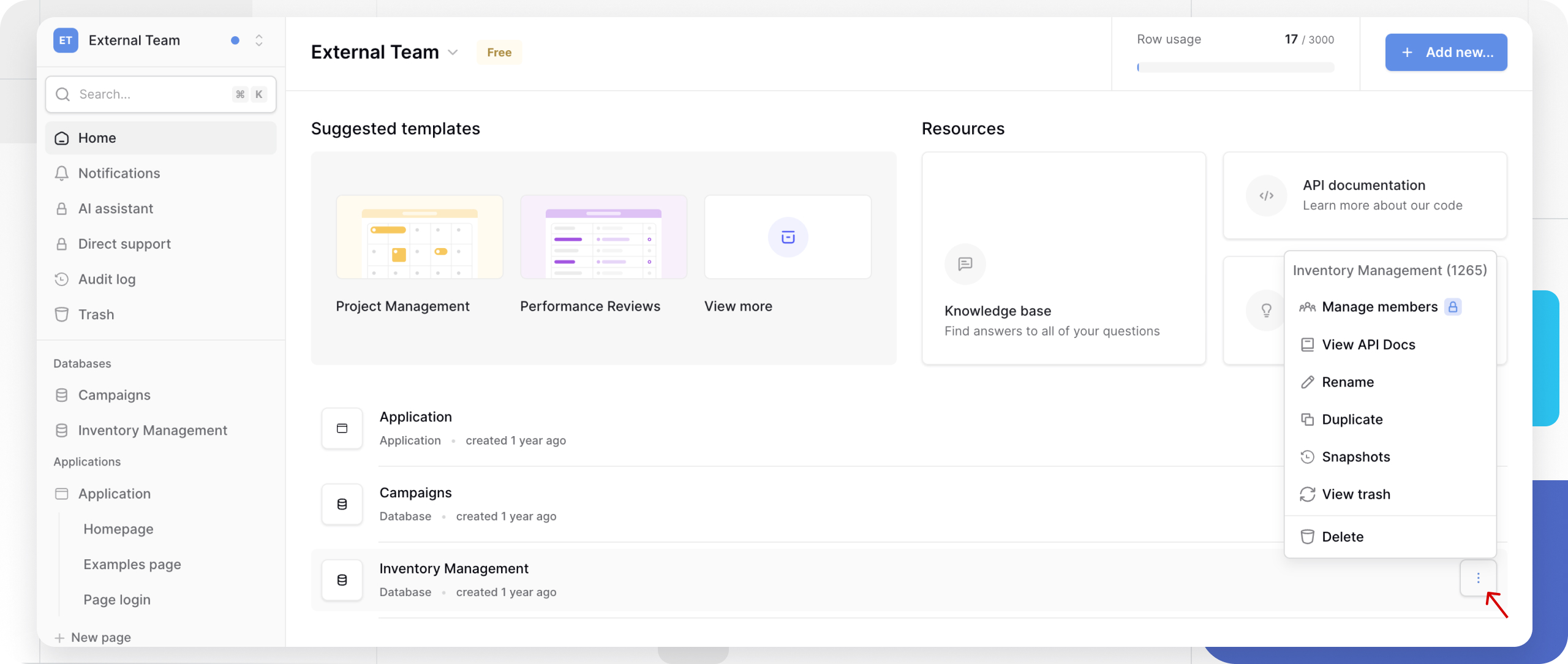
Duplicating a large database can take a few minutes - it copies in the background, so you can keep working while it finishes.
Method 4: Import from Airtable
If you’re migrating a project from Airtable, Baserow can preserve the existing structure and data - the full process is covered in Import Airtable to Baserow .
Frequently Asked Questions
Can I create unlimited databases in a workspace? Yes, there’s no hard limit, but keeping related tables in one database makes managing relationships easier - reserve separate databases for projects that are genuinely independent.
What happens if I delete a database by accident? It moves to the trash and can be restored during the recovery grace period - see Delete a Database for details.
Can I turn one table into its own database? Not directly: export the table as CSV, create a new database, and import the file as a new table - any relationships to other tables in the original database are lost in the process.
How do I pick a creation method? If you need the same structure as an existing database, duplicate it. Migrating data from Airtable? Import it. Solving a common problem like a CRM? Use a template. For everything else, or when you’re still learning Baserow, start from scratch.
Next, read Add a Database from a Template to learn how to browse and install a ready-made template.