Import Airtable to Baserow - Migrate a Base in Minutes
Baserow can migrate an Airtable base in minutes from a single public share link: table structure, data, views, and field types transfer automatically, so there’s no need to rebuild the database by hand.
Before You Import
You’ll need a public share link to the entire Airtable base (not to a single view), a Baserow workspace with sufficient permissions, and enough free storage for bases with a lot of attachments.
How to Import a Base
- Open your workspace home page.
- Click + Add new and select Database.
- Switch to the “Import from Airtable” tab.
- Paste the Airtable share link.
- Click Import from Airtable.
A progress indicator shows during the transfer; for file-heavy bases, enable “Skip importing files” to speed things up. Once it finishes, an import report table lists any items that weren’t imported, or were only partially imported.
If Airtable Requires Sign-In
If Airtable’s organization settings require authentication, you’ll need to manually extract session cookies: open the shared base link and sign in, open your browser’s developer tools, find the airtable.com entry under storage, copy the __Host-airtable-session and __Host-airtable-session.sig cookie values, and paste them into the import dialog.
What Transfers Automatically
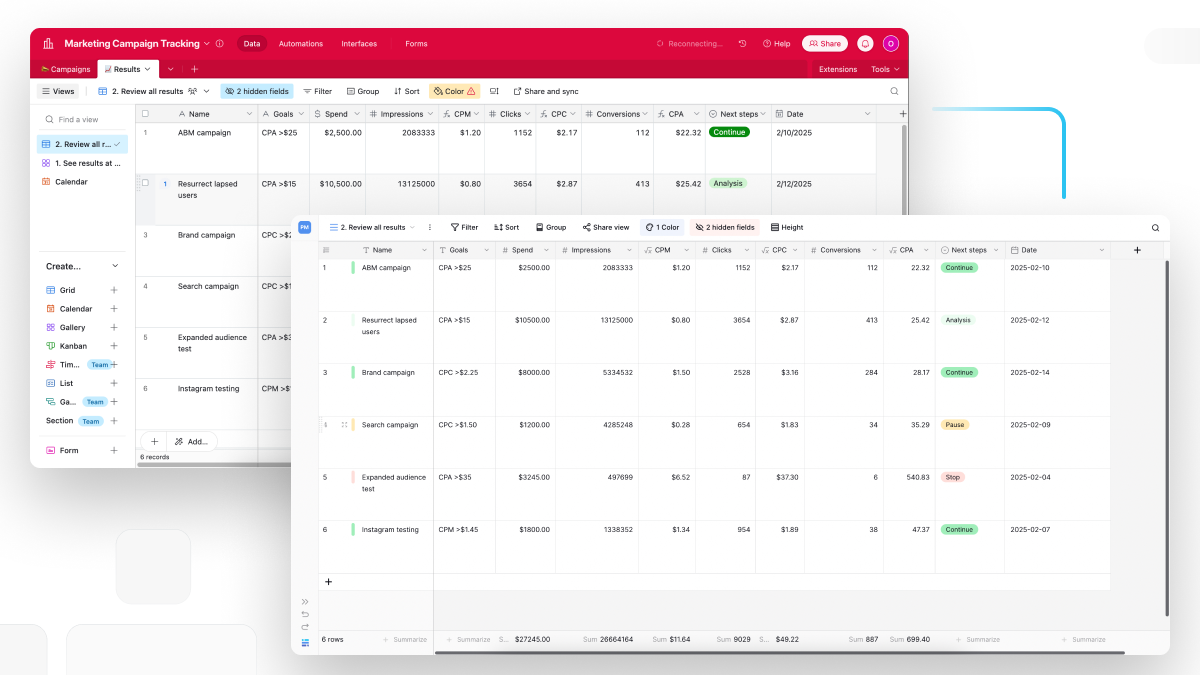
All tables, field types, table relationships, attachments, views, field properties, and row data transfer automatically. A “link to another record” field becomes a link-to-table field, and numeric fields (number, currency, percent, duration) keep their original formatting - decimal places, separators, and symbols.
Fields that don’t transfer and need manual rebuilding: formula fields, lookup fields, rollup fields, collaborator or assignee fields, created-by and last-modified-by fields, button fields, and barcode fields - converting these to text or number fields in Airtable beforehand preserves the underlying data through the import.
After the Import
Compare row counts and spot-check a few records, rebuild any formulas that didn’t transfer (see Baserow’s Core Building Blocks for the basics), and set up views again to match your workflow - grid, gallery, or form, covered in Tables .
Alternatives
If a full migration isn’t necessary, start instead from a ready Baserow template , rebuild the table structure by hand and import only the data as CSV, or combine both approaches.
Frequently Asked Questions
How long does an import take? Small bases import in seconds; large ones (10,000+ rows) can take several minutes.
Does the original Airtable base change? No, the import never touches the source base.
Can I import several Airtable bases in one go? No, each base is imported separately and creates its own independent Baserow database.
Can the same base be imported more than once? Yes, the same share link can be reused as many times as needed - each import creates a new database.
What issues come up most often? Invalid share links, links scoped to a single view instead of the whole base, empty formula fields after the transfer, file timeouts, and differences in label color palettes.
Next, read Delete a Database to learn how to safely remove a database you no longer need.