Baserow Collaborator Field - Assign Rows to Team Members
The Collaborator field lets you pick one or more members of your workspace right inside a cell, making it the most direct way to assign a row - a task, a lead, or a project - to a specific person for ownership or review. This article covers how to add the field, how to turn on assignment notifications, and how it differs from automatic fields such as Created by.
What is a Collaborator field?
A Collaborator field allows you to select one or more users from a list of people who have been invited to your workspace . It’s the best way to directly assign a record (like a task, a lead, or a project) to a team member for ownership or review.
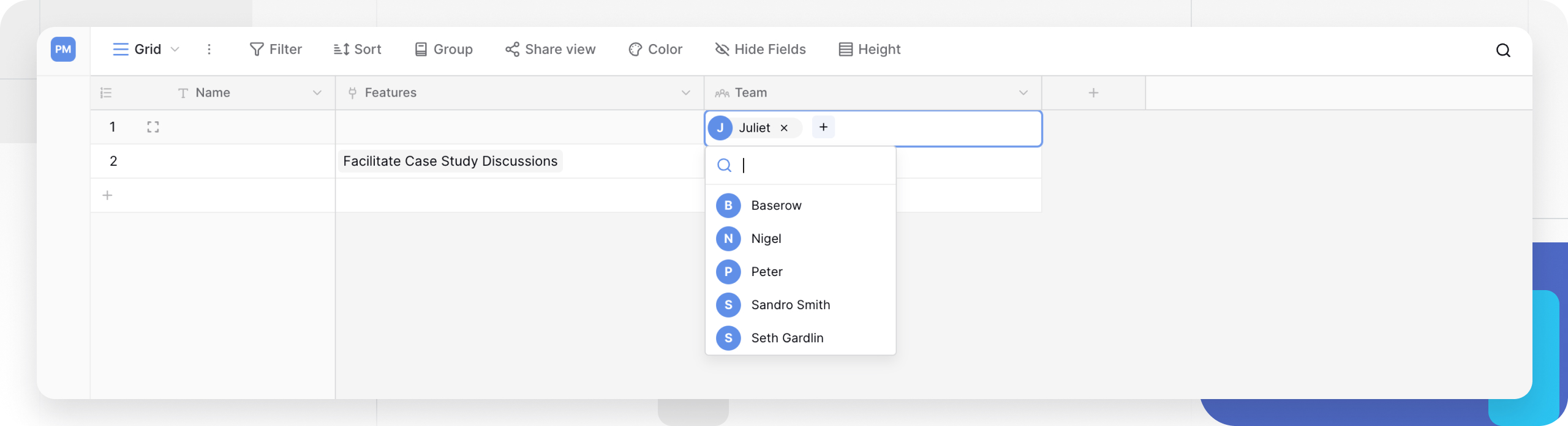
When you click on a cell in this field, a dropdown menu appears showing all members of the current workspace. You can then select one or more people to tag them on that specific row.
This field is perfect for assigning tasks in a project management table, tagging a sales lead to a specific account executive, or identifying a content author in an editorial calendar.
How to add and use the Collaborator field
Add the field
- In your table, click the plus sign
+to add a new field . - Select Collaborator from the field type dropdown menu.
- Give the field a name (e.g., “Assigned To” or “Owner”).
- Click Create.
Configure notifications
When creating or editing the field (by clicking the dropdown arrow next to its name and selecting “Edit field”), you will see an option to “Notify user when added”.
When enabled, the workspace member will receive an in-app notification (and an email, based on their personal notification settings) every time they are assigned to a row using this field.
This is perfect for task management or any workflow where you need to actively alert a user that a new item requires their attention.
Assign collaborators
Once the field is added, you can start assigning people:
- Click on any cell in the collaborator column.
- A dropdown list of all current workspace members will appear.
- Click on a user’s name to assign them. You can select multiple users for the same row.
To remove an assigned user, click the x on their name token in the cell.
Frequently asked questions
Can I assign multiple collaborators to one row? Yes. The Collaborator field allows you to select one or more users from the workspace list for a single cell.
What’s the difference between a Collaborator field and a Created by field? They serve different purposes. The Collaborator field is a manual field - you choose who to assign to a row. The Created by field is an automatic field - it logs the user who originally created the row and cannot be changed by hand.
Can I assign someone who is not in my workspace? No. The Collaborator field can only display and assign users who have been successfully invited to and joined your workspace.
What happens if a user is removed from the workspace? If a user is removed from the workspace, their name is also removed from any records they were assigned to in Collaborator fields.
What’s next
To surface data from a linked table, read about the lookup field , or to count related rows move on to the count field article. For an automatic alternative to manual assignment, see the Last modified by field .