Baserow Date Field - Formats, Calendar, and Auto Timestamps
Baserow handles dates through three related field types: a regular date field with manual entry and a calendar picker, plus two automatic timestamps that track when a row was created and when it was last edited. This article covers how to add a date field, which date and time formats are available, how the automatic fields differ from manual entry, and how timezone settings affect the value you see.
Overview
The three field types cover different scenarios for working with dates and times:
- Date field (manual): An editable field where a person types a date and time directly or picks one from a calendar. Suited to deadlines, birthdays, or project start dates.
- Created on (automatic): A non-editable field that captures the moment a row was added to the table.
- Last modified (automatic): A non-editable field that records the moment a row was last edited.
Date field (manual)
Adding a date field
To add a date field:
- Click the plus sign (+) in your table.
- Select Date from the field type list.
- Name the field (for example, “Deadline” or “Start date”).
- Click Create.
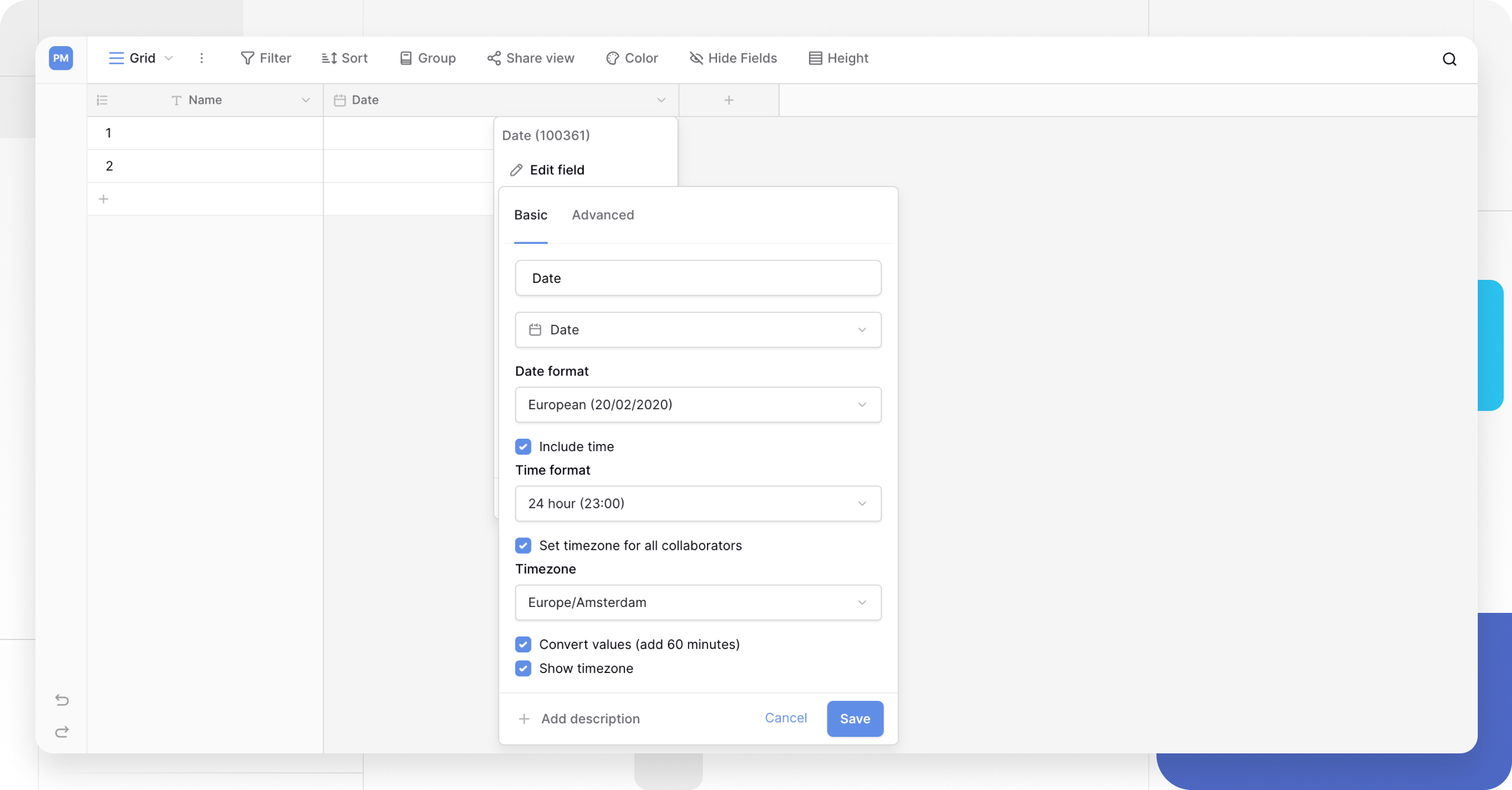
Filling in the date field
There are two ways to set a value:
- Manual entry: type the date directly into the cell.
- Calendar picker: click the cell to open an interactive calendar for picking a date and time.
Format options
Date formats
| Format | Example |
|---|---|
| European | DD/MM/YYYY (20/02/2020) |
| US | MM/DD/YYYY (02/20/2020) |
| ISO | YYYY-MM-DD (2020-02-20) |
Time formats
The “Include time” toggle adds a time component to the field:
- 24-hour: for example, 23:00.
- 12-hour: for example, 11:00 PM.
The date and time format is set once for the whole field and applies to every row the same way - change it later from the field’s configuration menu .
Created on field
This automatic field shows the exact date and time a row was created. It cannot be edited manually, which makes it useful for auditing, tracking new entries, or sorting by creation date. Formatting works the same way as on the manual date field.
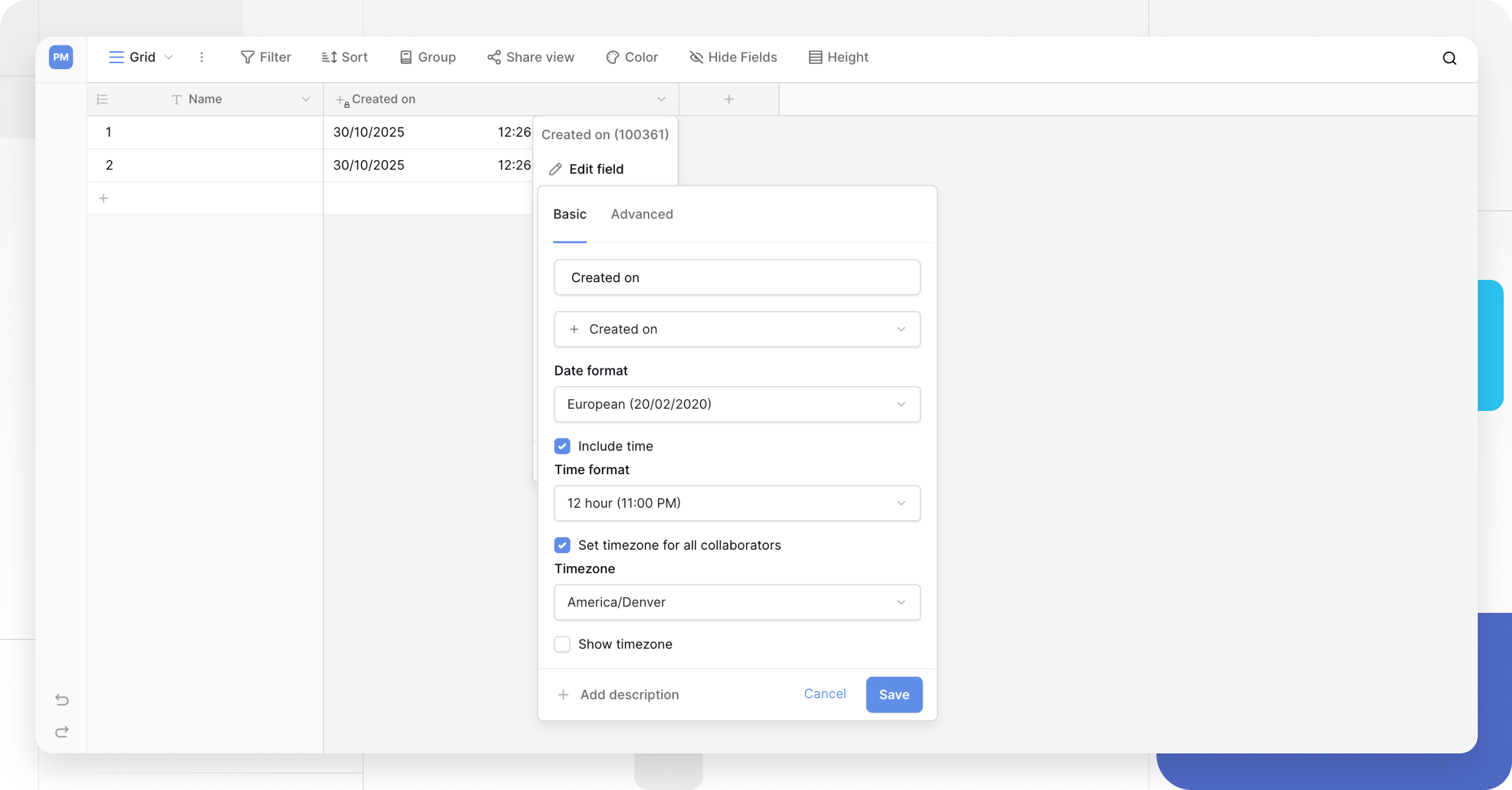
Last modified field
The last modified field works on the same principle as created on, but it updates automatically every time a row is edited rather than only once when the row is added. For the full breakdown of its settings and behavior, see the dedicated Last Modified Field article.
Timezone behavior
By default, the date field and the created on field display time based on your computer’s local timezone. If a workspace has members across several regions, it is worth setting a consistent timezone at the field level - see Working with Timezones for the details.
Filtering on date fields
Date fields support filter operators such as “is before,” “is after,” “is within,” and “is today,” which makes it straightforward to build views around deadlines or recent changes. The full operator list and examples of combining conditions live in the Advanced Filtering article.
What’s next
To connect a date field with the rest of your table settings, read Field Configuration , or jump to Advanced Filtering to build views around date criteria.