Baserow Duration Field - Time Tracking Formats and Formulas
The Duration field stores a length of time - 2 hours 30 minutes, 45 seconds, or 3 days - as its own data type rather than a plain number, supports negative values, and can display time in ten formats ranging from h:mm to d h m s. This article covers what a Duration field is, how to add it and enter data, the display formats available, and how to use durations inside formulas.
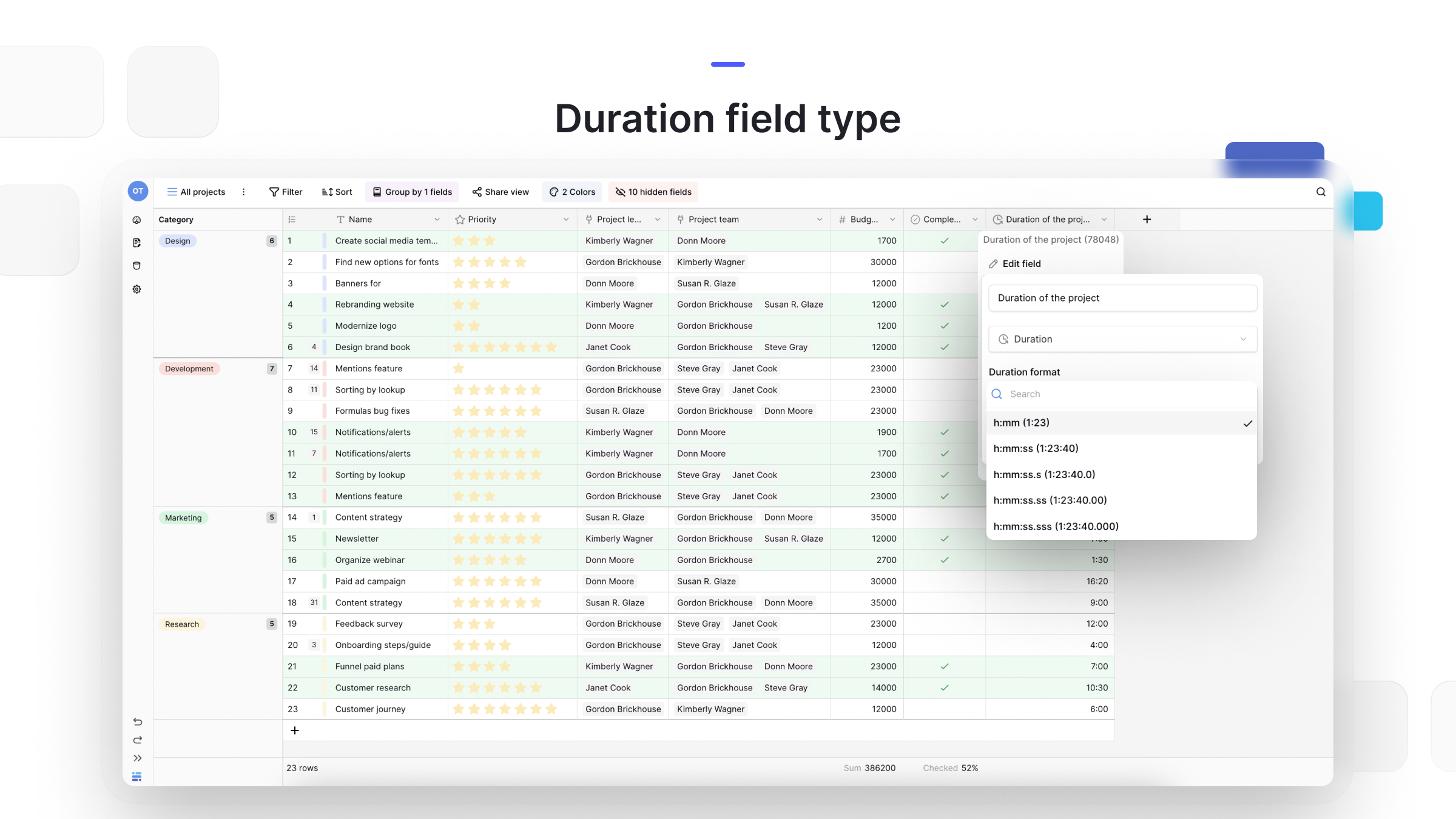
What is a Duration field
A Duration field is designed to store a length of time, such as 2 hours and 30 minutes, 45 seconds, or 3 days.
Unlike a number field , it understands time-based units, so it lets you format the display and run time-based calculations. This is ideal for tracking task or project duration, call or meeting length, event or video length, or time logs.
The Duration field also supports negative values, which can be useful for time-based adjustments or countdowns.
How to add a Duration field
- In your table, click the plus sign
+to add a new field . - Select Duration from the field type dropdown menu.
- Name your field (for example, “Task Length”).
- Click Create.
How to enter data
You can enter durations in a cell using several formats:
- Smart entry: type the time using abbreviations (for example,
1h 30m,3d 45s,1:23:45); - In seconds: enter a plain number (for example,
90) - the field interprets this as seconds and auto-formats it based on your settings (for example,1:30).
To enter a negative duration, add a minus sign (-) before the value (for example, -1h 30m).
Duration formats
You can customize how the duration is displayed from the field configuration menu . This is useful for standardizing how the data looks without changing the underlying value.
| Format | Example | Description |
|---|---|---|
h:mm | 1:23 | Hours and minutes |
h:mm:ss | 1:23:40 | Hours, minutes, and seconds |
h:mm:ss.s | 1:23:40.0 | …and deciseconds |
h:mm:ss.ss | 1:23:40.00 | …and centiseconds |
h:mm:ss.sss | 1:23:40.000 | …and milliseconds |
d h | 1d 2h | Days and hours |
d h:mm | 1d 2:34 | Days, hours, and minutes |
d h:mm:ss | 1d 2:34:56 | Days, hours, minutes, and seconds |
d h m | 1d 2h 3m | Days, hours, and minutes (abbreviated) |
d h m s | 1d 2h 3m 4s | Days, hours, minutes, and seconds (abbreviated) |
Using Duration fields in formulas
Duration fields work seamlessly with formula fields for calculations.
- Math operations: use multiplication (
*) and division (/) to scale a duration (for example,field('Task Length') * 3); - Date calculations: you can find the time between two dates - a formula like
today() - field('Start Date')results in a duration, which you can then format as days; - Converting to a number: the
tonumber()function converts a duration into its total number of seconds, which is essential for more complex calculations, such as an hourly rate:field('Project Fee') / (tonumber(field('Time Logged')) / 3600).
Frequently asked questions
What’s the difference between a Duration field and a number field? A number field
stores a plain number (for example, “1.5”). A Duration field understands time units and stores “1 hour 30 minutes.” Use a Duration field when you need to log time and display it in a human-readable format (h:mm:ss) rather than as a decimal.
How do I sum a column of Duration values? To get a total duration across linked records, use a Rollup field
: in the rollup configuration, select your Duration field and use the sum function.
How do I enter negative durations? Simply type a minus sign (-) before your entry, just as you would with a number field (for example, -1h 30m or -90).
What’s next
Once you’re comfortable tracking time with the Duration field, compare it against a number field , or check date and time fields for storing specific moments instead of spans. The Baserow field types overview helps you weigh duration against other computed and basic data types.