Baserow File Field: Upload and Manage File Attachments
The File field lets you attach several files of any type - images, documents, videos - to a single table row, and it stores an actual copy of each upload rather than a link, generating thumbnails automatically for every supported format. This article covers how to add a File field, three ways to upload files into it, how to manage files already uploaded, and how it differs from simply linking out with a URL field.
Overview
A File field doesn’t store a link to an outside resource - it stores the file itself. Baserow accepts images, documents, and videos, keeps them in its own storage, and generates a thumbnail right inside the table cell whenever the format supports a preview.
Filenames longer than 64 characters are truncated, with the middle of the name replaced by an ellipsis.
How to add a File field
- Add a new field to your table.
- Select File from the field type list.
- Name the field, for example “Attachments” or “Product photo”.
- Click Create.
How to upload files
Upload from your device
Baserow supports three upload methods:
- Cell uploader. Click the
+icon in a cell to open the file dialog - pick a file with a click or drag it into the drop zone. - Direct drag-and-drop. Drag a file from your computer straight onto a File field cell.
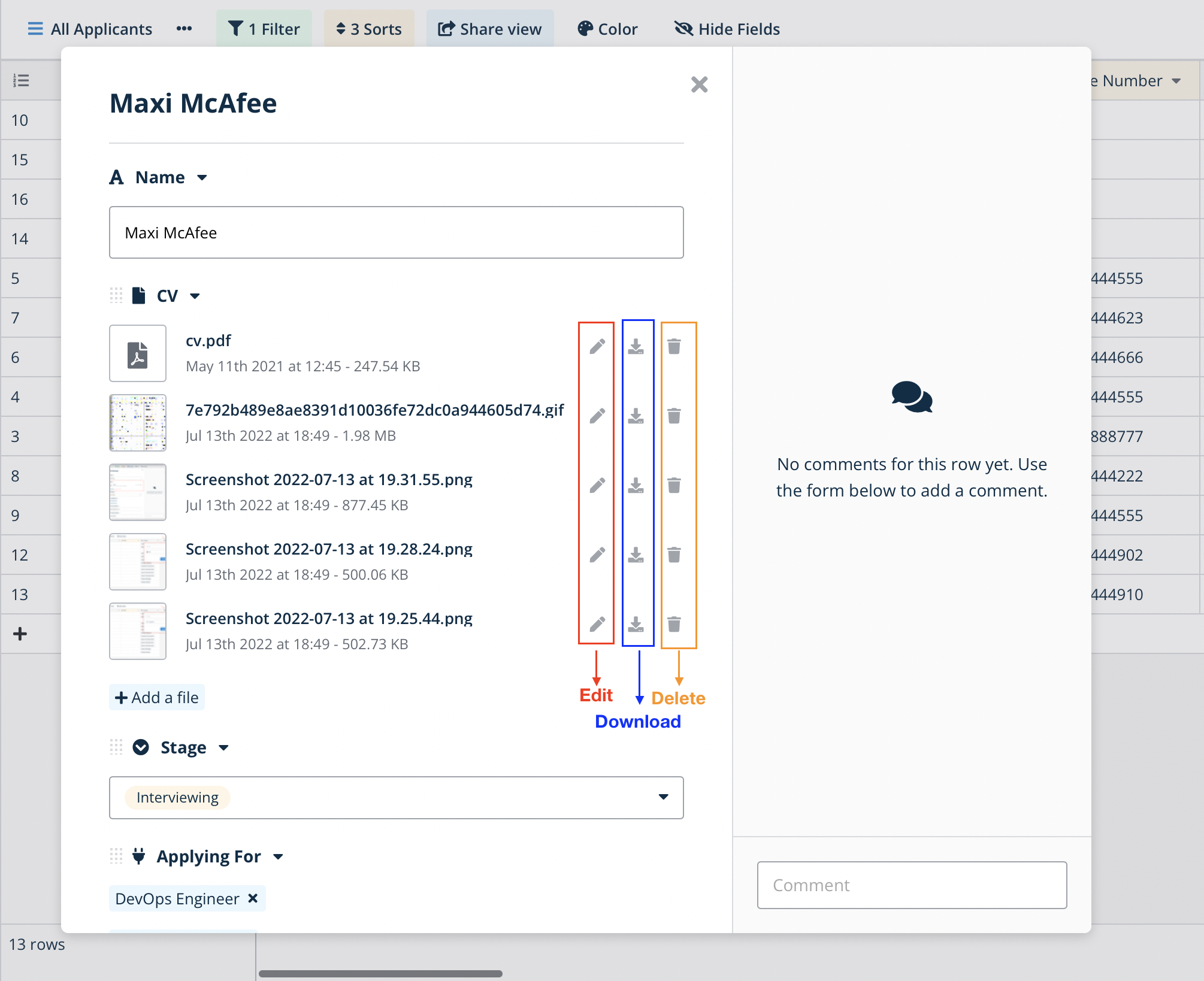
- Enlarged row view. Open the expanded row and click “Add a file” or drag files into the upload box.

Upload from a URL
- Click the
+icon in the cell. - Choose a URL at the bottom of the dialog.
- Paste the file’s public URL.
- Click Upload.
Managing uploaded files
Manage files from the enlarged row view by hovering over a file to reveal its action icons.
- Rename. Click the pencil icon.
- Download. Click the download icon to save the file to your device.
- Delete. Click the trash icon to remove the file from the field.
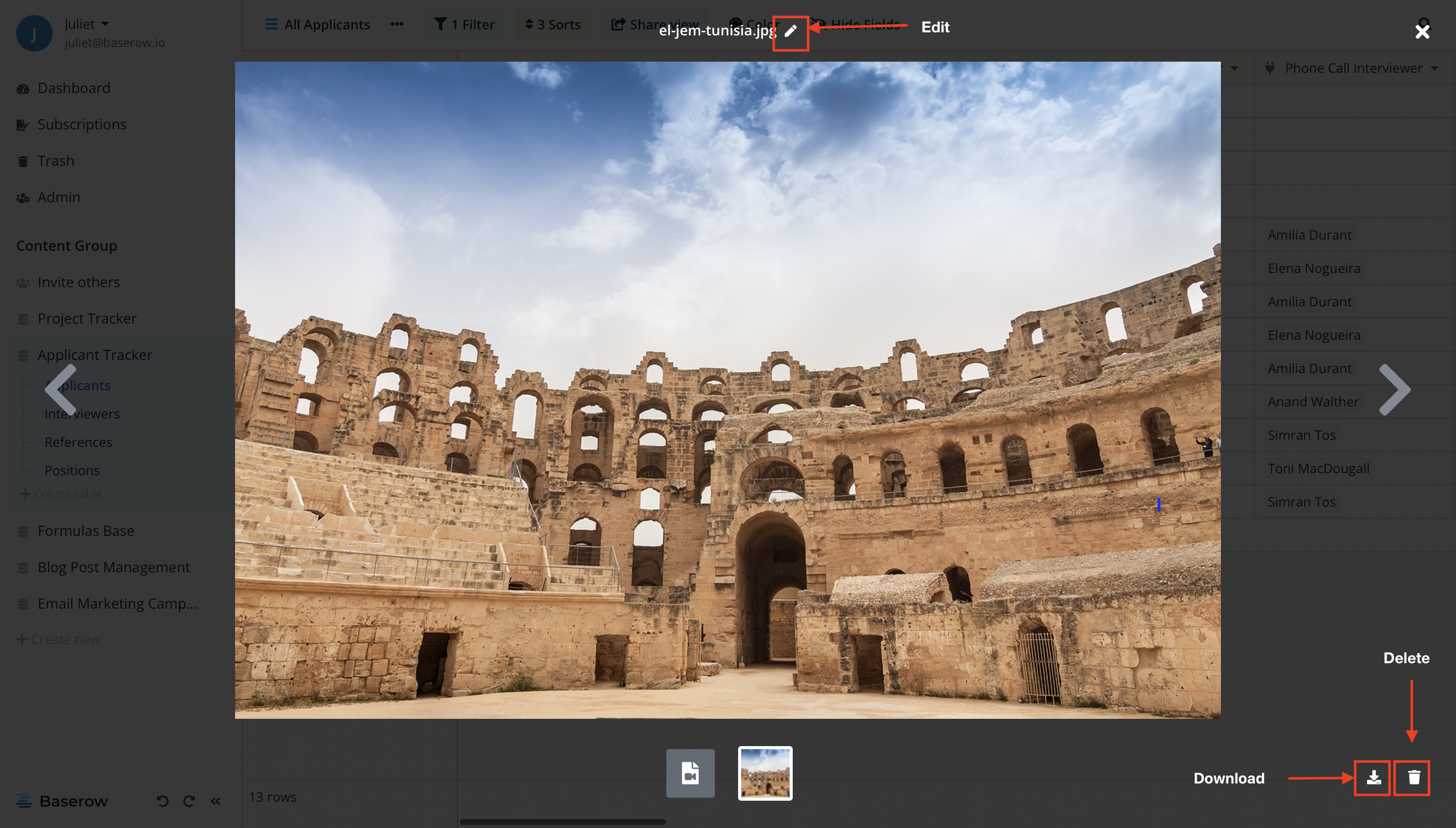
Clicking a file opens a full-screen preview with the same management actions available.
Previews and supported file types
For every supported format, Baserow generates a thumbnail automatically, visible right inside the table cell.
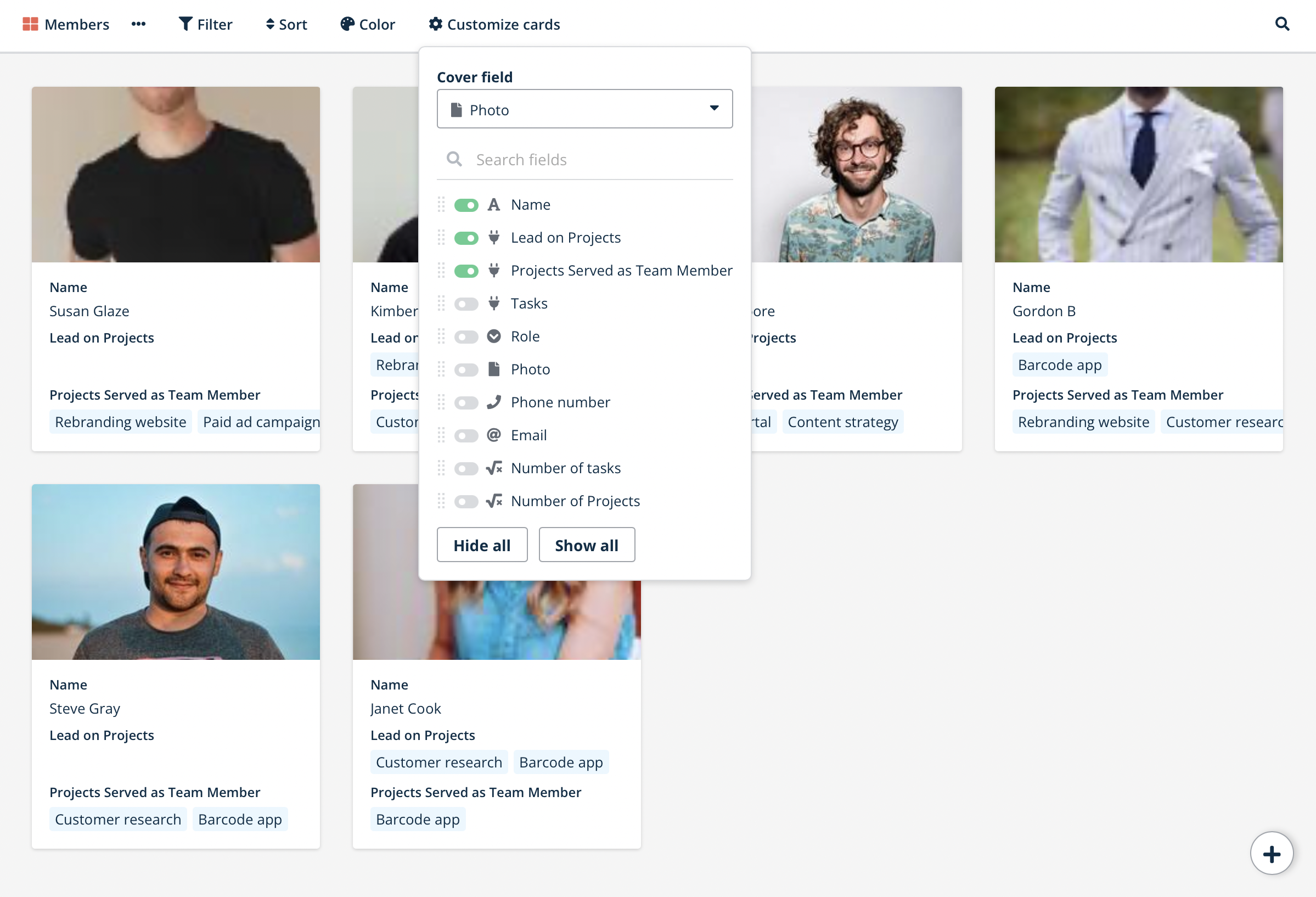
Preview generation covers:
- Images: .png, .heic, .jpg, .webp, .gif, .svg, .psd, .tiff
- Documents: .doc, .docx, .xls, .xlsx, .csv, .txt, .pdf
- Presentations: .ppt, .pptx (without embedded video)
- Audio and video: .mp3, .mp4, .webM, .ogg, .ogv
- Other: .xml
Pulling an image from a website URL
To fetch a logo or preview image automatically from a domain, write a formula that calls a service such as Clearbit or Google: concat('https://logo.clearbit.com/', field('Website')) returns a company’s logo address from the domain stored in a URL field. Keep in mind the formula only produces a link - to get an actual file stored inside the File field itself, you still need to upload it using one of the methods above.
Frequently asked questions
What’s the file size and storage limit? On a self-hosted instance the default maximum is 1TB per file, configurable through the BASEROW_FILE_UPLOAD_SIZE_LIMIT_MB environment variable.
How does the File field differ from the AI field? The File field is about storing uploaded files, while the AI field runs generation tasks that can take a file or a URL as input.
Can I just use a URL field to link to a file instead? A URL field only stores a link, so if the source file moves or gets deleted, the link breaks. A File field uploads and keeps its own copy inside Baserow, so nothing can break the reference and previews generate on their own.
Related content
What’s next
Any image uploaded to a File field can become the cover image on a card in gallery view , and the enlarged row view is the easiest place to manage attachments already on a row. To see where the File field sits among every other type, go back to the Baserow field types overview .