Link to Table Field in Baserow - Connect Rows Across Tables
The Link to table field is the most powerful way to build relationships between Baserow tables: it connects rows in one table to rows in another (or the same) table and unlocks lookup and rollup fields on top of that link. This article covers what the field is and why you’d use it, how to create it and link rows, the customization options - one-way linking, one-to-one relationships, limiting selection to a view - and how to work with the row select modal.
Learn more about field settings in Field configuration .
A Link to table field cannot be set as a table’s primary field .
What is a Link to table field
A Link to table field creates a dynamic connection between a row in one table and one or more rows in another table (or even the same table). This lets you build genuine relational databases and avoid redundant, out-of-sync data.
For example, say you have a Customers table and an Orders table. Instead of retyping a customer’s name and email into every row of the orders table, you link each order to the matching record in the customers table with a Link to table field.
That connection lets you:
- see every order tied to a specific customer at a glance;
- pull customer data (such as email) into the orders table automatically with Lookup and Rollup fields;
- change a customer’s name once in the customers table, and it updates everywhere the link points.
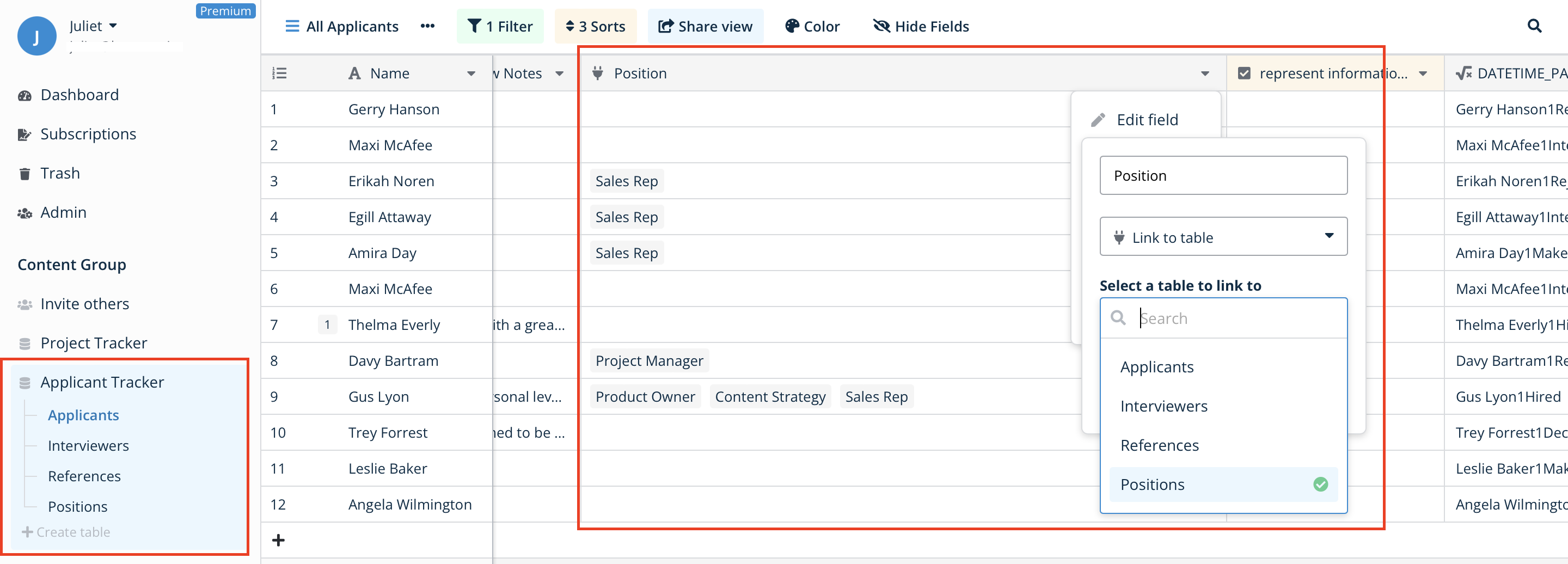
How to create a Link to table field
- In your table, click the plus sign
+to add a new field . - Select Link to table from the field type dropdown.
- In the Select a table to link to dropdown, choose the table you want to establish a relationship with.
- Click Create.
Baserow creates the link automatically. A corresponding new field also appears in the table you linked to, showing which rows connect back to this one.
How to link and unlink rows
Once the field exists, you can start linking records:
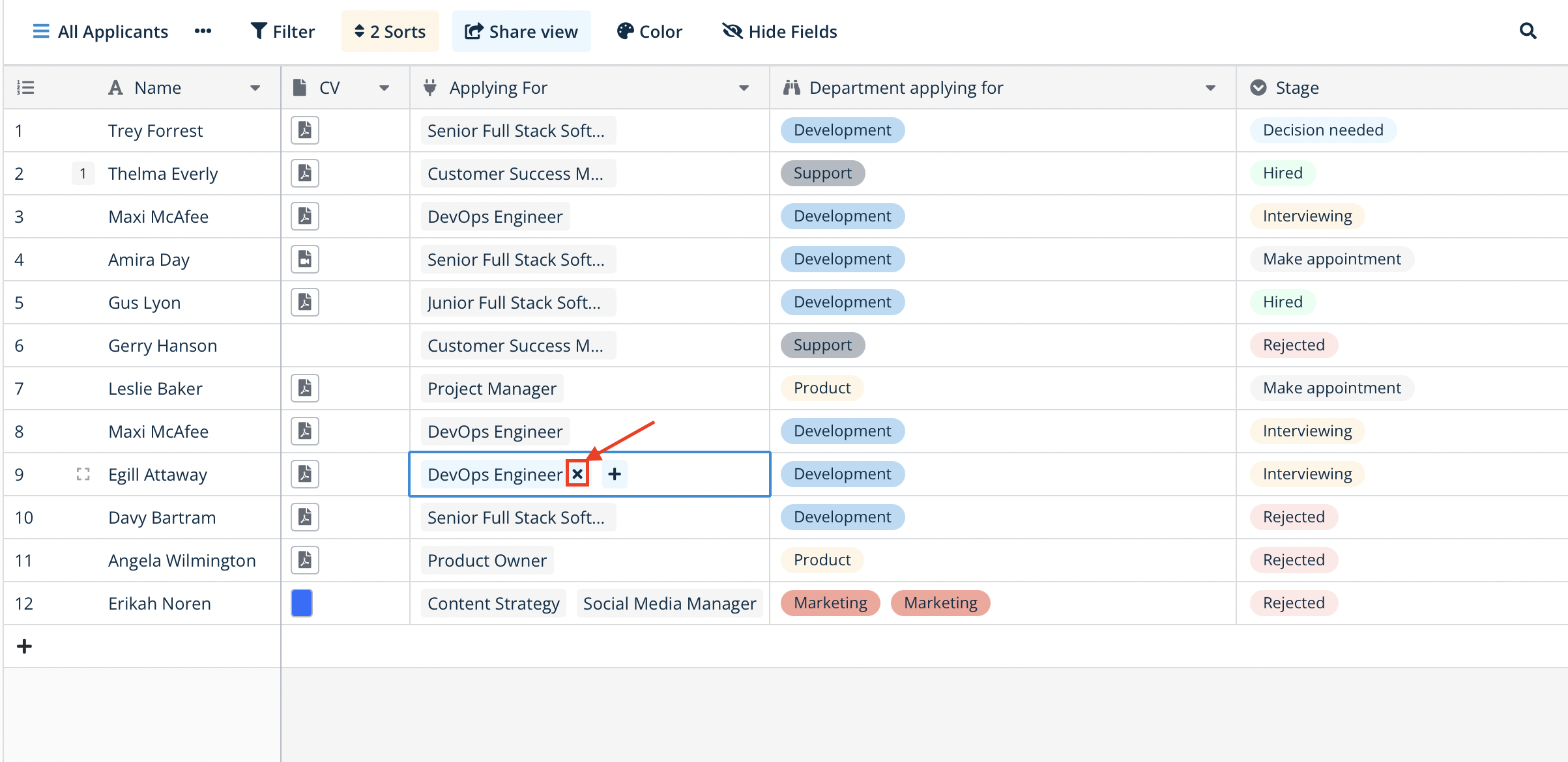
- Click the + button inside a cell in the Link to table column.
- This opens the row select modal, listing every row in the linked table.
- Click one or more rows to select them. The modal closes and the selected rows appear in the cell as colored tokens.
To unlink a row, click the x on the token of the row you want to remove.
Field customization options
You can configure a Link to table field to control how many relationships it allows and which rows are available to select. Learn more in Field configuration .
Control related field creation (one-way linking)
When you create a Link to table field, Baserow’s default behavior is to create a reciprocal field in the linked table, producing a two-way link - standard for most relational databases.
You can turn this off. In the field creation or edit menu, there is a checkbox Create related field in linked table (enabled by default).
Checked (default)
This creates the standard two-way link. Linking a “Tasks” table to “Projects” creates a “Tasks” link field inside the “Projects” table. This is the recommended setting for most use cases, since it lets you see the relationship from either table and use Lookup or Rollup fields in both directions.
Unchecked (one-way link)
If you uncheck this box, Baserow only creates the link field in the current table (for example, the “Projects” field inside “Tasks”). The linked “Projects” table does not get a new “Tasks” field.
This is useful for keeping central reference tables clean. If ten different tables (Tasks, Issues, Documents, and so on) all link to a single “Categories” table, unchecking the box keeps “Categories” from accumulating ten separate reciprocal link fields.
A one-way link means you cannot see the relationship from the linked table. You also cannot add a Lookup or Rollup field in “Projects” to pull data from “Tasks,” because the required link field doesn’t exist there.
One-to-one relationships
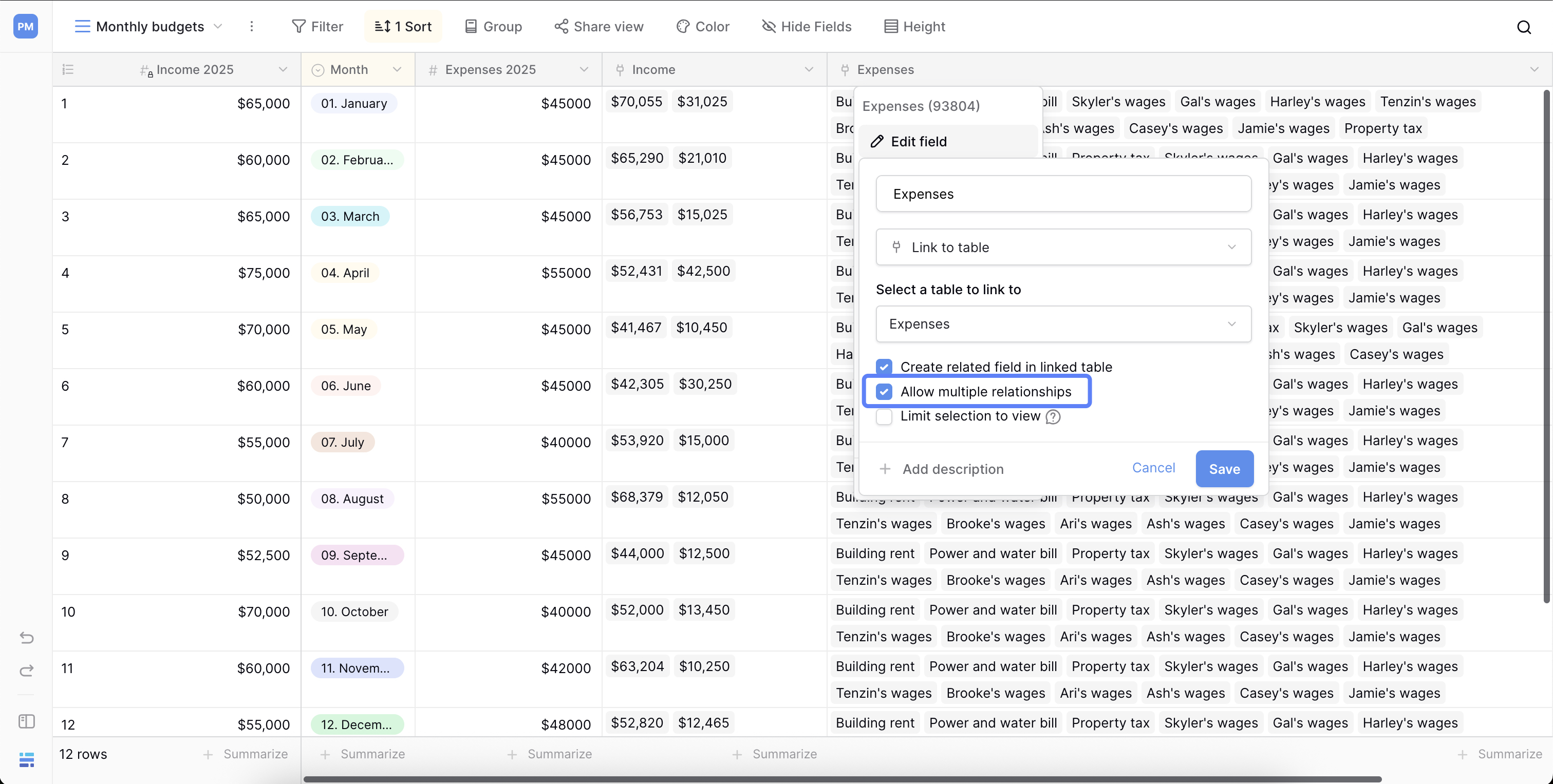
By default, a Link to table field lets you link multiple rows - a many-to-many relationship. You can restrict this to a one-to-one relationship by unchecking Allow multiple relationships during field setup, or later while editing the field.
This is useful when your data model calls for exactly one link, such as pairing one “Project” with one “Project manager.”
Limit selection to a view
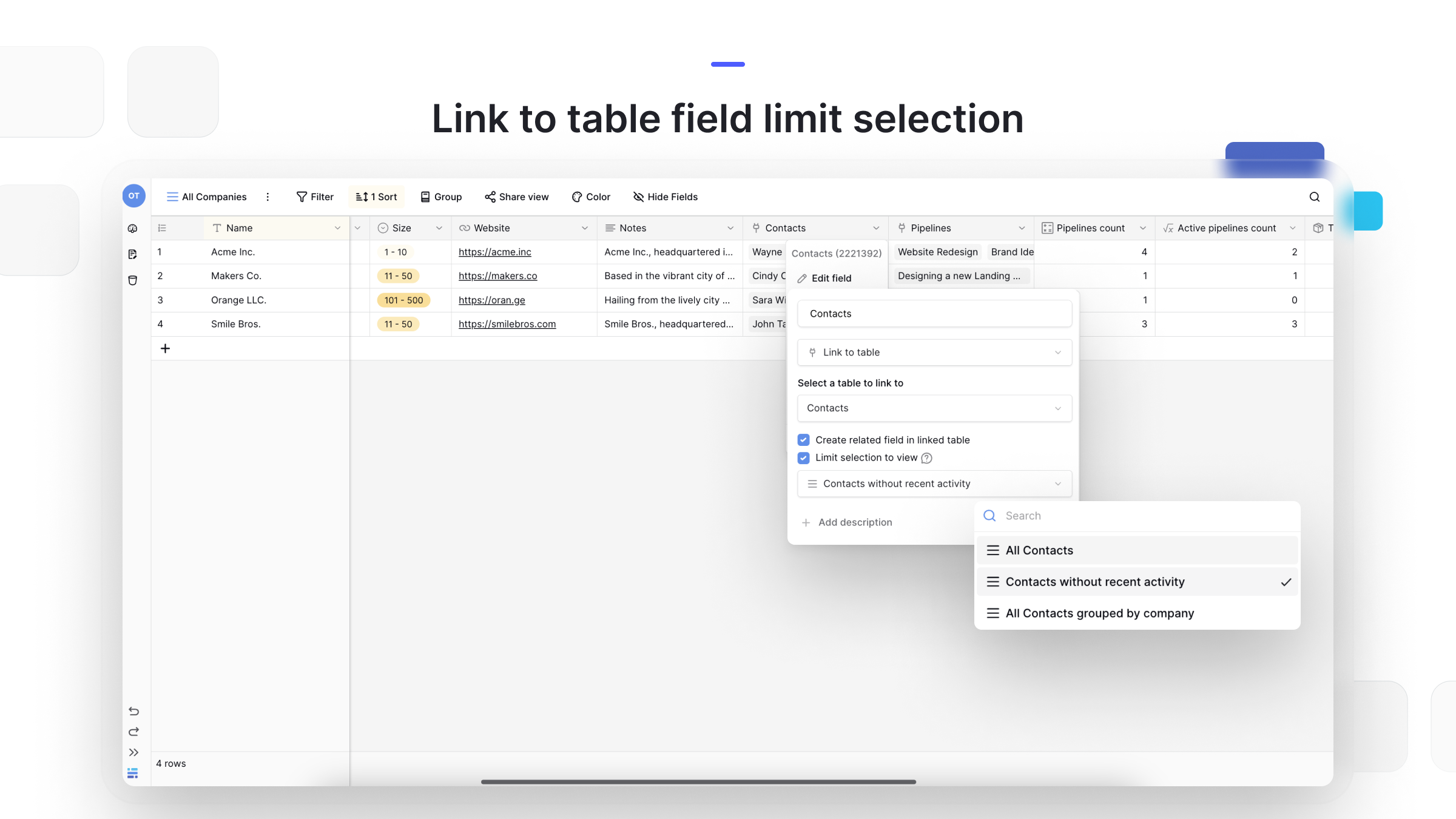
You can restrict which rows are available to link by limiting selection to a specific view . This is handy for making sure people only choose from relevant, pre-filtered data.
- Click the dropdown arrow next to the field name and select Edit field.
- Find the Limit selection to view option.
- Open the dropdown and choose the view you want to use for selecting rows.
Self-referencing links
You can link a table to itself. This unlocks use cases such as:
- linking “Tasks” to “Subtasks” within the same table;
- building an org chart by linking “Employees” to their “Managers.”
To set this up, choose the same table you’re currently in from the Select a table to link to dropdown.
Using the row select modal
The row select modal is where you find and manage linked records.
Create new rows on the fly
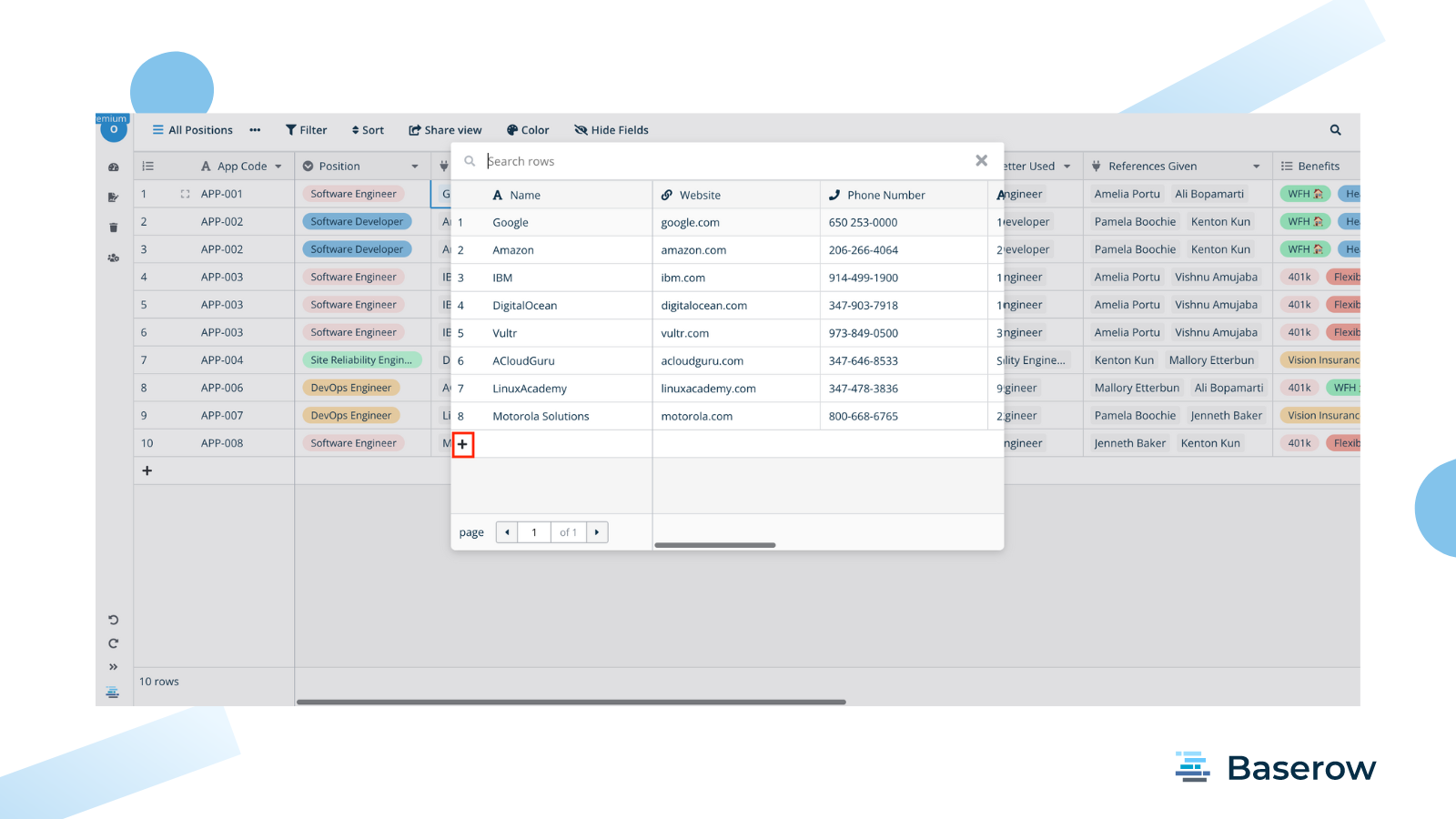
If the record you want to link doesn’t exist yet, create it directly from the modal. Click the + button at the bottom of the modal to add a new row to the linked table - it’s linked automatically.
Customize modal fields
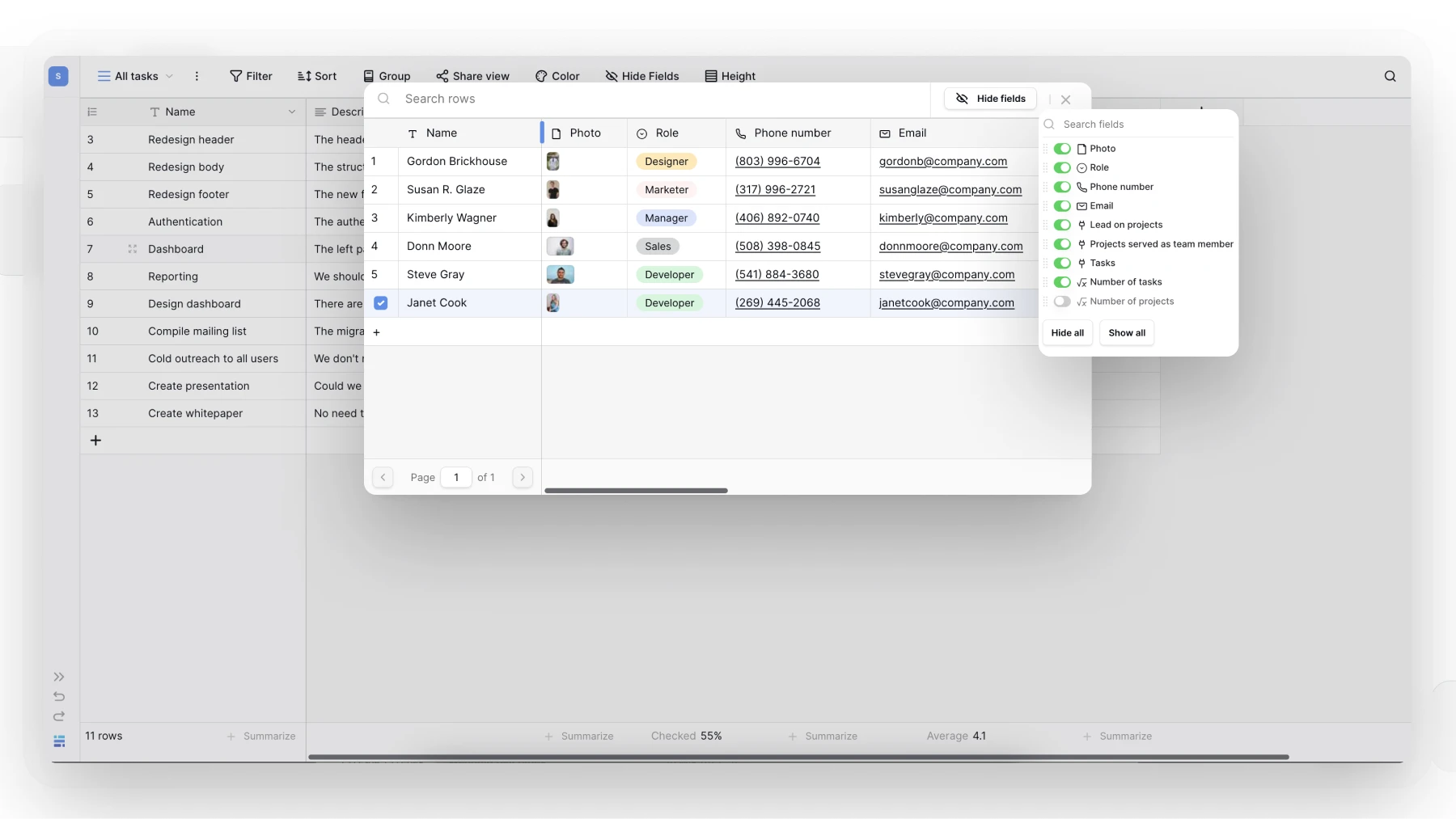
You can tailor the modal to surface the most relevant information. Click the "…" icon (or the “Hide fields” button) inside the modal to adjust field widths, hide fields you don’t need, and reorder the rest.
Search and navigate
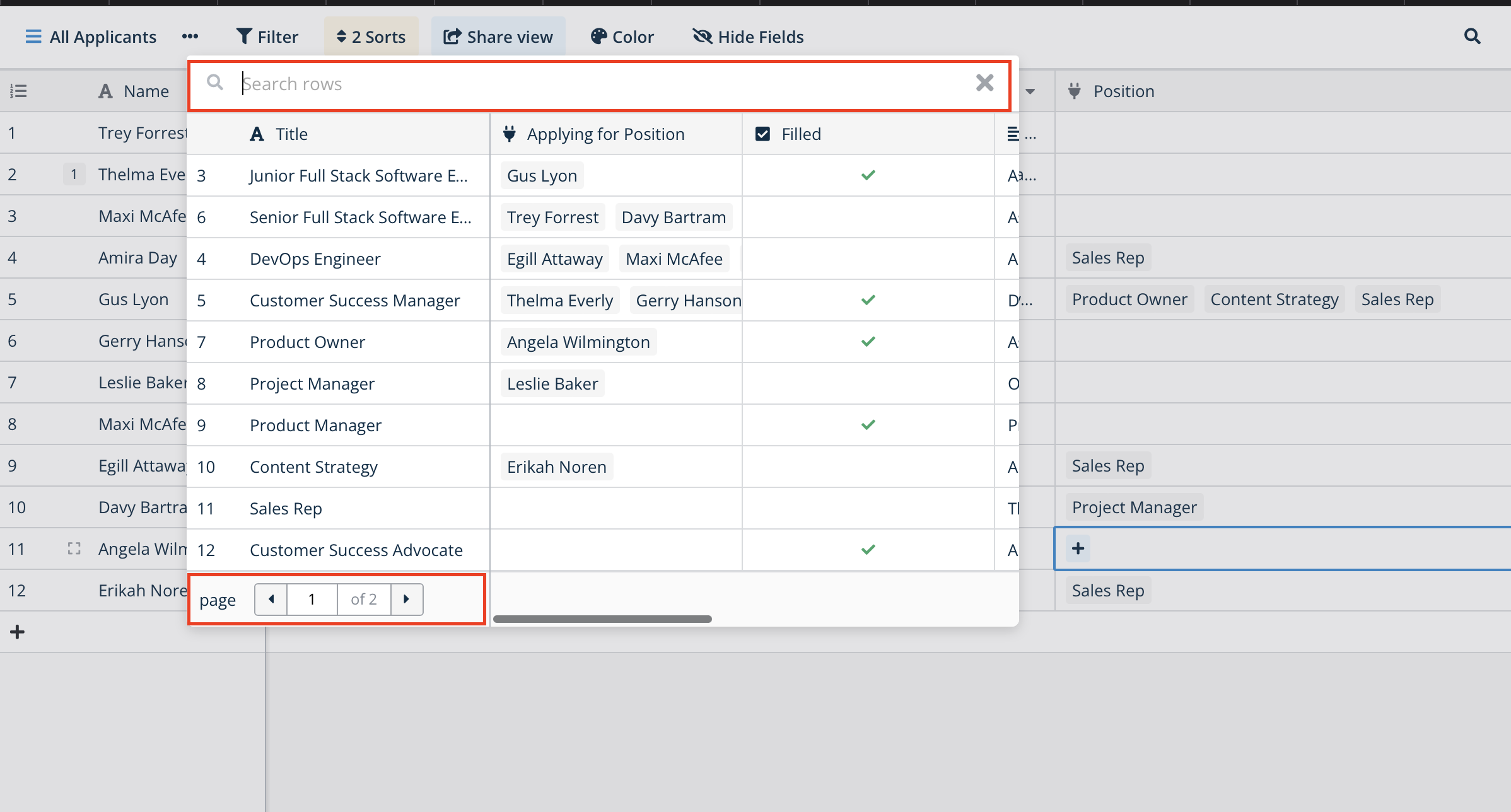
When the linked table has many rows, use the search bar at the top of the modal to jump straight to the record you need. Once a table has more than 10 rows, navigation arrows appear as well.
Related features
Enlarge a linked row
Click a linked row’s token and an enlarged view of that record opens - a full row detail modal. You can inspect every detail of the linked record without leaving your current table, and you can click links inside that modal to stack several enlarged views on top of each other.
Convert an existing field
You can convert an existing field, such as a text field, into a Link to table field.
Warning: this conversion can delete all existing data in that field. Back up your data first - duplicating the field is an easy way to do that - before converting.
To convert a field, open the dropdown, select Edit field, and change the field type to Link to table. Baserow then prompts you to choose the table to link to.
Bulk-link rows
You can link records in bulk: copy a list of names from Excel or Google Sheets that match the linked table’s primary field , then paste the list directly into the link field in Baserow. Baserow automatically searches for and links the matching records.
Frequently asked questions
What’s the difference between a Link to table field and a Multiple select field? A Multiple select field stores a static list of text options that you define yourself. A Link to table field connects a row to other records in another table. Use multiple select for simple, unchanging tags (for example, “Priority: High”). Use Link to table when your “options” are actually data records in their own right (for example, “Customer: John Smith”).
What’s the difference between Link to table, Lookup, and Rollup fields? You must create the Link to table field first. A Lookup field and a Rollup field both use that link to pull data from the linked records.
- Link to table: creates the relationship (for example, links an “Order” to a “Customer”).
- Lookup: displays a specific field from the linked record (for example, shows the customer’s email inside the orders table).
- Rollup: performs a calculation across the linked records (for example, shows a customer’s total spend).
Is there an automated way to link several rows at once? If a spreadsheet or CSV column lists names (or primary-field values) that match records in the linked table, copy that column and paste it directly into a Link to table field in Baserow. Baserow tries to match the pasted text against existing records and links them - pasting into a link field performs a lookup-and-link operation in one step.
When I link table A to table B, what happens inside table B? If “Create related field in linked table” is checked when you build the link field in table A, Baserow automatically adds a matching link field in table B. That new field shows which rows in table A point back to each record in table B, so the relationship stays visible from either side.
What happens if I delete a row that other tables link to? Deleting a row - a customer record, say - automatically removes every link to that row from other tables, such as an orders table. The link tokens simply disappear from those cells, since the record they pointed to no longer exists.
Can I link several different tables to one table? Yes, you’re not limited to a single link. A “Tasks” table, for instance, could have one Link to table field pointing at “Users” for the assignee and a second one pointing at “Projects” for the project. Add as many Link to table fields as your data model needs.
What’s next
The Link to table field is what Lookup , Count , and Rollup fields build on - without a link, those computed fields have nothing to pull from. Read Lookup field next to see how to surface linked-table data, or go back to the field types overview to compare Link to table against the other relationship options.