Long Text Field in Baserow - Rich Text and Markdown Guide
A long text field stores multi-line content - from a quick note to a full description - and, unlike single-line text, wraps across several lines inside its cell while optionally supporting rich text with Markdown formatting right in the table. This article covers how the field differs from single-line text , how to add and expand it for comfortable editing, how to turn on rich text formatting and which Markdown elements are available, and what happens to formatting when the field feeds a formula.
Overview
A long text field stores multi-line text that wraps across multiple rows inside a table cell. Unlike a single-line text field , which displays its content on one line, long text expands vertically to hold paragraphs, lists, and formatted content.
The field supports either plain text or rich text formatted with Markdown, which makes it a good fit for descriptions, notes, documentation, and any content that needs structure or emphasis beyond plain text.
When to use a long text field
- Product descriptions: multi-paragraph descriptions with formatting;
- Project notes: meeting notes, status updates, detailed documentation;
- Instructions: step-by-step guides, procedures, how-tos;
- Comments and feedback: customer feedback, review notes, internal comments;
- Formatted content: text with headings, lists, bold or italic emphasis.
A long text field is not a good fit for short labels, names, or single-line values - for that kind of content, use single-line text instead.
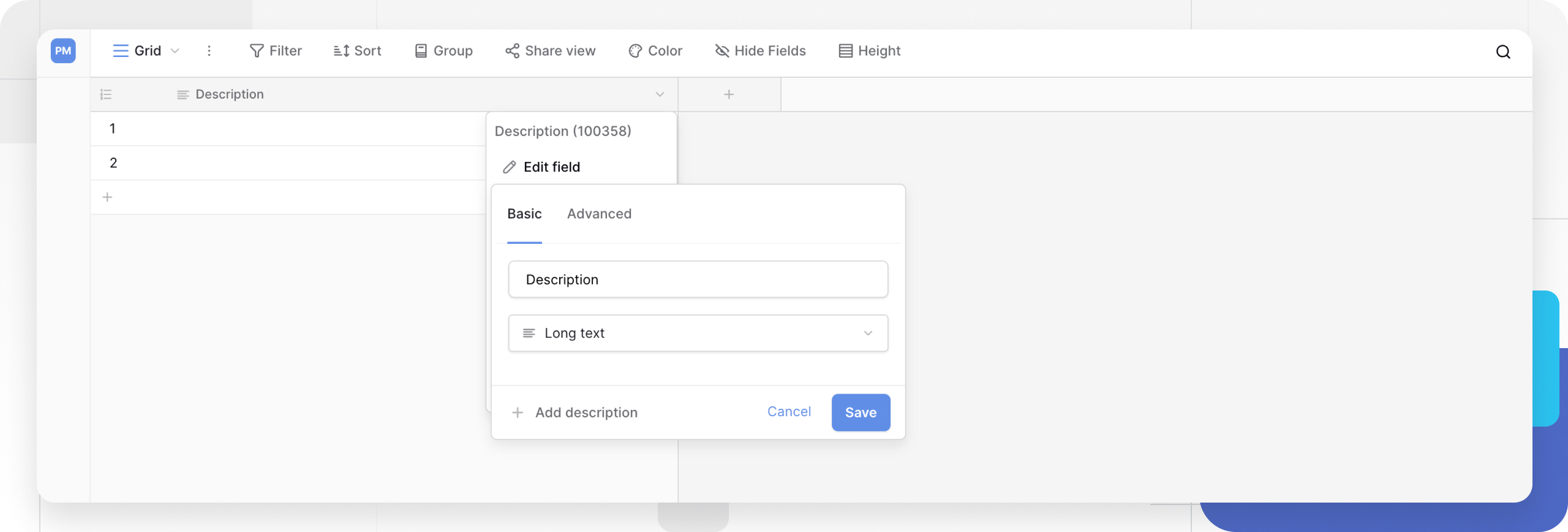
How to add a long text field
- Create a new field as described in the field-creation article;
- Select Long text from the field type menu;
- Enter a field name;
- Click Create.
Tip: in grid view, Shift + Enter exits cell editing mode without inserting a line break, while a plain Enter inserts a line break inside the cell.
How to expand a long text field

Cell resize: drag the handle in the bottom-right corner of the cell to increase its height and see more text without opening the full editor.
Row detail panel: open the row expand icon to get a full editor with more room for editing lengthy content.
How to enable rich text formatting
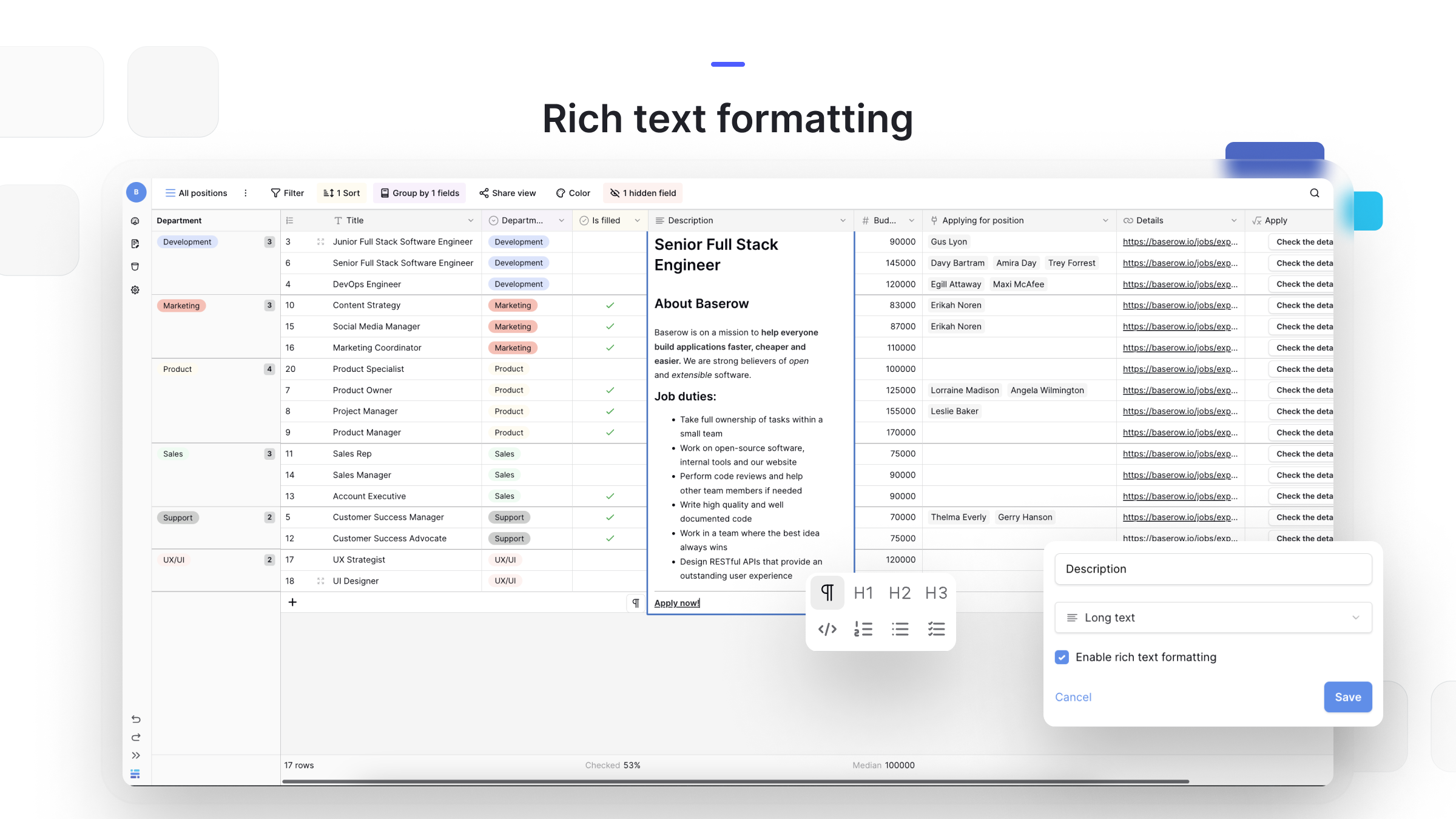
Rich text formatting adds styling options to a long text field: headings, emphasis, and structure.
To turn on rich text formatting:
- Click the dropdown arrow next to the long text field’s name;
- Select Edit field;
- Check Enable rich text formatting;
- Click Save.
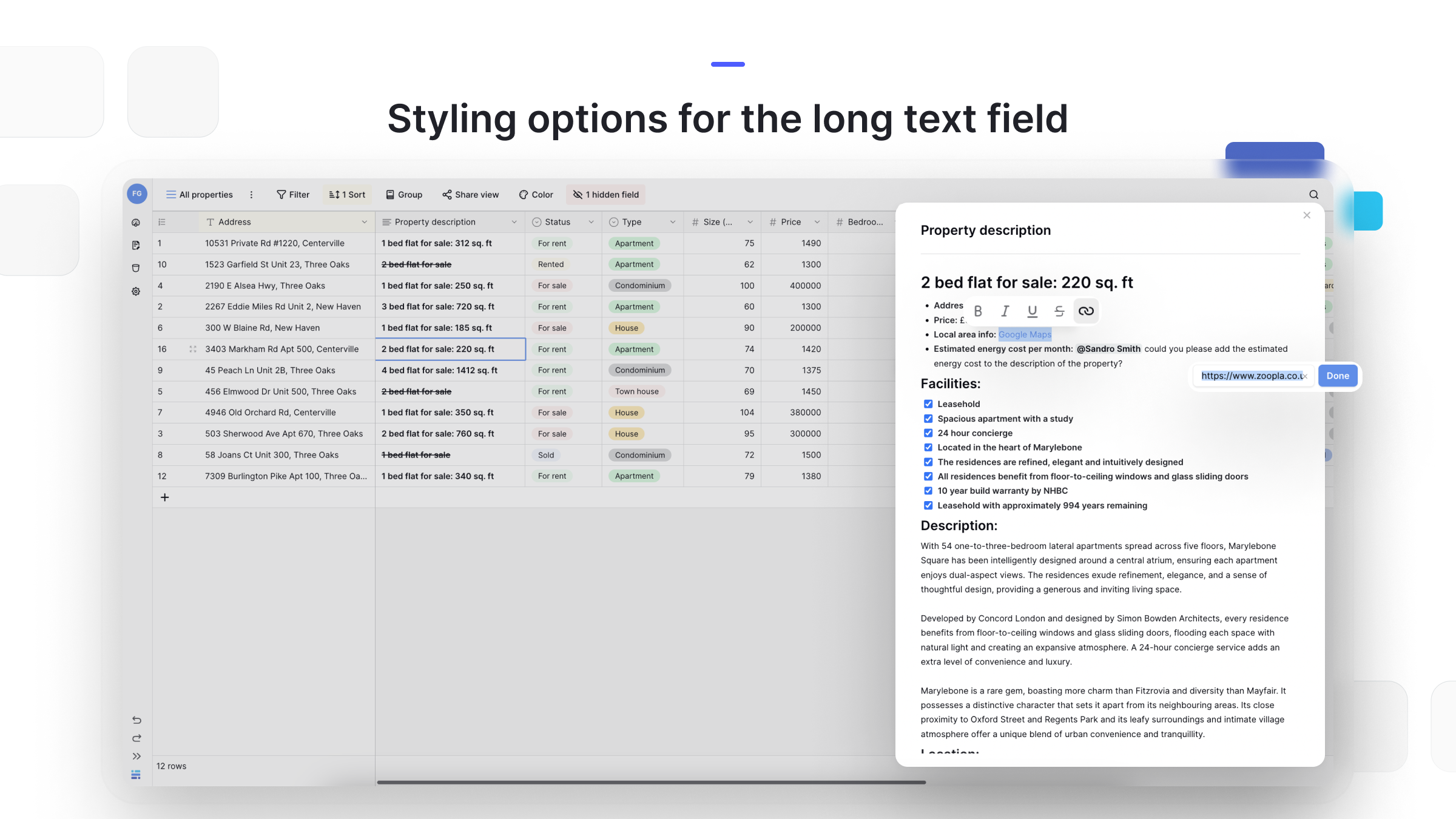
Once it is on, formatting can be applied through the toolbar or keyboard shortcuts similar to Baserow’s general keyboard shortcuts for Markdown.
To format text:
- Double-click a cell to enter edit mode;
- Click the expand icon to open the full editor;
- Use the formatting toolbar or type Markdown syntax directly;
- Apply styles: bold (Ctrl+B), italic (Ctrl+I), underline (Ctrl+U), strikethrough (Ctrl+S).
Markdown formatting reference
Baserow supports standard Markdown syntax inside long text fields that have rich text formatting enabled.
| Format | Markdown | Result |
|---|---|---|
| Heading 1 | # Heading | Large heading |
| Heading 2 | ## Subheading | Medium heading |
| Heading 3 | ### Subheading | Small heading |
| Bold | **bold** or __bold__ | bold text |
| Italic | *italic* or _italic_ | italic text |
| Bold italic | **_bold italic_** | bold italic |
| Underline | <u>underline</u> | underlined text |
| Strikethrough | ~~strike~~ | strikethrough text |
| Bulleted list | - Item | a bulleted list item |
| Numbered list | 1. Item | a numbered list item |
| Checkbox | - [ ] unchecked, - [x] checked | a list item with a check state |
| Blockquote | > Quote | an indented quote |
| Code block | text wrapped in triple backticks | monospaced code formatting |
| Link | [text](url) | a clickable link |
Rich text in forms and formulas
Forms: a long text field with rich text formatting enabled shows the same styling tools in form views , so form respondents can submit already formatted content.
Formulas: when a formula field references a long text field that has rich text enabled, the formula receives plain text and line breaks only - formatting is dropped from the calculation.
Plain text vs. rich text
| Feature | Plain text | Rich text |
|---|---|---|
| Multi-line support | Yes | Yes |
| Formatting (bold, italic) | No | Yes |
| Headings and structure | No | Yes |
| Links | No | Yes |
| Best for | Simple notes, data imports, minimal formatting needs, or when the smallest file size matters | Documentation, instructions, styled descriptions, and any content that benefits from visual structure |
Frequently asked questions
What’s the difference between a long text field and a single-line text field? A single-line text field is meant for short values like names or labels that fit on one line. A long text field holds multi-line content - descriptions, notes, paragraphs. It can be expanded and, if needed, switched to rich text formatting (bold, headings, lists), which single-line text does not offer.
How do I use bold text, headings, or bulleted lists? Rich text formatting has to be enabled for the field first. Once it is, a formatting toolbar appears while editing the cell, and the standard Markdown syntax works as well.
How do I add a new line inside a cell? While editing a cell in grid view, press Enter to insert a line break. To exit editing mode without adding one, press Shift + Enter or click outside the cell.
What happens to formatting if the field is used in a formula? If a long text field with rich text enabled is referenced by a formula , only its plain text feeds the calculation. All formatting - bold, headings, lists - is stripped, though line breaks are kept.
What’s next
For the full list of available field types and how they compare, see the Baserow field types overview . If you have not created a field yet, start with Create a Field , and for sorting, filtering, and hiding a field once it exists, move on to Field Configuration .