Lookup Field in Baserow: Display Data from Linked Rows
A Lookup field automatically pulls and displays a specific piece of data from a linked row - a customer’s email address, say - without any manual copying; this article covers how the field differs from a Link to table field and a Rollup field, how to create one, and how to read looked-up values across a chain of tables.
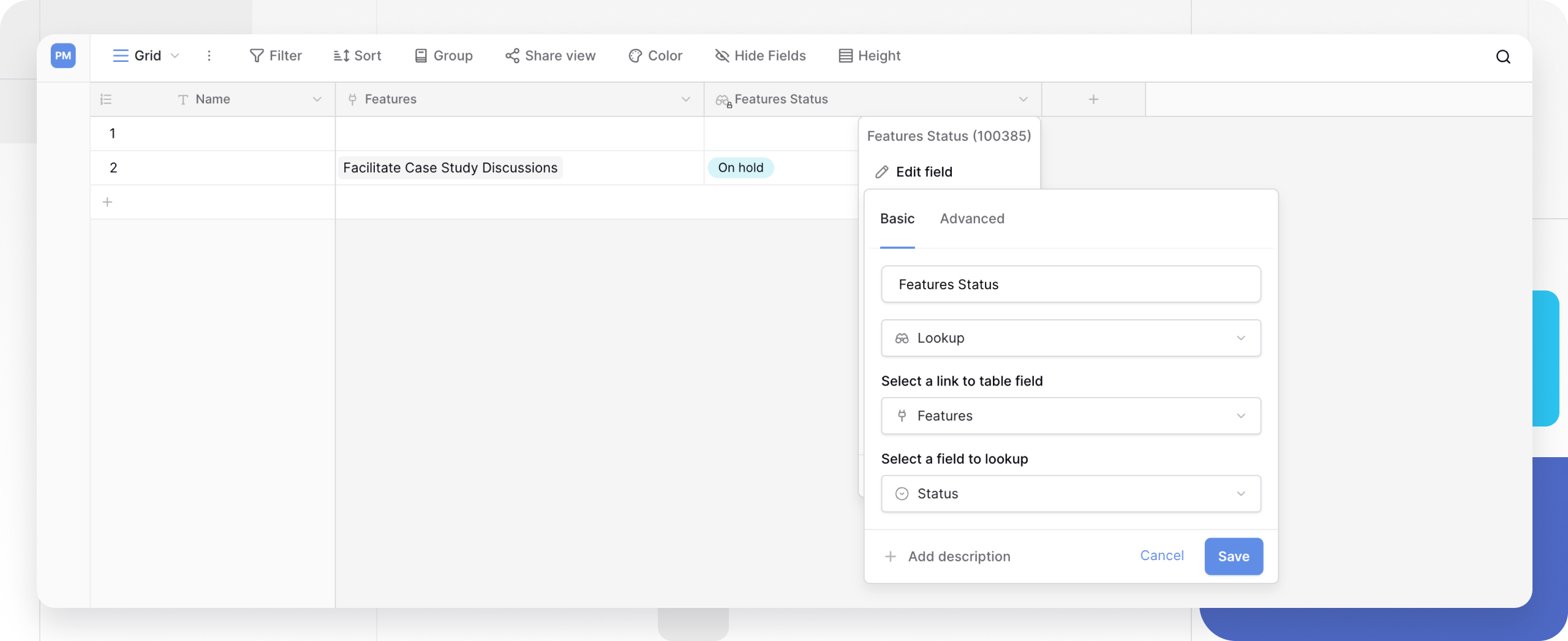
What a Lookup field is
A Lookup field works on top of an existing Link to table field . While the link field creates the relationship between rows, the Lookup field pulls in and displays a specific piece of data from the linked row, such as a customer’s email address stored in another table.
A key feature of Lookup fields is that they are read-only. You cannot edit the data in a Lookup field directly. To change the value, go to the original row - for example by clicking the link in the Link to table field - and edit the data in its own cell.
For details on setting a description, filtering, and sorting by a Lookup field, see Field Configuration .
How to create a Lookup field
Prerequisite
You need an existing Link to table field in the table before you can create a Lookup field.
Steps
- In the table, click the
+icon to add a new field . - Select Lookup from the field type dropdown.
- In the configuration panel, set two options:
- Link row field: pick the Link to table field you want to use for the lookup;
- Field to lookup: pick the specific field from the linked table that you want to display.
- Click Create.
The new field is populated immediately with data from the linked rows and stays read-only from then on.
Example: customers and orders
This field is the perfect way to avoid re-typing data and reduce errors. Say there are two tables:
- Customers: holds “Customer Name”, “Email”, and “Address” fields.
- Orders: holds “Order ID”, “Order Date”, and a Link to table field called “[Link] Customer”.
Goal: show the customer’s “Email” and “Address” directly on the Orders table without copying and pasting them manually.
Solution: on the Orders table, create two Lookup fields:
- Lookup 1 (Email): looks at the “[Link] Customer” field and pulls the “Email” field;
- Lookup 2 (Address): also looks at the “[Link] Customer” field and pulls the “Address” field.
Now, linking an order to a customer automatically populates their email and address on the Orders table. If the customer’s address changes on the Customers table, the change propagates to Orders automatically.
Frequently asked questions
What’s the difference between Link to table, Lookup, and Rollup? This is a common question, and all three work together: Link to table is the first step - it creates the relationship between rows, for example linking an order to a customer; Lookup displays a specific piece of data from the linked row, such as a customer’s email, and is read-only; Rollup runs a calculation across the linked rows, such as counting a customer’s orders or summing the amount they spent.
Why can’t a Lookup field be edited? It is read-only by design - it is simply a window that displays data from another table. To change the value in a Lookup field, edit the original data in the linked row instead.
Can I look up a value from another Lookup field? Yes. If table B has a Lookup field pulling data from table C, table A can link to table B and look up the value from that Lookup field. Lookups can be chained together across several tables.
What’s next
Read up on the Link to table field to see how relationships between tables are built, and the Rollup field for running calculations across linked rows instead of just displaying a value. The Count field covers counting linked rows, Field Types Overview compares Lookup against every other computed field type, and Field Configuration covers sorting and filtering by looked-up values.