Multiple Select Field in Baserow: Setup and Option Guide
A Multiple select field works like a Single select field , except a single cell can hold several predefined, color-coded options at once instead of just one - this article covers adding the field, managing its options, and when a link to table field is the better fit instead.
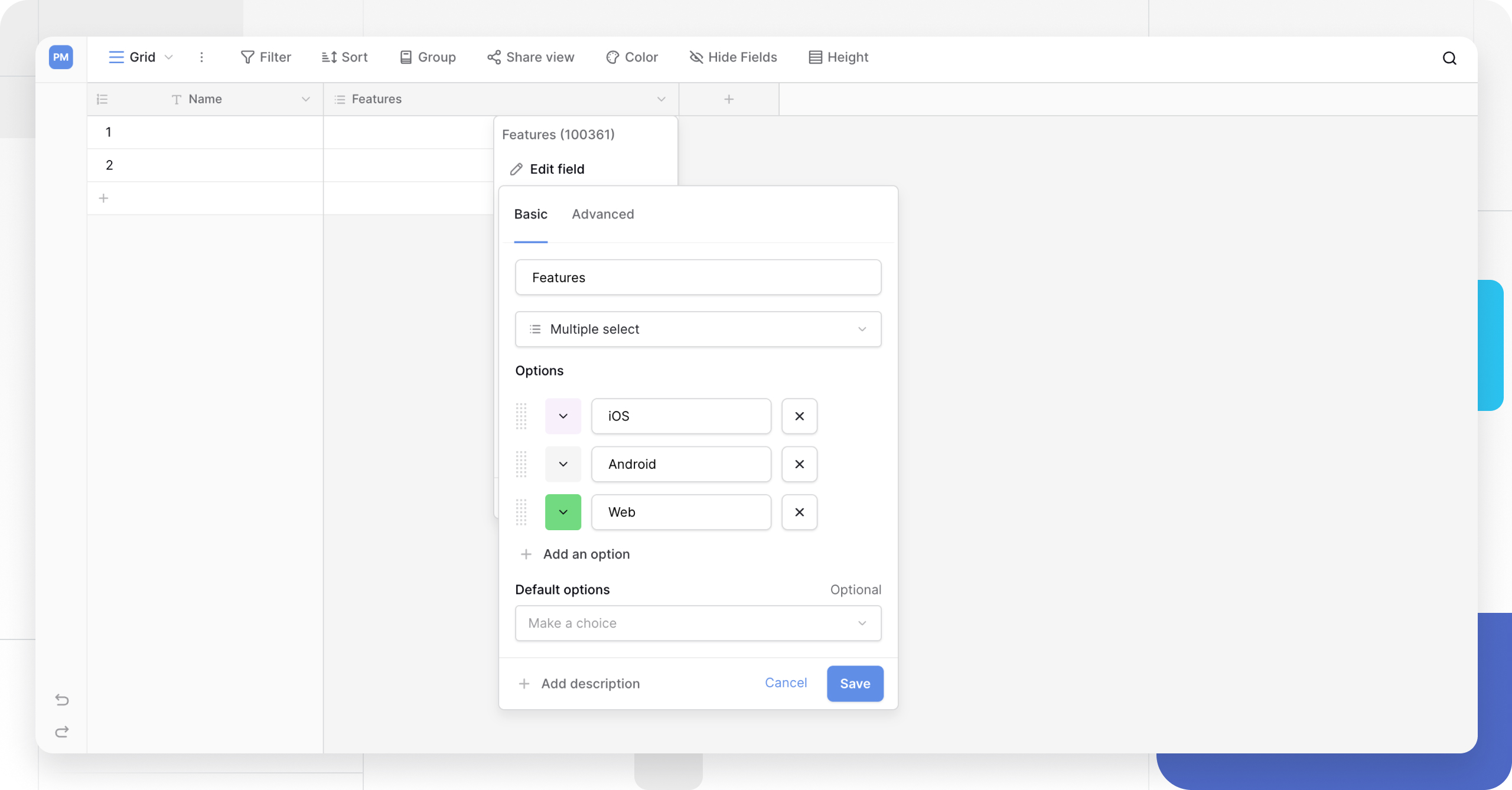
What a Multiple select field is
A Multiple select field behaves the same way as a Single select field: users pick values from a list of predefined, color-coded options. The key difference is that a single cell can hold multiple options at the same time, not just one.
That makes it a good fit for tags, categories, features, and skills - anything that applies to a row along more than one dimension at once.
Add a Multiple select field
To create this field type, add a new field and select Multiple select from the field type dropdown.
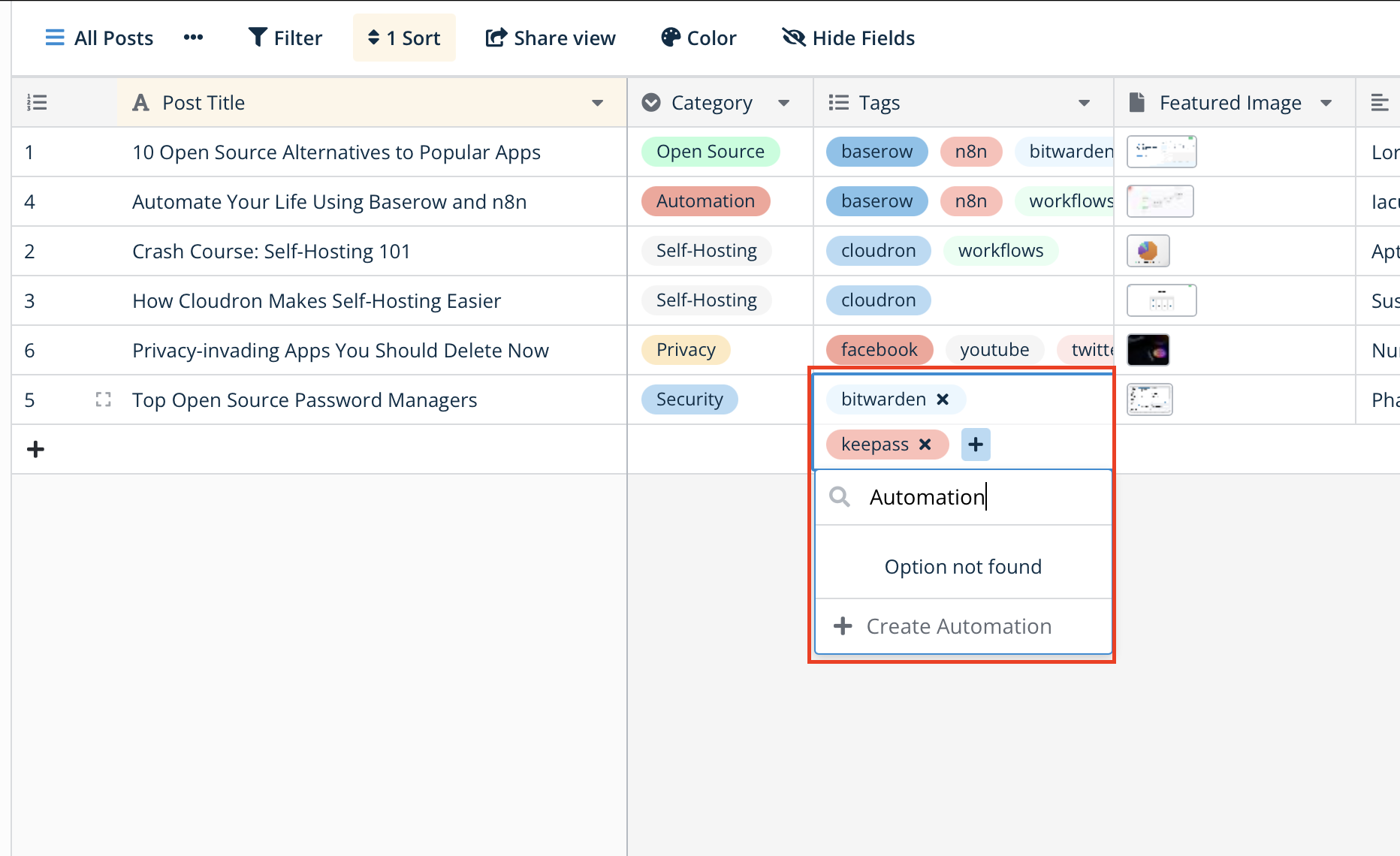
While editing a cell, an autocomplete menu appears: type to filter the list, or pick the options you want directly from the dropdown.
Customize Multiple select options
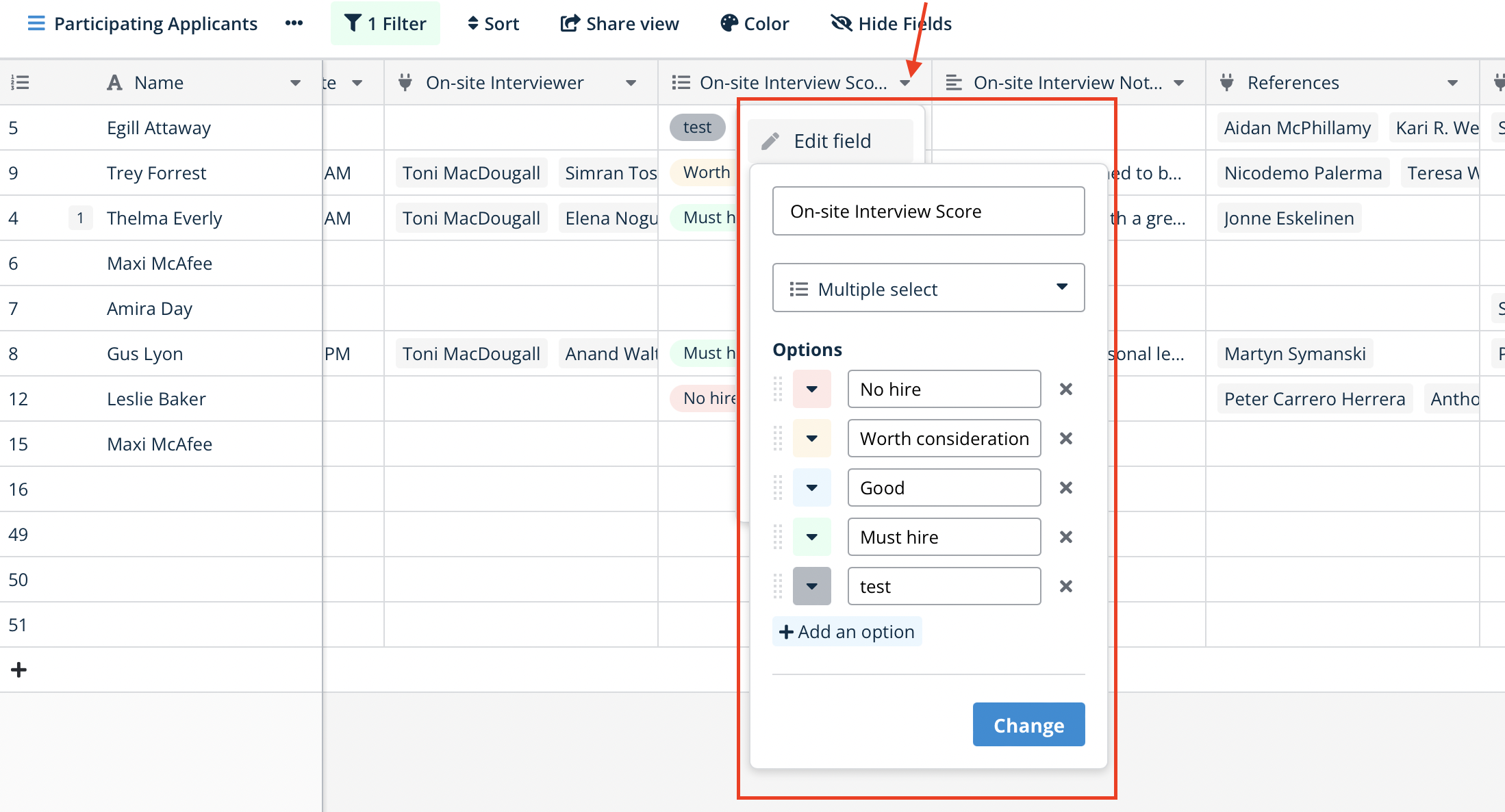
Add an option
Users can add an option two ways:
- From the field menu: click + Add an option in the field configuration dialog.
- On the fly: type the new option name straight into a cell and click + Create new option.
Set default options
The field configuration menu has a Default options section where you can pick the options that get applied to every new row automatically.
Reorder options
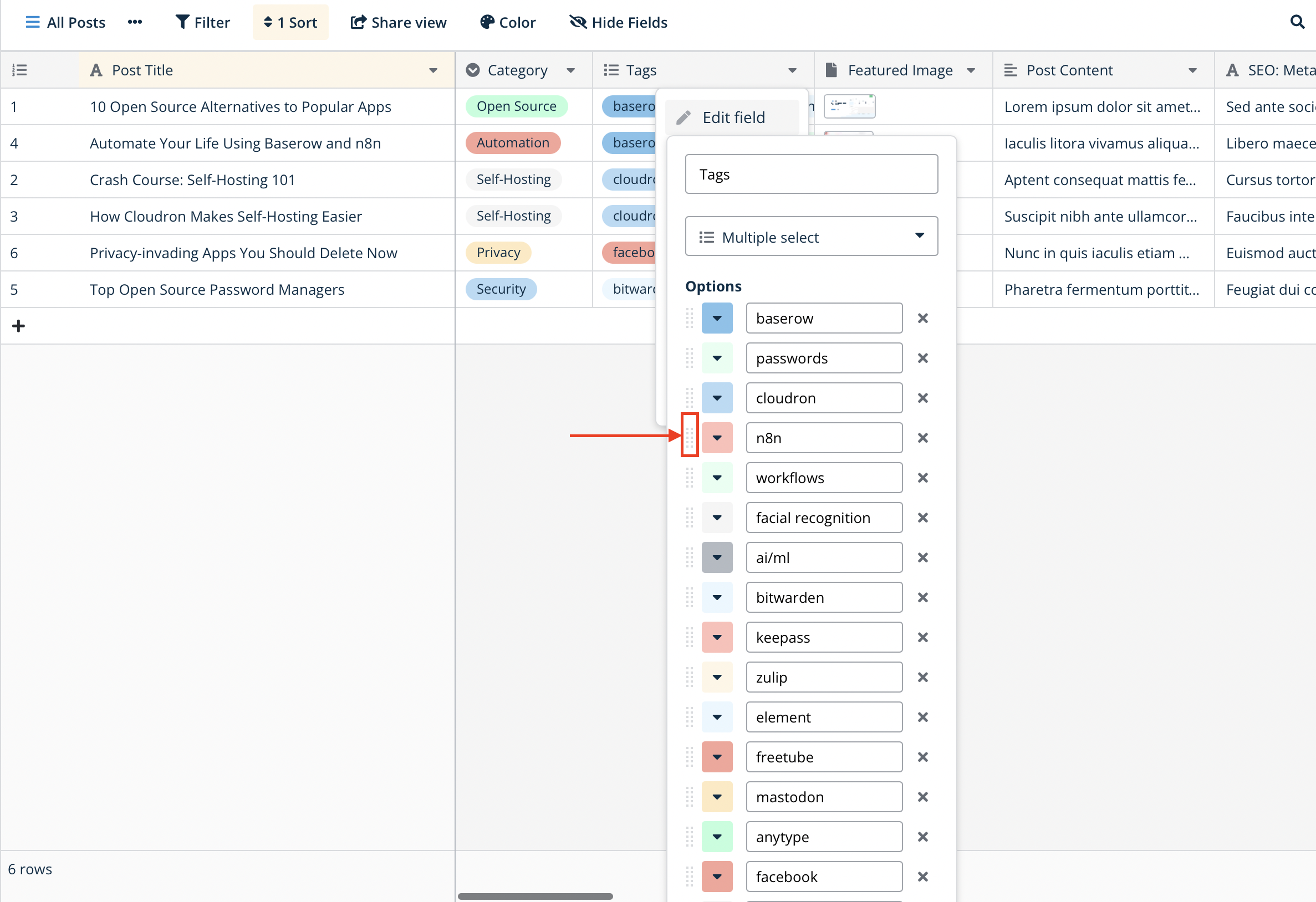
Drag the six-dot handle next to any option to change its position in the dropdown list.
Delete an option
Click the x icon next to an option to remove it. Deleting an option removes it permanently from every cell that used it - Baserow does not keep a history of deleted options.
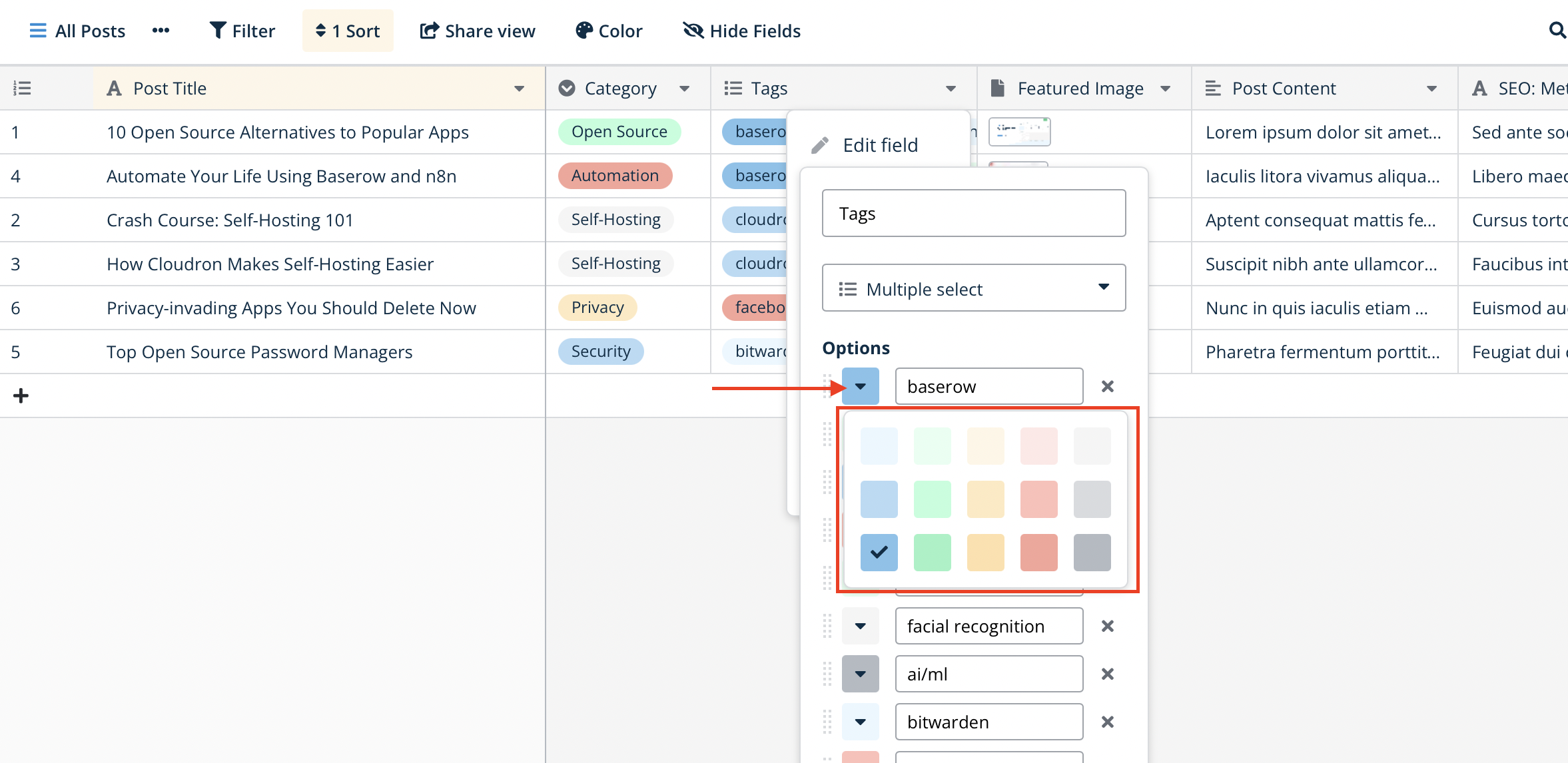
Change an option’s color
Click the colored square next to an option’s name in the field configuration menu to pick a new color.
Frequently asked questions
What’s the difference between Multiple select and Single select? Single select allows only one option per cell, while Multiple select allows several options at once.
When should I use a Multiple select field? It works well for tagging articles, tracking product features, or assigning several categories to one item - anywhere a row can belong to more than one group.
What’s the difference between Multiple select and a Link to table field? Multiple select stores static text options inside a single field, while Link to table connects a row to records in an entirely different table. If your options are simple tags like “High priority,” use Multiple select. If the “options” are actually records in another table, such as “Customers” or “Projects,” use a link to table field instead.
Grouping rows by a Multiple select field can place a single row into more than one group at once, which is worth keeping in mind when reading grouped totals. The field also supports filtering with conditions like “has,” “has any of,” and “has none of.”
What’s next
Read up on Single select to see when one option per cell is enough, or check Field Types Overview to compare Multiple select against every other field type. Field Configuration covers sorting, filtering, and hiding for any field type, Multiple select included.