Baserow Number Field - Formatting, Decimals, Prefixes
A Number field in Baserow is built to store values you can run calculations on, from prices and quantities to ratings and measurements. This article covers when to pick a Number field over a text or phone number field, how to add one to a table, and which formatting options - decimal places, negative values, prefixes, and suffixes - are available once it exists.
Overview
A Number field is designed specifically to store numerical values. It is the best choice for data you need to use in mathematical calculations, such as:
- prices or costs;
- quantities or inventory levels;
- ratings or scores;
- measurements (weight, height, distance).
For numerical data that is not used in math, other field types are more appropriate. For example, it is better to use a Phone number field for contact numbers or a Single line text field for postal codes. This prevents them from being accidentally formatted as large numbers or included in calculations.
You can format Number fields to show integers (whole numbers) or decimals, allow or block negative values, and add text prefixes (like $ or €) or suffixes (like kg or cm).
How to add a Number field
- In your table, click the plus sign
+to add a new field. - A search menu appears. Type “Number” and select the Number field type.
- Give your field a name, like “Price” or “Quantity.”
- Click Create.
Customize the Number field
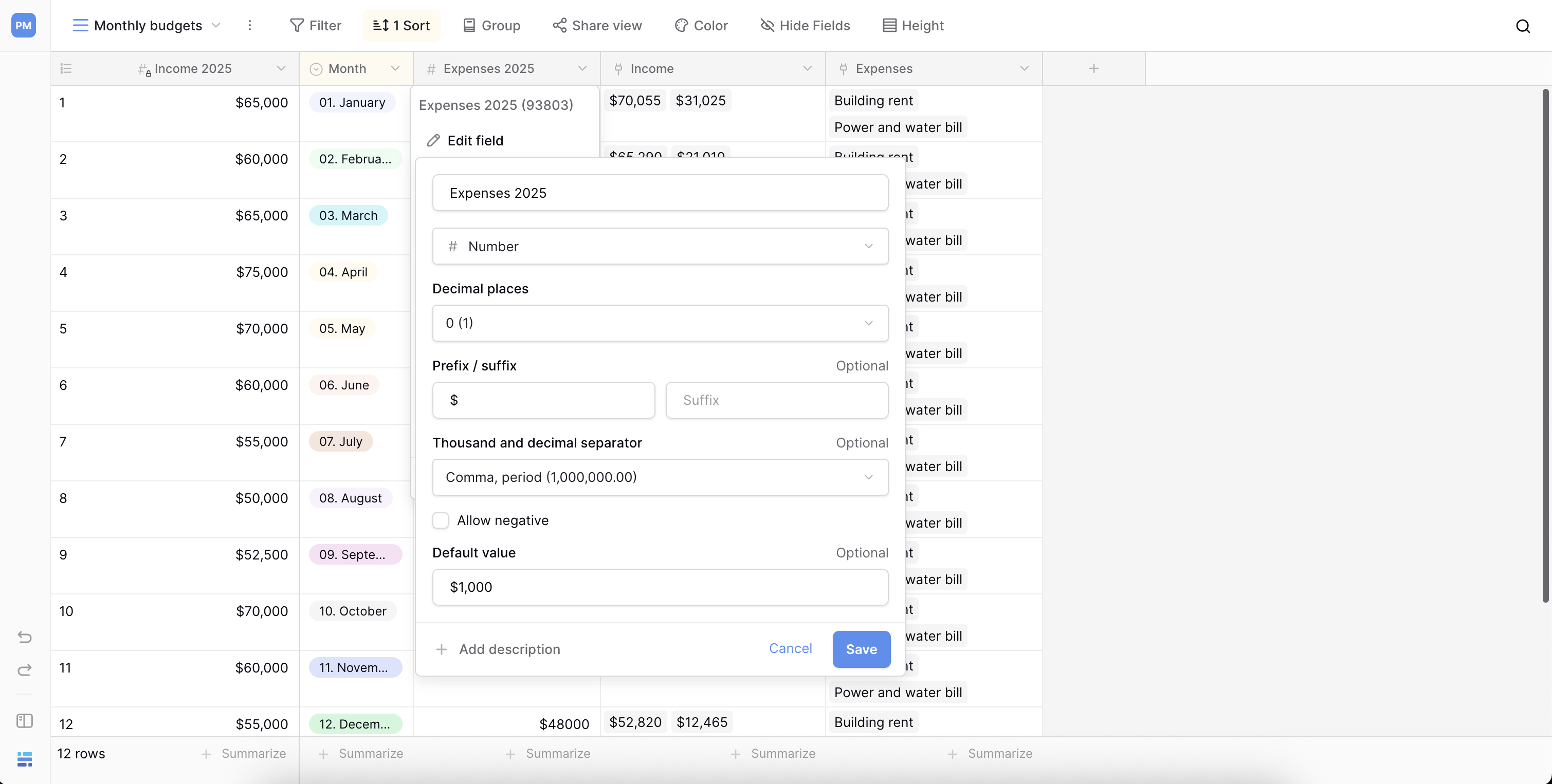
Once you create a Number field, click the dropdown arrow by its name and select Edit field (or double-click the field header) to open the customization menu.
The following formatting options are available:
- Number of decimal places: choose how many digits to display after the decimal point. Select
0for whole numbers (integers) or any value from1to10for decimal numbers. - Allow negative numbers: toggle this on if you need to store negative values, such as for financial balances or temperatures. If toggled off, any negative numbers pasted or typed in are stored as
0. - Prefix: static text placed before the number. Ideal for units like currency symbols (
$,€,£) or other symbols. - Suffix: static text placed after the number. Useful for units of measurement like
kg,cm, or%. - Thousand separator: the character used to separate thousands (for example, a comma
1,000or a period1.000). - Decimal separator: the character used for the decimal point (for example, a period
1.23or a comma1,23). - Default value: a value that automatically populates this field for every new row. Leave it blank to default to empty.
Frequently asked questions
What is the difference between a Number field and a Single line text field? A Number field is for data used in calculations (like prices or quantities). A Single line text field is for text, even if that text includes numbers (like postal codes or ID numbers). Using a Number field ensures your data is treated as a number for formulas, sorting, and filtering.
Can I use the Number field in calculations? Yes. The Number field is the primary field type to use with the Formula field . You can reference Number fields in your formulas to perform addition, subtraction, multiplication, division, and more.
How do I show currency symbols like $ or €? Use the Prefix option in the field customization menu. Click the dropdown on your Number field, select “Edit field,” and type the currency symbol (like $) into the “Prefix” input box. The symbol now appears before the number in every cell for that field.
Related content
- The Lookup field displays values from a linked table and often pairs with numeric data.
- The Rollup field aggregates numeric values from linked rows - sums, averages, and other metrics.
- The Baserow field type overview compares the Number field against the other basic data types.