Baserow Password Field: Hashed, Write-Only Storage
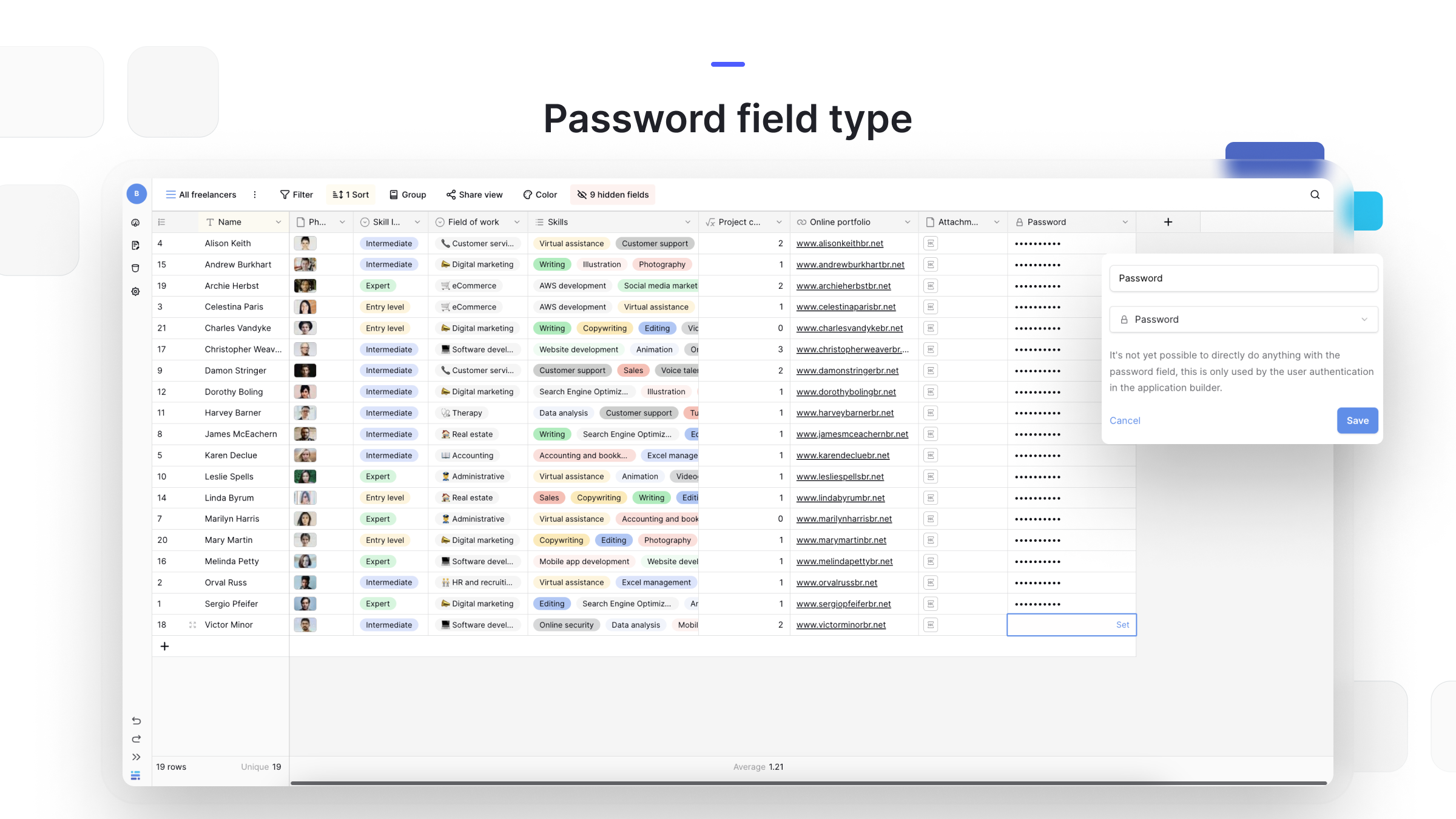
A password field is a dedicated field for storing passwords: it masks whatever you type, never shows the saved value again once you click away, and stores it as a hash rather than plain text - this article covers how to add the field, how it behaves on entry and lookup, and when to reach for it instead of a plain text field.
Overview
The password field belongs to the same group as email and URL in the field type overview , but it solves a different problem: instead of validating the format of what you type, it protects the value from ever being read back. Whatever you enter is never stored or displayed as plain text - Baserow keeps it as a hash (a long, scrambled string) that the original password cannot be recovered from.
The main use case for a password field is a users table that powers the login of an application built in the Baserow application builder. It is not a substitute for a password manager and is not meant for storing credentials to third-party services - that job calls for a different tool entirely.
How to add a password field
- Click the “+” icon at the end of the column headers to create a new field .
- Select Password from the field type list.
- Name the field.
- Click Create - the field appears as a new column.
How the password field behaves
- Masked entry. Characters you type into the cell are hidden behind dots, the same way a standard website login form works.
- Write-only access. Once you click away from the cell, the saved value is never displayed again - not to you, and not to any other workspace member.
- Hashed storage. The password is saved not as plain text but as a hash - a long, scrambled string. Even Baserow itself cannot show the original password, only check whatever is typed against the stored hash.
- Match checking, not reading. The only operation available on a password field is comparing an entered value against the stored hash to see whether they match.
- API authentication. A setting on the field lets you open an API endpoint for checking a row ID and password pair. That makes it possible to use Baserow as an authentication backend for an external application.
Password field versus single line text
At a glance, a password field looks similar to single line text - both store a string of characters. The difference is fundamental: a single line text value can be read back at any time, while a password field hides and hashes the data so it can never be read, only checked for a match. If you need to store readable text, such as an access code someone needs to view and copy, single line text is the right fit; if the data must stay protected and never appear in plain view, use a password field instead.
Like the email field , a password field is a specialized validation field, but unlike email, it does not check the format of what you type - it protects it instead.
Frequently asked questions
Can I view a saved password once the field is filled in? No. As soon as you click away from the cell, the value is masked permanently - neither the table owner nor any other workspace member can see the original password, only replace it with a new one.
How does Baserow store a password field’s value? Not as plain text. The value is converted into a hash - a long, scrambled string that the original password cannot be recovered from. Checking a password compares what is typed against the hash rather than reading back any saved characters.
What is a password field meant for? Primarily for user tables that power the login of an application built in the Baserow application builder. It is not designed for storing credentials to third-party services and does not replace a password manager.
What does the API authentication option do? It opens an API endpoint that checks a row ID and password pair and reports whether they match. That lets a table with a password field act as an authentication backend for an external application.
How is a password field different from single line text? Single line text stores and displays its value in plain view. A password field masks entry, hashes the value on save, and never displays it again - only a match check is available.
What’s next
Read the Baserow field type overview to pick the right type for the rest of your table, or see Create a Field for the general steps to add another column. Learn how the email field stores contact addresses if you need format validation alongside a password field.