Baserow Single Line Text Field: Setup, Default, and Limits
A single line text field stores short strings that display on one line without wrapping - names, codes, IDs, and concise labels. This article covers how to add the field, how to set a default value for new rows, which scenarios call for single line text, and when a long text, select, or specialized field such as email or phone number is the better fit instead.
Overview
A single line text field is one of the simplest field types in Baserow: it stores an arbitrary string and displays it entirely on one line inside the cell, with no wrapping across multiple lines. That format works well for short values you need to scan and compare quickly in a grid view - a customer name, a product SKU, an order number.
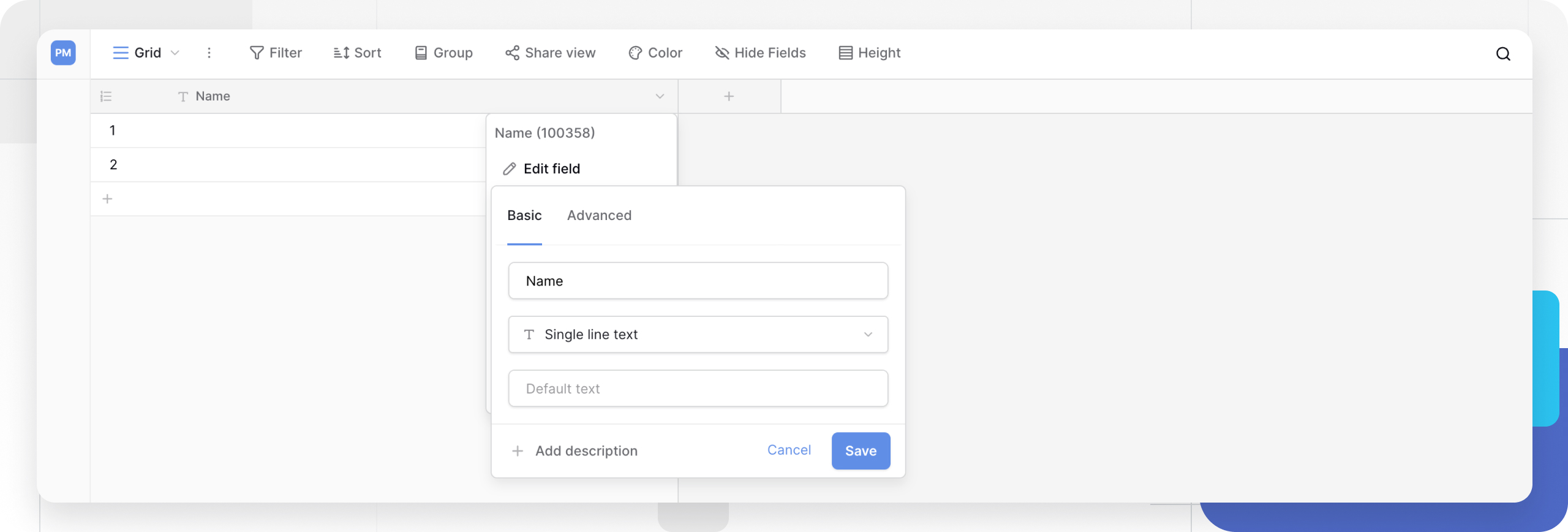
How to add a single line text field
- In your table, click the plus sign
+to add a new field. - Select Single line text from the field type menu.
- Enter a field name.
- Click Create.
How to set a default value
A default value automatically populates every new row with a predefined text value:
- Click the dropdown arrow next to the field name.
- Select Edit field.
- In the Default text section, enter your default value.
- Click Save.
Example use case: set “Pending” as the default for a status field so new tasks automatically start with that status.
When to use a single line text field
- Names and titles: customer names, product titles, project names;
- Identifiers: SKU codes, order numbers, reference IDs;
- Short descriptions: brief labels, tags, status indicators;
- Contact info: usernames, display names, short addresses;
- Codes and abbreviations: department codes, currency codes, abbreviations.
Not suitable for: paragraphs, descriptions, notes, or content exceeding 50-100 characters - use a long text field for that instead.
Single line text vs. other field types
| Your data | Better field type | Why |
|---|---|---|
| Repeated values from a fixed list | Single select or multiple select | A dropdown prevents typos and keeps values consistent |
| Links to other records | Link to table | Creates a real relationship between tables and unlocks lookups |
| Long paragraphs | Long text | Displays across multiple lines with text wrapping |
| Validated email addresses | Email field | Built-in format validation |
| Phone numbers | Phone number field | Automatic number formatting |
Frequently asked questions
What’s the difference between a single line text field and a long text field? A single line field displays everything on one line, while a long text field wraps content across multiple lines for longer entries.
When should I use a single line text field? Use it for a short, concise piece of data, such as a name, title, code (like an SKU), reference ID, or short status label.
Is there a character limit? There’s no strict limit, but the field is designed for short text: content exceeding 50-100 characters will be cut off (truncated) in the grid view.
What’s the difference between this and a single select field? Use single line text for unique values like names. Use single select when you’re choosing from a repeated list of options.
Can I use this for emails, phone numbers, or links? You can, but specialized fields are recommended: an email field for validation, a phone number field for formatting, and a URL field for clickable links.
How do I set a default value? Open the field’s dropdown menu, select “Edit field,” enter your value in the “Default text” box, and save.
What’s next
If your content needs to wrap across multiple lines, move on to the long text field article. To master sorting, filtering, and hiding for any field, including single line text, read Field Configuration .