Baserow URL Field: Adding and Validating Hyperlinks
A URL field stores a single web address per cell and renders it as a clickable link that opens in a new browser tab, rather than leaving it as plain text - this article covers how to add the field, how Baserow treats whatever you type into it, and why a missing http:// or https:// prefix can leave a link that will not open.
Overview
The URL field belongs to the same group as email and phone number in the field type overview : fields that format input rather than accept arbitrary text. The value itself is still a plain string, but the Baserow interface underlines it and turns it into a working hyperlink whenever the string looks like a web address.
The field does not check the syntax of what you enter before saving it. It accepts any text, typos and missing protocols included, but only a properly formed address starting with http:// or https:// will actually open when someone clicks it in the browser.
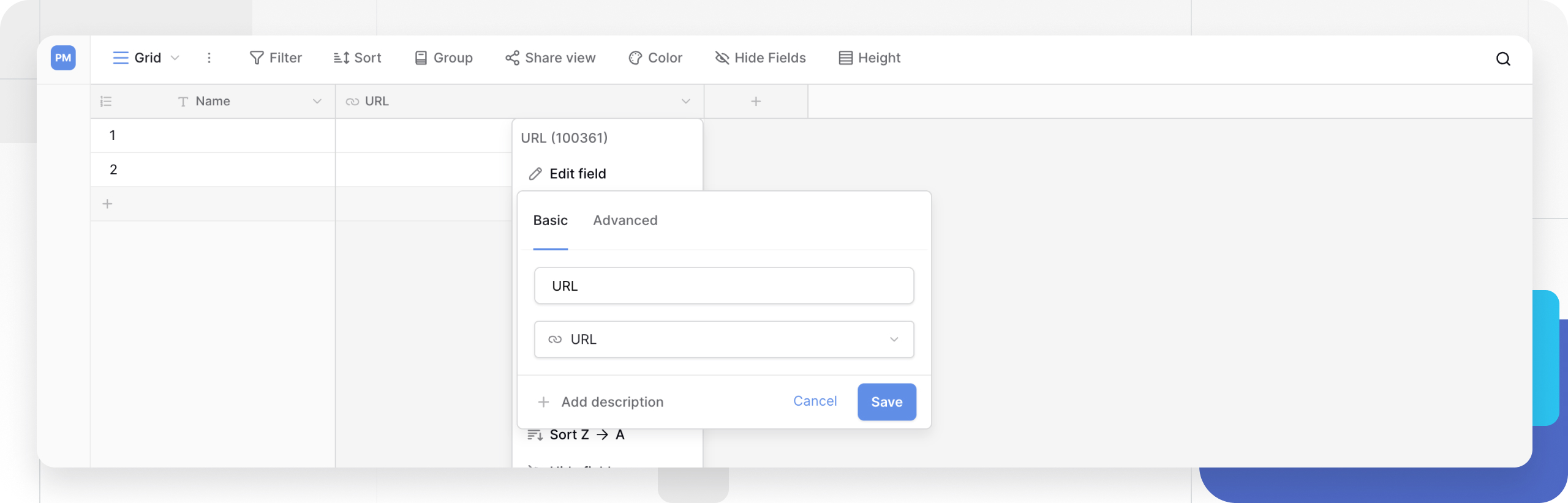
How to add a URL field
- Open a table and click the “+” icon at the right edge of the column headers to create a new field .
- Name the field and pick URL from the field type list.
- Optionally add a field description so other workspace members know what kind of links belong in the column.
- Save the field - it appears as a new column ready to hold web addresses.
How the URL field behaves
- Entering an address. Double-click the cell, or press Enter, to switch into edit mode and type the full address including its protocol.
- Following a link. A single click on a filled cell, outside of edit mode, opens the address in a new browser tab.
- No validation. The field will not block a malformed entry - a typo or a missing
https://still saves, but the link simply will not open when clicked. - One link per cell. The field holds a single address; for a set of related links, use separate rows or a link to table field instead.
- Web addresses only. A URL field cannot reach files stored locally on a computer - uploading documents or images is what the dedicated file field is for.
URL field versus other text fields
A URL field looks similar to single line text
at a glance, but it adds hyperlink behavior: clicking the value follows the address instead of simply selecting the text. If you need to store arbitrary strings without that click behavior, a plain text field is the better fit; if the data must be an email address rather than a web page, use an email field
, which checks for the name@domain format instead.
Converting a field type between URL and text keeps the underlying value as a string, so the conversion does not lose data - only the display behavior and the click action change.
Frequently asked questions
Does Baserow check whether the address I entered is valid? No, the URL field accepts any text string. Getting the format right, including the http:// or https:// protocol, is up to whoever enters the data.
What happens if I enter an address without https://? The value still saves in the cell, but clicking it may fail to open or the browser may report an error. Always include the full address with its protocol to avoid this.
Can a single URL field cell hold more than one link? No, the field is built for one link per cell. For a set of related addresses, use separate rows, or connect the records with a link to table field .
Will a URL field open a link to a file on my computer? No, for security reasons the field only works with web addresses. Use a file field to upload and store files instead.
How is a URL field different from an email field? A URL field only expects something that looks like a web address, while an email field requires the name@domain format. Use email for mail addresses and URL for links to websites, documents, or services.
What’s next
Learn how the email field stores contact addresses, or go back to the Baserow field type overview to pick the right type for the rest of your table. To fine-tune how an existing field behaves, read the guide on field configuration and conversion .