Create a Field in Baserow - 4 Ways to Add a Column
Adding a field is the first real step in table design: it decides what data you can capture and how a record is organized. This article covers four ways to add a field to a Baserow table, how to write a field description, and when duplicating a configured field beats building a new one from scratch.
Overview
Fields define a database’s structure by specifying what type of information each column stores. Creating fields is the step that turns a blank table into a working database for customers, projects, inventory, or any other process you need to track.
Well-designed fields with clear names and descriptions improve team collaboration, cut down on data-entry mistakes, and make a database intuitive for anyone new to it.
Field creation methods
Baserow offers several flexible ways to add a field, and each supports all 25+ field types , so you can build exactly the structure your data needs.
| Method | Best for | Configuration |
|---|---|---|
| Add at the end | Building a new table from scratch | Configured from scratch |
| Insert between fields | Extending an established structure | Configured from scratch |
| From the row detail panel | A focused view of a single row | Configured from scratch |
| Duplicate a field | Creating similar fields of the same type | Inherits settings, data copy optional |
How to add a field at the end of a table
Append new fields quickly to the end of a table’s current structure. Use this when you’re building a new table from scratch, adding supplementary fields to an established one, or the order simply doesn’t matter yet.
To create a field:
- open the table in grid view or form view;
- scroll right until the + button appears after the last visible field;
- click the + button to open the field creation panel;
- pick a field type from the dropdown (text, number, date, and so on);
- type a field name that clearly describes the data it will hold;
- click Create to add the field right away.
The new field appears at the end of the table, ready for data entry or further configuration through its own menu.
Once created, you can reorder a field by dragging its column header.
How to insert a field between existing fields
Insert a new field at a specific position in grid view to keep a logical field order in a table that already has structure. Use this when you need to preserve a logical grouping, place related fields next to each other, or follow a specific data-entry workflow.
To insert a field:
- find the field you want to insert next to;
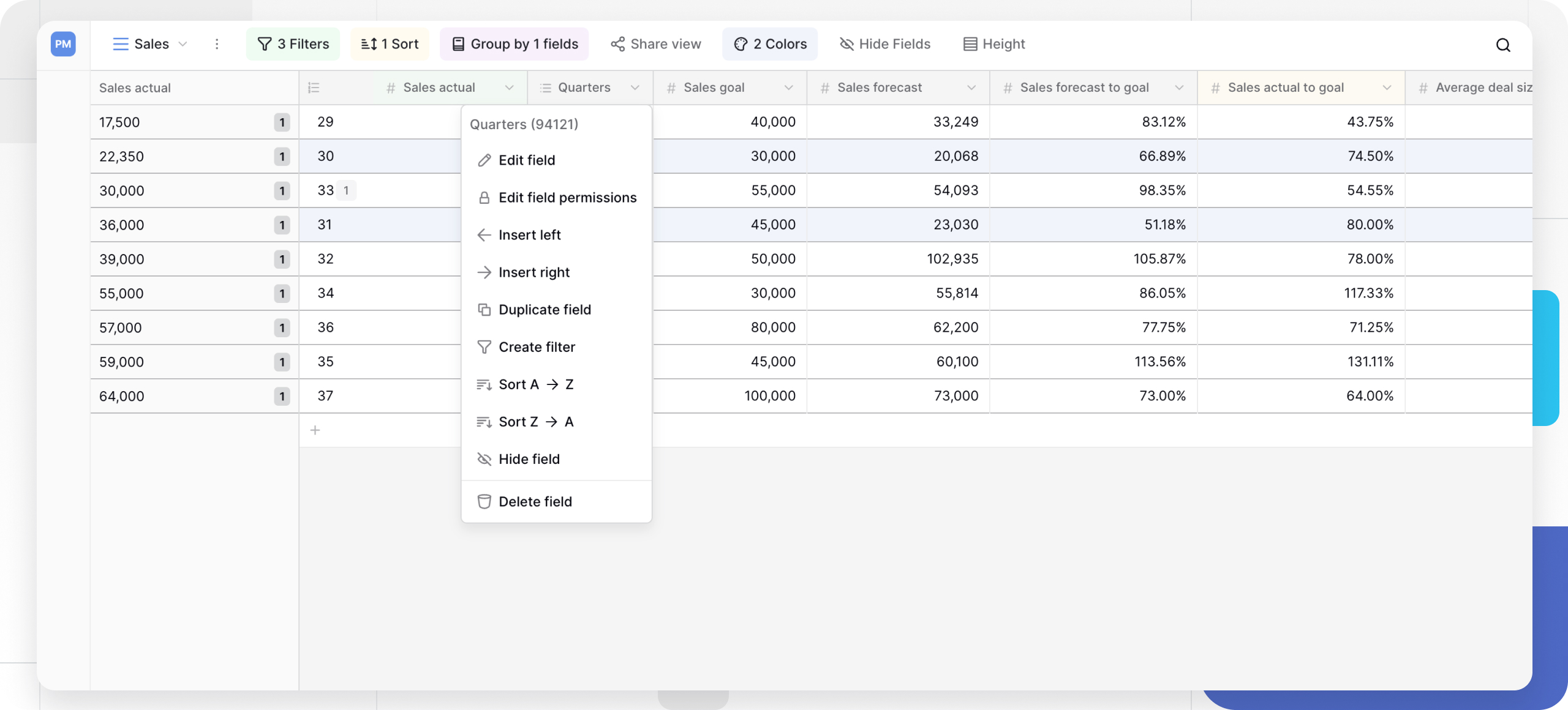
- click the dropdown arrow next to its name;
- choose Insert left or Insert right from the menu;
- configure the new field’s type and name in the creation panel;
- click Create to add it in the chosen position.
The new field appears immediately in that spot, shifting the other fields to make room.
You cannot insert a field to the left of the primary field - it always stays the first field in the table.
How to duplicate an existing field
Save time by copying an already-configured field instead of rebuilding its settings from scratch. Use this when you need several similar fields with identical configuration, when building a survey table with repeated question types, or to standardize field formats across a database.
To duplicate a field:
- click the dropdown arrow next to the field you want to duplicate;
- select Duplicate field from the menu;
- in the duplication dialog, choose whether to copy the field:
- without data - creates an empty field with the same configuration;
- with data - copies every value from the original field;
- adjust the field name if you need to;
- click Duplicate to add the copy.
The duplicated field inherits every setting from the original - type, format options, validations, and description. This is especially handy when you need several similar fields such as “Q1 revenue,” “Q2 revenue,” “Q3 revenue.”
Use case: when building a survey table with several rating questions, duplicate the first configured rating field to keep a consistent 1-5 scale and display settings across all of them.
Adding a field from the row detail panel
While viewing an expanded row, you can create a new field without closing the panel. This lets you try out different field types while staying focused on the record in front of you.
How to add a field description
Field descriptions spell out what data belongs in a field, which improves data quality and makes collaboration easier.
To add a description:
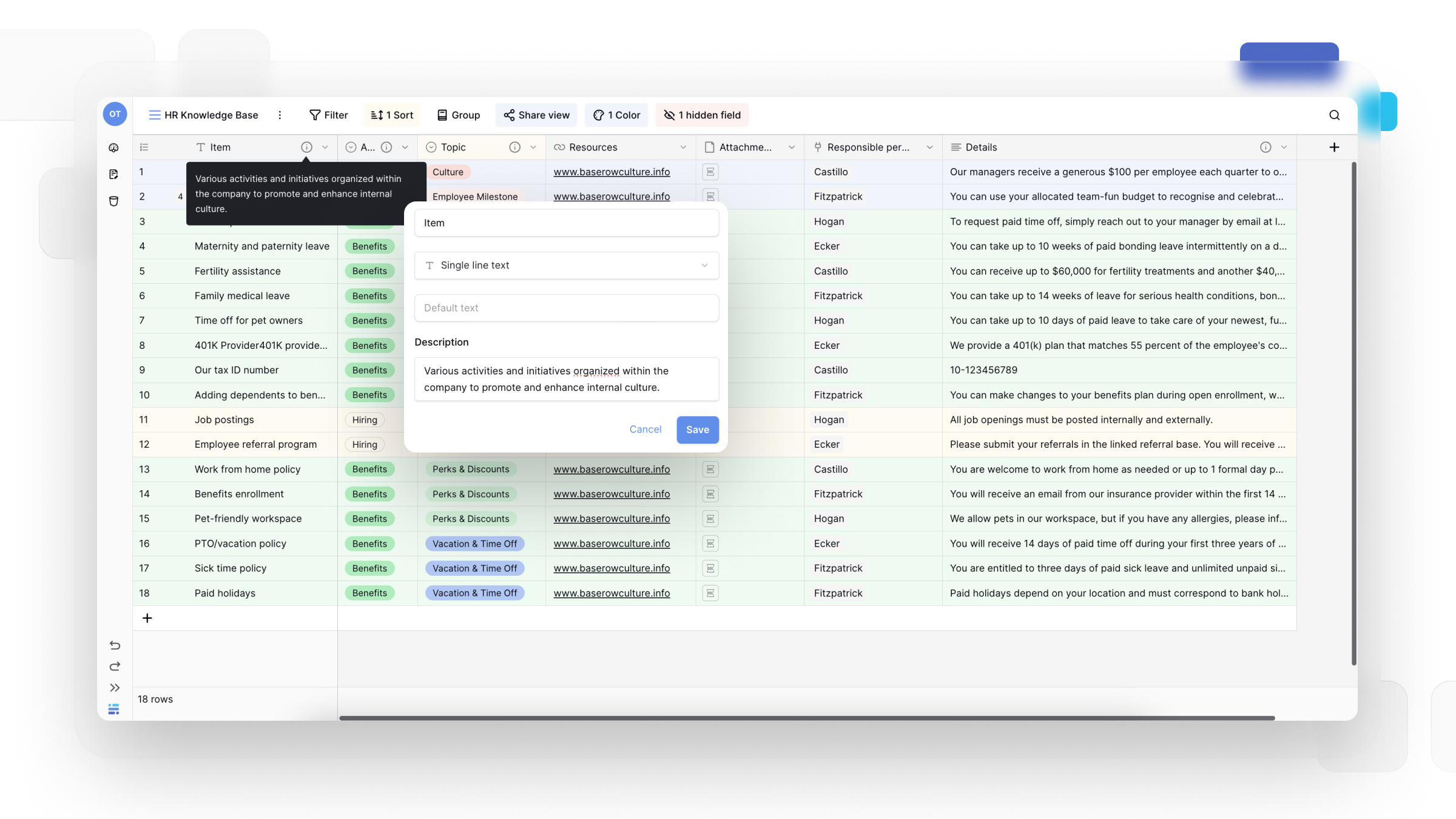
- click the field name to open the field settings menu;
- click + Add description in the settings panel;
- type a clear, concise description into the text box;
- click Save to store it.
Descriptions appear when someone hovers over the field name or opens its settings, so teammates understand the data requirement without having to ask.
Example of a good field description:
Field name: Project Budget
Description: Enter the total approved budget in USD. Include all costs (labor, materials, overhead). Use whole numbers without a currency symbol.
Best practices for field descriptions:
- state the expected data format (for example, “MM/DD/YYYY format”);
- define units or currency (for example, “in USD,” “in hours”);
- clarify whether the field is required or optional;
- give an example for anything complex (for example, “Example: +1-555-123-4567”);
- explain any business rule or validation (for example, “must not exceed the approved budget”).
Frequently asked questions
Can I change a field’s type after creating it? Yes, open the field’s dropdown and select “Edit field” to change the type. Baserow attempts to convert existing data to the new type, but some conversions can lose data - converting text that contains letters into a number field, for instance. Always check your data after changing a field type.
What happens when I duplicate a field with data? The duplicate holds an exact copy of every value from the original field at the moment you duplicated it. Later changes to either field don’t affect the other - they become independent copies.
Can I create fields in views other than grid view? Field creation is available directly in grid view, form view, and the row detail modal for other view types. Once created, a field shows up in every view according to that view’s own configuration - you can hide it in a specific view without deleting it.
Is there a limit on how many fields I can create? Baserow doesn’t enforce a hard field limit, but for performance it’s best to keep a table under roughly 200 fields. Split very wide tables into related tables connected with link-to-table fields instead.
What’s the difference between a field name and a field description? The name is a short label shown in the table header and must be unique within the table. The description gives detailed context about data requirements and appears on hover or click. Use the name for identification and the description for guidance.
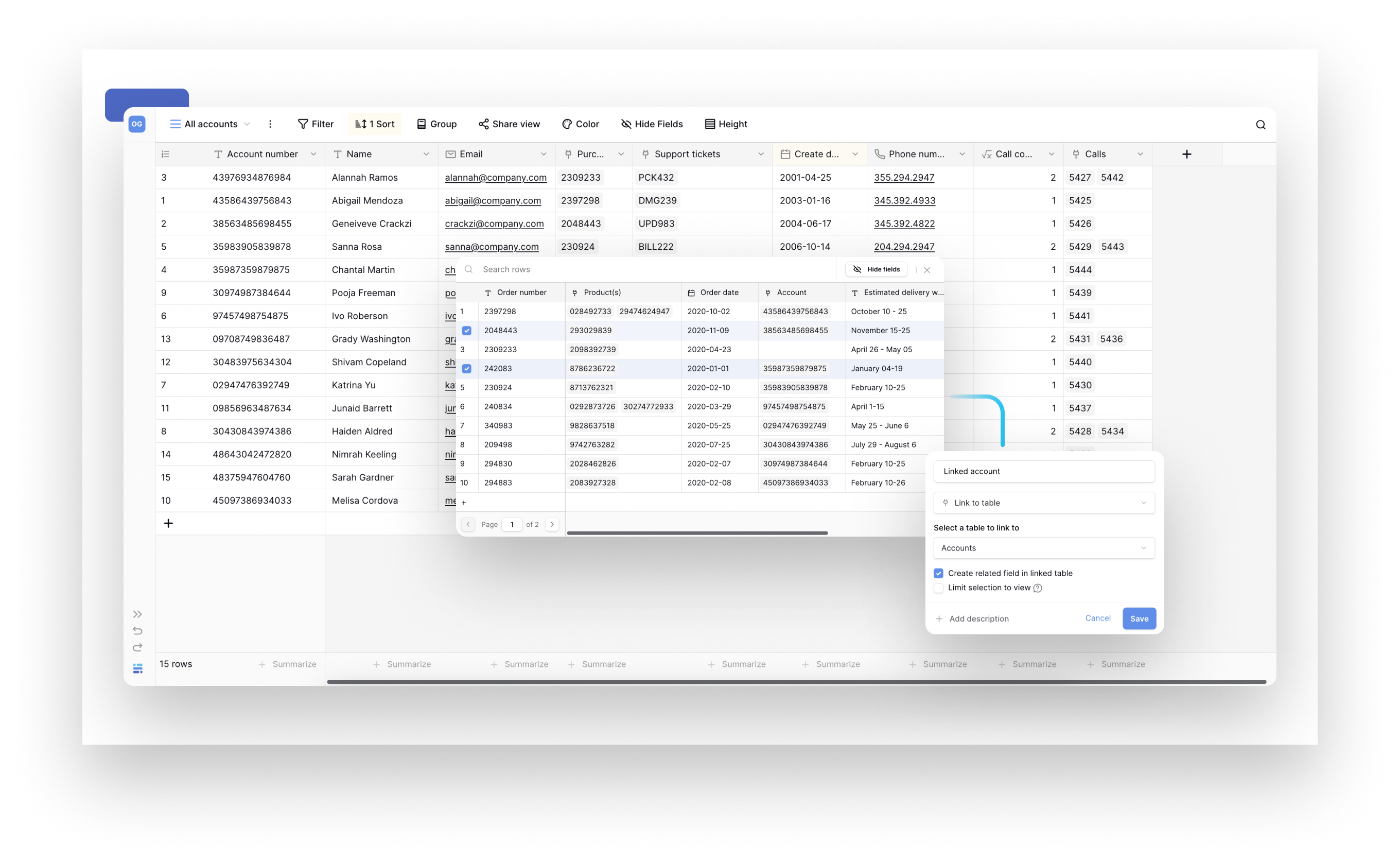
Can I create computed fields that calculate automatically? Yes - several field types compute their own values: formula fields calculate from other fields on the same row, lookup fields pull data from linked tables, count fields tally linked rows, and rollup fields aggregate linked data. Create these the same way you create any field, then configure the calculation rule.
What’s next
With your fields in place, read Field Configuration to sort, filter, hide, and reorder them, or go back to the field type overview to pick the right type for a new column.