Baserow Field Types - Complete Overview of All Fields
Fields are the building blocks of every Baserow table, turning plain columns into typed data that validates input, links tables together, and calculates values on its own. This article walks through what a field is, how to match a field type to your data, and how computed fields keep a database self-updating.
Overview
A field (column) defines what type of data each part of a record can hold. Unlike a spreadsheet column that accepts any text or number, a Baserow field enforces its data type: an email field only accepts valid emails, a date field only stores proper dates, and a link field creates a genuine relationship between two tables.
Every field type ships with its own validation, formatting, and behavior. A phone number field formats digits as (555) 123-4567 automatically, a file field lets you upload documents, and a formula field runs a calculation on its own. That structure heads off data-entry mistakes and unlocks filtering, sorting, and cross-table relationships that a plain spreadsheet cannot offer.
Fields run vertically down a table, with every cell in a column holding the same type of data. Rows run horizontally, with each row representing one complete item - a customer, a project, an order - whose attributes are spread across several fields.
Field categories
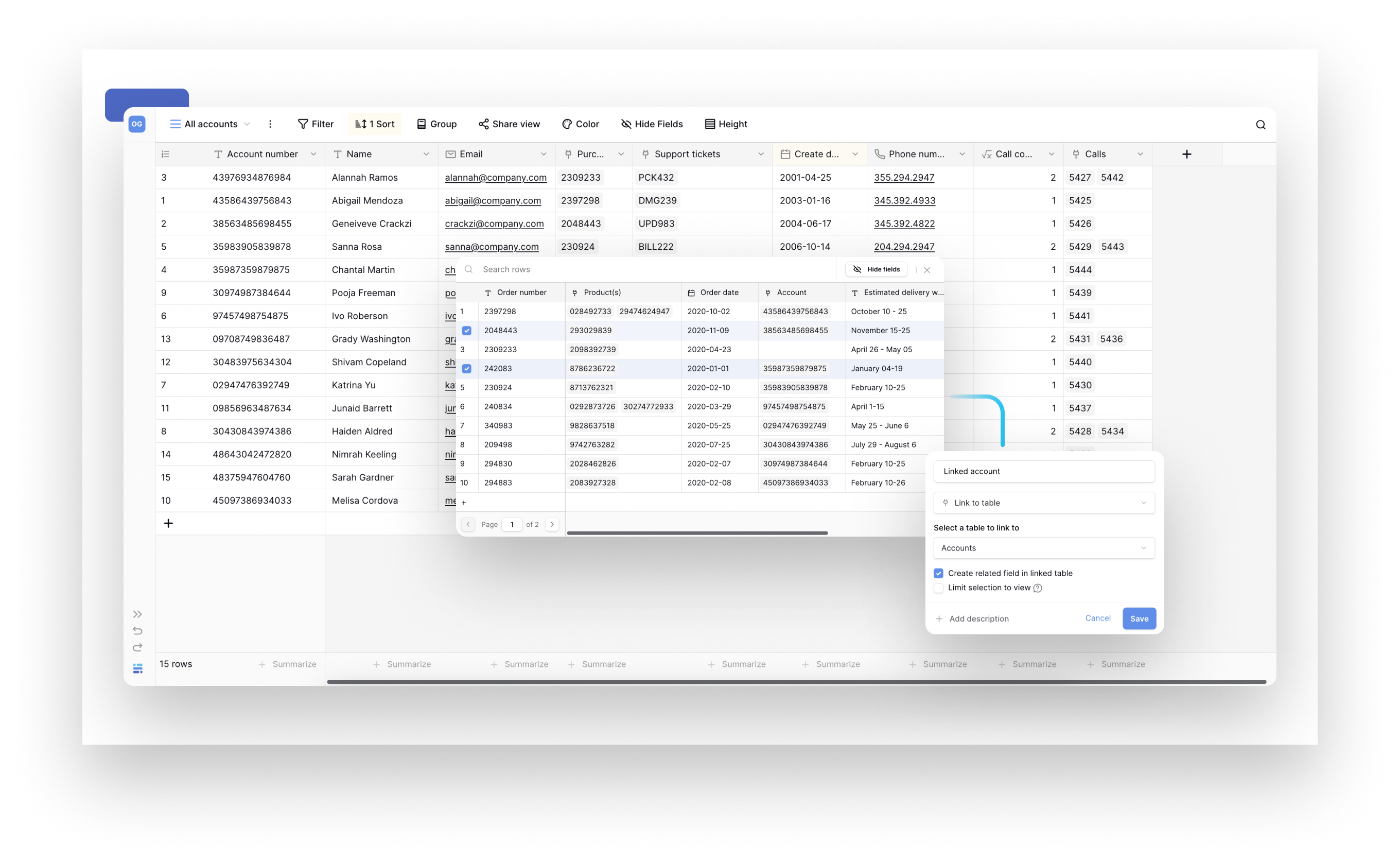
Baserow groups 25+ field types into categories by their main purpose. To pick the right one, match what your data needs to one of the categories below.
Basic data fields
Store fundamental information: text, numbers, and dates.
| Field type | Best for | Example use |
|---|---|---|
| Single line text | Short text values | Names, titles, SKUs, codes |
| Long text | Paragraphs and descriptions | Product descriptions, notes, articles |
| Number | Numeric values and calculations | Prices, quantities, scores, measurements |
| Date | Calendar dates and times | Due dates, appointments, deadlines |
| Boolean | Yes/no, true/false values | Completed status, active/inactive flags |
| Rating | Star ratings or scores | Product reviews, priority levels (1-5) |
Validation and formatting fields
Make sure data matches a specific format.
| Field type | Validates | Example use |
|---|---|---|
| Valid email addresses | Contact emails, user accounts | |
| Phone number | Phone number format | Customer phone numbers, support contacts |
| URL | Valid web addresses | Website links, documentation URLs |
| Password | Secure password storage | Credentials, access codes |
Selection and categorization fields
Choose from a predefined set of options.
| Field type | Selection type | Example use |
|---|---|---|
| Single select | One option only | Status (Draft/Published), priority (Low/Medium/High) |
| Multiple select | Multiple options | Tags, categories, features, skills |
| Collaborator | Workspace members | Task assignees, project owners, reviewers |
Relationship and reference fields
Connect data across tables.
| Field type | Purpose | Example use |
|---|---|---|
| Link to table | Create relationships | Link orders to customers, tasks to projects |
| Lookup | Display data from a linked table | Show a customer’s name inside an order record |
| Count | Count linked rows | How many tasks are attached to a project |
| Rollup | Aggregate data from linked rows | Total revenue across all of a customer’s orders, average rating |
Automatic and computed fields
Calculate or track data on their own.
| Field type | Auto-generates | Example use |
|---|---|---|
| Formula | A calculation from values on the same row | {Unit Price} * {Quantity} totals a line item, or combines a first and last name |
| Autonumber | Sequential numbers | Invoice numbers, ticket IDs, order numbers |
| UUID | Unique identifiers | API integration IDs, universal record identifiers |
| Created on | Row creation timestamp | When a record was created |
| Last modified | Last-update timestamp | When a record was last changed |
| Created by | The creator’s name | Who created the record |
| Last modified by | The last editor’s name | Who made the most recent change |
| Duration | Time periods | Project duration, session length, time tracking |
Special-purpose fields
Unique capabilities for specific needs.
| Field type | Special capability | Example use |
|---|---|---|
| File | Upload documents and images | Product photos, contracts, attachments |
| Edit row link | Edit an existing row | Update a record through a pre-filled form |
Understanding computed fields
A computed field automatically calculates, updates, or pulls values based on other data in the table or a linked table. Unlike a manual-entry field, where a person types the value, a computed field generates its own content from rules you define once.
Common computed field types include formula fields , lookup fields , count fields , rollup fields , created-on and last-modified fields, and created-by and last-modified-by fields.
Why computed fields matter
Data consistency: calculations update automatically when the source data changes, so no one has to recalculate anything by hand.
Fewer errors: automatic computation removes manual-calculation mistakes and keeps large datasets accurate.
Dynamic relationships: a change in one table instantly shows up in linked tables through lookup and rollup fields.
Time saved: set the calculation up once and it applies to every row, saving hours of repetitive work.
Field operations and customization
Every field can be configured to fit the task at hand:
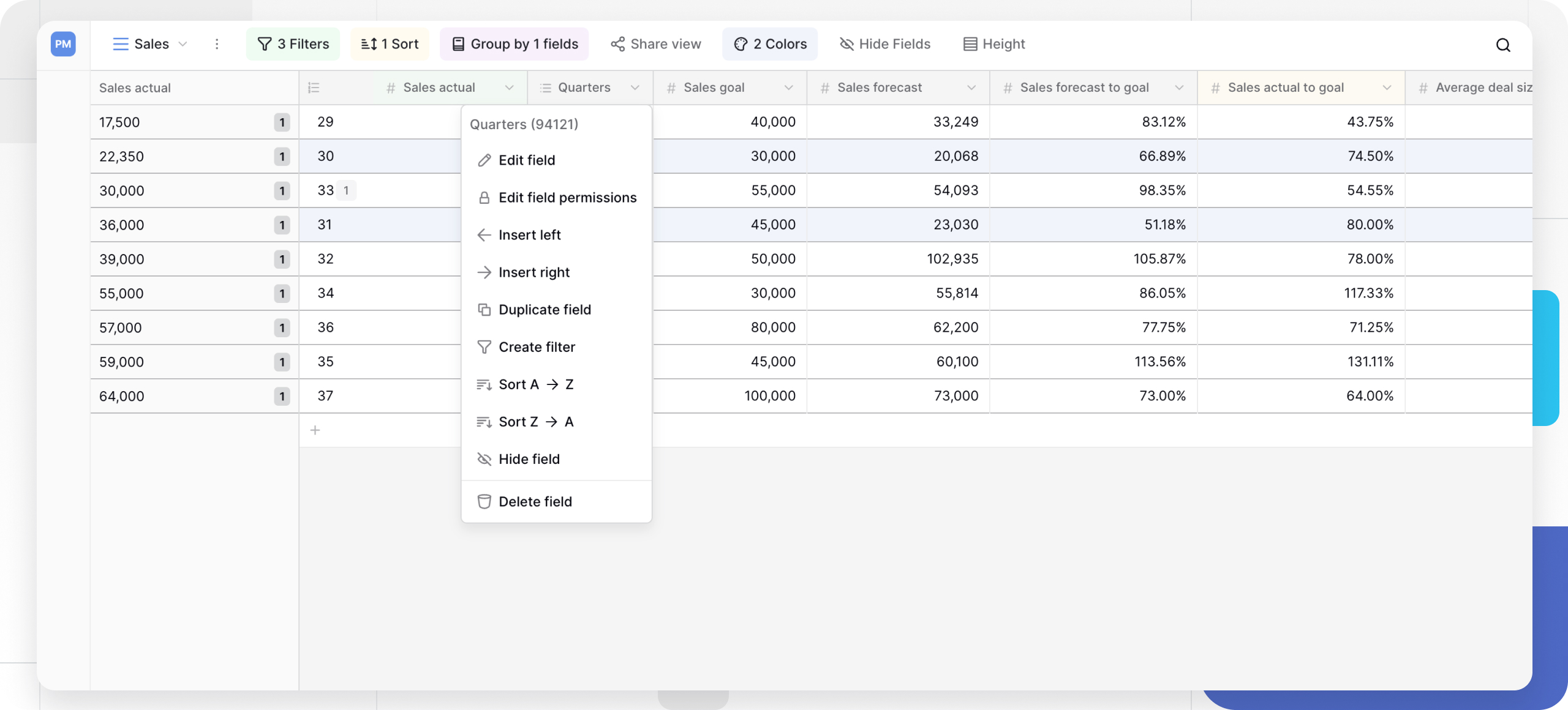
- Sorting : arrange rows by field value (A-Z, newest first, highest to lowest);
- Filtering : show only rows that match a specific field criterion;
- Grouping : organize rows into collapsible sections by field value;
- Freezing : lock a column to the left of the screen so it stays visible while scrolling horizontally;
- Hiding : control a field’s visibility in one view without deleting any data;
- Descriptions : add explanatory text so people understand what a field is for.
These operations are view-specific - customize each view independently without touching the others or your underlying data.
Frequently asked questions
Can I change a field’s type after creating it? Yes, most field types can be converted through the field configuration menu. Baserow tries to preserve data during conversion (numbers to text, for example, work seamlessly), but some conversions can lose data, so always double-check the result afterward.
What’s the difference between single-line text and long text? Single-line text stores short values (names, titles, codes) on a single row. Long text stores paragraphs and wraps across multiple lines. Use single-line text for compact data and long text for descriptions or notes.
How do computed fields update when the source data changes? They recalculate automatically and immediately. Update a quantity in a row, and any formula referencing that quantity updates instantly across every view.
Can I link to the same table with more than one link-to-table field? Yes - you can create several link fields pointing at the same table, each representing a different relationship. A projects table, for instance, might link to a people table twice: once for “Project manager” and once for “Team members.”
Do field changes affect the data or just the view? Configuration changes (name, description, hide/show) never touch the underlying data. Changing a field’s type, however, can transform or lose data depending on the conversion. Sorting, filtering, and grouping only change how you view the data, never the data itself.
Is there a maximum number of fields per table? Baserow doesn’t enforce a hard limit, but for performance it’s best to keep a table under roughly 200 fields. Split very wide tables into related tables connected by link-to-table fields instead.
What’s next
Now that you know which field types are available, read Create a Field to add them to a table, or jump straight to Field Configuration to master sorting, filtering, and hiding.