Baserow Field Configuration - Sort, Filter, and Hide Fields
Field configuration turns a plain column into a working data tool. This article walks through editing a field’s type, sorting and filtering by it, hiding, duplicating, deleting, and reordering fields in a Baserow table.
Overview
Once a field exists, you can adjust its type, appearance, behavior, and position through the field’s own configuration menu. These options let you refine a database’s structure as requirements change, without losing data or starting over.
Field configuration works independently per view: hide a field in one view without touching the others, apply a different sort, or build a view-specific filter, all while the underlying data stays the same everywhere. That flexibility is what lets one table serve several teams or workflows through different views.
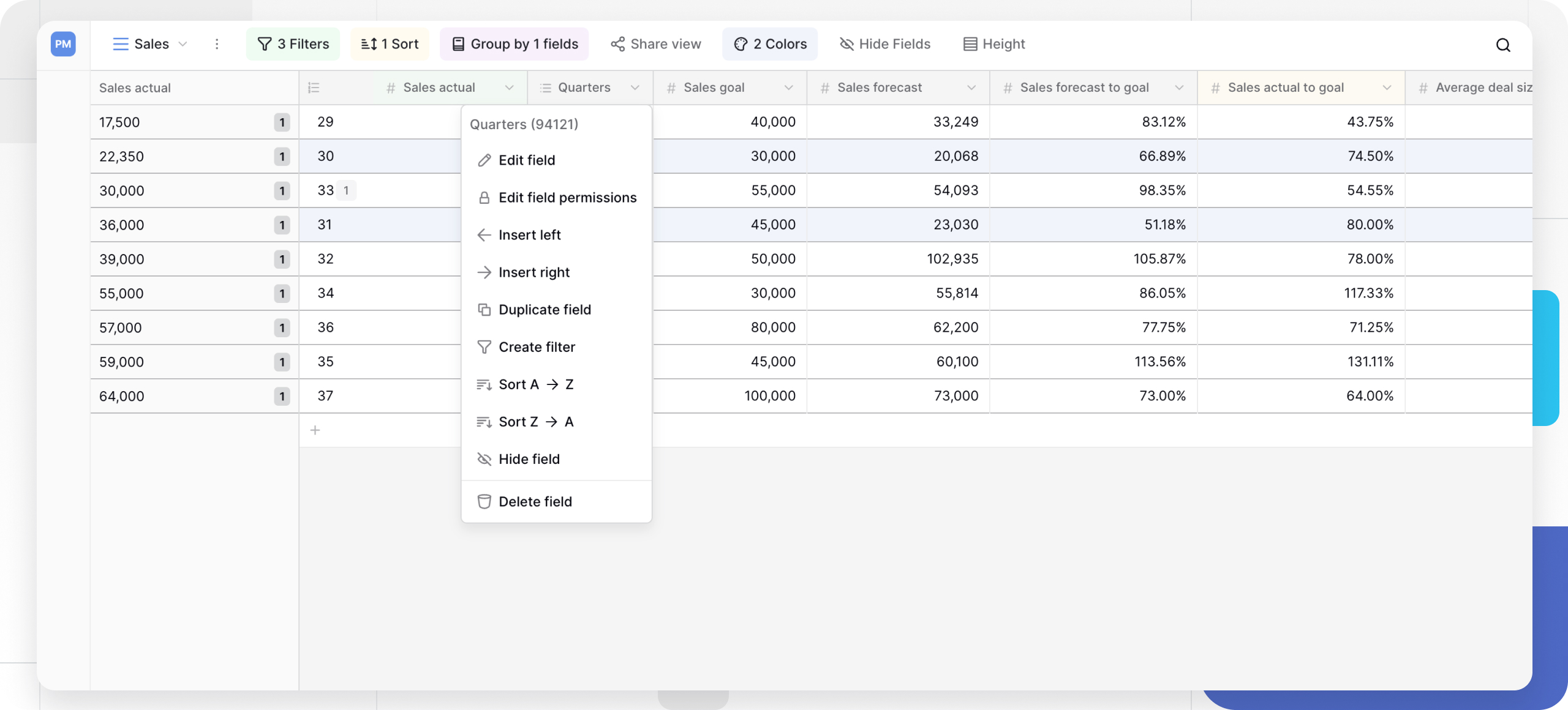
The field configuration menu
Every field customization option lives behind the field’s dropdown menu.
To open a field’s configuration:
- find the field you want to configure;
- click the dropdown arrow next to its name;
- pick the option you need from the menu.
Available options vary by field type - a computed field like a formula exposes different settings than a manual-entry field like text or number.
Primary field limits: the primary field has a restricted configuration menu. You cannot delete it, hide it, or insert a field to its left, though you can still edit its type and other properties.
Field configuration options at a glance
| Configuration | Purpose | Affects data | Affects views |
|---|---|---|---|
| Edit field | Change the type, name, or settings | May transform data | All views |
| Insert | Add a new field next to the current one | No | All views |
| Duplicate | Create a copy of the field | No (unless copying data) | All views |
| Filter | Show or hide rows by a criterion | No | Current view only |
| Sort | Arrange rows by the field’s value | No | Current view only |
| Hide | Remove the field from the view | No | Current view only |
| Delete | Remove the field permanently | Yes, deletes data | All views |
| Group | Organize rows into sections | No | Current view only |
| Reorder | Change the field’s position | No | Current view only |
Core field operations
How to edit a field
Change a field’s type, name, or type-specific settings after it already exists.
To edit a field:
- click the dropdown arrow next to the field’s name;
- select Edit field from the menu;
- make the changes you need;
- click Save to apply them.
Changing field types
When converting between field types, Baserow tries to preserve data by transforming values into the new type. Understanding how a conversion behaves helps you avoid losing anything.
Recovery tip: press
Ctrl/Cmd + Zright after a conversion to undo it and restore the original data if values were lost.
Inserting a new field
Add a field to the left or right of an existing one for precise positioning. See Create a Field for the full insertion steps.
Duplicating a field
Create a copy of a field with an identical configuration, optionally including its data. See Create a Field for the detailed duplication steps.
Creating a filter from a field

Quick-create a filter straight from the field menu instead of opening the filter panel and picking the field manually.
To create a field-based filter:
- click the dropdown arrow next to the field’s name;
- select Create filter;
- the filter panel opens with that field already selected;
- choose an operator and value to finish the filter.
Sorting by a field

Arrange rows by a field’s values to make the data easier to analyze or present.
To sort by a field:
- click the dropdown arrow next to the field’s name;
- select Sort ascending or Sort descending;
- the rows reorganize immediately.
You can chain multiple sorts - by department first, then by priority within each department, for example - and reorder those conditions by dragging them in the sort panel.
Sorting behavior by field type
| Field type | Ascending order | Descending order | Notes |
|---|---|---|---|
| Text fields | A → Z | Z → A | Alphabetical |
| Number fields | 1 → 9 (smallest first) | 9 → 1 (largest first) | Numeric |
| Date fields | Oldest → newest | Newest → oldest | Chronological |
| Boolean fields | ☐ → ☑ (unchecked first) | ☑ → ☐ (checked first) | Binary |
| Single select | A → Z or option order | Z → A or reverse order | Can follow creation order |
| Rating fields | 1 → 5 (lowest first) | 5 → 1 (highest first) | Numeric |
| Lookup fields | Based on the looked-up value’s type | Based on the looked-up value’s type | Sorts by the linked data |
Unsortable fields: file fields cannot be sorted directly.
Empty values: sorting ascending typically pushes empty cells to the top of the table.
How to hide fields
Remove a field from a view without deleting its data - useful for a focused view aimed at one task or one audience.
Hiding from the field header menu
To hide a field:
- click the dropdown arrow next to the field’s name;
- select Hide field;
- it disappears from the current view.
Hiding from the bulk-hide menu
To hide several fields at once:
- click Hide fields in the view toolbar;
- toggle visibility for several fields at the same time;
- click outside the menu to apply the change.
Hiding from the row detail panel
Hide fields inside the row detail panel for a more focused editing view:
- open a row’s detail panel;
- click the options menu beside a field;
- select Hide field.
Primary field exception: the primary field can never be hidden - it always stays visible as the row’s identifier.
How to delete a field
Remove a field and all of its data from the table. Deleted fields move to the trash with a recovery window.
To delete a field:
- click the dropdown arrow next to the field’s name;
- select Delete field;
- confirm the deletion in the dialog.
Primary field exception: the primary field cannot be deleted, though you can change its type or designate a different field as primary.
Additional field operations
Adjusting field width
Change a column’s width in grid view for better readability. Freezing a field locks its column to the left of the screen so it stays visible while you scroll horizontally.
How to reorder fields
Change field positions to group logically related fields together.
Drag-and-drop reordering:
- click and hold a field header in grid view;
- drag it left or right to the position you want;
- release to drop it in place.

Reordering in the row detail panel:
You can also reorder fields from the row detail panel by dragging them up or down in the vertical field list.
Use case: group all contact fields together (name, email, phone), followed by address fields (street, city, state, zip) for a logical data-entry flow.

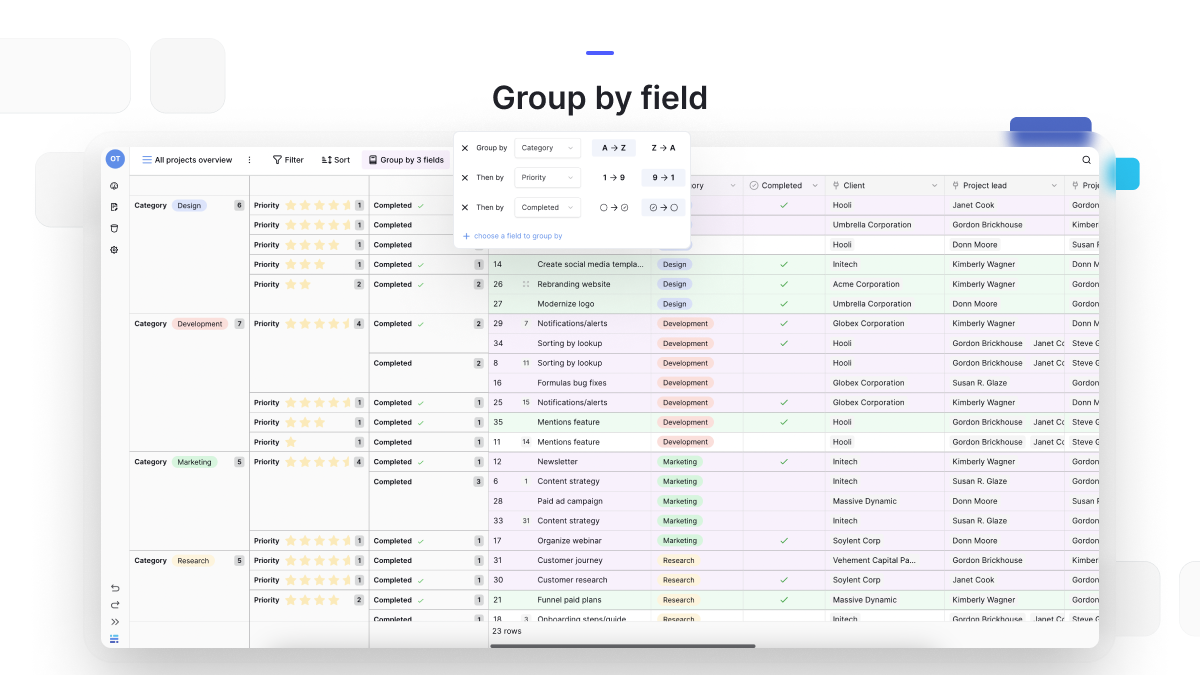
How to group by a field
Organize rows into collapsible sections by a field’s values for categorical analysis. Grouping only works in grid view and builds a hierarchical structure - add several group levels for nested categorization. Learn more about grouping strategies in Group Rows .
To group by a field:
- click the dropdown arrow next to the field’s name;
- select Group by this field;
- rows organize into sections by their unique field values.
Frequently asked questions
Can I undo a field configuration change? Yes, press Ctrl/Cmd + Z right after a change to undo an edit, a deletion, or a type conversion. Recover a deleted field from the trash within its grace period. Changes like hiding, sorting, or filtering can also be reversed through their own menus.
Do field configuration changes affect other views? Some changes apply everywhere (editing the type, deleting the field, renaming it), while others are view-specific (sort, filter, group, hide, reorder). That design is what lets you build specialized views from one table without disturbing the others.
Can I configure several fields at once? Bulk operations are limited. You can show or hide several fields at once through the bulk-hide menu, but editing, sorting, or deleting still requires acting on one field at a time.
What happens to the data when I change a field’s type? Baserow tries to convert the data to the new type. Compatible conversions preserve everything (text to long text, for example), while incompatible ones can lose data (text to number drops any letters). Test conversions on a duplicated table first, or undo immediately with Ctrl/Cmd + Z.
Can I configure computed fields like formulas or lookups? Yes - computed fields have their own configuration options. Formula fields let you edit the calculation, lookup fields let you change the looked-up field, and automatic fields like created-on have minimal settings since they generate their own values.
How do I know which views use a particular field configuration? Sorts, filters, and grouping only apply to the current view, so you’ll need to open each view to see its own configuration. Editing a field’s type or name, on the other hand, affects every view and shows up everywhere immediately.
What’s next
With field configuration covered, read Working with Timezones to understand how date and time fields behave, or revisit the field type overview to pick the right type for a new column.