Baserow Primary Field - How the Row Identifier Works
Every Baserow table opens with a primary field: the first column that names each row across links, dropdowns, forms, and API responses. This article covers how the primary field differs from every other field, how to configure or replace it, and which field type makes the best row identifier.
Overview
The primary field is the first field in every Baserow table, serving as the unique identifier and display name for each row. When you link rows between tables , build relationships, or reference a record elsewhere in the database, Baserow shows the primary field’s value - the human-readable “name” of that record.
The primary field is what you look at first to recognize a record. Unlike every other field, it cannot be deleted, hidden, or moved out of the first column, so every table has one consistent way to identify its rows.
Picking the right primary field is one of the more consequential design decisions in a table. A well-chosen primary field makes records instantly recognizable in dropdowns and relationship pickers; a poor choice (a raw ID or a date) forces people to open the full record just to know what they are looking at.
If you want row names generated automatically (Invoice-001, Sprint-Dec, and so on), convert the primary field into a formula field .
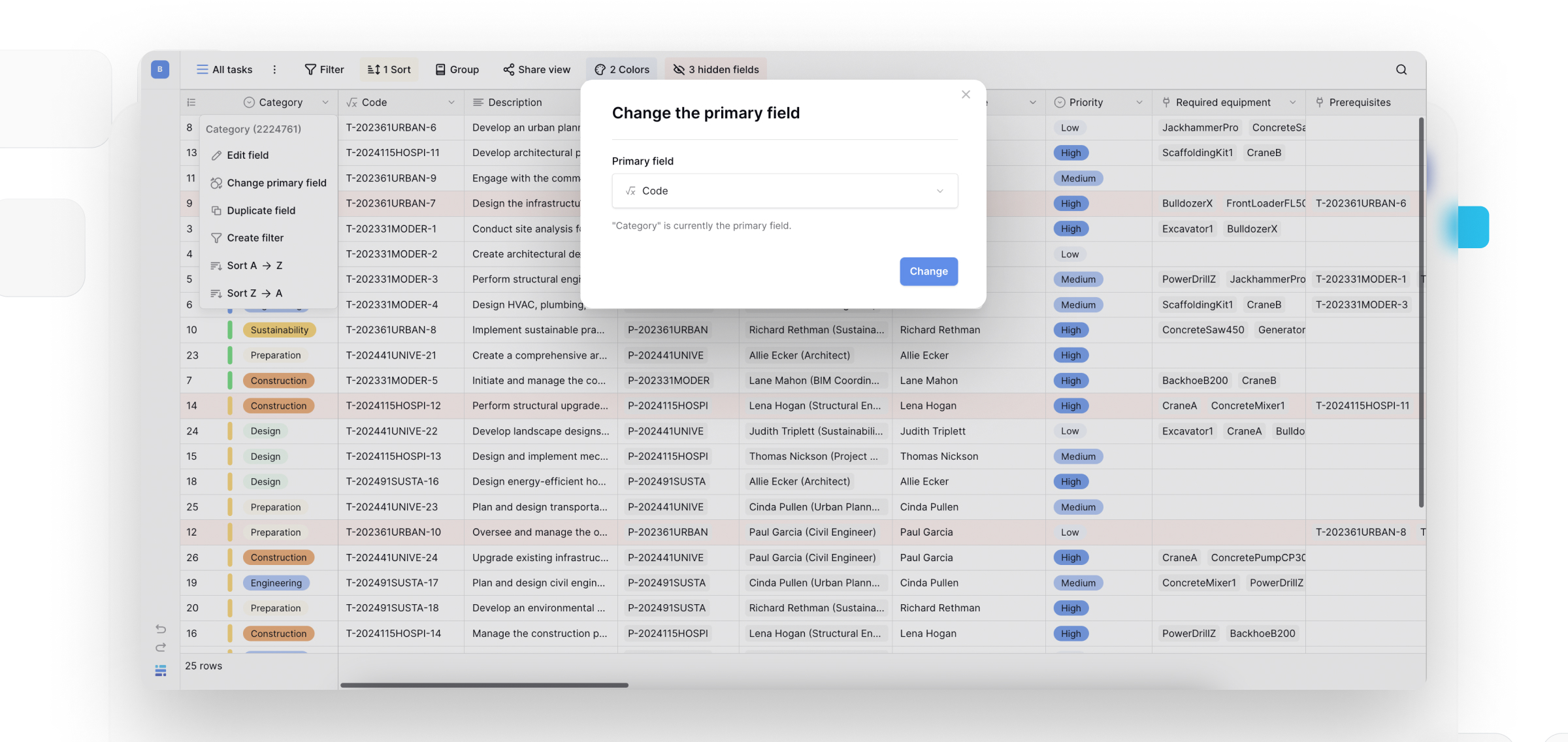
Why the primary field matters
Record identification: primary field values appear as row names inside link-to-table fields, so relationships read clearly at a glance.
Form integration: when a form links to another table, respondents see primary field values in the dropdown used to pick a related record.
API responses: API queries return the primary field value as the main identifier, which helps external systems interpret the data.
Everyday usability: a well-chosen primary field makes a table scannable - records are recognizable without opening their details.
Data relationships: changing the primary field changes how linked records display everywhere in the database, affecting every relationship view at once.
How to configure the primary field
You cannot delete or move the primary field, but you can customize it like any other field.
Available configuration options
- Edit the field name and type - change what the field is called and what data type it stores;
- Change the primary field - designate a different field as primary instead;
- Duplicate the primary field - copy its configuration to create a backup;
- Filter by the primary field - show only rows matching a specific identifier pattern;
- Sort by the primary field - arrange rows alphabetically or numerically by identifier.
To open the configuration menu
- click the dropdown arrow next to the primary field’s name;
- pick the option you want from the menu;
- make your changes and save.
How to change which field is primary
Designate a different field as primary when the current one no longer identifies rows well.
Method 1: change the primary field directly
Use this when you want to swap which field serves as primary immediately.
To change the primary field:
- click the dropdown arrow next to the current primary field;
- select Change primary field from the menu;
- pick which existing field should become the new primary field;
- confirm the change.
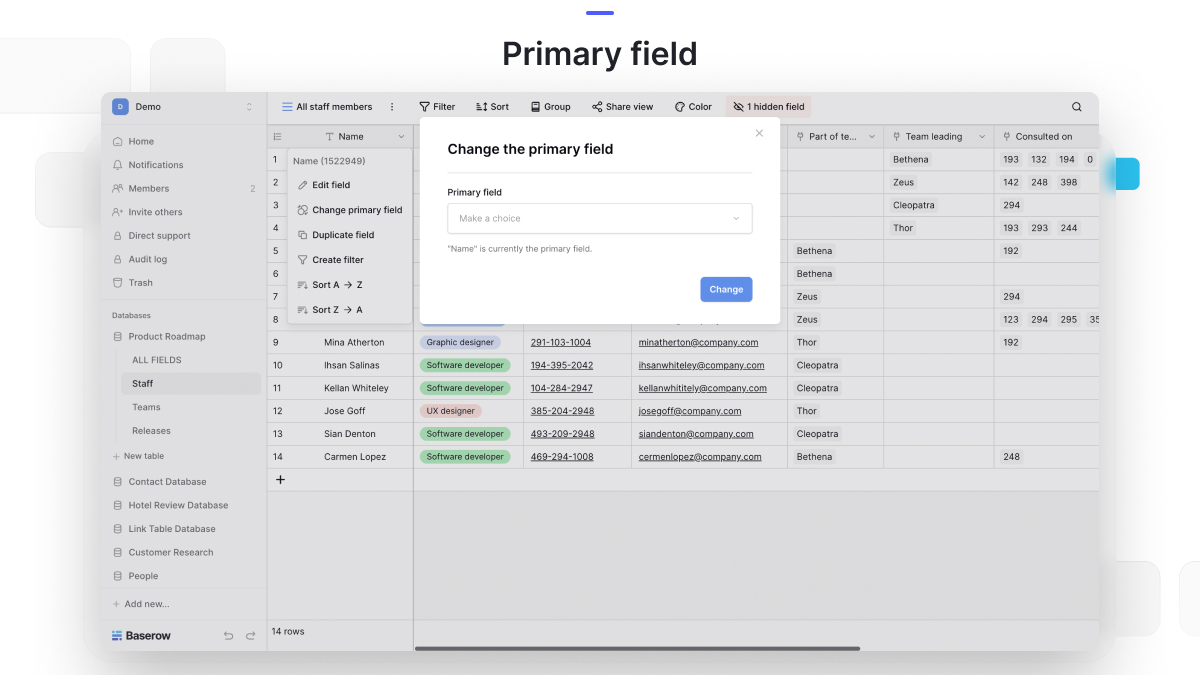
Use this when: you already have a field with better identifying information, you want every relationship to update immediately, or the new field is complete with no empty values.
Changing the primary field affects every link-to-table relationship in the database. Linked records will display the new primary field value instead of the old one. Review linked tables afterward to confirm the relationships still make sense.
Method 2: copy-paste with manual population
Use this when the data needs transforming or combining before it becomes the primary field.
To create and populate a new primary field:
- create a new field with the same data type as the intended primary data;
- select all values in the current primary field;
- copy them (
Ctrl/Cmd + C); - paste into the new field (
Ctrl/Cmd + V); - edit the new field’s values as needed;
- use Method 1 above to designate the new field as primary;
- optionally delete or repurpose the old primary field.
Use this when: you need to edit primary field data before promoting it, you want to keep the old primary field’s values, you are combining several fields into one new primary field, or you want to test the new identifier before fully committing.
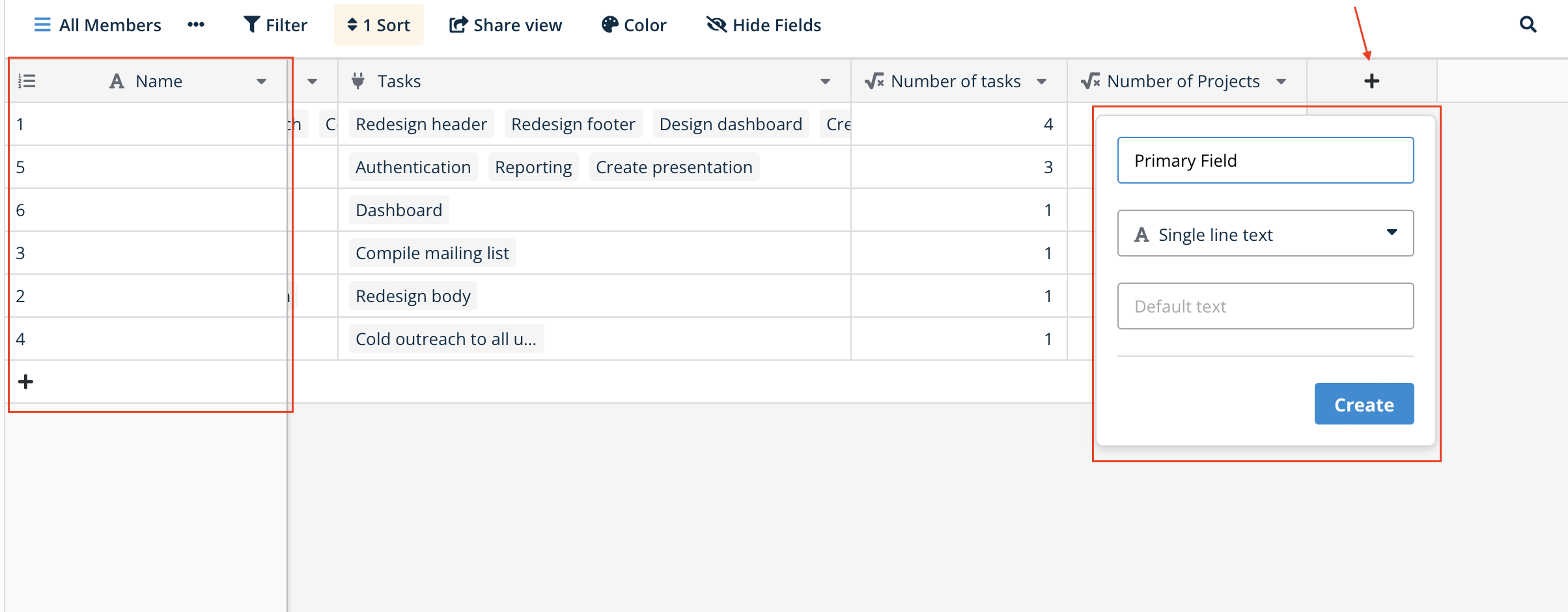
How to change the primary field’s type
Convert the primary field to a different data type while it stays the primary identifier.
To change the primary field type
- click the dropdown arrow next to the primary field’s name;
- select Edit field;
- pick a new field type from the dropdown;
- configure any type-specific settings;
- click Save to apply.
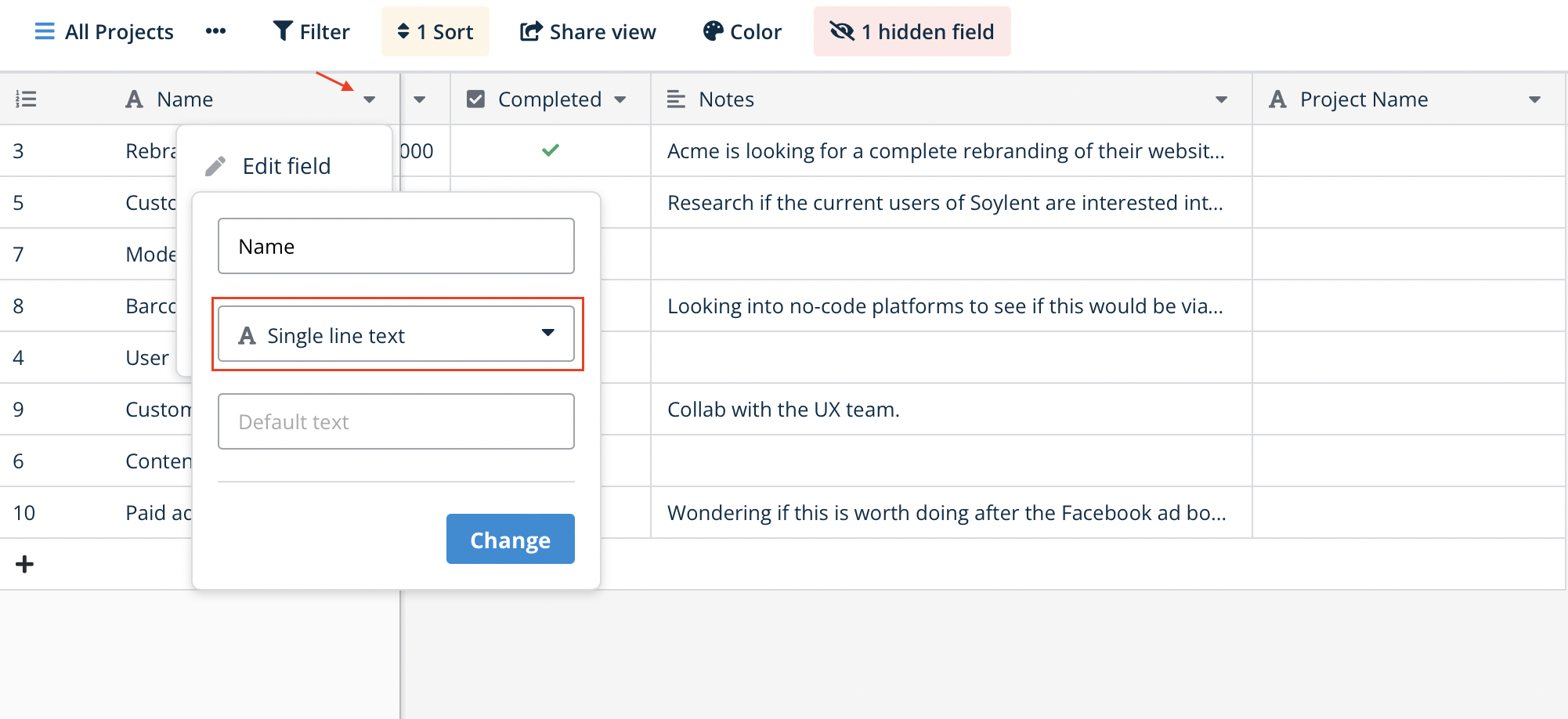
Baserow tries to convert existing data to the new type, but some conversions can lose data. Press
Ctrl/Cmd + Zright away if a conversion drops values you need.
Primary field restrictions
| Restriction | Reason | Workaround |
|---|---|---|
| Cannot delete | Every row needs an identifier | Designate a different field as primary, then delete the old one |
| Cannot hide | Must stay visible to identify rows | Control the visibility of other fields through views instead |
| Cannot move | Fixed at the first position | No workaround - design tables with this in mind |
| Cannot be a link field | Would create circular-reference issues | Use a lookup field to display linked data instead |
| Always required | An empty primary field makes rows unidentifiable | Design the primary field so it always holds a meaningful value |
These restrictions keep the database consistent and prevent rows from becoming unidentifiable or relationships from breaking.
Supported primary field types
The primary field supports nearly every field type, including created-by, last-modified-by, and collaborator fields, so you have flexibility in how you identify rows:
| Field type | Best for | Example use case |
|---|---|---|
| Single line text | Names, titles, codes | Customer names, product names, project titles |
| Long text | Descriptions | Article titles, note summaries |
| Number, UUID, autonumber, duration | Sequential numeric IDs | Invoice numbers, order IDs, ticket numbers |
| Rating | Rarely useful | Rating-scale values (uncommon) |
| Boolean | Not recommended | Only two possible values |
| Date, last modified, created on | Time-based records | Daily log entries, historical events |
| User identification | User accounts, email-based contact lists | |
| File | Document identification | A file library keyed by filename |
| URL | Link-based records | Website directories, bookmark collections |
| Multiple select | Display only | Shows several tags but limited practical use |
| Single select | Category-based tables | Status types, priority levels (when each is a unique record) |
| Phone number | Contact-based records | Support tickets keyed by caller phone |
| Formula | Computed identifiers | Concatenated “First name + Last name,” generated codes |
| Count, rollup, lookup | Display linked data | Show a customer’s name pulled from a linked customers table |
Not supported: link-to-table fields cannot serve as the primary field, to avoid circular references.
Primary field best practices
- Favor descriptive identifiers: single-line text usually makes the most readable primary field in relationships and forms;
- Use a formula for compound identifiers: when no single field uniquely identifies a row, build a formula field that combines several fields and set it as primary;
- Aim for complete, distinctive values: give every row a primary field value, keep values distinguishable from each other (avoid a wall of “Untitled” records), and make similar records easy to tell apart;
- Decide before you link: choose the primary field before building link-to-table relationships - changing it afterward updates every linked display, which can confuse people if the new identifier is less clear than the old one.
Frequently asked questions
Why can’t I delete the primary field? Every table needs a way to identify its rows. The primary field is that universal identifier across relationships, forms, API responses, and the interface - deleting it would break references and leave rows unidentifiable.
Can I hide the primary field in specific views? No, the primary field cannot be hidden in any view, which guarantees rows always have a visible identifier. If you need a view without it visible, reconsider whether a different table structure fits the use case better.
What happens to linked records when I change the primary field? Every link-to-table relationship updates automatically to show the new primary field value instead of the old one - switching from “Customer ID” to “Customer name,” for example, makes every linked record display the name instead of the ID.
Can a lookup field be my primary field? Yes. This lets you display data pulled from a linked table as the row’s identifier - for instance, an orders table could use a lookup of the customer’s name from the linked customers table as its primary field.
Should I use a unique ID or a descriptive name as the primary field? Favor descriptive names wherever practical. The primary field shows up throughout the interface, and “Website Redesign Project” is far more useful to a human reader than “PRJ-001.” Reserve ID-based primary fields for tables where no descriptive name exists.
What’s next
The primary field is just one of many field types in a Baserow table . To add fields alongside it, read Create a Field ; to manage sorting, filtering, and visibility, see Field Configuration .