Baserow Formula Functions - Syntax Reference and Examples
Baserow ships a built-in formula editor with autocomplete and dozens of functions for calculations, text work, dates, and linked-table lookups. This article covers the syntax for complex field types, a set of ready-to-use formula patterns for everyday tasks, and answers to common questions about arrays, durations, and empty values.
Overview
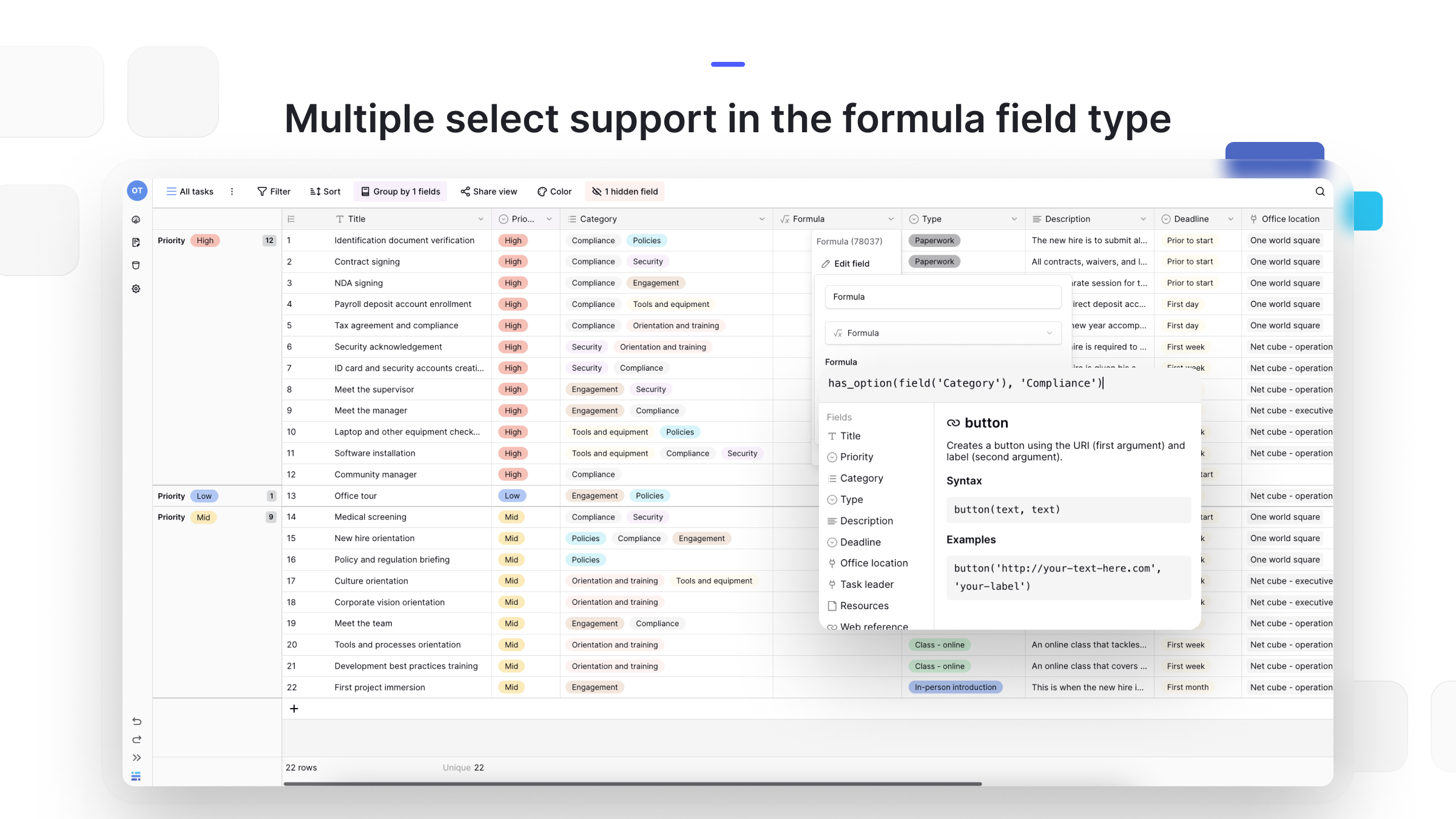
Baserow formulas work with most field types, including duration fields and multiple select fields . A single expression can run math, manipulate text, calculate dates, and build logical comparisons.
If you want records to name themselves automatically - Invoice-001 or Sprint-Dec, for example - turn the primary field
into a formula field. The row name then recalculates on its own whenever the underlying data changes.
Finding functions
The formula editor surfaces autocomplete and function suggestions as you type, each one showing its syntax and a usage example.
To find the function you need:
- Create or open a formula field for editing;
- Start typing inside the formula editor;
- Scan the list of suggested functions and their descriptions;
- Click a function to see its full syntax and an example.
Working with complex field types
Formulas treat simple and composite fields differently. The three cases below cause most of the confusion.
Multiple select fields
Formulas can work with multiple select fields : check which options are selected on a row and run operations against that set of values.
Link to table fields
For link to table fields
, use lookup() to pull field values from linked rows, then wrap the result in an aggregation function such as sum(), count(), or join().
Lookup and rollup fields
Lookup fields and rollup fields return arrays of values rather than a single number or string. Convert the array to a single value with an aggregation function before using it in a condition or comparison.
Common formula patterns
The patterns below cover most everyday tasks. Swap the field names in each example for fields in your own table.
Calculations and math
Calculate a line total:
[Quantity] * [Unit Price]Apply a percentage discount:
[Price] * (1 - [Discount Percent] / 100)Round to two decimal places:
round([Amount], 2)Find the larger of two values:
greatest([Value A], [Value B])Text operations
Combine a first and last name:
concat([First Name], ' ', [Last Name])Convert text to uppercase:
upper([Product Code])Extract the first 10 characters:
left([Description], 10)Check whether text contains a word:
contains([Notes], 'urgent')Date and time
Calculate the number of days between two dates:
date_diff('day', [Start Date], [End Date])Format a date as text:
datetime_format([Created], 'YYYY-MM-DD')Check whether a date is already in the past:
[Due Date] < today()Pull the year out of a date:
year([Date Field])Conditional logic
Show different text depending on status:
if([Status] = 'Complete', 'Done', 'Pending')Fall back to a default value when a field is empty:
when_empty([Notes], 'No notes added')Combine several conditions:
if(and([Quantity] > 0, [Price] > 100), 'In Stock - Premium', 'Standard')Working with linked tables
Sum values pulled from linked rows:
sum(lookup('Orders', 'Total'))Count linked items:
count([Related Items])Join text from several linked rows:
join(lookup('Projects', 'Name'), ', ')Filter, then sum the result:
sum(filter(lookup('Items', 'Price'), lookup('Items', 'Status') = 'Active'))Creating interactive buttons
Build a clickable button:
button('https://example.com/' + [ID], 'View Details')Turn a value into a mailto link:
link('mailto:' + [Email])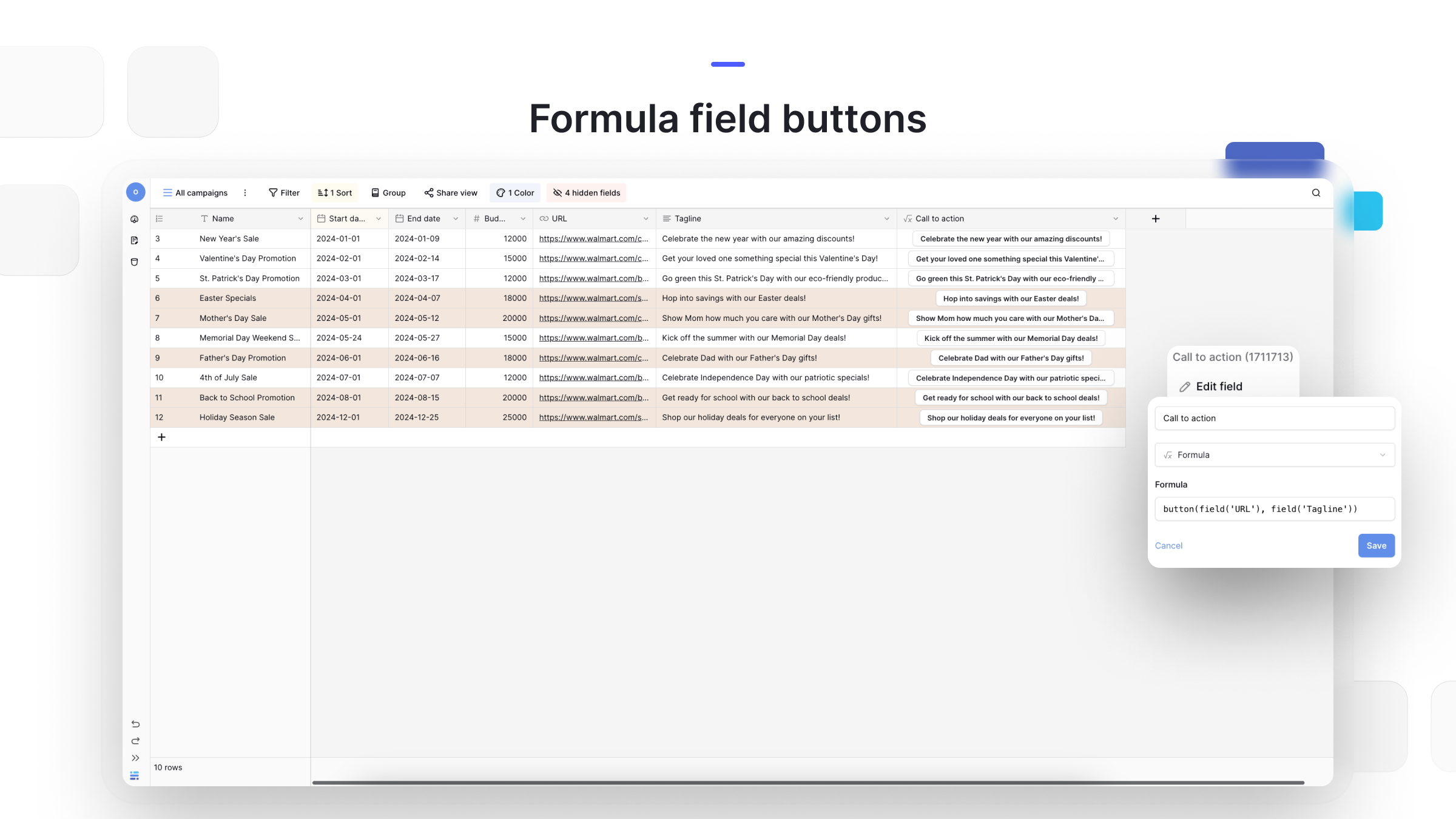
Frequently asked questions
Why isn’t my formula working with a lookup or link-to-table field? Lookup and link-to-table fields hold arrays - several values at once - not a single value, and most functions expect one value as input. Wrap the field in an aggregation function such as sum(), join(), count(), or avg() to turn the array into a single value first. For example, isblank([Organization]) fails if Organization is a link field, but isblank(join([Organization], '')) converts the array to text before checking it.
Can I use formulas with duration fields? Yes. Duration fields support math operations directly - add, subtract, multiply, and divide them just like ordinary numbers.
How do I check whether a date falls on a specific day of the week? Use datetime_format() with the D format code, where Sunday equals 1, Monday equals 2, and so on: datetime_format([Date Field], 'D') = '1' returns true for a Sunday. For the full list of formatting codes, see the PostgreSQL formatting documentation
.
Do today() and now() update automatically? Yes, both functions refresh roughly every 10 minutes. Use today() when you only need the date, and now() when you need the date and time together. The 10-minute interval is a best-effort target rather than a guarantee - a workspace that has been idle for a while may only refresh once every 60 minutes.
How do I handle empty or null values in a formula? Use when_empty() to supply a fallback value, or isblank() to test whether a field is empty: when_empty([Optional Field], 'Default Value') or if(isblank([Name]), 'No name provided', [Name]).
Can I use regular expressions inside a formula? Yes, regex_replace() finds and replaces text by pattern: regex_replace([Phone], '[^0-9]', '') strips every non-numeric character out of a phone number.
What’s next
New to formula fields? Start with the Formula field overview for a general introduction. To go deeper on the field types formulas lean on most, read Link to table field , Lookup field , Rollup field , and Working with timezones for date math across time zones. From there, move on to Views to see how formula output drives filtering and sorting.