Baserow Notion Integration - Sync Records via REST API
Notion and Baserow cover different jobs on a team: Notion handles narrative and coordination - what, why, and who - while Baserow handles structured execution - how much, when, and where; the open-source edition of Baserow connects the two with no paid gateway in between, through its REST API and webhooks, and this guide covers the common use cases, a two-way sync setup, and how to split data between the tools.
Overview
Notion works as a documentation and collaboration tool for project planning, meeting notes, and content drafting. Baserow handles database management, automation, and structured data. Both platforms expose a REST API, so a sync can run through custom scripts or automation workflows without leaving either tool’s free tier.
Use Cases
Common ways teams pair the two tools:
- Project management: goals and context live in Notion while tasks and dependencies are tracked in Baserow tables.
- CRM workflows: client documentation stays in Notion while structured lead and deal data lives in Baserow.
- Product development: specs and wikis are maintained in Notion while features, sprints, and bugs are tracked in Baserow.
- Content pipeline: drafts get written in Notion while metadata, publish dates, and statuses are managed in Baserow.
- Data-driven reporting: Baserow records are pulled into Notion on a schedule through the REST API, building a readable reporting layer without manual copy-pasting.
Setting Up the Integration
Step 1: Build the Baserow Table
Create a “Content Pipeline” table with these fields:
- Title, Type (single select field), Status (single select field).
- Author, Publish Date, Notion URL (a link back to the Notion page).
- Notes, plus Days Until Publish - a formula field that counts down to the publish date, and a second formula field for an overdue flag.
Step 2: Build a Notion Database Template
Build a reusable Notion database template that includes metadata properties (content type, status, author, publish date, Baserow record URL) and page sections for a content brief, draft, publishing checklist, and analytics.
Step 3: Configure the Notion Integration
Create a Notion integration with content-insert permissions and collect three identifiers: an API secret for authenticating requests, the data source ID from the Notion database settings, and the template ID from the list-templates endpoint.
Step 4: Build Two Automation Workflows
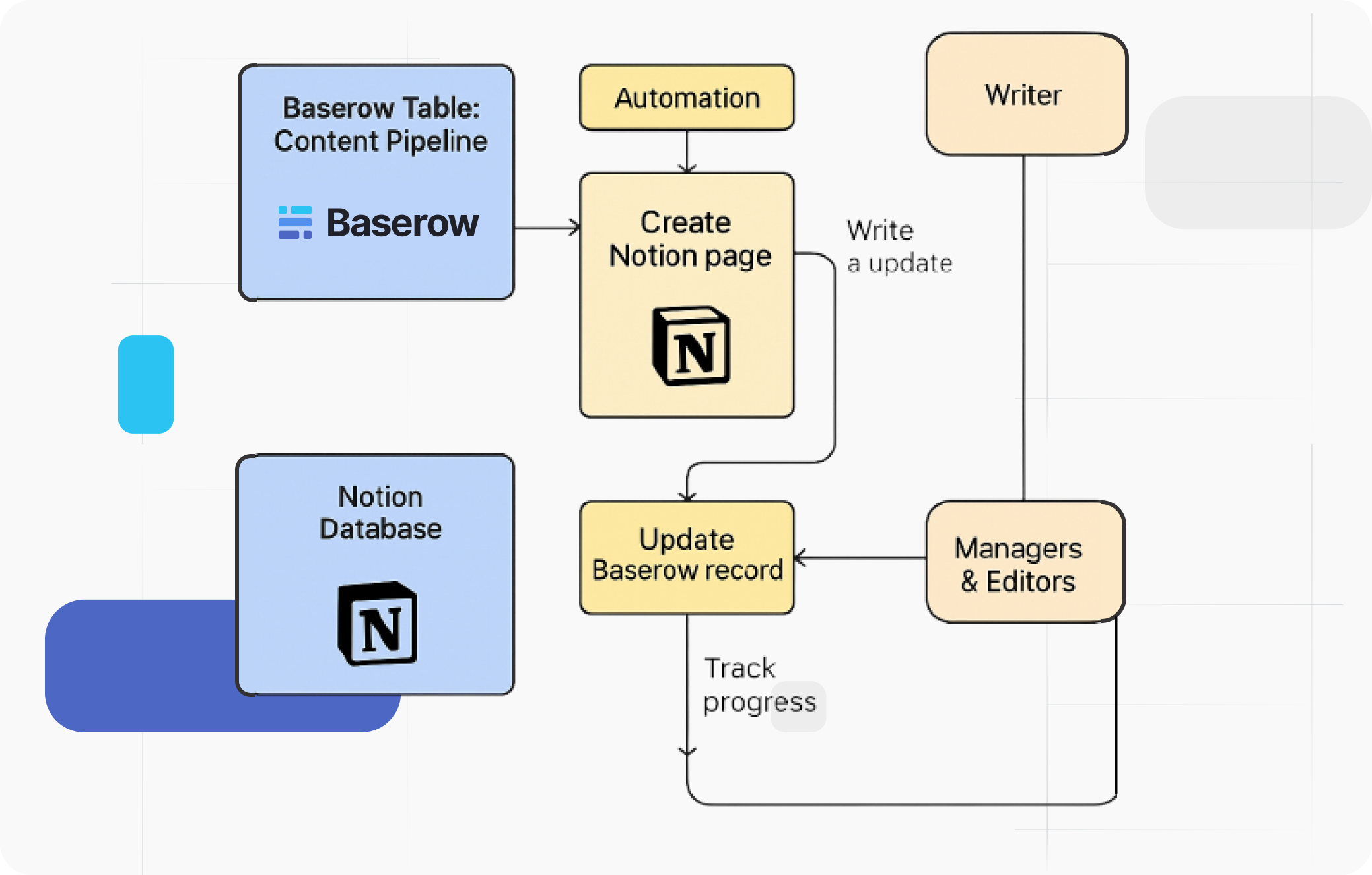
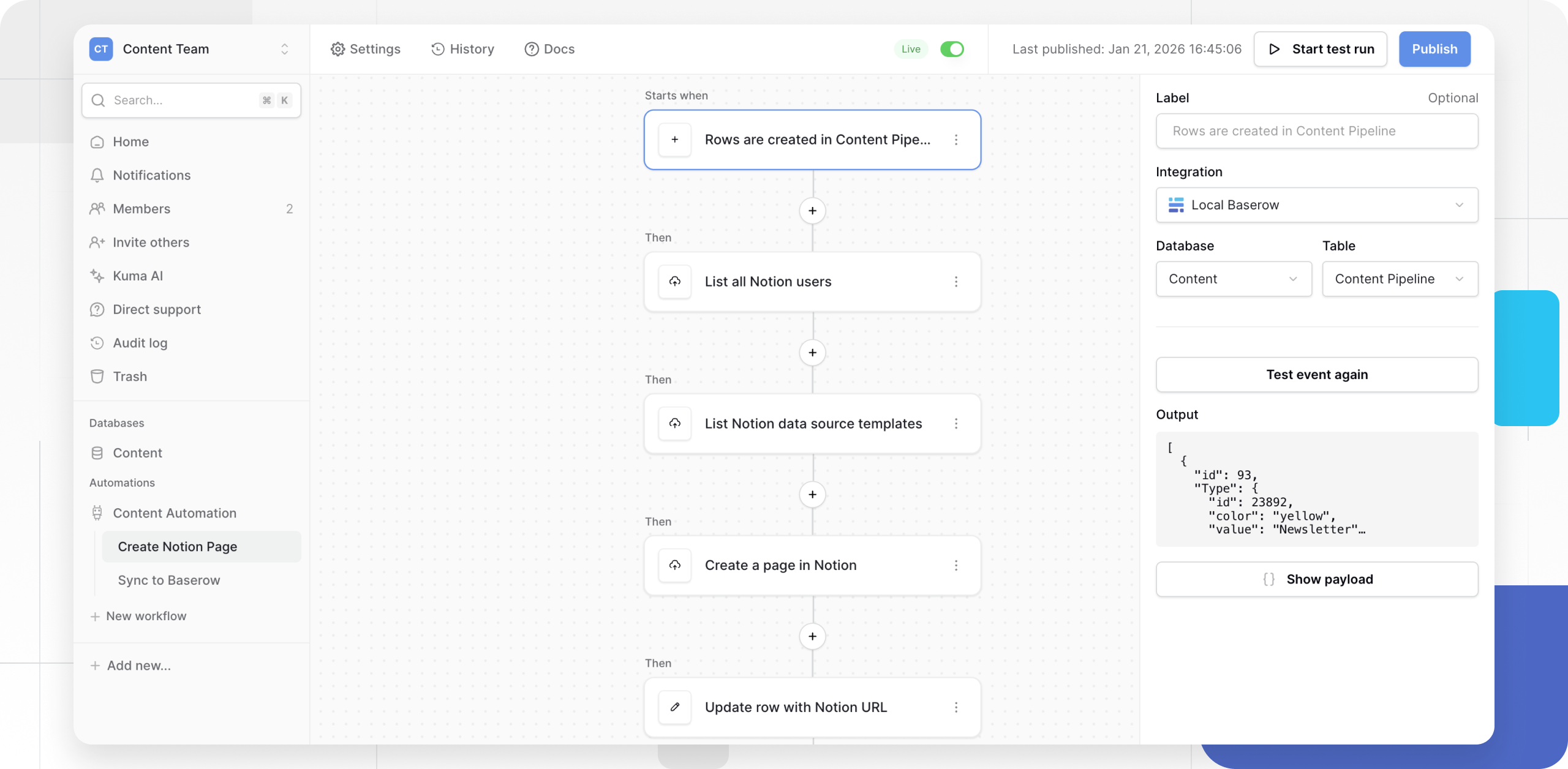
Workflow A (Baserow to Notion):
- Trigger: a new row is created in the Content Pipeline table.
- Actions: call the Notion API to create a page from the template, populate its properties with the row’s data, and write the resulting Notion page URL back into the Baserow row.
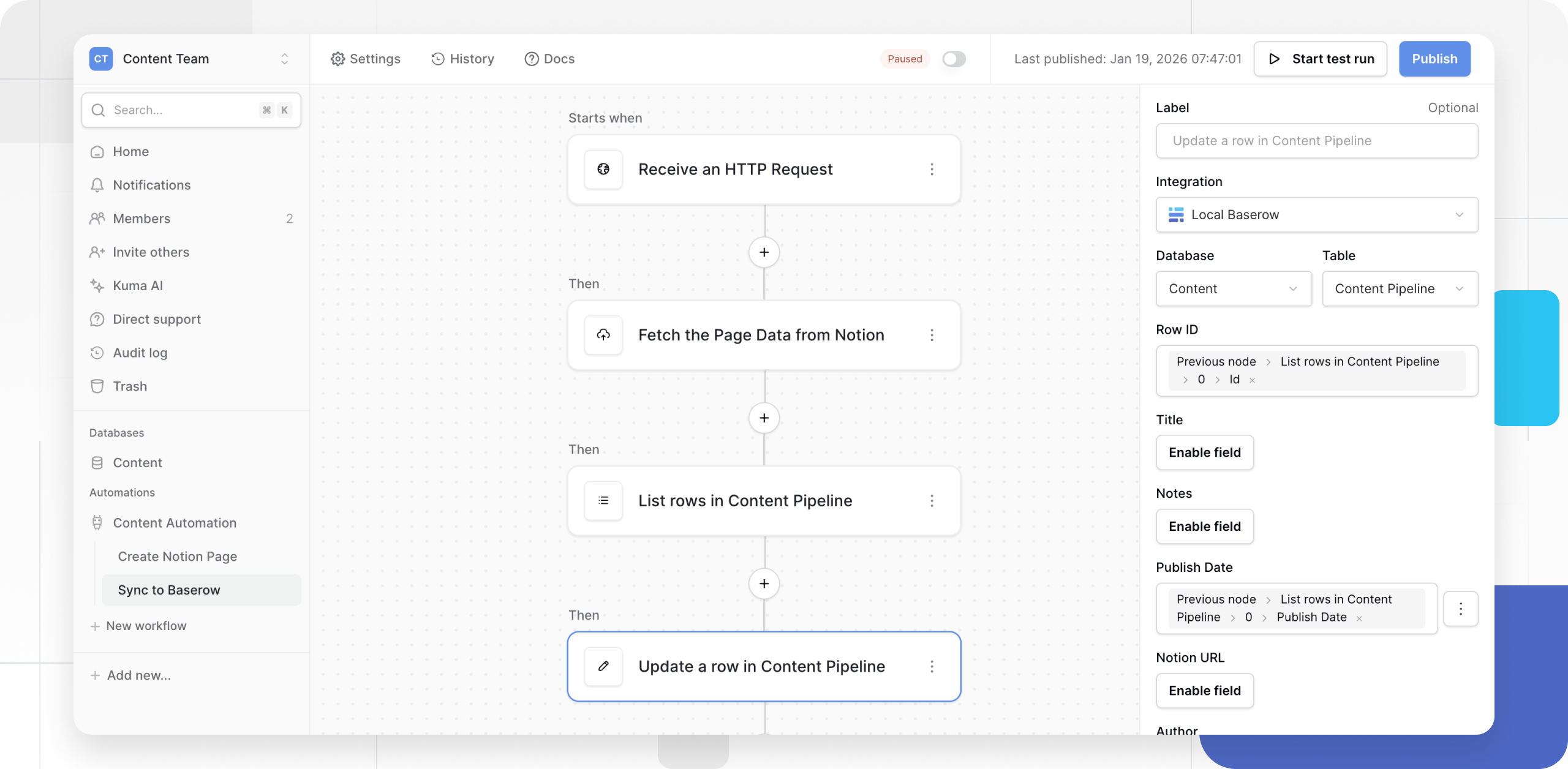
Workflow B (Notion to Baserow):
- Trigger: the Baserow automation receives a webhook from Notion when a page updates.
- Actions: retrieve the updated page data, find the matching Baserow record by URL or ID, and sync the Status and Publish Date fields.
Deciding Where Data Should Live
Keep anything that needs filtering, sorting, or automation in Baserow - that is structured data. Keep anything narrative or collaborative in Notion - context, discussion threads, drafts.
Avoid copying data between the two tools by hand - route it through the API and webhook workflows above instead. Use Baserow view filters to control exactly which rows a scheduled sync picks up, and Notion templates to keep newly created pages consistent.
Frequently Asked Questions
Do I need a third-party automation service like Zapier or Make? No - both workflows can be built directly on the Baserow REST API and a webhook automation trigger; a middleware service can be added as a bridge if useful, but it is not required.
Which token authenticates the Baserow API calls? A workspace database (API) token - it goes in the Authorization header in place of personal login credentials and only reaches the database it was scoped to.
What happens if the Content Pipeline fields stop matching the Notion database’s properties? Field mapping is configured by hand when each workflow’s actions are built - there is no automatic mapping by name, so revisit both workflows whenever the table or the database structure changes.
Related reading: Power BI integration for visualizing Baserow data in an external BI tool, and Power Automate integration as another way to connect forms and tables to Baserow.