Connect Baserow to Zapier - No-Code Automation Guide
Zapier connects Baserow to thousands of apps and lets you automate repetitive tasks without code: triggers react to row changes, and actions create, update, delete, and read table data through the same free REST API documented in the Webhook & API section.
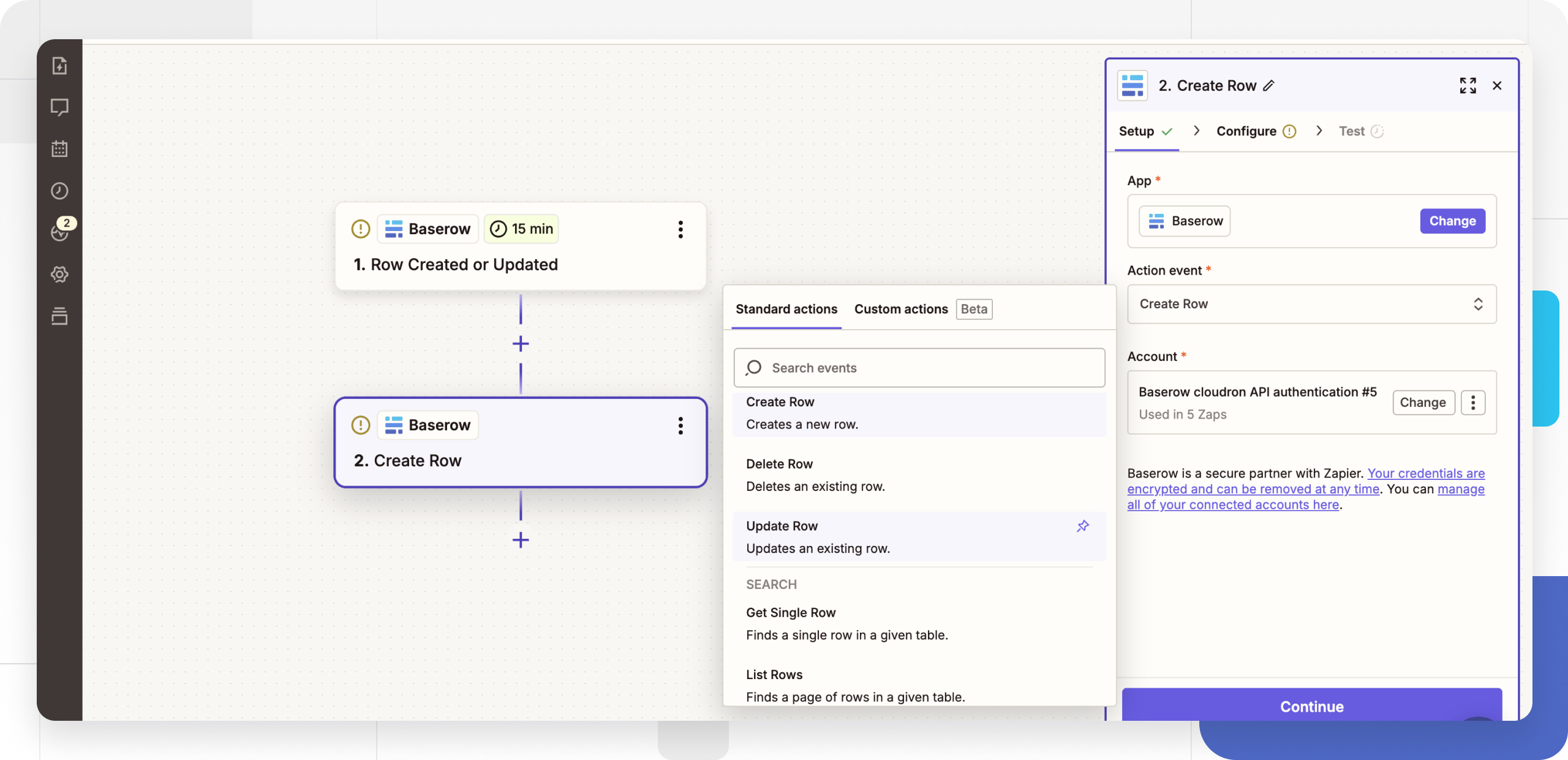
Baserow doesn’t post directly to social media, but its built-in automation feature or a Zapier/Make connection can publish posts automatically whenever their status changes in Baserow.
What you’ll need
- A Baserow account.
- A free Zapier account.
- A Baserow database token for authentication.
Supported operations
Baserow offers a full Zapier integration with triggers, actions, and search steps for building automated workflows.
Triggers
Triggers start an automated workflow when a specific event happens in Baserow.
| Trigger | Description | Use case |
|---|---|---|
| Row Created | Fires when a new row is added to a table | Notify the team when a new lead comes in |
| Row Created or Updated | Fires when a row is created or modified | Sync data across multiple platforms |
| Row Updated | Fires when an existing row is modified | Track changes to a project’s status |
Actions
Actions are operations Zapier performs inside a Baserow database.
| Action | Description | Use case |
|---|---|---|
| Create Row | Adds a new row to a table | Add form submissions to a database |
| Update Row | Modifies an existing row by ID | Update customer records from a CRM |
| Delete Row | Removes a row by ID | Archive completed tasks |
| Get Single Row | Retrieves one row by ID | Fetch a specific record’s details |
| List Rows | Returns multiple rows from a table | Export filtered data into reports |
Getting started with a Baserow Zap
A Zap is an automated workflow linking two or more apps. Every Zap has a trigger (what starts the workflow) and one or more actions (what happens automatically next).
Authentication
Before connecting Baserow to Zapier, you need a database token for authentication. Database tokens work like passwords - keep them secure and never share them publicly.
Connecting to Zapier
- Create a new Zap, or open an existing one, in your Zapier account.
- Search for Baserow among the apps and select it.
- Click Sign in or Connect a new account.
- Enter your Baserow API address:
- cloud version:
https://api.baserow.io; - self-hosted install: your own server’s address.
- cloud version:
- Paste your database token.
- Click Continue to finish authenticating.
Your Baserow account is now connected to Zapier and ready to use in a workflow.
Finding a table ID
Most Baserow operations require a table ID. To find it:
- Open your Baserow database.
- Click the three dots (
⋮) next to the table’s name. - The table ID appears in brackets in the menu that opens.
See Database and table IDs for details.
Understanding row IDs
Updating, deleting, or retrieving a specific row requires its row ID. Every row has a unique number shown in the leftmost column of the table - see the rows overview for more.
Frequently asked questions
How do I find my Baserow API address? It depends on how Baserow is installed. Cloud users on baserow.io use https://api.baserow.io. Self-hosted users need their own installation’s address. The full API documentation
is available from your Baserow account settings.
Can a Zap trigger on any field change in a row? Yes - use the Row Created or Updated trigger, which fires whenever any field in a row is modified, letting you sync changes across systems.
What’s the difference between Get Single Row and List Rows? Get Single Row returns one specific row by ID, useful when the target record is already known. List Rows returns several rows matching given criteria, useful for batch operations or filtering.
How do I filter which rows trigger my Zap? Use Zapier’s built-in filter step: add a filter after the Baserow trigger to define the conditions a row must meet before the workflow continues.
Can Zapier be combined with Baserow webhooks? Yes - Zapier’s Webhook trigger can receive data straight from Baserow webhooks for more customized automation.
Related resources
Next, read Connect Baserow to Make for a similar database-token setup built around a more visual scenario editor.