Baserow Row Detail Card - Viewing an Expanded Record
Instead of scrolling a wide table left and right to reach a distant field, a Baserow row can be expanded into its own vertical form showing every value for that record. This article walks through opening that detail card, what it can do - editing linked records, reviewing change history - and how it compares to editing directly in a cell.
Overview
The row detail card - also called the expanded row view - opens a dedicated editing surface for a single row, laying out every field vertically like a form. It works especially well for tables with many fields or for data entry that needs more room than a grid cell offers.
Unlike inline editing, where you work one cell at a time inside the grid, the detail card shows every field of the selected record together in one place. From there you can edit several fields, review the row’s change history, and even edit linked rows without leaving the card. Fields hidden in the view stay hidden here too.
When to use the row detail card instead of inline editing
The detail card is the better choice when you need to:
| Scenario | Why the card helps |
|---|---|
| Edit a record with many fields | Avoid scrolling a wide table horizontally |
| Work with long text | See full content in a multi-line field, not a truncated cell |
| Review a complete record | See everything about one entry in a single place |
| Edit linked rows | Change related records without switching tables |
| Do detailed data entry | Focus on one record without the rest of the table competing for attention |
How to open the row detail card
Opening the card takes one click from any table view:
- open the table containing the row;
- find the row you want to view;
- click the expand icon (an arrow) to the left of the row number.
The card opens immediately, showing every field of that row in a vertical layout.
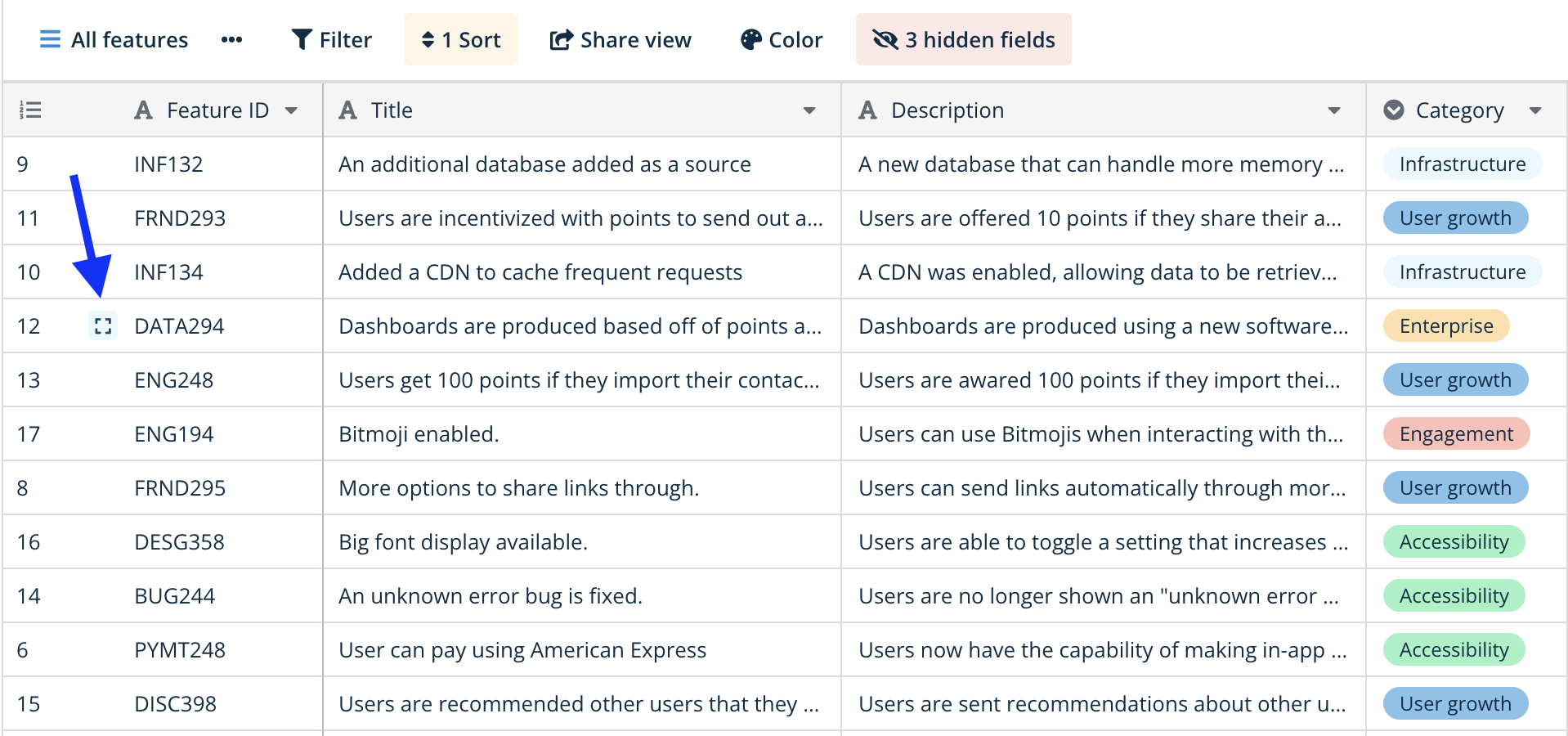
Keyboard shortcut: select a row and press Enter to open its card quickly.
What the row detail card can do
Edit every field in one place
The card lists every field vertically, so several fields can be edited in sequence without scrolling horizontally. Changes save automatically as you move between fields, the same as inline editing.
Work with linked rows
Link-to-table fields in the expanded view let you edit linked rows right there, without switching between tables. Click the expand icon next to a linked row to open its own card, make the change, and return to the original record - all in one workflow.
Row change history
The card gives access to the row’s change history : every row keeps its own timeline of what changed, when, and by whom. That makes it easier to track updates, restore an earlier value, and keep the data accurate over time.
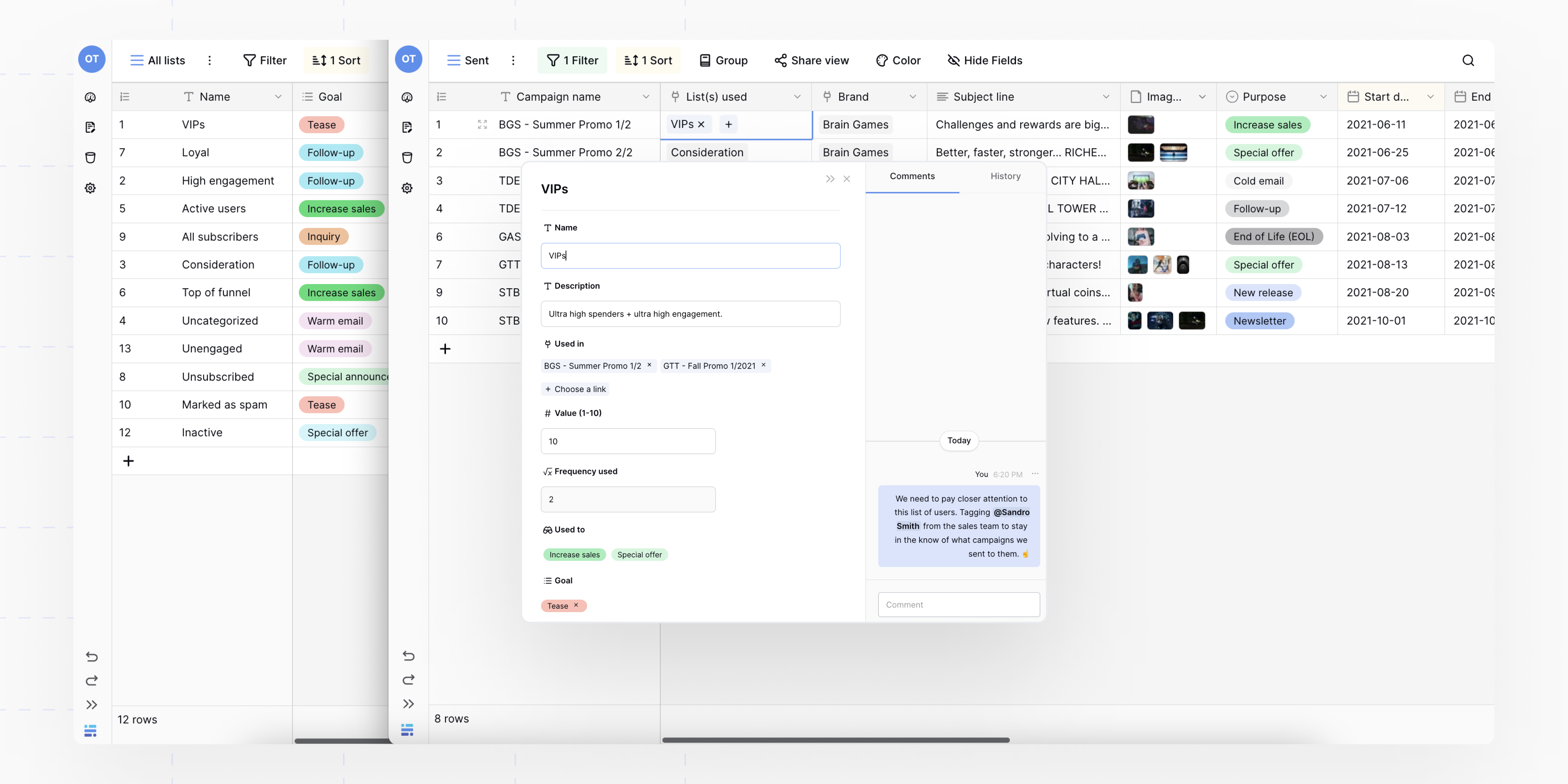
Add a field without leaving the card
While viewing an expanded row, you can create a new field without closing the card - handy for experimenting with different field types while staying focused on the current record.
Hidden fields stay hidden
A field hidden in the table view stays hidden in the row detail card too, keeping the card consistent with the view’s configuration and the attention on what actually matters.
How to close the row detail card
To close the card and return to the table view:
- click the X icon in the top-right corner, or
- press Escape.
Changes are already saved automatically, so there is no separate save button to click.

Moving between rows
The arrow buttons at the top of the card let you jump to the previous or next row without closing it - useful for reviewing or editing several records one after another.
Row detail card versus inline editing
| Capability | Row detail card | Inline editing |
|---|---|---|
| See every field | Shown vertically | Requires scrolling on wide tables |
| Edit several fields | Easy sequential editing | One cell click at a time |
| See long text | Full content visible | Truncated in the cell |
| Edit linked rows | Without switching tables | Opens a new card |
| Speed for one cell | Requires opening and closing the card | Instant click-to-edit |
| Context from other rows | Only this row is visible | The whole table is visible |
Frequently asked questions
What is the difference between the row detail card and the row-select modal? The row detail card opens from the main table to edit an existing record with every field shown. The row-select modal appears when creating a link in a link-to-table field and shows a list of rows to pick from - the two serve different purposes.
Can I open more than one row detail card at a time? No, only one card can be open at once. While editing linked rows from inside it, though, you can move through several linked records in sequence without closing the main card.
Do changes in the card save automatically? Yes, every change saves automatically as you edit, just like inline editing. There is no save button - edits are stored and visible to collaborators immediately.
Can I delete a field from the row detail card? Yes, open the card’s context menu (the three-dot icon) and choose “Delete field” - useful when reconsidering a record’s structure.
Do hidden fields show up in the row detail card? No, a field hidden in the table view stays hidden in the card too. Unhide it from the table view or from the card’s own context menu to see it there.
Can I move between rows without closing the card? Yes, use the arrow buttons at the top of the card to jump to the previous or next row - useful for reviewing or editing several records in sequence.
Next, read Row Change History to see who changed a record’s values and when.