How to Create a Row in Baserow - Five Ways to Add Data
Adding data to Baserow starts with a row, and there is more than one way to create one - a single click on the plus button, a keyboard shortcut, or duplicating an existing record. This guide walks through every method for creating rows manually, including rows in linked tables and adding several rows at once.
Overview
Rows are the individual records in a Baserow table where your data lives. Every time a row is created, Baserow assigns it a unique row ID for reference and tracking - see Rows Overview for how that ID works.
Baserow offers a flexible set of ways to create a row depending on the task: adding one manually with a click, using a keyboard shortcut for speed, duplicating a similar record, or importing several rows from a file at once. For programmatic row creation, the API is available.
Methods for creating rows
| Method | Best for | Speed |
|---|---|---|
| Plus button at the bottom | A single new record | Fast |
| Right-click menu | Inserting a row at a specific position | Fast |
Keyboard shortcut (Shift + Enter) | Fast entry while navigating with arrow keys | Fastest |
| Duplicate row | Creating a similar record | Fast |
| Copy and paste | Adding several rows with existing data | Medium |
How to add a blank row
Adding a new empty row is the most common way to start entering data. Pick whichever method fits:
- click the plus icon (+) at the bottom of the table, after the last row;
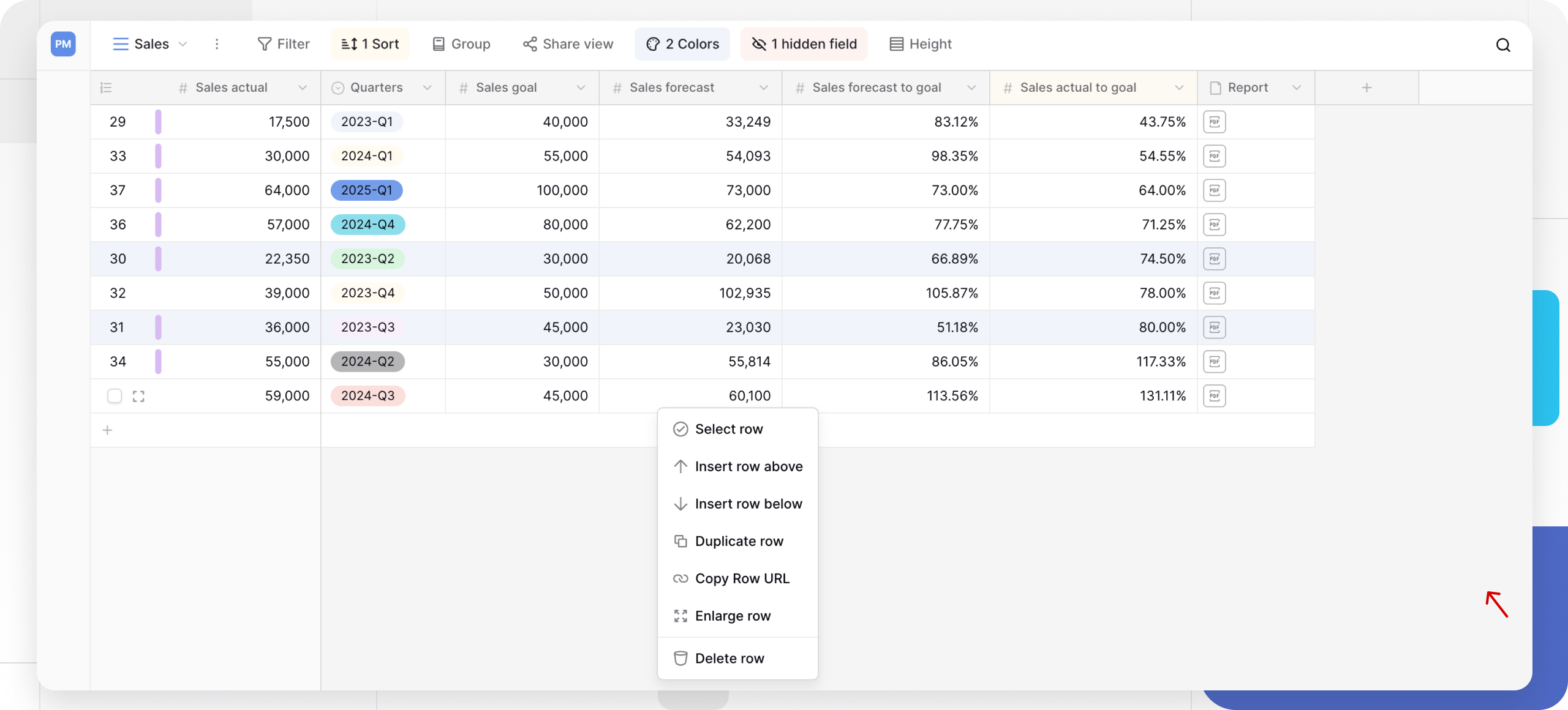
- right-click an existing row and choose “Insert row above” or “Insert row below”;
- use the
Shift + Entershortcut while navigating with the arrow keys to add a row right below the current position.
The new row appears instantly with empty fields ready for data entry. See Baserow Keyboard Shortcuts for more ways to speed up the workflow.
How to duplicate a row
Duplicating saves time when a new record is very similar to an existing one:
- open the table containing the row to duplicate;
- click the row to select it;
- right-click the row to open the context menu;
- choose Duplicate row.
Baserow creates an exact copy directly below the original, with every field value preserved.
How to create a row in a linked table
When working with link-to-table fields, a row can be created directly in the linked table without switching views:
- open the table that contains the link-to-table field;
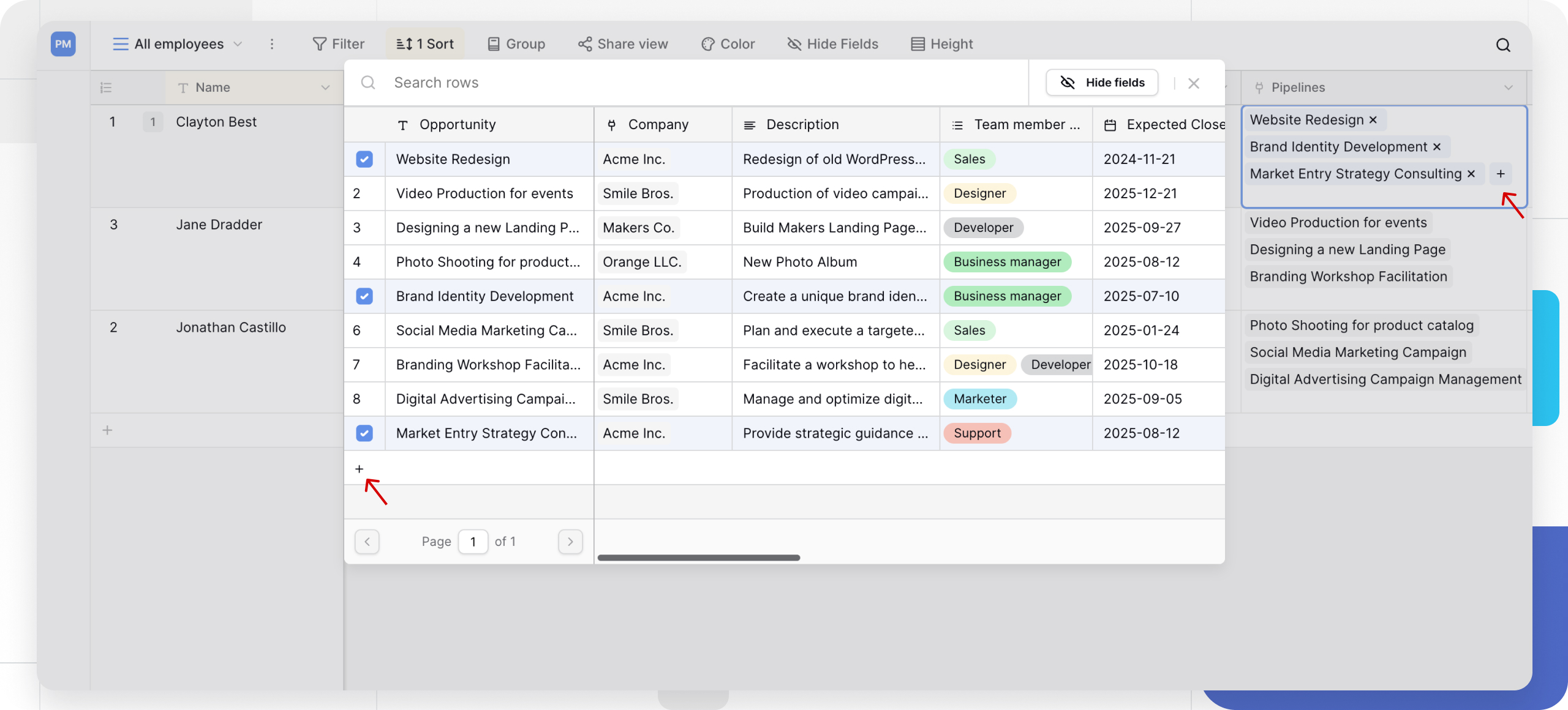
- click the plus icon (+) inside the field to open the row-select modal;
- click the plus icon (+) at the bottom of that modal;
- fill in the values for each field;
- click Create to save the new row.
The new row appears in the linked table and immediately becomes available as an option in the original field.
How to create several rows at once
To add multiple empty rows quickly:
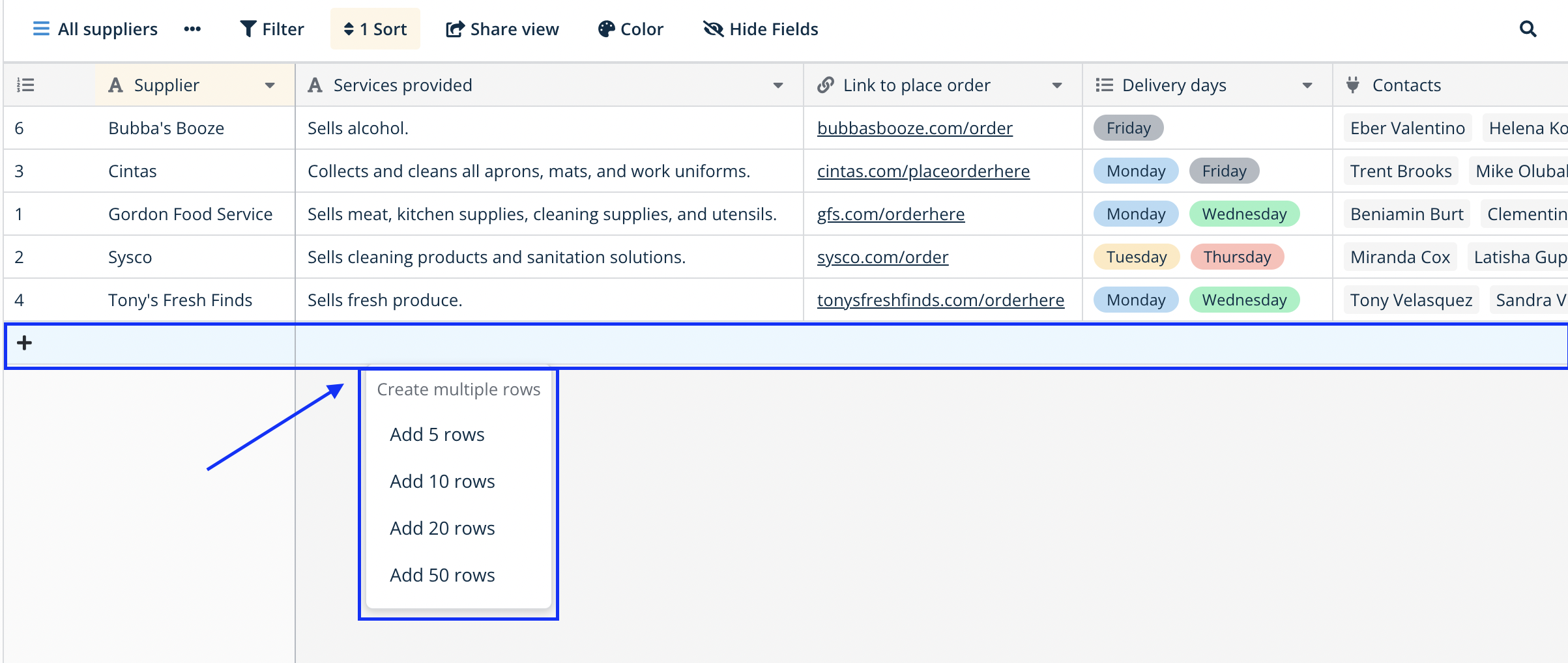
- right-click the plus icon (+) at the bottom of the table, after the last row;
- specify how many rows to create in the menu that appears;
- the rows appear in the table immediately.
For bulk creation from an external system, Baserow offers a bulk-create endpoint that inserts many rows into one table in a single API request.
For larger imports, see Paste Data into a Table and Import into an Existing Table .
Frequently asked questions
What happens to the row ID when a new row is created? Each new row automatically receives the next row ID in sequence. The ID stays permanent and never changes, even if rows are later deleted or rearranged.
Can rows be created in several tables at once? Yes, the API can create rows across multiple tables, but the Baserow interface only lets you add rows to one table at a time. A row created in a linked table through the row-select modal, however, becomes available immediately in the original link-to-table field.
What is the fastest way to add several blank rows? Use the right-click menu to specify a count, or repeat Shift + Enter while navigating with the arrow keys. For bringing in data from elsewhere, use pasting data directly
or importing from a CSV file
.
Do new rows appear in every view of a table? Yes, a new row shows up in every view of the same table. A view’s own filters, however, may hide the row if it does not match their conditions.
Can row creation be undone? Yes, press Ctrl + Z (Windows) or Cmd + Z (Mac) right after creating a row to undo it. A row can also be removed manually through its context menu.
Next, read Paste Data into a Table to fill many rows at once by pasting data straight from a spreadsheet.