Baserow Gallery View - Cards, Cover Images, and Layout
Gallery view displays table data as cards instead of spreadsheet rows: every record gets its own card, and an image from a file field can become its cover. This article covers creating a gallery view, configuring the cover image and card fields, and reordering cards by hand.
What is gallery view
Gallery view turns table records into visual cards. It fits product catalogs with images, team directories with photos, portfolios, document libraries, real estate listings, recipe collections - any scenario where visual browsing beats a spreadsheet layout.
Gallery view compared to other types
| Feature | Gallery | Grid |
|---|---|---|
| Best for | Visual browsing | Detailed data work |
| Data density | Medium | High |
| Cover image | Yes, prominent | No |
| Card content customization | Yes | N/A |
| Manual drag reordering | Yes | Yes (rows) |
| Comfortable with multi-line text | Good | Limited |
Create a gallery view
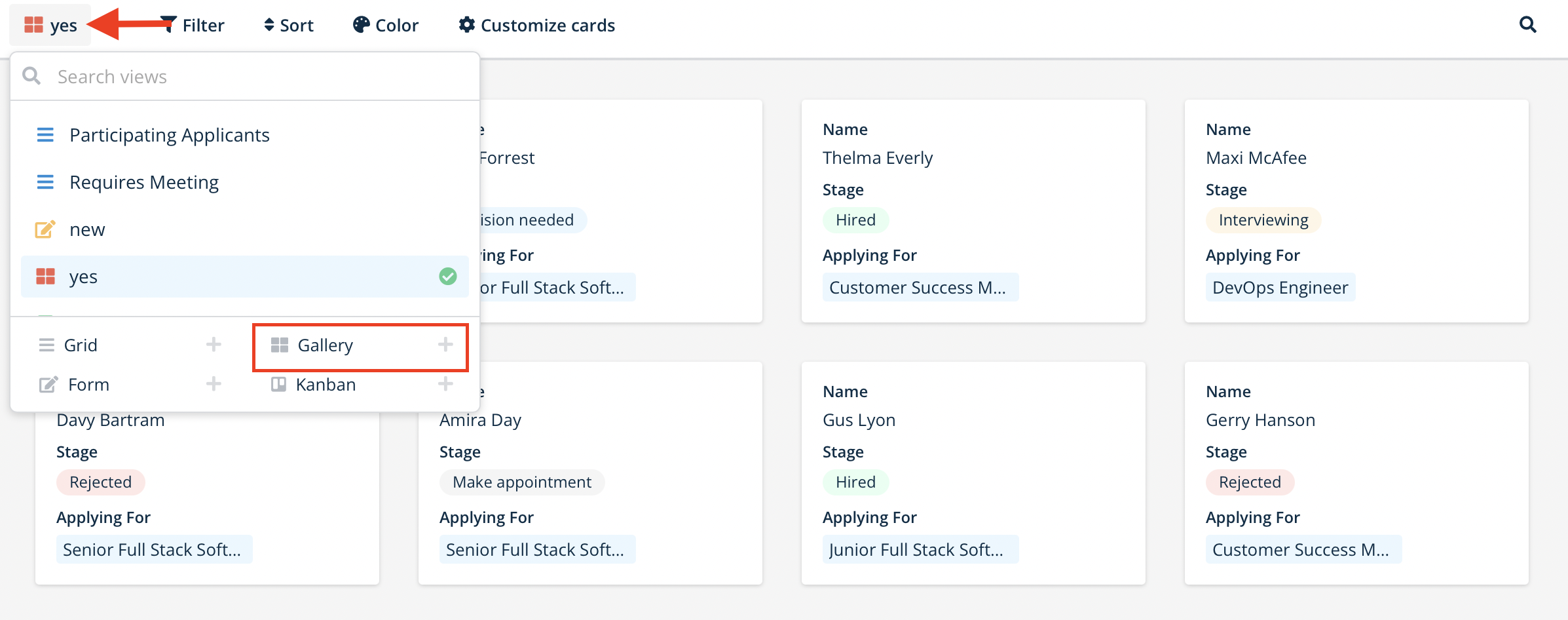
- Click the view dropdown in the table’s upper-left corner.
- Choose Gallery from the view type options.
- Enter a name for the gallery view.
- Click Create view.
The new view shows every table record as a card. If the table has a file field , you can assign it as the card’s cover.
Configure the cover image
A cover image needs at least one file field in the table. File fields can hold images, PDFs, documents, or any uploaded file - when a file field holds an image it displays as a thumbnail, other file types show as an icon.
To set or change the cover field:
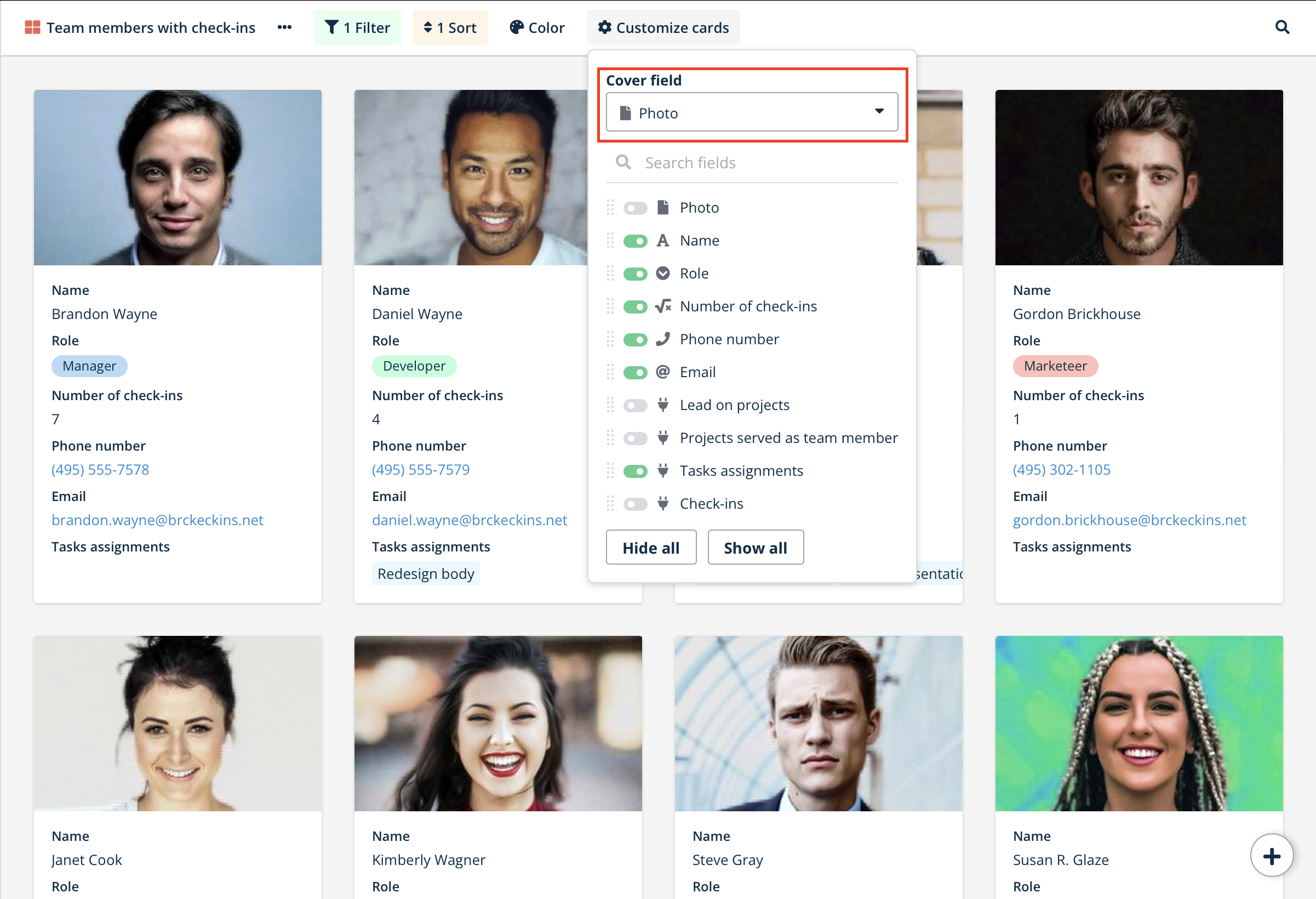
- Click Customize cards in the gallery view toolbar.
- Find the Cover field dropdown at the top.
- Select the file field to use as the cover.
- Choose No cover if you don’t want one.
If a table has several file fields, different gallery views can each use a different one as the cover. Gallery view works fine with no file fields at all - cards just show the configured fields with no image.
Configure card content
Show or hide fields
- Click Customize cards in the gallery view toolbar.
- Toggle fields on or off to show or hide them on the card.
- Use Hide all to leave only the cover visible.
- Use Show all to display every available field.
- The search box helps you find a specific field quickly in a long list.
Field-hiding strategy: hide fields that don’t help with visual browsing. In a product catalog gallery, for instance, hide internal fields like “Supplier ID” or “Last updated” and keep customer-facing fields like “Price” and “Description” visible.
Reorder fields on a card
- Click Customize cards in the gallery view toolbar.
- Click and drag the handle next to any field name.
- Move the field up or down to the position you want.
- Release to set the new order.
Field order saves per view - different gallery views can show a different set of fields tailored to a different audience.
Gallery view toolbar
- Filter - show only cards matching a condition;
- Sort - order cards automatically by a field’s value;
- Customize cards - pick the cover and control which fields are visible.
For more on filtering, see Filters in Baserow .
Reorder cards manually
With no automatic sort condition active:
- Confirm sorting is turned off.
- Click and drag any card to a new position.
- Drop it in its new spot.
- The order persists until an automatic sort is applied.
Manual reordering is disabled whenever a sort condition is active - remove it first to drag cards around.
Managing a gallery view
The three-dot menu next to the view name opens:
- Duplicate view - copy the configuration into a new view;
- Import file - add data from CSV, JSON, or XML;
- Rename view;
- Delete view.
Why use gallery view
Visual-first browsing: a prominent cover image on every card makes records easy to recognize at a glance.
Card-based layout: each record is its own card with a configurable field order, comfortable for reading multi-line text.
Configurable card content: control which fields show and in what order.
Manual or automatic ordering: drag cards by hand, or apply an automatic sort by any field.
Frequently asked questions
Can I use gallery view without images? Yes, it works perfectly well without a cover - cards just show the configured fields with no visual header.
What happens if a file field is empty? Cards without a cover display only the configured fields.
Can different gallery views use different covers? Yes. If a table has several file fields, each gallery view can use a different one as its cover.
Why can’t I drag cards to reorder them? Manual card reordering is disabled whenever an automatic sort condition is active. Remove every sort condition first.
How many fields should a gallery card show? Generally 3-6 fields keep a card readable. Hide internal fields and show only what a viewer needs.
Can I export gallery view data? Gallery view has no direct export option. Switch to grid view to export data.
What’s next
Once gallery view is set up for visual browsing, read Creating forms in Baserow to collect data from outside contributors, or go back to Grid view for bulk data entry and editing.