Filters in Baserow - Conditions, Operators, AND/OR Logic
Filters turn an overwhelming dataset into a focused view: hide the rows that don’t matter and keep only the ones that meet a condition you define. This article explains how to filter table data by field value - through conditions, comparison operators, and AND/OR logic - without writing a single line of code.
Overview
Filters shape a view so it only shows rows matching the conditions you set. Instead of scrolling through thousands of records, a filter instantly narrows the table down by field value, date, text, or numeric range.
Each view keeps its own independent filter configuration, so you can build specialized views for different tasks. Apply a single simple condition, or combine several with AND/OR logic to build a sophisticated query without writing any code.
For building more complex multi-condition queries with nested groups, see Advanced filtering .
When to use filters
Finding specific records. Quickly pull up customers from a region, projects tied to a team member, or last month’s invoices.
Data analysis. Isolate high-value deals, spot overdue tasks, or view only incomplete items to see a trend forming.
Workflow management. Show only rows that need attention - items waiting on approval, or tasks due this week.
Reporting. Build a filtered view showing a data subset for a specific report, presentation, or stakeholder update.
Quality control. Track down records with missing information, duplicate entries, or values outside an expected range.
Filter operators by field type
Different field types support different filter operators. Here are the most common ones:
| Operator category | Operators | Works with |
|---|---|---|
| Text matching | Is, Is not, Contains, Doesn’t contain, Contains word, Doesn’t contain word, Length is lower than, Is empty, Is not empty | Text fields |
| Numeric comparison | Higher than, Higher than or equal, Lower than, Lower than or equal, Is even and whole | Number fields |
| Date filtering | Is, Is not, Is before, Is on or before, Is after, Is on or after, Is within, Day of month is, Contains, Doesn’t contain, Is empty, Is not empty | Date fields |
| Relationship | Has, Doesn’t have, Contains, Doesn’t contain, Is empty, Is not empty | Link-to-table fields |
| Boolean | Is, Is empty, Is not empty | Checkbox fields |
| Length | Length is lower than, Length is higher than | Text fields |
| Select | Contains, Doesn’t contain, Contains word, Doesn’t contain word, Is, Is not, Is any of, Is none of, Is empty, Is not empty | Single and multiple select fields |
How to add a filter
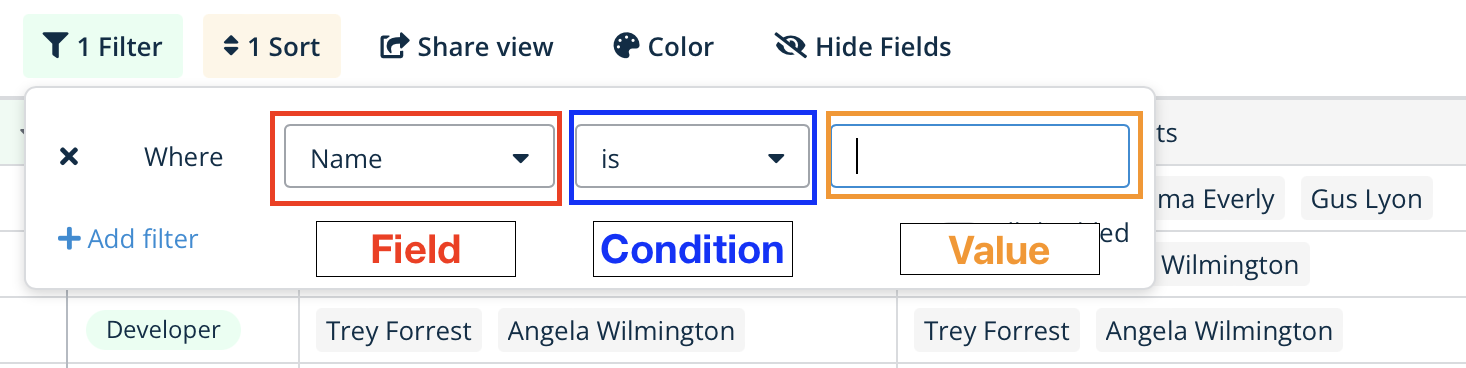
Build a filter by picking a field, an operator, and a value to match.
To add a filter:
- Click the Filter button in the view toolbar, in the upper-right of the table.
- Click + Add Filter in the filter panel.
- Select the field you want to filter by from the dropdown.
- Choose a condition operator that fits your need (contains, equals, higher than, and so on).
- Enter the value to match (specific text, a number, a date, or a status).
The table updates immediately to show only rows that match. The filter panel also shows how many rows match your criteria.
To remove a filter, click the trash icon next to it in the filter panel - the condition disappears and every row returns to the view.
How to combine multiple filters
Apply several filters at once with AND or OR logic to build a precise query.
AND logic
AND logic shows rows that meet every filter condition at the same time. Use AND when you need records that satisfy each requirement.
Example: show projects where Status = “In Progress” AND Priority = “High” AND Team = “Engineering.” This displays only engineering projects that are both in progress and high priority - rows must match all three conditions.
OR logic
OR logic shows rows that meet any of your filter conditions. Use OR when a record satisfying just one requirement is enough.
Example: show projects where Status = “Blocked” OR Status = “At risk” OR Status = “Overdue.” This displays projects in any of the three states - rows only need to match one condition.
To add multiple filter conditions:
- Add your first filter as described above.
- Click Add Filter to add another condition.
- Choose And or Or logic from the dropdown between filters.
- Keep adding filters as needed.
You can mix AND and OR logic within the same view using filter groups - see Advanced filtering for the details.
Filter logic comparison
| Logic type | Behavior | Best for | Example |
|---|---|---|---|
| AND | All conditions must be true | Narrow, specific queries | High-priority items assigned to you, due this week |
| OR | Any condition can be true | Broader searches | Items in “Draft” OR “Review” OR “Pending” status |
How to enable or disable filters
Temporarily switch filters off without deleting them, to compare a filtered view against the unfiltered one.
To disable all filters:
- Open the filter panel.
- Click the toggle at the top of the filter panel.
- Every filter stays configured but stops applying to the view.
Click the toggle again to bring your filters back.
Disabling filters doesn’t delete the configuration - it simply shows the unfiltered table for a moment, which is handy for confirming that your filters are catching the right data.
Footer aggregations (sum, average, count) automatically adjust to reflect only the visible filtered rows, which helps you analyze the filtered dataset - see Footer aggregation in Baserow .
Frequently asked questions
Can I save different filter setups for the same table? Yes, create several views of the same table with different filters. Each view keeps its own independent configuration, letting you switch quickly between different slices of data.
Do filters affect other users viewing the same table? For collaborative views, yes - changing the filters affects everyone looking at that shared view. To avoid affecting others, create a separate view with your own filters.
How many filters can I apply to one view? There’s no fixed limit on the number of filters per view. For performance and clarity, though, consolidate related conditions and keep the filter set focused on the task at hand.
Can I filter by fields that are hidden in my view? Yes, filters work on every field in the table regardless of visibility. You can filter by a hidden field and the results display correctly, even though that column doesn’t appear in the view.
Do filters work with formula fields? Yes, you can filter on a formula field’s result. The filter evaluates the calculated output, not the formula itself, which enables powerful filtering on computed values.
What happens to filtered-out rows? They stay in the table - they’re simply hidden from the view. Removing the filter or adjusting its conditions restores them immediately. Filters never delete data; they only control visibility.
Related content
- Advanced filtering in Baserow - build complex multi-condition filters;
- Group rows by field - organize filtered results into groups;
- Views overview - every view type and what it’s for;
- Field customization - field types and their filter operators.