Deleting a Baserow Workspace - How It Works and Recovery
Deleting a workspace removes it, together with every database and setting inside it, for all of its members at once; Baserow gives you a window to recover it from the trash, but the deletion becomes final once that window closes.
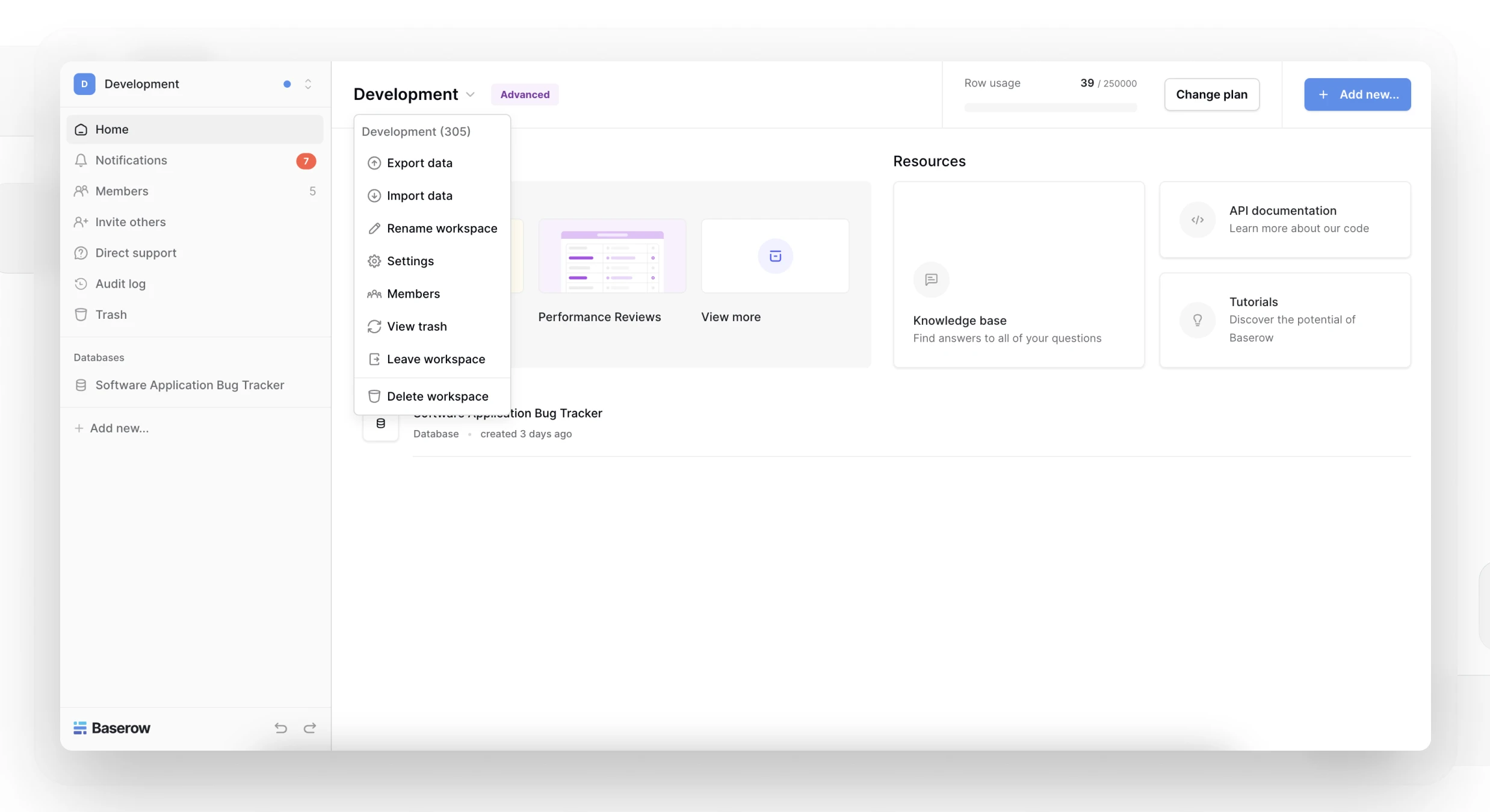
What Gets Deleted
Deleting a workspace removes every database and table inside it, the workspace’s own settings and member permissions, and any integrations or API tokens tied to it. The action affects every member of the workspace at once, not just the person deleting it - so if the real goal is just to stop participating yourself, leaving the workspace or handing off the admin role is the better move.
Deleting requires workspace admin permissions - a member without that role can leave the workspace instead.
How to Delete a Workspace
- Go to the workspace you want to delete.
- Click the workspace name on the home page.
- Choose Delete workspace from the menu that opens.
- Confirm the deletion in the dialog.
Double-check that you’ve picked the right workspace before confirming - the action affects every member, and they all lose access to the workspace and its content at the same time.
Retention and Recovery
After deletion, a workspace moves to the trash, where it can be recovered - with all of its data and member permissions restored exactly as they were at the moment of deletion. The trash keeps it for a limited time; once that window passes, the data is permanently erased and cannot be brought back.
Delete or Leave - Which One
| Situation | Recommended action | Why |
|---|---|---|
| Nobody needs the workspace anymore | Delete the workspace | Fully frees up the data and storage |
| Other members are still working in it | Leave the workspace | The workspace stays active for the team - see Leaving a Workspace |
| You’re stepping down as admin | Leave after appointing a new admin | Keeps things running for everyone else |
| The workspace holds stale or test data | Delete the workspace | Frees up space and clears out clutter |
| The data might be needed later | Export first, then delete | Preserves the data outside of Baserow |
Before You Delete
- Export anything important, as covered in Export Workspaces .
- Download any files stored in file-type fields within the workspace’s tables.
- Give other members advance notice, and time to export their own data.
- Check whether external integrations or active webhooks depend on this workspace.
Frequently Asked Questions
What happens to other members’ access? Everyone loses access to the workspace and its content immediately.
Can a member without the admin role delete a workspace? No - deletion is admin-only; a regular member can leave the workspace instead or ask an admin to delete it.
How do I know if I have admin rights? Open the workspace’s member list in its settings - if your role shows as “Admin,” you can delete the workspace.
What’s Next
That wraps up the Workspaces section - next, see how databases are structured and created inside a workspace in Databases .