Exporting Baserow Workspaces - Backups and Migration
A whole workspace, or just selected databases inside it, can be packaged into a portable ZIP file for a backup, a move between deployments, or handing a template to a colleague.
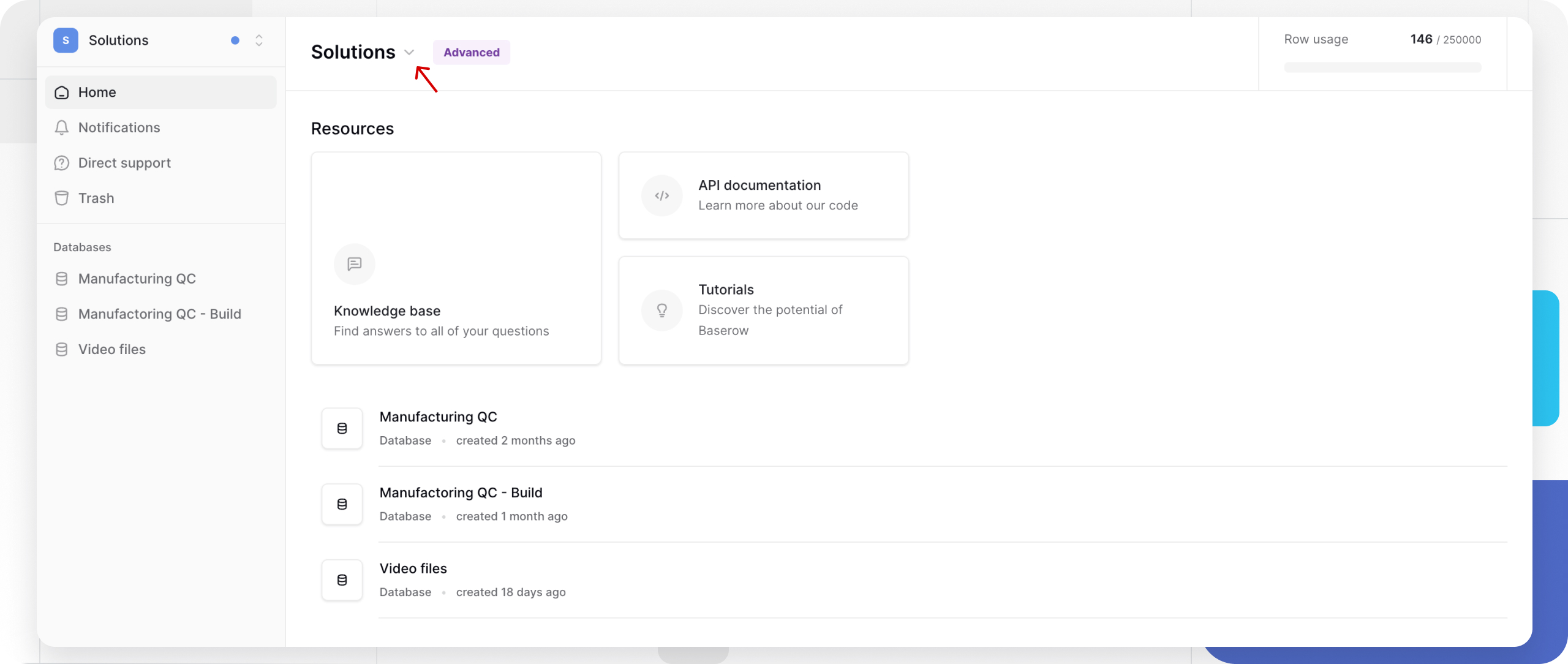
Why Export a Workspace
Exporting a workspace covers a handful of common scenarios:
- backups - regular backup copies that guard against accidental deletion;
- migration - moving a workspace to a different self-hosted Baserow instance;
- templates and sharing - handing a ready-made database structure to a colleague or client;
- testing - cloning a production workspace into a sandbox to try out new fields and views safely.
How to Export a Workspace
- Open the Baserow home page - it lists every workspace you have access to.
- Find the workspace you want and open its action menu.
- Choose Export data - the export dialog opens with all of the workspace’s content.
- Pick what to include: Select all grabs everything at once, Deselect all clears the selection, and individual toggles let you export just some of the databases.
- Choose the export format: check Export structure only to export table structures, fields, and views without the row data, or leave it unchecked for a full export that includes the data too.
- Click Export data to generate and download the archive.
Generating the archive for a large workspace can take a little while; the finished file lands in your browser’s download folder. The resulting ZIP file can be uploaded into any self-hosted Baserow instance, as covered in Import Workspaces .
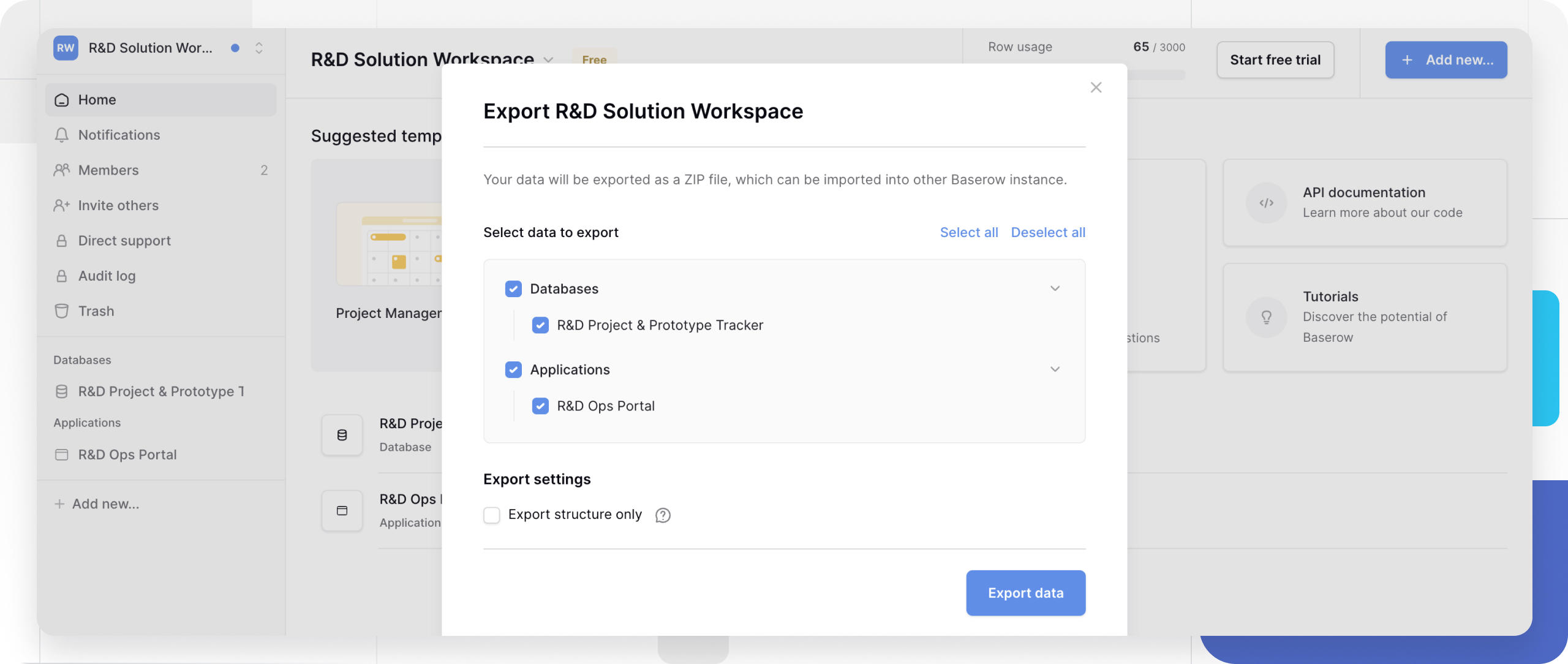
Structure-Only Versus Full Data Exports
A structure-only export is the right choice when you want to hand someone a template to fill in, share a database schema without the actual values, set up a test environment, or keep the file size small for a large database.
A full export with data suits a genuine backup, moving a workspace to another instance, sharing a fully populated example, or archiving a finished project - it keeps both the structure and everything inside it.
What’s Included, and What Isn’t
The archive contains the selected databases: their tables, fields, views, and settings, plus the row data and attached files when a full export is chosen.
Left out of every export: the workspace’s member list and their access rights, which need to be set up again after import; configured webhooks, which have to be recreated manually; and any per-user personal settings, such as a person’s own interface filters.
Storage and File Size
An exported ZIP file carries the workspace’s full structure and potentially sensitive data - keep such files somewhere secure and delete them once the import succeeds. File size scales with the number of databases and tables, the total row count, how many files are attached, and whether you chose structure-only or a full export. For very large workspaces, it’s often easier to export individual databases separately or start with a structure-only pass.
Frequently Asked Questions
Can I export a single database instead of the whole workspace? Yes - just clear the checkboxes for the other databases in the export dialog, leaving only the one you need.
How long does an export take? Small workspaces finish in seconds; large ones with thousands of rows or many attachments can take several minutes.
What happens to attached files during export? They’re included by default, which can noticeably increase the archive size; a structure-only export skips the files but keeps the field configuration.
What if the export hangs or fails? Try a structure-only export first, then bring the data in separately, or export individual databases instead of the whole workspace at once; also check that your connection is stable.
What’s Next
Next up is the reverse procedure in Import Workspaces , or, if a workspace has run its course, Deleting a Workspace .