Importing Baserow Workspaces from a ZIP Archive File
A ZIP archive produced by a workspace export can be uploaded straight back into Baserow, either as a brand-new workspace or alongside an existing one - useful for moving between deployments, restoring a backup, or handing over a ready-made template.
When Import Comes In Handy
Importing a workspace covers a few recurring scenarios: moving between different self-hosted Baserow instances, restoring from a backup, distributing a ready-made template to a team, or spinning up a sandbox for testing without touching production data.
What Carries Over, and What Doesn’t
Import restores the databases, tables, fields, table relationships, and views, plus the row data and attached files if that option was selected on export.
Left behind: the workspace’s member list and their permissions, any configured webhooks, and per-user personal settings - all of these need to be set up again after the import, as covered in Setting Up a Workspace .
How to Import a Workspace
- Sign in to the target self-hosted Baserow instance and open the home page.
- Pick the workspace you’re importing into, or create a new one as described in Setting Up a Workspace .
- Open the workspace’s action menu and choose Import data.
- Upload the previously exported ZIP file - only archives produced by a Baserow export are accepted.
- Select which databases from the archive to bring in.
- Confirm the settings and start the import.
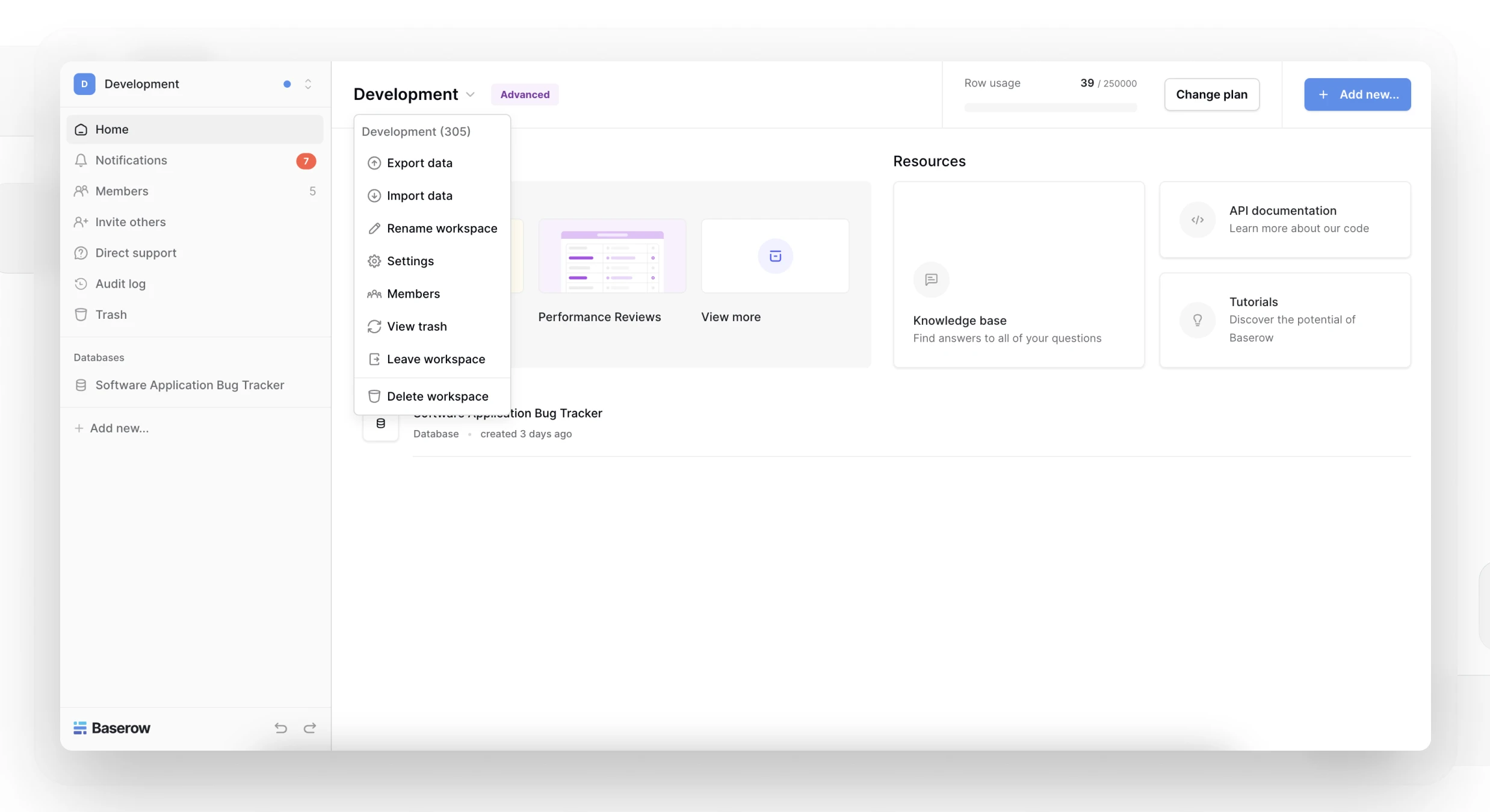
After the Import Finishes
Import restores the content but not its outside connections - once it’s done, invite the team back into the workspace, reconnect any external integrations or API tokens that were in use, and check that tables, views, and formulas behave correctly with the imported data.
Frequently Asked Questions
Can I import a file exported from Airtable? No - workspace import only accepts ZIP archives that Baserow itself produced through export. Moving data over from Airtable uses a dedicated migration tool, covered in Import Airtable to Baserow .
Does Baserow restore the member list from the archive? No, members and their permissions have to be configured again manually after import.
Can imported data be merged into an existing workspace? Yes - instead of creating a new workspace, pick an existing one and upload the archive into it to add to what’s already there.
What’s Next
If the workspace an import came from is no longer needed on its original instance, you can leave it or, with admin rights, delete it entirely.