pfSense Aliases - Grouping Addresses, Networks, and Ports
Aliases in pfSense are named groups of IP addresses, networks, ports, or URLs that can be referenced in firewall rules, NAT configurations, and other system components instead of specifying each value individually. Using aliases eliminates data duplication across rules (the DRY principle - Don’t Repeat Yourself): when a list of addresses changes, only the alias needs updating rather than every rule that references it. This significantly simplifies administration, reduces the likelihood of errors, and makes the ruleset self-documenting.
Alias Types
pfSense supports several alias types, each designed for a specific category of data. Alias management is performed through the Firewall > Aliases menu.
Host
A Host alias contains individual IP addresses or fully qualified domain names (FQDNs). When the alias is saved, pfSense resolves FQDN entries via DNS and adds the resulting IP addresses to the table. Address ranges and subnets are automatically converted into a list of individual IP addresses.
Typical use case: grouping monitoring servers, ISP mail servers, or administrator IP addresses to create a single access rule.
Example entries:
| Entry | Description |
|---|---|
10.0.1.10 | Monitoring server |
10.0.1.11 | Backup monitoring server |
monitor.example.com | Monitoring server FQDN |
Warning:
When using FQDNs in a Host alias, pfSense performs a DNS lookup on save and periodically refreshes the result. If the DNS server is unreachable or returns stale records, the alias will contain incorrect addresses. For mission-critical rules, static IP addresses are recommended.
Network
A Network alias contains subnets in CIDR notation. This type is suited for specifying entire networks or address ranges. pfSense automatically converts arbitrary IPv4 ranges into equivalent CIDR networks.
Typical use case: defining internal organizational subnets, lists of trusted partner networks, or blocking geographic address ranges.
Example entries:
| Entry | Mask | Description |
|---|---|---|
192.168.10.0 | /24 | Development department subnet |
192.168.20.0 | /24 | Accounting department subnet |
10.0.0.0 | /8 | All internal networks |
To specify a single host in a Network alias, use a /32 mask (IPv4) or /128 mask (IPv6).
Port
A Port alias contains port numbers or port ranges. Valid values are integers from 1 to 65535. Ranges use colon notation (e.g., 1194:1199).
Typical use case: grouping web service ports (80, 443, 8080), management ports (22, 3389, 5900), or database ports (3306, 5432, 27017).
Example entries:
| Entry | Description |
|---|---|
80 | HTTP |
443 | HTTPS |
8080:8089 | Alternative HTTP ports |
Warning:
Port aliases are not bound to a specific protocol. The same alias can be used in both TCP and UDP rules. The protocol is defined in the firewall rule itself, not in the alias.
URL
A URL alias downloads a list of entries from one or more URLs once - at the time the alias is created or saved. After downloading, the data is stored locally and is not automatically refreshed. Each URL can contain up to 3,000 entries.
Two subtypes exist:
- URL (IPs) - the URL contains IP addresses, CIDR networks, or FQDNs; a network-type alias is created
- URL (Ports) - the URL contains port numbers or ranges; a port-type alias is created
Typical use case: one-time import of an address list from a corporate management system or from a file on an internal web server.
URL Table
A URL Table alias is similar to a URL alias but supports automatic periodic updates and is designed for large lists (thousands or tens of thousands of entries). Data is stored in pf file-based tables, which ensures efficient handling of large datasets.
Two subtypes exist:
- URL Table (IPs) - downloads IP addresses, networks, and FQDNs
- URL Table (Ports) - downloads port numbers and ranges
Typical use case: subscribing to external threat intelligence feeds (Spamhaus DROP, DSHIELD, Emerging Threats), Tor exit node lists, or geographic IP address lists.
Creating an Alias
Alias creation is performed through the pfSense web interface.
Step-by-Step Procedure
- Navigate to Firewall > Aliases
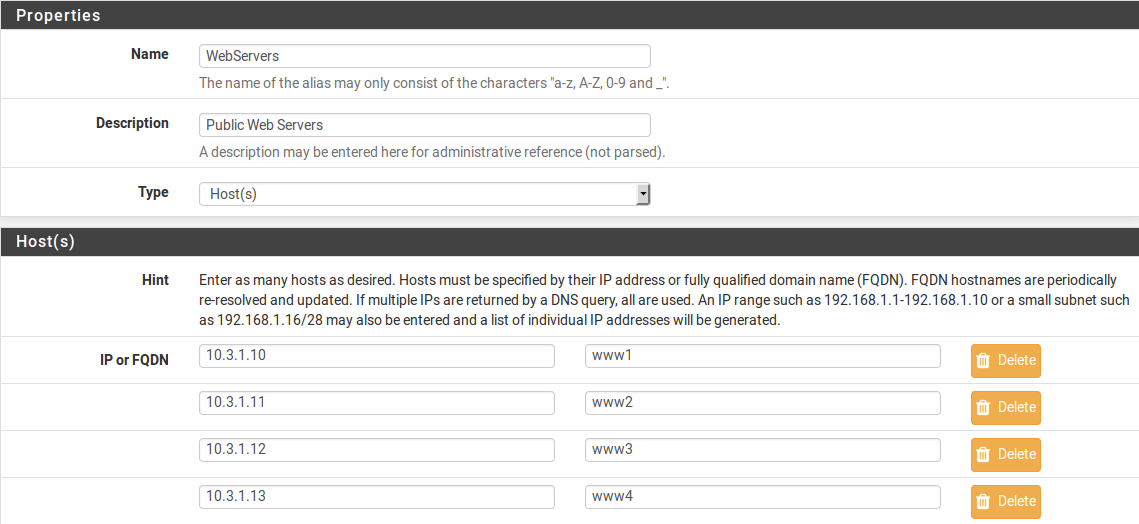
Fig. 1. The Firewall > Aliases main screen showing existing aliases
Select the appropriate tab: IP (for Host and Network aliases), Ports (for port aliases), or URLs (for URL and URL Table aliases)
Click the Add button to create a new alias
Fill in the required fields:
| Field | Description |
|---|---|
| Name | Alias name. Allowed characters: a-z, A-Z, 0-9, _. The name must not conflict with reserved names (interface names, gateways) |
| Description | Description of the alias purpose (optional but strongly recommended) |
| Type | Alias type: Host, Network, Port, URL (IPs), URL (Ports), URL Table (IPs), URL Table (Ports) |
- Add entries. Each entry has a value field and a description field. The Add button inserts a new row; the Delete button removes a row
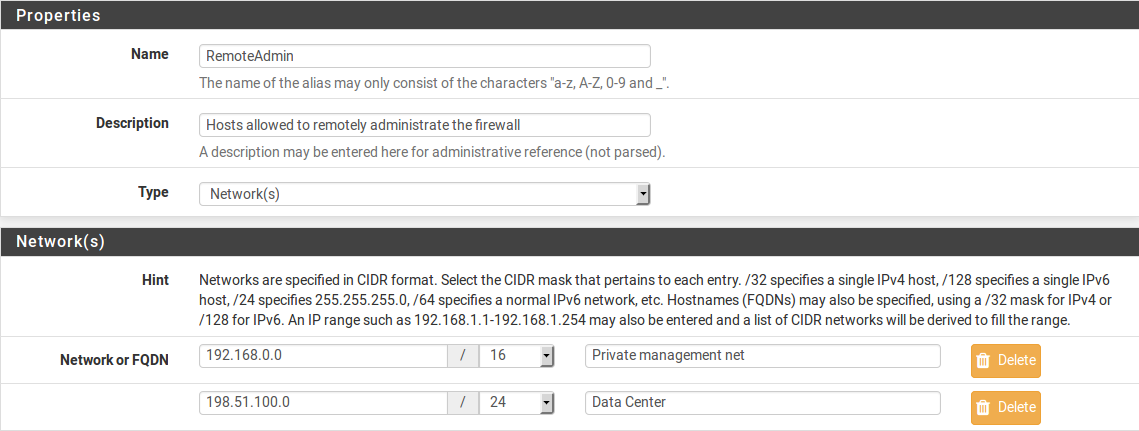
Fig. 2. Editing a Host alias with IP addresses and descriptions
Click Save to store the alias
Click Apply Changes on the alias list page to activate the configuration
Alias Naming Requirements
Alias names must conform to the following rules:
- Contain only Latin letters, digits, and the underscore character
- Not begin with a digit
- Not conflict with interface names (WAN, LAN, OPT1, etc.)
- Not conflict with gateway names
- Not conflict with pf reserved words
Descriptive names that reflect the alias purpose are recommended: Web_Servers, Management_Ports, Blocked_Countries, RFC1918_Networks.
Bulk Import
For adding large numbers of entries, a bulk import function is available:
- Navigate to Firewall > Aliases
- Select the IP or Ports tab
- Click the Import button
- Specify the alias name and description
- Paste entries into the text area (one entry per line)
- Click Save
Limitation: manually created aliases (including bulk imports) support up to 5,000 entries. For larger lists, URL Table aliases should be used.
Nested Aliases
pfSense supports nested aliases - aliases that reference other aliases. This feature enables hierarchical grouping structures.
Example: an alias named All_Servers can contain references to the aliases Web_Servers, DB_Servers, and Mail_Servers. When the membership of any nested alias changes, the parent alias automatically reflects those changes.
To create a nested alias, enter the name of an existing alias in the entry field. pfSense recognizes the nesting automatically and substitutes the contents of the child alias.
Practical scenario:
Alias: Web_Servers
  - 10.0.1.10  (Frontend)
  - 10.0.1.11  (Backend API)

Alias: DB_Servers
  - 10.0.2.10  (PostgreSQL primary)
  - 10.0.2.11  (PostgreSQL replica)

Alias: All_Application_Servers
  - Web_Servers    (nested alias)
  - DB_Servers     (nested alias)
A firewall rule referencing All_Application_Servers will match all four IP addresses from both nested aliases.
Warning:
Nested aliases must be of the same type. A port alias cannot be nested inside a host alias. Circular references (alias A references B, and B references A) are not permitted and will produce an error on save.
URL Tables
URL Tables are the most powerful alias type for integrating with external threat intelligence sources. They enable automatic downloading and periodic updating of large IP address or port lists from external feeds.
Configuring a URL Table
- Navigate to Firewall > Aliases, select the URLs tab
- Click Add
- Set the type to URL Table (IPs)
- Enter the data source URL in the entry field
- Set the update interval in days (Update Freq. field)
- Click Save, then Apply Changes
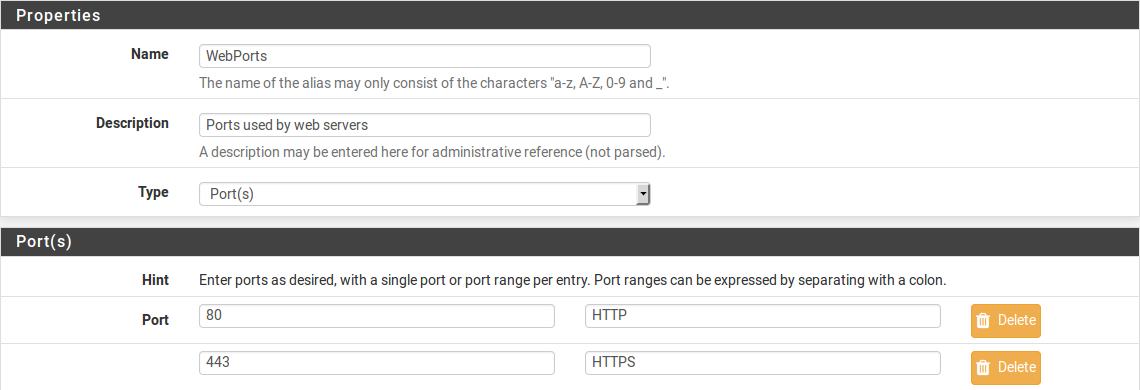
Fig. 3. Configuring a URL Table alias with an external URL and update interval
Popular Blocklist Sources
| Source | URL | Description |
|---|---|---|
| Spamhaus DROP | https://www.spamhaus.org/drop/drop.txt | Hijacked IP space not used by legitimate organizations |
| Spamhaus EDROP | https://www.spamhaus.org/drop/edrop.txt | Extended DROP list |
| DSHIELD | https://feeds.dshield.org/block.txt | Most active attacking subnets over the last 3 days |
| Emerging Threats | https://rules.emergingthreats.net/fwrules/emerging-Block-IPs.txt | Aggregated list of malicious IP addresses |
| Abuse.ch Feodo Tracker | https://feodotracker.abuse.ch/downloads/ipblocklist.txt | Banking trojan C2 servers |
Update Interval
The update interval is specified in days. A value of 1 means daily updates. For most blocklists, an interval of 1 to 7 days is recommended depending on how frequently the source is updated.
pfSense checks and downloads updates in the background. The update process does not disrupt firewall operation - new data is downloaded to a temporary file and swapped atomically.
Source File Format
The file available at the specified URL must contain entries in plain text format - one entry per line. Accepted line formats:
- IP address:
192.168.1.1 - CIDR subnet:
192.168.1.0/24 - Lines beginning with
#or;are ignored as comments
Using Aliases in Rules
Aliases are used in the Source, Destination, and Port fields when creating firewall rules, NAT rules, and port forwarding configurations.
Selecting an Alias in a Rule
When creating or editing a firewall rule:
- In the Source or Destination field, select Single host or alias as the type
- Begin typing the alias name in the text field - pfSense displays matching results (autocomplete)
- Select the desired alias from the dropdown list
For ports:
- In the Destination Port Range or Source Port Range field, select Other
- Begin typing the port alias name
- Select the alias from the autocomplete list
Autocomplete filters aliases by type: network fields display only host and network aliases, while port fields display only port aliases.
Visual Verification
On the Firewall > Rules page, hovering the cursor over an alias name in a rule displays a tooltip showing the full alias contents. This allows quick verification of which addresses or ports are included in the group without navigating to the alias editor.
Example Ruleset Using Aliases
A typical LAN interface ruleset using aliases:
| # | Action | Source | Destination | Port | Description |
|---|---|---|---|---|---|
| 1 | Pass | Admin_PCs | Mgmt_Servers | Mgmt_Ports | Administrator access to management |
| 2 | Pass | LAN net | DNS_Servers | 53 | DNS queries |
| 3 | Pass | LAN net | any | Web_Ports | Web access |
| 4 | Block | LAN net | Blocked_IPs | any | Block malicious addresses |
Without aliases, each row would require multiple rules for each individual address and port. Aliases reduce the ruleset size and improve readability.
Migration from Other Platforms
When migrating to pfSense from another firewall, existing object groups need to be converted into aliases. The following tables map concepts between platforms.
Cisco ASA
| Cisco ASA | pfSense | Notes |
|---|---|---|
object-group network | Network or Host alias | Direct equivalent |
object-group service | Port alias | ASA combines port and protocol; in pfSense the protocol is set in the rule |
object network (single) | Entry in an alias | pfSense has no separate object for a single host - use an entry in an alias |
| Nested object-groups | Nested aliases | Supported |
Migration example:
Cisco ASA:
object-group network Web_Servers
 network-object host 10.0.1.10
 network-object host 10.0.1.11
 network-object host 10.0.1.12

object-group service Web_Ports tcp
 port-object eq www
 port-object eq https
 port-object eq 8080
pfSense: create a Web_Servers Host alias with entries 10.0.1.10, 10.0.1.11, 10.0.1.12 and a Web_Ports Port alias with entries 80, 443, 8080.
Fortinet FortiGate
| FortiGate | pfSense | Notes |
|---|---|---|
| Address Object | Entry in a Host or Network alias | A single object is analogous to one entry in an alias |
| Address Group | Host or Network alias | A group is a direct analog of an alias |
| Service Object | Entry in a Port alias | A service object includes the protocol; in pfSense the protocol is set in the rule |
| Service Group | Port alias | Direct equivalent |
| External Threat Feed | URL Table alias | Functionally equivalent |
| ISDB (Internet Service Database) | No direct equivalent | Requires manual alias creation with service IP addresses |
MikroTik RouterOS
| MikroTik | pfSense | Notes |
|---|---|---|
/ip firewall address-list | Host or Network alias | Direct equivalent. MikroTik address-lists support per-entry timeouts - pfSense does not |
| Multiple address-list entries with same name | Single alias with multiple entries | In MikroTik, entries are added via separate commands; in pfSense, within a single alias |
| Dynamic entries (added by scripts) | URL Table alias | For dynamic lists from external sources |
Migration example from MikroTik:
MikroTik:
/ip firewall address-list
add address=10.0.1.0/24 list=trusted_networks comment="Office"
add address=10.0.2.0/24 list=trusted_networks comment="VPN"
add address=172.16.0.0/12 list=trusted_networks comment="Partners"
pfSense: create a Trusted_Networks Network alias with entries 10.0.1.0/24, 10.0.2.0/24, 172.16.0.0/12.
Troubleshooting
Alias Does Not Resolve or Contains Incorrect Addresses
Symptoms: a firewall rule using the alias does not work as expected; on the Diagnostics > Tables page the alias is empty or contains unexpected IP addresses.
Possible causes and solutions:
FQDN does not resolve. Verify that the DNS server configured in pfSense (System > General Setup > DNS Servers) is reachable. Perform a test query via Diagnostics > DNS Lookup. If the DNS server is unreachable, aliases with FQDN entries will be empty.
DNS caching. pfSense caches DNS responses. If a host’s IP address has changed, the alias will update after the record’s TTL expires. To force an update, re-save the alias and click Apply Changes.
Alias name conflicts with a reserved word. Verify that the name does not conflict with interface names, gateway names, or built-in pf table names. Rename the alias if necessary.
URL Table Does Not Update
Symptoms: a URL Table alias contains outdated data; the external source has been updated but pfSense has not downloaded the new version.
Possible causes and solutions:
URL is unreachable. Verify URL accessibility via Diagnostics > Command Prompt by running
fetch -o /dev/null <URL>. Ensure that firewall rules on the WAN interface do not block outbound HTTPS connections.Incorrect file format. The file at the URL must contain entries in plain text format (one per line). HTML pages, JSON, or XML are not supported. Verify the file contents manually.
Update interval has not elapsed. pfSense checks the URL at the interval specified in the Update Freq. field (in days). To force an update, re-save the alias.
TLS certificate error. If the URL uses HTTPS with a self-signed certificate, the download may fail. Check the logs in Status > System Logs > System > General.
FQDN Aliases and DNS Issues
When using domain names in aliases, the following behaviors should be taken into account:
- pfSense resolves FQDNs through the configured DNS servers. If DNS servers are configured to use DNS via the WAN interface and WAN rules block outbound DNS, resolution will fail.
- A DNS record may return multiple IP addresses (round-robin). pfSense adds all returned addresses to the alias.
- Changes to the IP address that an FQDN points to are not reflected in the alias immediately. Updates occur when the configuration is reapplied or on a timer (the interval depends on the DNS record TTL and pfSense settings).
- In a Network alias, when specifying an FQDN, the CIDR mask is not applied to the resolved addresses - a
/32mask (IPv4) or/128mask (IPv6) is used regardless of the mask specified.
Verifying Alias Contents
To view the current contents of an alias (resolved IP addresses, downloaded entries):
- Navigate to Diagnostics > Tables
- Select the alias name from the dropdown list
- Review the entries in the table
Alternatively, via the command line:
pfctl -t <alias_name> -T showThis command displays all IP addresses contained in the specified alias in pf table format.
Related Sections
- pfSense Firewall - Rules, Aliases, and Traffic Filtering - firewall architecture overview, rule processing principles, and section structure
- Firewall Rules - creating and managing filtering rules where aliases are applied
- Firewall Best Practices - recommendations for organizing rules and aliases for effective security policy management