pfSense Firewall Rules - Creation and Management Guide
The pfSense firewall is built on pf (packet filter) - a stateful packet filtering engine originating from OpenBSD. Once a pass rule matches the first packet of a connection, pf creates an entry in the state table. All subsequent packets belonging to that connection are permitted automatically based on the state entry, without further rule evaluation. This means firewall rules only need to be written for the initiating direction of traffic - return traffic is handled implicitly.
This guide is written for administrators with prior experience on Cisco ASA, FortiGate, or MikroTik platforms who are transitioning to pfSense. Key differences from those platforms are highlighted where relevant to ease the migration process.
Rule Processing Principles
Three-Level Rule Hierarchy
pfSense evaluates firewall rules in a strictly defined order. Rules are divided into three classes, processed sequentially:
- Floating rules - evaluated first. Can apply to one or more interfaces simultaneously and support filtering in both inbound and outbound directions.
- Interface group rules - evaluated second. Apply to all interfaces within a group (including VPN tabs).
- Interface rules - evaluated last. Apply to a single specific interface.
This ordering has practical implications: if an interface group rule blocks traffic, a rule on the individual interface tab cannot override it - the packet has already been acted upon at the previous level.
First Match Wins
Within each level, rules are evaluated sequentially from top to bottom. The first matching rule determines the fate of the packet - no further evaluation occurs. Packets that do not match any rule are silently dropped by the implicit deny rule.
Warning:
Floating rules with the Quick flag disabled operate on the opposite principle - last match wins. This exception is discussed in the Floating Rules section.
Per-Interface Binding and Direction
Rules on interface tabs filter only inbound traffic on their respective interface. Traffic from LAN hosts is governed by LAN rules; traffic arriving from the internet is governed by WAN rules. Outbound filtering at the interface level is not available - floating rules must be used for that purpose.
Comparison with Other Platforms
| Characteristic | pfSense (pf) | Cisco ASA | FortiGate | MikroTik RouterOS |
|---|---|---|---|---|
| Processing model | First match wins | First match wins (ACL) | Policy ID, first match wins | Chains (filter/nat/mangle) |
| Rule binding | Per-interface, inbound | Per-interface, inbound | Zone-based (zone pairs) | Per-chain, configurable |
| Implicit rule | Deny (silent) | Deny (implicit) | Deny (policy ID 0) | Accept (default policy) |
| Stateful | Yes (default) | Yes (default) | Yes (default) | Requires connection-state matcher |
| Floating/Global rules | Yes (floating) | Global ACL | Global policy | Forward chain |
MikroTik administrators should pay particular attention to the difference in default policies: MikroTik RouterOS defaults to Accept (allow), while pfSense defaults to Deny (block). During migration, all permit rules must be created explicitly.
Automatically Generated Rules
pfSense creates several system rules automatically. These are not displayed as regular rules in the web interface:
- Anti-lockout rule - prevents administrative lockout. Allows traffic from any source on the internal network to the LAN interface IP address on management ports (web interface and SSH by default). Can be disabled in System > Advanced > Admin Access.
- Anti-spoofing (uRPF) - validates the reverse path for each packet per RFC 3704 (Unicast Reverse Path Forwarding). Packets with source addresses inconsistent with the routing table are dropped.
- Block private networks - blocks RFC 1918 addresses on the WAN interface (when enabled in the interface settings).
- Block bogon networks - blocks packets with source addresses from unallocated and reserved address space. The bogon list is updated monthly from Netgate servers.
Rule Management Interface
Firewall rules are managed through Firewall > Rules. Each network interface has its own tab. An additional Floating tab is available for rules that span multiple interfaces.
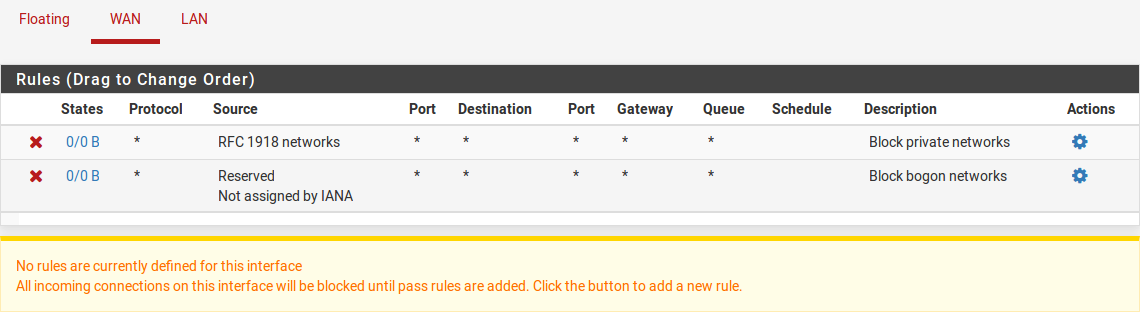
Fig. 1. Firewall rules list on the LAN tab
The rules list page displays:
- Order and action - action icon (Pass, Block, Reject) with color coding
- Interface - the interface to which the rule is bound
- Protocol - TCP, UDP, ICMP, or other IP protocol
- Source and destination - addresses, networks, or aliases
- Port - destination port (for TCP/UDP/SCTP)
- Gateway - gateway for policy routing (if configured)
- Description - text description of the rule
Rules can be reordered by drag-and-drop, duplicated, disabled without deletion, and visually grouped using separators.
Creating a Rule
To create a new rule, navigate to the appropriate interface tab under Firewall > Rules and click one of the add buttons (add to the beginning or end of the list).
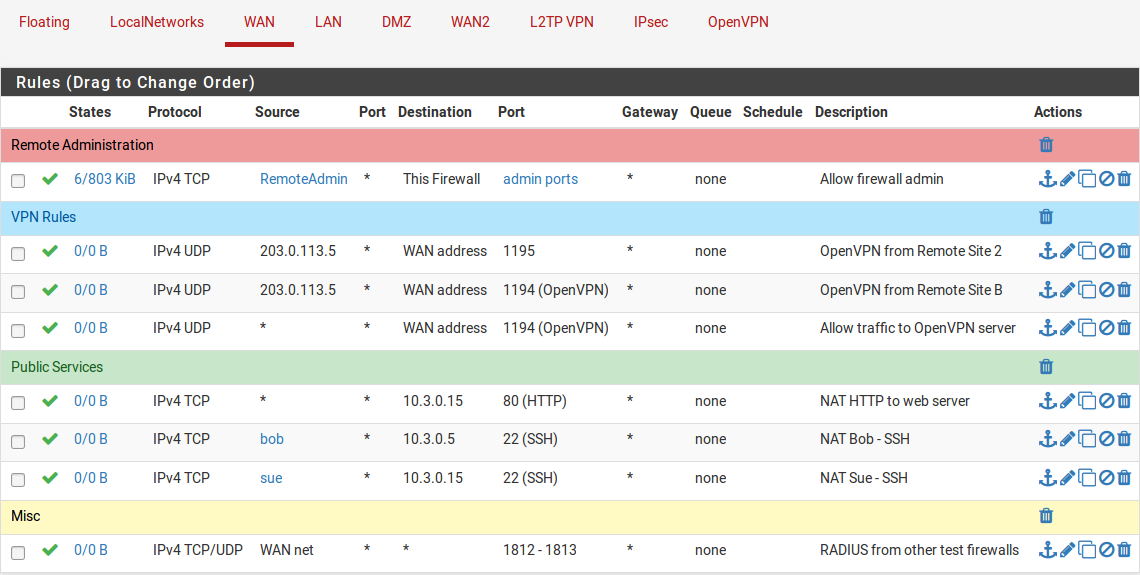
Fig. 2. Firewall rule editing form
Action
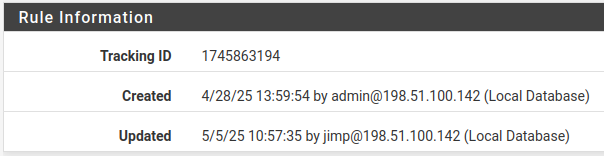
Fig. 3. Rule action selection
The Action field determines what happens to a packet when it matches the rule:
| Action | Behavior | When to Use |
|---|---|---|
| Pass | The packet is allowed through. A state table entry is created (when state tracking is enabled). | Permit rules for legitimate traffic |
| Block | The packet is silently discarded with no notification to the sender. | Deny traffic without revealing firewall presence |
| Reject | The packet is discarded with a notification sent to the sender: TCP RST for TCP packets, ICMP Unreachable for other protocols. | Deny traffic within trusted networks - speeds up detection of misconfiguration on the client side |
Warning:
The Reject action should not be used on the WAN interface. Sending rejection notifications to the internet reveals the presence of the firewall and can be exploited for network reconnaissance.
Interface
Specifies the interface on which the rule operates. The rule filters traffic entering the specified interface. This is a critical point: to allow traffic from LAN to the internet, the rule must be created on the LAN tab, not the WAN tab.
Address Family
Determines which type of IP packets the rule applies to:
- IPv4 - IPv4 traffic only
- IPv6 - IPv6 traffic only
- IPv4+IPv6 - both types of traffic in a single rule
When aliases are used in the Source or Destination fields, the system automatically applies only those alias entries that match the selected address family.
Protocol
Specifies the IP protocol:
- TCP, UDP, SCTP - transport protocols with port specification capability
- TCP/UDP - matches either TCP or UDP in a single rule
- ICMP - with the ability to select specific ICMP message types (Echo Request, Destination Unreachable, etc.)
- Any - any protocol
- Other IP protocols: ESP, AH, GRE, IPEncap, IGMP, etc.
Source and Destination
Each field supports several value types:
- Any - any address
- Single host or alias - a single IP address or alias
- Network - subnet in CIDR notation (e.g., 192.168.1.0/24)
- Interface address - LAN address, WAN address, etc. (dynamically resolves to the current interface address)
- PPPoE/L2TP clients - address range for PPPoE or L2TP clients
- This firewall (self) - Destination only; matches any address assigned to the firewall
The Invert Match option negates the condition: the rule matches all addresses except those specified.
Port
For TCP, UDP, and SCTP protocols, source and destination port configuration is available:
- Single port:
443 - Range:
1024-65535 - Port alias:
WebPorts(containing a set of ports)
Warning:
Source port filtering is rarely used. In the vast majority of cases, specifying only the destination port is sufficient.
Gateway
By default, the firewall consults the system routing table to determine the next hop. Explicitly specifying a gateway in a rule implements policy routing - forcing traffic through a designated gateway or gateway group.
Common use cases:
- Directing traffic from specific hosts through a particular WAN interface in Multi-WAN configurations
- Routing traffic through a VPN gateway for designated subnets
- Load balancing across multiple WAN connections
Logging
Enabling the Log option activates logging for packets matching the rule. Logs are accessible in Status > System Logs > Firewall. Logging is recommended for rules blocking critical traffic and during troubleshooting.
Excessive logging creates system overhead and makes analysis more difficult. On production systems, only enable logging on rules where it is genuinely needed.
Description
A text description of the rule, up to 52 characters. It is recommended to include the rule’s purpose and a ticket number if the rule was created in response to a change request. The description has no effect on traffic processing but significantly simplifies auditing and maintenance.
Advanced Options
Expanding the Advanced Options section reveals additional settings:
- Source OS - passive OS fingerprinting based on TCP SYN packet characteristics (p0f fingerprinting)
- TCP Flags - match on specific TCP flags (SYN, ACK, FIN, RST, URG, PSH)
- Schedule - bind the rule to a schedule (rule is active only during specified time windows)
- Tagging - mark packets with a string tag for subsequent matching in floating rules
- Max states / Max source nodes - limit state table entries (globally and per source IP)
- Max connections per host / Max new connections per second - connection rate limiting (TCP only)
- VLAN Priority (802.1p) - match and set PCP priority for QoS handling
Floating Rules
Floating rules are advanced firewall rules that provide capabilities not available on standard interface tabs. They are managed under Firewall > Rules > Floating.
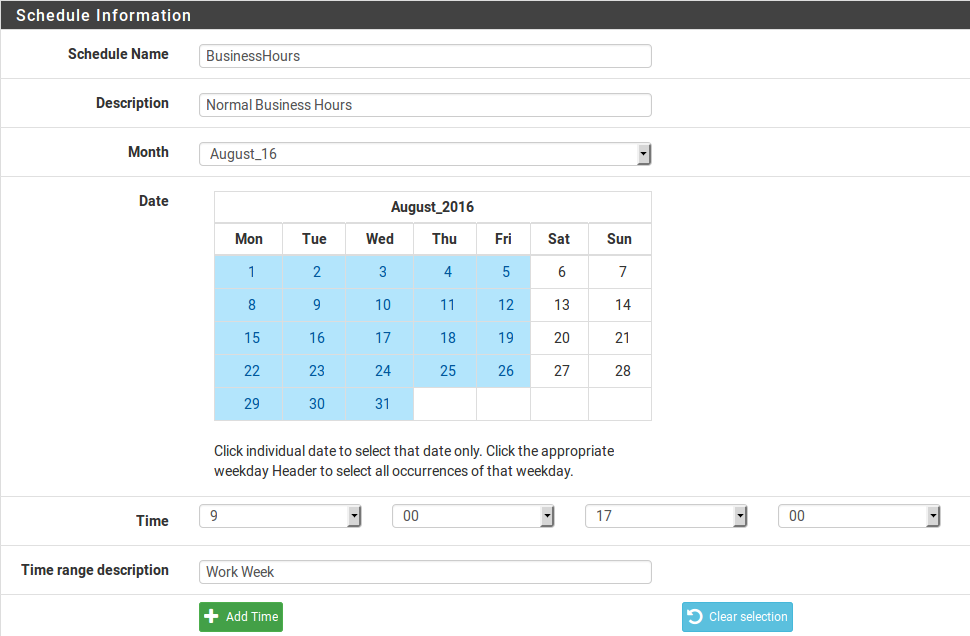
Fig. 4. Floating rules tab
Differences from Interface Rules
| Characteristic | Interface Rules | Floating Rules |
|---|---|---|
| Binding | Single interface | One, multiple, or all interfaces |
| Direction | Inbound only | Inbound, outbound, or both |
| Processing order | After floating and group rules | First (highest priority) |
| Match action | Not available | Available (for traffic shaping) |
| Reply-to | Automatically added | Not automatically added |
Direction
Floating rules support three direction options:
- in - inbound traffic only on selected interfaces
- out - outbound traffic only on selected interfaces
- any - traffic in both directions
Quick Flag
The Quick flag controls how matches are processed:
- Quick enabled (default) - standard first match wins behavior. When a match occurs, the packet is immediately processed according to the rule action.
- Quick disabled - last match wins behavior. The packet continues to be evaluated against remaining rules, and the action is determined by the last matching rule.
Disabling Quick is rarely needed and is intended for complex scenarios requiring action overrides at later processing stages.
Match Action
The Match action is unique to floating rules. It neither passes nor blocks a packet, but only marks it for traffic shaping purposes - assigning it to an ALTQ queue or applying a limiter. This is the primary use case for floating rules in QoS configurations.
Common Use Cases
- Traffic shaping (ALTQ) - the most common application. Floating rules assign traffic to prioritization queues.
- Outbound traffic filtering - the only way to filter packets leaving an interface (outbound direction).
- Firewall self-traffic filtering - controlling traffic generated by the firewall’s own processes (DNS queries, NTP, package updates).
- Multi-interface rules - applying a single rule to multiple interfaces simultaneously instead of duplicating rules on each tab.
Warning:
Floating rules do not automatically add the
reply-todirective for inbound traffic. In Multi-WAN configurations, this can lead to asymmetric routing of return traffic. For Multi-WAN scenarios, interface tab rules are preferred.
State Tracking
pfSense operates as a stateful firewall by default. When a pass rule matches, a state table entry is created. All subsequent packets belonging to the same connection are processed based on this entry without further rule evaluation.
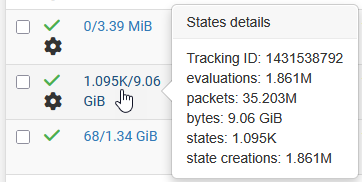
Fig. 5. State table (Diagnostics > States)
State Types
| Type | Description | Use Case |
|---|---|---|
| Keep State | Standard state tracking. Default for all rules. | Most scenarios |
| Sloppy State | Less strict packet sequence validation. Tolerates missing packets. | Asymmetric routing, cluster configurations |
| Synproxy State | The firewall proxies the TCP handshake: completes the handshake with the client on its own behalf, then establishes a connection with the server. | SYN flood protection for public-facing services |
| None | State tracking disabled. Every packet is evaluated against the ruleset. | Special cases; requires paired rules for return traffic |
State Table and Timeouts
The state table stores information about all active connections. Each entry contains:
- Source and destination addresses and ports
- Interface on which the state was created
- Current TCP connection state (SYN_SENT, ESTABLISHED, FIN_WAIT, etc.)
- Creation time and time of last packet
- Byte and packet counters
States are removed after an idle timeout expires. Default timeout values are configured in System > Advanced > Firewall & NAT. pfSense supports adaptive timeouts: when the state table fills beyond a threshold, timeouts are automatically shortened to free resources.
The current state table can be viewed in Diagnostics > States. States can be filtered by interface, IP address, and port, and individual entries can be removed manually.
State Limits in Rules
The following limits are available in rule settings:
- Maximum state entries - maximum number of states created by this rule
- Maximum source nodes - maximum number of unique source IP addresses
- Maximum established connections per host - maximum established connections for a single IP
- Maximum new connections per second - new TCP connection rate limit (DDoS protection)
Rule Organization and Grouping
As the number of rules grows, proper organization becomes essential. pfSense provides several mechanisms for maintaining an orderly ruleset.
Separators
Separators are colored bars with text headings that visually group rules on an interface tab. They have no effect on traffic processing and serve purely for navigation. To add a separator, click the separator button at the top of the rules list.
Recommended separator structure:
--- Management Access ---
  SSH, HTTPS to the firewall
--- Internal Services ---
  DNS, NTP, DHCP
--- Server Farm ---
  Server access rules
--- User Access ---
  User access to resources
--- Deny All (explicit) ---
  Explicit deny rule with logging
Rule Descriptions
Every rule should contain a meaningful description. It is recommended to include:
- The purpose of the rule (what it permits/denies)
- Ticket or change request number
- Creation date (for temporary rules)
Ordering Strategy
Recommended rule ordering on an interface tab:
- Block rules for known threats (blacklists)
- Management access rules for the firewall itself
- Internal service rules (DNS, NTP, DHCP)
- Server access rules
- User internet access rules
- Explicit deny rule with logging enabled (for auditing rejected traffic)
The explicit deny rule at the end is not strictly required - the implicit deny performs the same function. However, an explicit deny with logging records all rejected traffic, which is valuable for diagnostics and auditing.
Troubleshooting
Reading Firewall Logs
Firewall logs are accessible in Status > System Logs > Firewall. Each entry contains:
- Action (Pass or Block)
- Interface on which the rule was triggered
- The rule that generated the entry (rule ID or description)
- Source and destination addresses and ports
- Protocol and flags
For effective analysis, use filters by interface, action, and IP address.
Viewing Loaded Rules via Console
To view the current rules loaded into the pf kernel, use the pfctl command:
# View all loaded rules with rule numbers
pfctl -sr

# View rules with verbose output (includes labels and counters)
pfctl -vsr

# View current state table
pfctl -ss

# View state table filtered by host
pfctl -ss | grep 192.168.1.100

# View state table statistics
pfctl -si
These commands are executed in the firewall console: via SSH, serial console, or Diagnostics > Command Prompt in the web interface.
State Table Issues
When suspecting that traffic is being blocked by a stale state table entry:
- Navigate to Diagnostics > States
- Search for entries matching the problematic IP address or port
- Delete stale states using the delete button
- For bulk cleanup, use Diagnostics > States > Reset States
Warning:
Resetting all states will terminate every active connection through the firewall, including the administrator’s own session. This operation should only be performed during an agreed maintenance window.
Packet Capture
For detailed diagnostics, a built-in packet capture tool is available in Diagnostics > Packet Capture:
- Select the interface on which to capture
- Specify filters by protocol, address, and port
- Start the capture and reproduce the problematic traffic
- Stop the capture and download the pcap file for analysis in Wireshark
Packet capture is also available from the command line:
# Capture packets on LAN interface for specific host
tcpdump -i em1 host 192.168.1.100 -n -vv

# Capture only TCP SYN packets (new connections)
tcpdump -i em1 'tcp[tcpflags] & tcp-syn != 0' -n

# Save capture to file for later analysis
tcpdump -i em1 host 192.168.1.100 -w /tmp/capture.pcap
Common Issues and Solutions
| Symptom | Probable Cause | Solution |
|---|---|---|
| Traffic blocked despite a permit rule existing | The permit rule is positioned below a blocking rule | Move the permit rule above the blocking rule |
| Rule does not match traffic | Rule created on the wrong interface | Verify the rule is on the interface where traffic enters |
| Return traffic not passing | Stale state table entry | Clear states for the problematic connection |
| Floating rule not working | Quick flag not set | Enable Quick for immediate action application |
| Anti-lockout rule not protecting access | Access is via an interface other than LAN | Anti-lockout only applies to LAN; explicit access rules are required for other interfaces |
Related Sections
- Aliases - grouping addresses and ports for simplified rule management
- Schedules - time-based rule activation
- Best Practices - ruleset organization and security policy recommendations
- NAT and Port Forwarding - address translation and port forwarding, interaction between NAT rules and firewall rules
- pfSense Installation - installation and initial pfSense configuration
- pfSense and Wazuh Integration - monitoring firewall events in the Wazuh SIEM