pfSense Firewall Schedules - Time-Based Rule Control
Schedules in pfSense allow administrators to restrict firewall rule enforcement to specific time windows defined by days of the week and hours. A rule bound to a schedule is active only during the designated periods and has no effect on traffic outside those windows. This mechanism supports a variety of time-based access policies: restricting internet usage during business hours, controlling guest network availability, applying bandwidth limits on a schedule, and similar use cases.
Schedules do not create separate rules. They act as a modifier on an existing rule, defining the time interval during which that rule participates in packet evaluation. Outside the schedule, the rule is simply excluded from processing - it is not inverted.
Creating a Schedule
Schedules are managed under Firewall > Schedules. To create a new schedule, click Add.
Schedule Parameters
| Parameter | Description |
|---|---|
| Schedule Name | Name of the schedule. Only Latin letters and digits are permitted, no spaces. Examples: BusinessHours, WeekendAccess |
| Description | A text description of the schedule’s purpose. Displayed in the schedule list and when selecting a schedule in a rule |
Configuring Time Ranges
Each schedule contains one or more time ranges. The following parameters are configured for each range:
Day selection. The calendar allows selecting specific calendar dates or day-of-week headers. For recurring schedules, use the day-of-week headers (Mon, Tue, Wed, and so on) rather than specific calendar dates. Clicking a day-of-week header applies the schedule to that day every week.
Start and stop times. Specified in 24-hour format. A time range cannot span midnight. If a schedule must cover nighttime hours, two separate ranges are required: one ending before midnight (for example, 18:00–23:59) and another starting after midnight (00:00–06:00).
Granularity. The minimum interval is 15 minutes. Start and stop times are set in 15-minute increments: 0:00, 0:15, 0:30, 0:45, 1:00, and so on. To specify a full 24-hour day, use the range 0:00–23:59.
Range description. An optional text label that helps distinguish multiple ranges within a single schedule (for example, Weekday morning, Weekend full day).
After selecting the days and times, click Add Time to add the range to the schedule. A single schedule can contain multiple ranges, enabling different active hours for different days of the week.
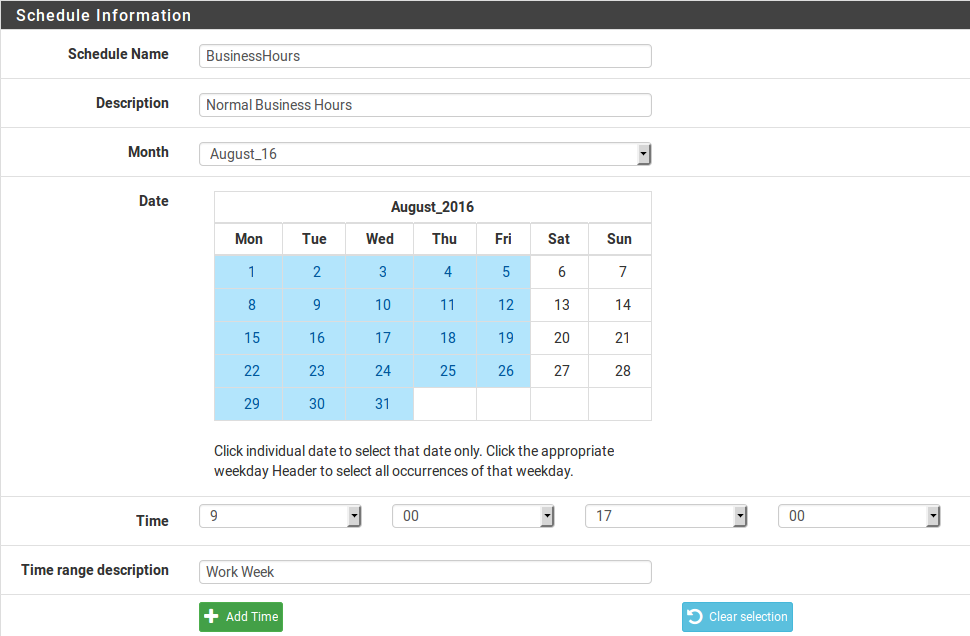
Fig. 1. Schedule editing screen under Firewall > Schedules
Example: Weekday Business Hours
To create a schedule active during working hours (09:00–18:00, Monday through Friday):
- Navigate to Firewall > Schedules and click Add.
- Set the name to
BusinessHours. - Set the description to
Working hours Mon-Fri 09:00-18:00. - In the calendar, click the headers for Mon, Tue, Wed, Thu, and Fri.
- Set the start time to 9:00 and the stop time to 17:45.
- Click Add Time to add the range.
- Click Save to save the schedule.
Warning:
The stop time indicates the beginning of the last 15-minute block during which the schedule remains active. For a schedule ending at 18:00, specify 17:45 - this means the schedule will be active until 17:59:59.
Applying a Schedule to a Rule
After creating a schedule, it must be bound to a firewall rule. A schedule on its own has no effect on traffic - it only defines the time window during which the associated rule is evaluated.
To bind a schedule:
- Navigate to the interface tab containing the target rule (for example, Firewall > Rules > LAN).
- Create a new rule or edit an existing one.
- Under Extra Options, expand Advanced Options (click Display Advanced).
- In the Schedule field, select the desired schedule from the dropdown.
- Save the rule and apply changes (Apply Changes).

Fig. 2. Selecting a schedule in the firewall rule settings
The rule list on the interface tab displays a schedule state indicator. Hovering over the indicator shows whether the schedule is currently active or inactive.
Rule Behavior Outside the Schedule
A rule bound to a currently inactive schedule is entirely excluded from traffic processing. This means:
- The rule is not inverted. If a rule permits traffic during business hours, it does not start blocking that traffic outside business hours. The rule simply ceases to exist from the filtering engine’s perspective.
- Traffic is processed by the remaining rules according to the standard evaluation order (first match wins). If no other rule permits the traffic, it is dropped by the implicit deny rule.
- This behavior is fundamental to correct policy design: a block rule with a schedule blocks traffic only during the schedule’s active period, not outside it.
Handling Active Connections
By default, when a schedule expires pfSense clears the state table entries for connections that were permitted by the scheduled rule. Active TCP sessions and other connections established during the schedule’s active period are forcibly terminated.
If active connections should be preserved after the schedule expires, enable the Do not kill connections when schedule expires option under System > Advanced on the Miscellaneous tab. With this option enabled, existing connections persist until they terminate naturally or their state timeout expires, but no new connections are created under the expired rule.
Warning:
Preserving connections after schedule expiration can create a window for policy bypass. If a user established a connection during the permitted period, that connection remains active indefinitely (within the state timeout). For security-critical policies, the default behavior of forcibly terminating connections is recommended.
Example Scenarios
Blocking Social Media During Work Hours
Objective: prevent employees from accessing social media between 09:00 and 18:00, Monday through Friday, while allowing access at all other times.
Implementation:
- Create an alias
of type Host or URL Table containing social media addresses (for example,
SocialMedia). - Create a schedule named
WorkHourswith the range Mon–Fri, 9:00–17:45. - Create a block rule on the LAN tab:
- Action: Block
- Source: LAN net
- Destination: alias
SocialMedia - Schedule:
WorkHours
- Position the rule above the general pass rule.
Outside working hours the block rule is inactive, and traffic to social media is handled by the pass rules below it.
Guest Network with Business-Hours-Only Access
Objective: provide the guest network with internet access only during business hours (08:00–20:00, Monday through Saturday).
Implementation:
- Create a schedule named
GuestAccesswith two ranges:- Mon–Fri, 8:00–19:45
- Sat, 8:00–19:45
- On the guest interface tab (for example, OPT1 or GUESTWIFI), create a pass rule:
- Action: Pass
- Source: GUESTWIFI net
- Destination: any
- Schedule:
GuestAccess
Outside the specified schedule the pass rule is inactive, and guest network traffic is dropped by the implicit deny rule. No additional block rule is needed.
Time-Based Bandwidth Limiting
Objective: during peak hours (10:00–16:00) limit bandwidth for a specific group of users.
Implementation:
- Create a schedule named
PeakHourswith the range Mon–Fri, 10:00–15:45. - Configure a limiter under Firewall > Traffic Shaper > Limiters with the desired bandwidth cap.
- Create a rule on the interface tab:
- Action: Pass
- Source: alias containing the user addresses
- Destination: any
- Schedule:
PeakHours - In/Out pipe: bind to the limiter created above
- Position the rule above the general pass rule that has no bandwidth restrictions.
During the schedule’s active period, traffic is processed by the rule with the limiter attached. Outside the schedule, that rule is inactive and traffic is handled by the general pass rule below it without bandwidth restrictions.
Limitations
The schedule mechanism in pfSense has several limitations that must be considered when designing security policies.
Timezone
All schedules use the timezone configured on the pfSense device (System > General Setup > Timezone). When working with geographically distributed sites connected via VPN, note that schedules activate according to the firewall’s clock, not the users’ local time. Ensure the timezone is configured correctly and the system synchronizes time via NTP.
15-Minute Granularity
The smallest time unit in a schedule is 15 minutes. Creating a schedule with minute-level precision is not possible. This should be factored into policies with strict timing requirements.
No Midnight Crossing
A single time range cannot span midnight. To create a nighttime schedule (for example, 22:00–06:00), two separate ranges must be defined: 22:00–23:59 and 00:00–05:45. Both ranges are included in a single schedule.
No Holiday Exceptions
pfSense does not support a mechanism for excluding holidays or non-working days from recurring schedules. If a schedule is configured for Mon–Fri, it will be active on public holidays that fall on weekdays. To handle holidays, either manually add specific dates as separate ranges or temporarily modify the schedule.
Specific Dates vs. Recurring Days
A schedule created using specific calendar dates (rather than day-of-week headers) is a one-time schedule - it activates only on the selected dates. For recurring schedules, always use the day-of-week column headers in the calendar.
Performance Impact
Schedules have no noticeable impact on firewall performance. The schedule check is performed during ruleset loading, not for each individual packet. When a time window begins or ends, pfSense triggers a ruleset reload, which takes minimal time and does not affect traffic processing.
Related Sections
- Firewall Rules - creating and managing rules to which schedules are applied
- Aliases - grouping addresses and ports for use in rules with schedules
- Best Practices - recommendations for organizing firewall rules, including time-based policies