pfSense Port Forwarding - Inbound NAT Configuration
Port forwarding is the primary mechanism for granting external access to services hosted on internal networks. When a packet arrives on the WAN interface, pfSense consults the port forward rule table and, upon a match, rewrites the destination address to the IP of the internal server. This is a form of DNAT (Destination NAT) - destination address translation.
Port forwarding is used to publish web servers, mail servers, game servers, surveillance systems, and any other service requiring inbound connections from the internet. Each port forward rule defines which inbound traffic to redirect and to which internal host.
Prerequisites
Before configuring port forwards, the following conditions must be met:
- Static or predictable WAN address. Port forwarding operates on the destination address of the WAN interface. With a dynamic WAN address (DHCP from the ISP), port forwarding functions correctly, but external clients lose access when the address changes. In such cases, Dynamic DNS (DynDNS) should be configured to update the DNS record automatically.
- Static IP on the target server. The internal server receiving forwarded traffic must have a fixed IP address. A DHCP static mapping (reservation) is an acceptable alternative to manual IP configuration on the server.
- Service running and listening on the expected port. The target service must be started and bound to the expected port. The server’s local firewall (iptables, Windows Firewall) must not block inbound connections.
- Port not blocked by the ISP. Some ISPs block inbound connections on standard ports (80, 443, 25). Verify with the ISP or use non-standard ports.
Creating a Port Forward Rule
Port forward rules are configured under Firewall > NAT > Port Forward. To create a new rule, click the Add button (up arrow places the rule at the top of the list, down arrow at the bottom).

Fig. 1. Port forward rule list (Firewall > NAT > Port Forward)
Rule Parameters
The port forward edit form contains the following fields:
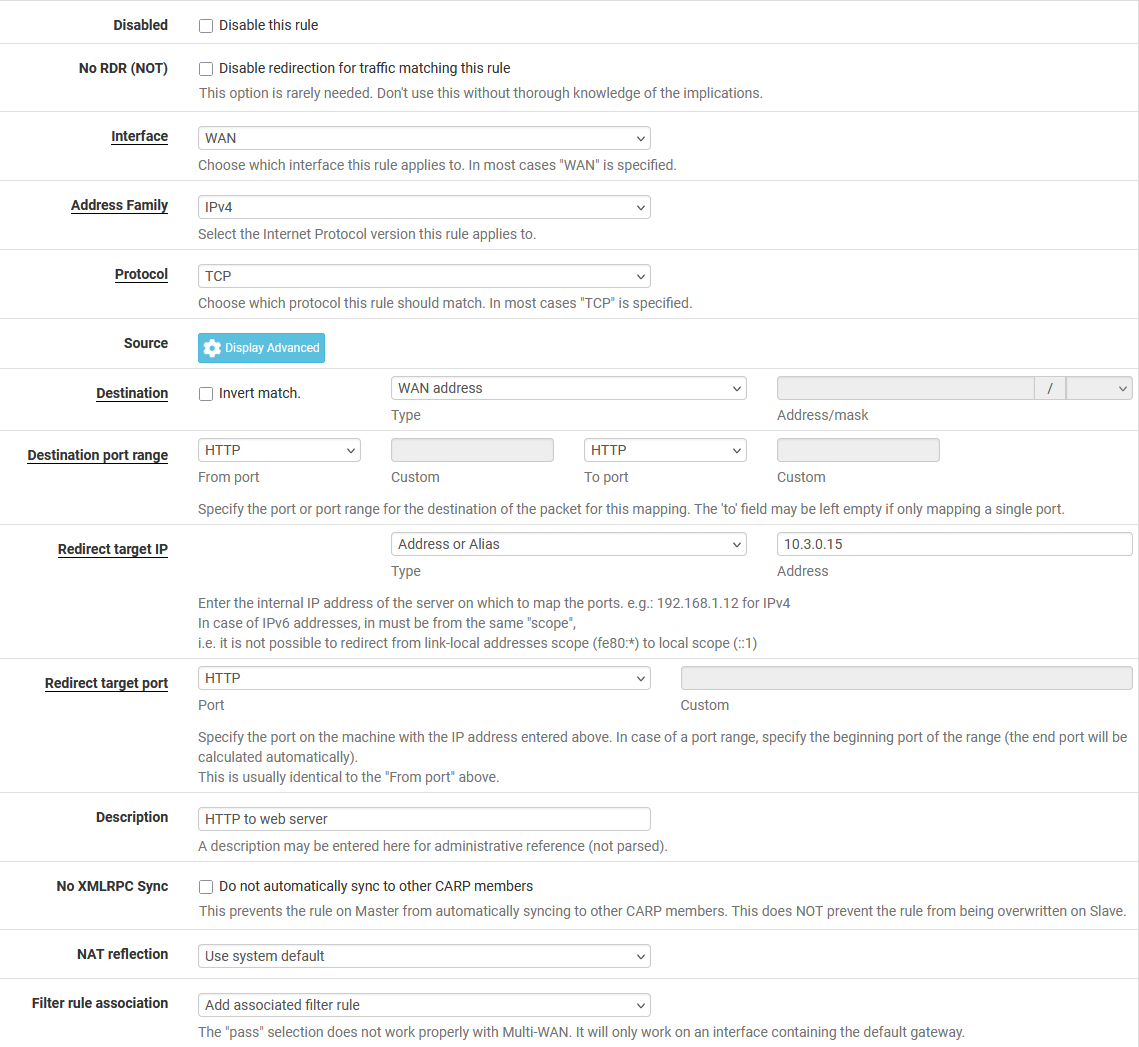
Fig. 2. Port forward rule edit form
Interface - the interface on which inbound traffic is intercepted. In most cases this is WAN. With multiple WAN interfaces, a separate rule must be created for each. For forwarding between internal networks (e.g., DMZ to LAN), specify the corresponding internal interface.
Protocol - transport layer protocol. Available options:
| Protocol | Use Case |
|---|---|
| TCP | Web servers, SSH, email, most services |
| UDP | DNS, VoIP (SIP/RTP), game servers |
| TCP/UDP | Services using both protocols (DNS, some games) |
| SCTP | Specialized signaling protocols (SS7, Diameter) |
| GRE | GRE tunnels (PPTP passthrough) |
| ESP | IPsec (when forwarding ESP without using built-in IPsec) |
Destination - the destination address in the inbound packet used for matching. Common values:
- WAN address - the primary address of the WAN interface. Used in the vast majority of cases.
- Virtual IP (VIP) - a virtual IP address configured on the WAN interface. Used when multiple public addresses are available.
- Any - any destination address. Used in rare scenarios (e.g., DNS request interception).
Destination port range - port or port range for matching. Accepts a single port, a named port (HTTP, HTTPS, SSH), or a range (From/To). When forwarding a port range, the source and destination range sizes must match.
Redirect target IP - the IP address of the internal server receiving the forwarded traffic. Supports a single address or an alias. When an alias is used, pfSense performs round-robin load balancing across the alias members.
Redirect target port - the port on the internal server. This may differ from the destination port. For example, inbound traffic on WAN:8080 can be redirected to internal server 192.168.1.10:80. When forwarding a port range, specify the starting port of the target range.
Description - a text description of the rule. Best practice is to include the purpose and target server name (e.g., “Web server - HTTP/HTTPS to srv-web-01”).
No XMLRPC Sync - disables rule synchronization between nodes in a high-availability cluster (CARP). Used when the rule is specific to one node.
NAT Reflection - the NAT reflection mode for this rule. Covered in detail in the NAT Reflection section.
Filter Rule Association - the firewall rule linkage. Covered in detail in the Firewall Rule Association section.
Example: Forwarding HTTPS to a Web Server
Goal: provide internet access to web server 192.168.1.10 over HTTPS (port 443).
| Parameter | Value |
|---|---|
| Interface | WAN |
| Protocol | TCP |
| Destination | WAN address |
| Destination port range | HTTPS (443) |
| Redirect target IP | 192.168.1.10 |
| Redirect target port | 443 |
| Description | HTTPS to srv-web-01 |
| Filter Rule Association | Add associated filter rule |
After saving the rule, click Apply Changes to activate the configuration.
Firewall Rule Association
A port forward only performs destination address translation. For traffic to actually pass, a firewall rule permitting the connection is required. pfSense offers four association options:
Add associated filter rule
pfSense automatically creates a linked firewall rule on the interface specified in the port forward. When port forward parameters change (port, protocol, destination), the associated rule updates automatically. This is the recommended option for most deployments.
The associated rule appears on the corresponding interface’s rules tab marked with (NAT) and an anchor icon. Editing the port and destination in the associated rule is locked - these parameters are governed by the port forward rule.
Add unassociated filter rule
pfSense creates a separate firewall rule not linked to the port forward. Changes to the port forward are not reflected in the firewall rule - it must be updated manually. Used when full control over firewall rule parameters is needed (e.g., restricting by source address).
Pass
Traffic is passed without creating a separate firewall rule. pfSense uses the pass keyword in the pf rule, combining translation and filtering in a single entry. This mode works only with a single gateway - with multiple WAN interfaces using policy routing, results are unpredictable.
Warning:
The Pass mode does not allow restricting access by source IP address. All traffic matching the port forward rule will be permitted. For source-based restrictions, use Add associated filter rule or Add unassociated filter rule.
None
No firewall rule is created. The administrator must manually create a rule on the appropriate interface tab. Used in complex scenarios where a single firewall rule serves multiple port forward rules.
Common Mistakes
- Port forward created but firewall rule missing. When None is selected without a manual rule, traffic is blocked.
- Associated rule manually moved. Associated rules are linked to the port forward by ID. Moving or deleting the associated rule breaks the linkage.
- Duplicate firewall rules. Switching between association types may leave stale rules. Inspect the interface rules tab for duplicates.
NAT Reflection
NAT reflection (also known as NAT hairpin or loopback NAT) allows internal hosts to reach port-forwarded services using the external (public) address. Without NAT reflection, a LAN client connecting to the public IP will not receive a response because the internal server replies directly, bypassing address translation.
Global NAT reflection settings are configured under System > Advanced > Firewall & NAT in the Network Address Translation section.

Fig. 3. Global NAT reflection settings (System > Advanced > Firewall & NAT)
NAT Reflection Modes
pfSense supports three NAT reflection modes:
Disable - NAT reflection is off. Internal clients cannot reach forwarded services via the external address. Access requires using the server’s internal IP or configuring split DNS.
NAT + Proxy - pfSense acts as a proxy for reflected connections. The LAN client’s packet is intercepted, pfSense establishes a new connection to the target server on its own behalf, and relays the data. Advantages:
- Works without additional routes.
- The target server sees the pfSense IP as the source, simplifying response routing.
- Supports forwarding to a port different from the incoming port.
Disadvantages:
- Increases pfSense load (each connection is handled in userspace).
- Does not support UDP.
- Limited performance under high concurrent connection counts.
Pure NAT - pfSense performs kernel-level translation without proxying. The LAN client’s packet passes through NAT rules identically to external traffic. Advantages:
- High performance (handled at the pf kernel level).
- Supports both TCP and UDP.
- Supports port ranges.
Disadvantages:
- Requires enabling Enable automatic outbound NAT for Reflection in the NAT reflection settings.
- The target server sees the real LAN client IP. If the server responds directly to the client (bypassing pfSense), the reply is dropped because the client expects a response from the public IP. The solution is to enable automatic outbound NAT for reflection or add a route on the server.
Choosing a Mode
| Criterion | NAT + Proxy | Pure NAT |
|---|---|---|
| Protocol | TCP only | TCP and UDP |
| Performance | Lower (userspace proxy) | Higher (kernel-level pf) |
| Configuration | Minimal | Requires automatic outbound NAT |
| Client visibility | Server sees pfSense IP | Server sees client IP |
| Port ranges | Not supported | Supported |
For most installations, Pure NAT with Enable automatic outbound NAT for Reflection is the recommended mode. NAT + Proxy should only be used when Pure NAT is not feasible (e.g., complex routing topologies preventing correct kernel-level handling).
Per-Rule Override
Each port forward rule includes a NAT Reflection field that overrides the global setting. Available values:
- Use system default - uses the global setting.
- Enable (NAT + Proxy) - forces NAT + Proxy for this rule.
- Enable (Pure NAT) - forces Pure NAT.
- Disable - disables NAT reflection for this rule.
Per-rule override is useful when a specific service requires a mode different from the global setting (e.g., Pure NAT is enabled globally, but a particular TCP service needs NAT + Proxy).
Alternative: Split DNS
An alternative to NAT reflection is split DNS (split-horizon DNS). With this approach, the internal DNS server (DNS Resolver or DNS Forwarder in pfSense) returns the server’s internal IP for queries from LAN, while external DNS returns the public IP.
Split DNS is preferable to NAT reflection for the following reasons:
- No additional load on pfSense.
- Traffic between client and server does not traverse the firewall (when on the same subnet).
- Correct operation with all protocols.
Split DNS is configured in pfSense under Services > DNS Resolver > Host Overrides.
Advanced Scenarios
Port Range Forwarding
When a range of ports must be forwarded (e.g., for FTP passive mode, RTP, or game servers), specify the range in the Destination port range field and the starting port in the Redirect target port field. The range size is determined by the Destination port range - the target range size is computed automatically.
Example: forwarding ports 10000-10100 to internal server 192.168.1.20, starting at port 10000.
| Parameter | Value |
|---|---|
| Destination port range | 10000 - 10100 |
| Redirect target IP | 192.168.1.20 |
| Redirect target port | 10000 |
Redirecting to a Different Port
The inbound port does not need to match the target port. This allows hiding standard ports or hosting multiple identical services behind a single public address.
Example: publishing two web servers on a single WAN address.
| Rule | WAN port | Target IP | Target port |
|---|---|---|---|
| Web server 1 | 443 | 192.168.1.10 | 443 |
| Web server 2 | 8443 | 192.168.1.11 | 443 |
For publishing multiple HTTPS services on standard port 443, a reverse proxy (HAProxy, available as a pfSense package) is recommended instead of port forwarding.
Multiple WAN Interfaces
With multiple WAN interfaces, port forward rules are created separately for each interface. If the same service must be accessible through all WAN interfaces, a separate rule for each WAN is required, specifying the corresponding interface and destination address.
When using a Virtual IP (CARP, IP Alias, Other) as the destination address, the port forward rule is bound to the interface on which the VIP is configured.
VoIP/SIP Forwarding
SIP traffic forwarding requires special attention due to protocol characteristics:
- SIP uses port 5060 (TCP/UDP) for signaling and dynamic ports (RTP, typically 10000-20000) for media.
- Both the SIP port and the RTP range must be forwarded.
- If SIP ALG (Application Layer Gateway) is enabled on pfSense or upstream equipment, it should be disabled, as ALG frequently disrupts SIP operation.
- The SIP device should be configured with an explicit STUN server and the correct External IP.
Example rule set for SIP server 192.168.1.30:
| Rule | Protocol | WAN port | Target port |
|---|---|---|---|
| SIP signaling | UDP | 5060 | 5060 |
| RTP media | UDP | 10000-20000 | 10000 |
No RDR (NOT)
The No RDR (NOT) option in a port forward rule inverts the action: instead of redirecting, pfSense explicitly prevents redirection for matched packets. This is used to create exceptions - for example, to prevent traffic from a specific source from being redirected, allowing it to be handled locally instead.
Troubleshooting
When a port forward is not working, each element in the chain should be verified systematically.
Diagnostic Checklist
Is the ISP blocking the port? Some ISPs block inbound connections on ports 25, 80, 443. Verify using an external port scanner (targeting the WAN address directly) or check with the ISP. If blocked, use a non-standard external port.
Does the port forward rule exist and is it active? Navigate to Firewall > NAT > Port Forward and confirm the rule is present, not disabled (disabled rules appear grayed out), and parameters are correct.
Does a firewall rule exist? Navigate to the rules tab for the corresponding interface (typically WAN) and confirm a rule exists permitting traffic to the target IP and port. When using Add associated filter rule, the rule is marked with an anchor icon.
Is the target server running and listening on the port? Connect to the server from LAN directly using the internal IP and target port. If the connection fails, the problem is on the server side, not pfSense.
Is the server’s local firewall blocking traffic? Windows Firewall, iptables, firewalld, or another host-based firewall may block inbound connections. Temporarily disable for diagnostics or create a permit rule.
Is NAT reflection configured (when testing from LAN)? Testing port forwards from the internal network works only with NAT reflection enabled or split DNS configured. For diagnostics, test from an external device (mobile phone on cellular data).
Are there rule conflicts? A port forward rule on a port matching a local pfSense service (e.g., port 443 for the web interface) will intercept the traffic. Ensure the pfSense management port does not conflict with forwarded ports, or relocate the web interface to a different port (System > Advanced > Admin Access).
Does the target server’s default route point to pfSense? If the target server’s default gateway is not pfSense, response packets leave through a different router and do not undergo reverse NAT translation. Confirm the server’s default gateway is the pfSense IP on the corresponding interface.
Log-Based Diagnostics
The firewall log (Status > System Logs > Firewall) records blocked packets. If an inbound packet is blocked on WAN, the firewall rule is missing or misconfigured. Filtering the log by WAN address and destination port quickly identifies the issue.
For advanced diagnostics, use Diagnostics > Packet Capture: capturing traffic on the WAN interface filtered by the target port shows whether packets are reaching pfSense. Capturing on the LAN interface shows whether traffic is being forwarded after translation.
Command-Line Diagnostics
# Check NAT state table for active translations
pfctl -s state | grep <target_port>

# View NAT rules loaded in pf
pfctl -s nat

# Verify the port forward rule is present
pfctl -s nat | grep rdr
Migration from Other Platforms
Cisco ASA
In Cisco ASA, inbound NAT is configured using object + nat:
object network WEB-SERVER
 host 192.168.1.10
 nat (inside,outside) static interface service tcp 443 443
The pfSense equivalent: a port forward rule with Interface = WAN, Destination = WAN address, Destination port = 443, Redirect target IP = 192.168.1.10, Redirect target port = 443.
In ASA 8.2 and earlier, the static (inside,outside) syntax was used. The translation logic does not change during migration - only the configuration method differs.
FortiGate
FortiGate uses Virtual IPs (VIPs) for inbound NAT:
config firewall vip
    edit "WEB-SERVER"
        set extintf "wan1"
        set mappedip "192.168.1.10"
        set portforward enable
        set extport 443
        set mappedport 443
    next
end
In FortiGate, VIP and policy are separate objects. In pfSense, the port forward rule can automatically create an associated firewall rule (Add associated filter rule), simplifying the configuration. During migration, both the VIP (to a port forward rule) and the policy (to a firewall rule) must be transferred.
MikroTik RouterOS
MikroTik uses dst-nat in the NAT table:
/ip firewall nat add chain=dstnat dst-address=<WAN_IP> protocol=tcp \
    dst-port=443 action=dst-nat to-addresses=192.168.1.10 to-ports=443
In MikroTik, NAT rules and firewall rules (forward chain) are independent entities. During migration to pfSense, note that pfSense can automatically link port forward rules with firewall rules.
An additional difference: in MikroTik, NAT rules are processed in the dstnat chain before routing, similar to pfSense. However, MikroTik’s default policy is Accept, whereas pfSense defaults to Deny. During migration, all necessary permit firewall rules must be explicitly created.
Related Sections
- pfSense NAT - NAT overview, translation processing order, NAT types
- Firewall Rules - creating and managing filtering rules, processing order
- Firewall Aliases - grouping addresses and ports for use in port forward rules
- pfSense VPN - VPN configuration requiring correct NAT settings (static port, NAT exemption)