IPsec IKEv2 Mobile VPN in pfSense - Remote Access Setup
IKEv2 (Internet Key Exchange version 2) is the most practical protocol for providing mobile users with VPN access to a corporate network through pfSense. The key advantage of IKEv2 over other remote access protocols is native support in all modern operating systems: Windows 10/11, macOS, iOS, and Android. Users do not need to install third-party VPN clients - connections are established using built-in operating system capabilities.
This guide covers the complete lifecycle of an IPsec IKEv2 configuration for mobile clients in pfSense: from certificate creation through client device setup. The material is intended for administrators familiar with the pfSense web interface and basic PKI concepts.
Advantages of IKEv2 for Remote Access
Before selecting a remote access protocol, it is worth evaluating the advantages of IKEv2 compared to the alternatives.
| Characteristic | IKEv2 | OpenVPN | WireGuard |
|---|---|---|---|
| Native OS support | Windows, macOS, iOS, Android | No | No |
| Connection speed | Under 1 second | 5-10 seconds | Under 1 second |
| MOBIKE support | Yes (seamless Wi-Fi/LTE switching) | No | Yes |
| Standardization | RFC 7296 | Proprietary | Non-standard |
| Authentication | Certificates, EAP-MSCHAPv2 | Certificates, passwords | Pre-shared keys |
| NAT-T | Built-in | Built-in (UDP/TCP) | Built-in |
MOBIKE (IKEv2 Mobility and Multihoming Protocol, RFC 4555) allows a VPN connection to persist when the network interface changes - for example, when switching from Wi-Fi to a cellular network. For mobile users, this is a critically important feature.
Certificate Preparation
IKEv2 for mobile clients requires a public key infrastructure (PKI). Three types of certificates must be created: a root Certificate Authority (CA) certificate, a server certificate, and user certificates (when using certificate-based authentication).
Creating the Certificate Authority (CA)
Navigate to System > Cert. Manager > CAs and click Add.
| Field | Value | Notes |
|---|---|---|
| Descriptive Name | IKEv2 VPN CA | Name to identify the CA |
| Method | Create an internal Certificate Authority | Creates a new CA |
| Key type | RSA | Compatible with all clients |
| Key length | 4096 | Minimum 2048 for production environments |
| Digest Algorithm | SHA256 | Standard hash algorithm |
| Lifetime | 3650 | 10 years, sufficient for a root CA |
| Common Name | IKEv2 VPN CA | Unique CA name |
| Country Code | (your country code) | Two-letter ISO 3166-1 code |
| State or Province | (your region) | Region name |
| City | (your city) | City name |
| Organization | (your organization) | Organization name |
Click Save. The root CA certificate will be used to sign the server and user certificates.
Creating the Server Certificate
Navigate to System > Cert. Manager > Certificates and click Add/Sign.
| Field | Value | Notes |
|---|---|---|
| Method | Create an internal Certificate | Creates a new certificate |
| Descriptive Name | IKEv2 VPN Server | Name for identification |
| Certificate authority | IKEv2 VPN CA | The CA created in the previous step |
| Key type | RSA | Compatible with all clients |
| Key length | 2048 | Sufficient for a server certificate |
| Digest Algorithm | SHA256 | Standard algorithm |
| Lifetime | 825 | Apple limits server certificate validity to 825 days |
| Common Name | vpn.example.com | Server FQDN or public IP address |
| Certificate Type | Server Certificate | Server certificate type |
Warning:
The Alternative Names field must include a SAN (Subject Alternative Name) of type FQDN or IP Address matching the address clients connect to. Without a SAN, Windows and iOS clients will refuse to connect. If using an IP address, add a SAN of type IP Address; if using a domain name, add a SAN of type FQDN.
Warning:
Apple devices (macOS, iOS) reject server certificates with a Lifetime exceeding 825 days. Exceeding this value will result in a certificate validation error during connection.
Creating User Certificates
User certificates are only required when using certificate-based authentication. When using EAP-MSCHAPv2 (username/password authentication), this step can be skipped.
For each user, navigate to System > Cert. Manager > Certificates and click Add/Sign.
| Field | Value | Notes |
|---|---|---|
| Method | Create an internal Certificate | Creates a new certificate |
| Descriptive Name | user-smith | Username for identification |
| Certificate authority | IKEv2 VPN CA | The same CA |
| Key type | RSA | Compatible with all clients |
| Key length | 2048 | Sufficient for a user certificate |
| Digest Algorithm | SHA256 | Standard algorithm |
| Lifetime | 365 | 1 year - recommended duration for user certificates |
| Common Name | user-smith | Unique user identifier |
| Certificate Type | User Certificate | User certificate type |
To export a user certificate in PKCS#12 (.p12) format, navigate to System > Cert. Manager > Certificates, locate the desired certificate, and click the PKCS#12 export icon. This file contains the certificate and private key, protected by a password.
Mobile Client Configuration
Mobile client settings are configured under VPN > IPsec > Mobile Clients.
Mobile Clients Tab
| Field | Value | Notes |
|---|---|---|
| Enable IPsec Mobile Client Support | Checked | Activates mobile client support |
| User Authentication | Local Database | Local pfSense user database (or RADIUS) |
| Group Authentication | (as needed) | Group restriction |
| Virtual Address Pool | Provide a virtual IP address to clients | Assigns IP addresses to clients |
| Network List | Provide a list of accessible networks to clients | Sends network list for split tunnel |
Virtual Address Pool
| Field | Value | Notes |
|---|---|---|
| Virtual Address Pool | 10.10.10.0/24 | Address pool for VPN clients |
The pool subnet must not overlap with existing local subnets.
DNS Servers
| Field | Value | Notes |
|---|---|---|
| Provide a DNS server list to clients | Checked | Pushes DNS servers to clients |
| DNS Server 1 | 10.1.0.1 | Local DNS server address |
| DNS Server 2 | 1.1.1.1 | Fallback public DNS |
Click Save. pfSense will prompt you to create Phase 1 - click the link to proceed to configuration.
Phase 1 Configuration
Phase 1 for mobile clients is configured under VPN > IPsec > Tunnels. After saving the Mobile Clients settings, pfSense automatically creates a Phase 1 entry with the mobile type.
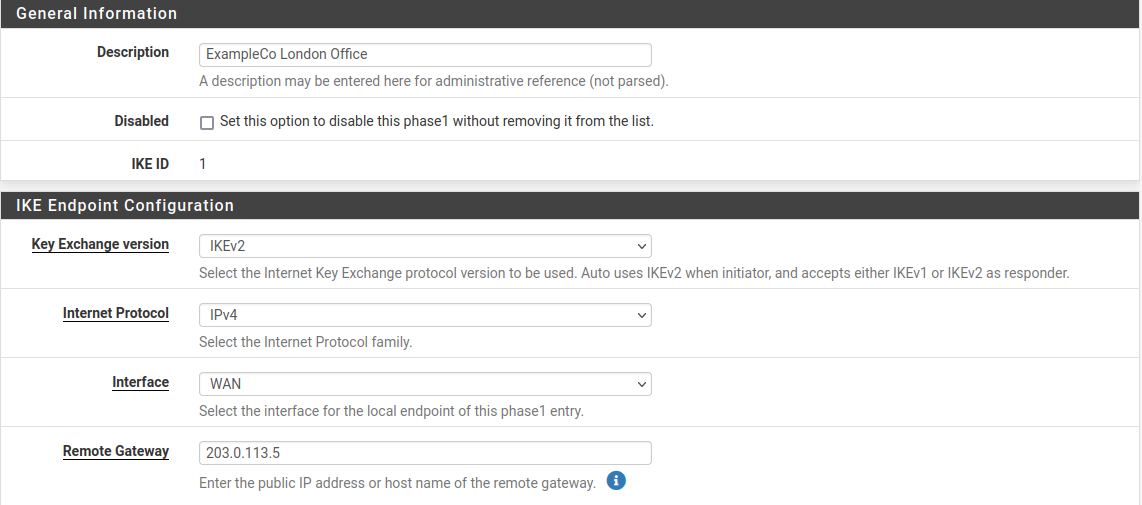
Fig. 1. Phase 1 configuration for mobile clients
General Information
| Field | Value | Notes |
|---|---|---|
| Key Exchange version | IKEv2 | Required for mobile clients |
| Internet Protocol | IPv4 | Or IPv6, depending on addressing |
| Interface | WAN | Interface for accepting connections |
| Description | IKEv2 Mobile Clients | Description for identification |
Phase 1 Proposal - Authentication
| Field | Value | Notes |
|---|---|---|
| Authentication Method | EAP-MSCHAPv2 | Username/password authentication |
| My identifier | Distinguished Name: vpn.example.com | Must match CN or SAN of the server certificate |
| Peer identifier | Any | Mobile clients - identifier unknown in advance |
| My Certificate | IKEv2 VPN Server | Server certificate created earlier |
| My Certificate Authority | IKEv2 VPN CA | CA that signed the server certificate |
When using certificate-based authentication instead of EAP-MSCHAPv2, select Authentication Method: Mutual RSA and specify the appropriate CA for validating client certificates.
Warning:
When using EAP-MSCHAPv2, users must be created in System > User Manager with passwords. These credentials are used to authenticate VPN connections.
Phase 1 Proposal - Encryption Algorithm
| Field | Value | Notes |
|---|---|---|
| Algorithm | AES-256-GCM | Authenticated encryption with hardware acceleration |
| Key Length | 256 bits (auto) | With AES-GCM, key length is determined automatically |
| Hash | SHA256 | PRF (Pseudo-Random Function) |
| DH Group | 14 (2048 bit) | Minimum recommended group |
For compatibility with a broader range of clients, additional Encryption Algorithms may be added. Recommended set:
| Algorithm | Hash | DH Group | Note |
|---|---|---|---|
| AES-256-GCM | SHA256 | 14 | Primary (Windows 10/11, macOS, iOS) |
| AES-256-CBC | SHA256 | 14 | Fallback (Android, older clients) |
Expiration and Replacement
| Field | Value | Notes |
|---|---|---|
| Life Time | 28800 | 8 hours |
| Rekey Time | (empty) | Automatic calculation |
| Reauth Time | (empty) | Automatic calculation |
Advanced Options
| Field | Value | Notes |
|---|---|---|
| NAT Traversal | Auto | Automatic NAT detection |
| MOBIKE | Enable | Support for network switching |
| Dead Peer Detection | Enabled | Detect disconnected clients |
| DPD Delay | 30 | DPD interval in seconds |
| DPD Max Failures | 5 | Missed responses before disconnect |
Warning:
MOBIKE must be enabled for mobile clients. Without MOBIKE, the VPN connection drops when switching networks (for example, when moving from Wi-Fi to LTE).
Phase 2 Configuration
After saving Phase 1, a Phase 2 entry must be created. Click Show Phase 2 Entries, then Add P2.
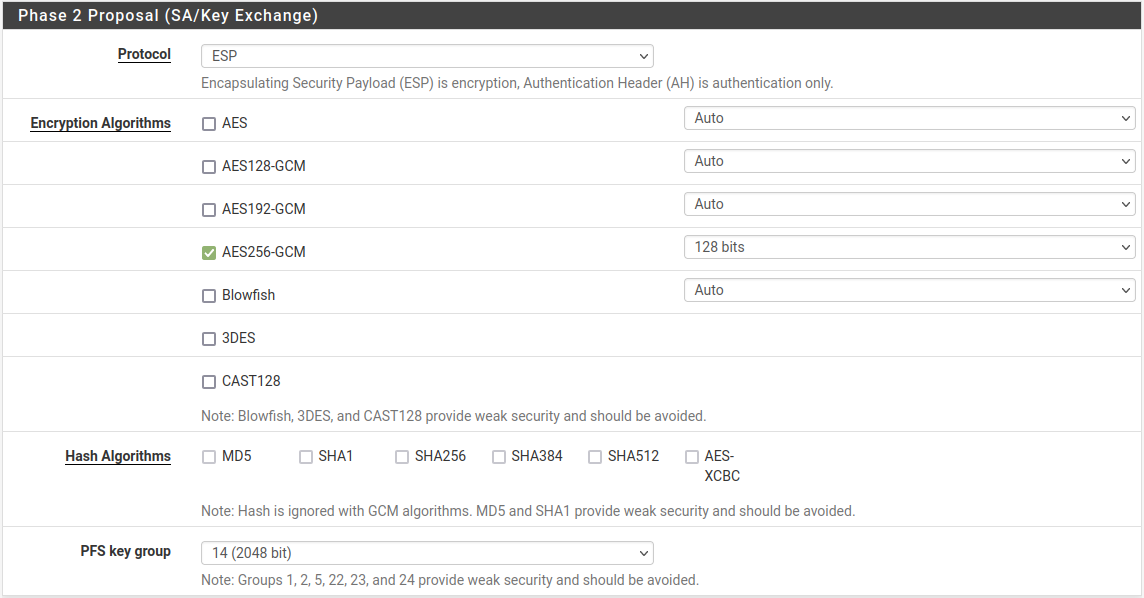
Fig. 2. Phase 2 configuration for mobile clients
General Information
| Field | Value | Notes |
|---|---|---|
| Mode | Tunnel IPv4 | Standard mode |
| Local Network | LAN subnet | Or a specific subnet: 10.1.0.0/24 |
| NAT/BINAT | None | No address translation |
| Description | IKEv2 Mobile - LAN Access | Phase 2 description |
When access to multiple subnets (LAN, DMZ, server network) is required, create a separate Phase 2 entry for each subnet.
Phase 2 Proposal
| Field | Value | Notes |
|---|---|---|
| Protocol | ESP | Traffic encryption and authentication |
| Encryption Algorithms | AES-256-GCM | Must match client capabilities |
| Hash Algorithms | SHA256 | For compatibility with clients lacking GCM support |
| PFS key group | 14 (2048 bit) | Perfect Forward Secrecy |
Expiration and Replacement
| Field | Value | Notes |
|---|---|---|
| Life Time | 3600 | 1 hour |
| Rekey Time | (empty) | Automatic calculation |
Firewall Rules
Two sets of firewall rules are required for IKEv2 VPN to function: on the WAN tab and the IPsec tab.
WAN Interface Rules
Inbound traffic for establishing IKE connections must be permitted on the WAN interface.
| Action | Protocol | Source | Destination Port | Description |
|---|---|---|---|---|
| Pass | UDP | Any | 500 | IKE - key exchange |
| Pass | UDP | Any | 4500 | NAT-T - ESP encapsulation in UDP |
pfSense automatically creates rules for IKE traffic when IPsec tunnels are configured. However, when using floating rules or a non-standard firewall configuration, these rules may need to be added explicitly.
IPsec Tab Rules
The Firewall > Rules > IPsec tab controls traffic passing through the VPN tunnel. By default, all traffic is blocked.
Minimum rule set:
| Action | Protocol | Source | Destination | Description |
|---|---|---|---|---|
| Pass | Any | 10.10.10.0/24 | LAN net | Allow traffic from VPN pool to LAN |
| Pass | Any | 10.10.10.0/24 | 10.10.10.0/24 | Allow traffic between VPN clients |
In production environments, rules should be restricted to specific protocols and ports. For example, allow only DNS (UDP/TCP 53), RDP (TCP 3389), SSH (TCP 22), and HTTPS (TCP 443).
For more details on firewall rules, see pfSense Firewall Rules .
Client Configuration
Windows 10/11
Windows 10 and 11 support IKEv2 through the built-in VPN client. To connect, the CA certificate must be imported and a VPN connection created.
Importing the CA Certificate
- Export the CA certificate from pfSense: System > Cert. Manager > CAs - click the CA Certificate export icon.
- Copy the
.crtfile to the Windows computer. - Double-click the
.crtfile. - Click Install Certificate.
- Select Local Machine and click Next.
- Select Place all certificates in the following store and click Browse.
- Select Trusted Root Certification Authorities and click OK.
- Click Next, then Finish.
Warning:
The CA certificate must be installed in the Trusted Root Certification Authorities store of the computer (Local Machine), not the user (Current User). Otherwise, Windows will be unable to validate the server certificate.
Creating the VPN Connection
- Open Settings > Network & Internet > VPN.
- Click Add a VPN connection.
- Fill in the parameters:
| Field | Value |
|---|---|
| VPN provider | Windows (built-in) |
| Connection name | Office VPN |
| Server name or address | vpn.example.com |
| VPN type | IKEv2 |
| Type of sign-in info | User name and password |
| User name | (username from pfSense) |
| Password | (user password) |
- Click Save.
- To connect, click the VPN connection and click Connect.
Strengthening Security on Windows
By default, Windows may use weak encryption algorithms. To enforce strong algorithms, run the following in PowerShell as Administrator:
Set-VpnConnectionIPsecConfiguration -ConnectionName "Office VPN" `
    -AuthenticationTransformConstants GCMAES256 `
    -CipherTransformConstants GCMAES256 `
    -EncryptionMethod AES256 `
    -IntegrityCheckMethod SHA256 `
    -DHGroup Group14 `
    -PfsGroup PFS2048 `
    -Force
macOS
macOS supports IKEv2 through built-in capabilities. Configuration requires importing the CA certificate and creating a network profile.
Importing the CA Certificate
- Export the CA certificate from pfSense in
.crtformat. - Open the file on macOS - Keychain Access will launch.
- Add the certificate to the System keychain.
- Double-click the added certificate.
- Under Trust, set When using this certificate to Always Trust.
- Close the window and enter the administrator password to confirm.
Creating the VPN Connection
- Open System Settings > VPN (macOS 13+) or System Preferences > Network (macOS 12 and earlier).
- Click Add VPN Configuration > IKEv2.
- Fill in the parameters:
| Field | Value |
|---|---|
| Display Name | Office VPN |
| Server Address | vpn.example.com |
| Remote ID | vpn.example.com |
| Local ID | (leave empty) |
| User Authentication | Username |
| Username | (username from pfSense) |
| Password | (user password) |
- Click Create.
- To connect, toggle the VPN connection switch.
iOS
iOS supports IKEv2 without installing additional applications.
Installing the CA Certificate Profile
- Export the CA certificate from pfSense.
- Transfer the
.crtfile to the device (via AirDrop, email, or a web server). - Open the file on the device - a prompt to install the profile will appear.
- Navigate to Settings > General > VPN & Device Management.
- Tap the downloaded profile and tap Install.
- After installation, navigate to Settings > General > About > Certificate Trust Settings.
- Enable trust for the installed CA certificate.
Creating the VPN Connection
- Navigate to Settings > General > VPN & Device Management > VPN.
- Tap Add VPN Configuration.
- Fill in the parameters:
| Field | Value |
|---|---|
| Type | IKEv2 |
| Description | Office VPN |
| Server | vpn.example.com |
| Remote ID | vpn.example.com |
| Local ID | (leave empty) |
| User Authentication | Username |
| Username | (username from pfSense) |
| Password | (user password) |
- Tap Done.
- To connect, toggle the VPN switch in Settings.
Android
Android supports IKEv2 natively starting from version 11 through the built-in VPN client. For earlier versions, the strongSwan VPN Client from Google Play is required.
Android 11 and Later (Built-in Client)
- Export the CA certificate from pfSense.
- Navigate to Settings > Security > Encryption & credentials > Install a certificate.
- Select CA certificate and install the
.crtfile. - Navigate to Settings > Network & Internet > VPN.
- Tap + to add a new VPN profile.
- Fill in the parameters:
| Field | Value |
|---|---|
| Name | Office VPN |
| Type | IKEv2/IPSec MSCHAPv2 |
| Server address | vpn.example.com |
| IPSec identifier | (leave empty) |
| IPSec CA certificate | (select the installed CA) |
| Username | (username from pfSense) |
| Password | (user password) |
- Tap Save.
strongSwan VPN Client (Android 10 and Earlier)
- Install strongSwan VPN Client from Google Play.
- Import the CA certificate through the application.
- Create a new VPN profile:
| Field | Value |
|---|---|
| Server | vpn.example.com |
| VPN Type | IKEv2 EAP (Username/Password) |
| Username | (username from pfSense) |
| Password | (user password) |
| CA certificate | Select automatically |
- Tap Save and connect.
Split Tunnel vs Full Tunnel
The tunneling mode determines which client traffic passes through the VPN.
Full Tunnel
With full tunneling, all client traffic is routed through the VPN, including internet access. This mode provides maximum protection but increases VPN server and bandwidth load.
To configure Full Tunnel:
- Under VPN > IPsec > Mobile Clients, uncheck Provide a list of accessible networks to clients.
- In Phase 2, set Local Network to Network /
0.0.0.0/0. - Configure an outbound NAT rule for VPN client traffic: Firewall > NAT > Outbound - add a rule for the
10.10.10.0/24subnet on the WAN interface.
Warning:
With Full Tunnel, Outbound NAT must be configured for the VPN client subnet. Without it, VPN clients will not have internet access through the tunnel.
Split Tunnel
With split tunneling, only traffic destined for specified networks passes through the VPN. All other traffic (including internet) uses the client’s regular connection.
To configure Split Tunnel:
- Under VPN > IPsec > Mobile Clients, check Provide a list of accessible networks to clients.
- In Phase 2, create a separate entry for each protected subnet (for example,
10.1.0.0/24for LAN,10.2.0.0/24for the server network). - The subnet list from Phase 2 will be automatically pushed to clients.
DNS Considerations with Split Tunnel
With Split Tunnel, DNS queries may be routed through either the VPN or the local connection. This creates a DNS leak risk - queries for internal domains may be sent through the ISP.
To minimize DNS leakage:
- Push a DNS server to clients through the Mobile Clients settings.
- On Windows: use the NRPT (Name Resolution Policy Table) to route DNS queries for specific domains through the VPN.
- On macOS/iOS: DNS traffic to the specified server is automatically routed through the VPN when routes are correctly configured.
Troubleshooting
Client Cannot Connect
| Problem | Cause | Solution |
|---|---|---|
| Timeout during connection | UDP 500/4500 blocked | Verify firewall rules on WAN and with the ISP |
IKE authentication credentials are unacceptable | Incorrect username/password | Verify credentials in User Manager |
The certificate chain is not trusted | CA certificate not installed | Install the CA certificate in the trusted store on the client |
The remote server is not responding | Incorrect server address | Verify the server address in client settings and DNS resolution |
Certificate Errors
| Problem | Cause | Solution |
|---|---|---|
Certificate has expired | Certificate validity period elapsed | Reissue the certificate in Cert. Manager |
Certificate name mismatch | CN/SAN does not match the address | Recreate the server certificate with the correct SAN |
| iOS rejects certificate | Lifetime > 825 days | Recreate the server certificate with Lifetime of 825 or less |
Windows: Error 13801 | Server certificate issue | Ensure the CA is installed in Local Machine, not Current User |
EAP Errors
| Problem | Cause | Solution |
|---|---|---|
EAP_MSCHAPV2 failed | Incorrect credentials | Reset the user password in User Manager |
no EAP method selected | Wrong Authentication Method | Set EAP-MSCHAPv2 in Phase 1 |
| Connection drops after 1 second | User not in the required group | Verify group restrictions in Mobile Clients |
Connected but No Access to Resources
| Problem | Cause | Solution |
|---|---|---|
| Cannot ping LAN hosts | Missing rules on the IPsec tab | Create rules allowing traffic from the VPN pool |
| DNS not working | DNS server not pushed to client | Configure DNS Server in Mobile Clients |
| No internet with Full Tunnel | Missing Outbound NAT | Add an Outbound NAT rule for the VPN subnet |
Diagnostic Commands
# View active IKEv2 sessions
ipsec statusall

# View connected mobile clients
ipsec leases

# View IPsec logs in real time
clog -f /var/log/ipsec.log

# Restart IPsec service
ipsec restart
Related Sections
- IPsec Site-to-Site VPN in pfSense - configuring site-to-site tunnels, IPsec terminology, and general configuration principles
- IPsec VPN Troubleshooting in pfSense - systematic IPsec diagnostics, log analysis, and resolving Phase 1/Phase 2 errors
- pfSense Firewall Rules - principles of creating and managing firewall rules for VPN traffic