OpenVPN Remote Access Server in pfSense - Setup Guide
OpenVPN is the most widely deployed solution for providing remote employee access to corporate networks through pfSense. The protocol operates in userspace, leverages SSL/TLS for encryption, and can function over TCP 443, enabling connections even from networks with restrictive outbound filtering policies. In pfSense, an OpenVPN remote access server can be configured in two ways: through the built-in wizard for rapid deployment or manually with full control over every parameter.
This guide covers both approaches, from preparing the certificate infrastructure through to diagnosing common connectivity issues. The material is intended for network engineers with pfSense administration experience and a working understanding of SSL/TLS fundamentals.
Certificate Preparation
OpenVPN in SSL/TLS mode requires a public key infrastructure (PKI): a Certificate Authority (CA), a server certificate, and individual certificates for each user. All certificate operations are performed through the pfSense web interface.
Creating a Certificate Authority (CA)
The Certificate Authority is created under System > Certificates > Authorities.
- Click Add to create a new CA.
- Fill in the parameters:
| Field | Value | Notes |
|---|---|---|
| Descriptive name | OpenVPN-CA | Arbitrary name for identification |
| Method | Create an internal Certificate Authority | Creates a new CA |
| Key type | RSA | Recommended key type |
| Key length | 4096 | Minimum recommended length is 2048 |
| Digest Algorithm | SHA256 | SHA1 should not be used |
| Lifetime | 3650 | CA validity period in days (10 years) |
| Common Name | OpenVPN-CA | Unique CA name |
| Country, State, City, Org | As needed | Populated per organizational requirements |
- Click Save.
Creating the Server Certificate
The server certificate is created under System > Certificates > Certificates.
- Click Add/Sign.
- Fill in the parameters:
| Field | Value | Notes |
|---|---|---|
| Method | Create an internal Certificate | Creates a new certificate |
| Descriptive name | OpenVPN-Server-Cert | Identification name |
| Certificate authority | OpenVPN-CA | Previously created CA |
| Key type | RSA | Must match the CA key type |
| Key length | 2048 | Minimum acceptable length |
| Digest Algorithm | SHA256 | Matches the CA |
| Certificate Type | Server Certificate | Critical - a client certificate will not work |
| Lifetime | 825 | Recommended duration (Apple enforces an 825-day limit) |
| Common Name | vpn.example.com | Server FQDN or IP address |
- Click Save.
Creating User Certificates
Each VPN user requires an individual certificate. Creation is performed under System > User Manager.
- Open an existing user or create a new one.
- In the User Certificates section, click Add.
- Set Method to Create an internal Certificate.
- Set Certificate authority to
OpenVPN-CA. - Set Certificate Type to User Certificate.
- Click Save.
Warning:
Each user should receive an individual certificate. Sharing a single certificate across multiple users eliminates the ability to revoke access for a specific employee without affecting the rest.
Wizard-Based Setup
The OpenVPN Wizard is the fastest method for deploying a remote access server. It automatically creates the CA, server certificate, server instance, and basic firewall rules.
The wizard is launched from VPN > OpenVPN > Wizards.
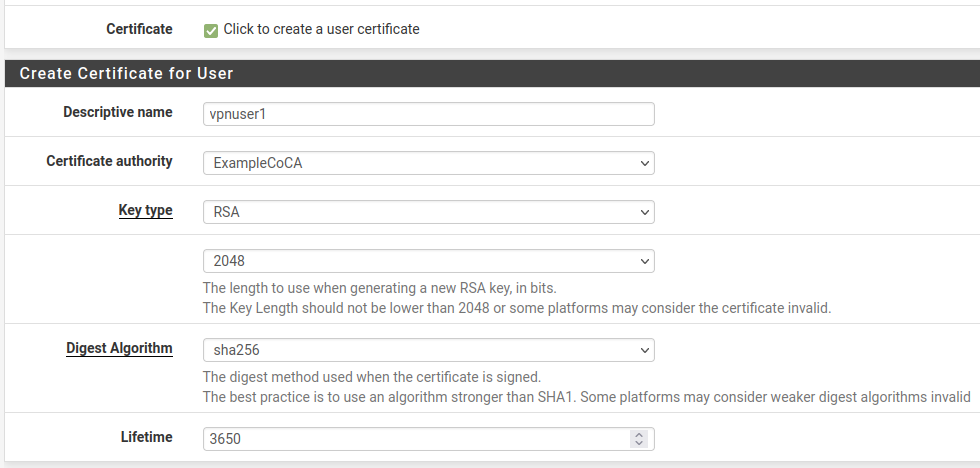
Fig. 1. OpenVPN Wizard start page in pfSense
Step 1 - Authentication Type
The wizard offers a choice of authentication backend:
- Local User Access - authentication against the pfSense local database. Suitable for small organizations (up to 20 users).
- LDAP - authentication against Active Directory or OpenLDAP. Recommended when an existing directory service is available.
- RADIUS - authentication via a RADIUS server (FreeRADIUS, NPS). Provides the greatest flexibility, including OTP support.
Step 2 - Certificates
When Local User Access is selected, the wizard offers to create the CA and server certificate. If a CA already exists, the previously created one may be used.
Step 3 - Server Parameters
The wizard prompts for the main OpenVPN server parameters:
| Parameter | Recommendation |
|---|---|
| Interface | WAN |
| Protocol | UDP on IPv4 only |
| Local Port | 1194 |
| Tunnel Network | 10.8.0.0/24 |
| Local Network(s) | Subnets accessible through the VPN |
| Concurrent Connections | Based on user count |
| DNS Server 1-4 | DNS servers pushed to clients |
Step 4 - Firewall Rules
The wizard offers to automatically create:
- Firewall Rule - a rule on the WAN interface allowing inbound connections on port 1194/UDP.
- OpenVPN Rule - a rule on the virtual OpenVPN interface permitting traffic from the VPN subnet to the local network.
It is recommended to let the wizard create both rules and adjust them afterward as needed.
Warning:
The wizard does not create rules permitting traffic between VPN clients (client-to-client). If inter-client communication is required, manual configuration is necessary.
Manual Server Configuration
Manual configuration is performed under VPN > OpenVPN > Servers. Click Add to create a new server instance.

Fig. 2. OpenVPN server parameters in pfSense
General Information
| Field | Value | Notes |
|---|---|---|
| Disabled | Unchecked | Unchecking activates the server |
| Server mode | Remote Access (SSL/TLS + User Auth) | Most secure mode: dual verification (certificate + username/password) |
| Backend for authentication | Local Database | Or LDAP/RADIUS for directory service integration |
| Device mode | tun - Layer 3 Tunnel Mode | Recommended; tap is needed only for L2 bridging |
| Interface | WAN | Interface on which the server accepts connections |
| Local port | 1194 | Standard OpenVPN port |
| Protocol | UDP on IPv4 only | UDP provides better performance; TCP is used when UDP is blocked |
Cryptographic Settings
| Field | Value | Notes |
|---|---|---|
| TLS Configuration | Enabled | Additional TLS channel protection layer |
| TLS Key | Automatically generate | Key generated on first save |
| TLS Key Usage Mode | TLS Authentication | Provides HMAC signing of initial TLS packets |
| Peer Certificate Authority | OpenVPN-CA | Previously created CA |
| Server certificate | OpenVPN-Server-Cert | Server certificate |
| DH Parameter Length | 2048 | Diffie-Hellman group; 4096 for enhanced security |
| ECDH Curve | Not set (use default) | Applied when using ECDH |
| Data Encryption Algorithms | AES-256-GCM, AES-128-GCM, CHACHA20-POLY1305 | Client and server negotiate the best option |
| Fallback Data Encryption Algorithm | AES-256-CBC | Used for compatibility with older clients |
| Auth digest algorithm | SHA256 | Used with CBC encryption; GCM modes have built-in authentication |
Tunnel Settings
| Field | Value | Notes |
|---|---|---|
| IPv4 Tunnel Network | 10.8.0.0/24 | Subnet for VPN clients; must not overlap with existing networks |
| IPv6 Tunnel Network | (empty) | Populated when using IPv6 |
| Redirect IPv4 Gateway | Unchecked | Enable for Full Tunnel (all traffic through VPN) |
| IPv4 Local Network(s) | 10.1.0.0/24, 10.2.0.0/24 | Subnets accessible via VPN; multiple networks separated by commas |
| IPv4 Remote Network(s) | (empty) | Used in site-to-site; not populated for Remote Access |
| Concurrent connections | 10 | Maximum number of simultaneous connections |
| Allow Compression | Refuse any non-stub compression | Compression disabled for security (VORACLE attack) |
| Push Compression | Unchecked | |
| Topology | Subnet | Recommended topology; net30 is deprecated |
| Type-of-Service | Unchecked | Enable only if QoS is required |
Client Settings
| Field | Value | Notes |
|---|---|---|
| Dynamic IP | Enabled | Allows clients to change IP without reconnecting |
| Topology | Subnet - One IP address per client | |
| DNS Default Domain | corp.example.com | Domain suffix for VPN clients |
| DNS Server 1-4 | 10.1.0.1 | DNS servers delivered via push options |
| NTP Server 1-2 | 10.1.0.1 | Time servers |
| Force DNS cache update | Enabled | Refreshes DNS cache on Windows clients |
Advanced Configuration
The Custom options field accepts OpenVPN directives not exposed in the interface:
push "dhcp-option DOMAIN-SEARCH corp.example.com";
push "dhcp-option DOMAIN-SEARCH dev.example.com";
auth-gen-token 0 external-auth;
reneg-sec 3600;
Firewall Rules
Two sets of firewall rules are required for the OpenVPN remote access server to function correctly.
WAN Interface Rules
Permit inbound connections to the OpenVPN server:
| Field | Value |
|---|---|
| Action | Pass |
| Interface | WAN |
| Address Family | IPv4 |
| Protocol | UDP |
| Source | Any |
| Destination | WAN address |
| Destination Port | 1194 |
| Description | Allow OpenVPN |
When multiple WAN interfaces are in use (Multi-WAN), a rule must be created on each interface through which VPN connections are permitted. For more on firewall rules, see pfSense Firewall Rules .
OpenVPN Interface Rules
After the server is created, pfSense exposes a virtual OpenVPN interface. By default, no allow rules exist on this interface - all traffic from the VPN tunnel will be blocked.
Minimum rule for LAN access:
| Field | Value |
|---|---|
| Action | Pass |
| Interface | OpenVPN |
| Address Family | IPv4 |
| Protocol | Any |
| Source | OpenVPN tunnel network (10.8.0.0/24) |
| Destination | LAN net |
| Description | VPN clients to LAN |
Warning:
A
Source: Any / Destination: Anyrule on the OpenVPN interface grants VPN clients unrestricted access to all resources, including pfSense management. Access should be restricted to specific subnets and ports in accordance with the principle of least privilege.
Split Tunnel vs Full Tunnel
The tunneling mode determines which client traffic traverses the VPN.
Split Tunnel
In Split Tunnel mode, only traffic destined for corporate subnets specified in the IPv4 Local Network(s) field passes through the VPN. All other traffic (internet, public resources) exits through the client’s local gateway.
Advantages:
- Reduced load on the VPN channel and the corporate internet gateway.
- Preserved access to local resources (printers, IoT devices).
- Lower latency when accessing public services.
Full Tunnel
In Full Tunnel mode, all client traffic, including internet traffic, is routed through the VPN. To activate, enable the Redirect IPv4 Gateway flag in the server settings.
Advantages:
- All traffic passes through the corporate filtering and inspection infrastructure.
- Clients are protected from attacks on untrusted networks (public Wi-Fi).
- Uniform application of security policies.
DNS servers must also be configured via push options to prevent DNS query leaks:
push "dhcp-option DNS 10.1.0.1";
push "block-outside-dns";
The block-outside-dns directive works only on Windows clients and prevents use of DNS servers obtained from the local network.
Combined Approach
For individual users, the mode can be overridden through Client Specific Overrides. For example, information security staff may use Full Tunnel while other employees use Split Tunnel.
Client Specific Overrides
The Client Specific Overrides mechanism allows individual parameters to be set for specific VPN clients. Configuration is performed under VPN > OpenVPN > Client Specific Overrides.
Assigning a Fixed IP Address
To bind a permanent IP address to a specific user:
- Create an entry in Client Specific Overrides.
- In the Common Name field, enter the CN from the user’s certificate (typically matches the username).
- In the Advanced field, enter:
ifconfig-push 10.8.0.100 255.255.255.0;Granting Access to Additional Subnets
To route traffic from a subnet behind the client (for example, when working from a home office with a local network):
iroute 192.168.100.0 255.255.255.0;
push "route 192.168.100.0 255.255.255.0";Warning:
The
iroutedirective operates only within OpenVPN and must be accompanied by a corresponding route at the server level (IPv4 Remote Network(s) field orpush "route ..."), as well as a firewall rule permitting traffic to the specified subnet.
Overriding DNS and Gateway
For a specific user, DNS servers and the tunneling mode may be overridden:
push "dhcp-option DNS 10.1.0.53";
push "redirect-gateway def1";
push "block-outside-dns";
Multi-Factor Authentication
Basic certificate-plus-password authentication provides two factors: possession (certificate) and knowledge (password). For additional hardening, time-based one-time passwords (TOTP) are recommended.
TOTP via FreeRADIUS
- Install the FreeRADIUS package via System > Package Manager.
- Configure the RADIUS server on the localhost interface (127.0.0.1), port 1812.
- Create users with OTP profiles - each user receives a secret for TOTP generation (compatible with Google Authenticator, Microsoft Authenticator).
- In the OpenVPN server settings, set Backend for authentication to RADIUS and specify the FreeRADIUS parameters.
During authentication, the user enters the password in the format <password><TOTP-code> (concatenation of the primary password and the six-digit code).
LDAP with Two-Factor Authentication
When using LDAP (Active Directory), two-factor authentication is implemented through:
- Duo Security - a package available in pfSense that provides push notifications.
- RADIUS proxy - LDAP authentication routed through a RADIUS server supporting TOTP (for example, privacyIDEA or LinOTP).
DCO - Data Channel Offload
Data Channel Offload (DCO) is a mechanism that moves OpenVPN data processing from userspace into the operating system kernel. This eliminates the overhead of context switching between the kernel and the OpenVPN process, significantly increasing throughput.
DCO Characteristics
| Aspect | Without DCO | With DCO |
|---|---|---|
| Data processing | Userspace (OpenVPN process) | Kernel |
| Throughput | 200-400 Mbit/s (CPU-dependent) | 800-2000 Mbit/s |
| CPU load | High | Low |
| Compatibility | All modes | Restrictions (see below) |
DCO Limitations
DCO is incompatible with the following configurations:
- tap mode (tun only).
- Compression - must be disabled.
- Unauthenticated ciphers (CBC without HMAC).
- The
--fragmentoption. - Peer-to-Peer (Shared Key) mode.
To enable DCO, set the Data Channel Offload flag in the server parameters. If the configuration is incompatible, pfSense will display a warning.
Warning:
Enabling DCO on an existing server will disconnect all current sessions. Clients must support DCO (OpenVPN 2.6+). Plan the transition for a maintenance window.
Troubleshooting
Client Cannot Connect
- Verify the WAN firewall rule - ensure port 1194/UDP is open. Verification: Diagnostics > Packet Capture on the WAN interface, filtering by port 1194.
- Check OpenVPN logs - Status > System Logs > OpenVPN. Key messages:
TLS Error: TLS handshake failed- certificate issue or TLS key mismatch.AUTH_FAILED- incorrect credentials or a locked account.Connection reset, restarting- routing or NAT problem.
- Verify time synchronization - a discrepancy exceeding 5 minutes between server and client will cause certificate validation to fail.
- Check the CRL (Certificate Revocation List) - if a CRL is configured, verify that the client certificate has not been revoked.
TLS Handshake Failed
Most common causes:
- TLS key mismatch - the key on server and client must be identical. Regenerate the client configuration using the openvpn-client-export package.
- Expired CA or server certificate - check validity dates under System > Certificates.
- Encryption algorithm mismatch - verify the client supports at least one algorithm listed in Data Encryption Algorithms.
- MTU issues - TLS packet fragmentation. Add to Custom options:
fragment 1400; mssfix 1400.
Connected but No Resource Access
- Check the OpenVPN interface rules - ensure traffic from the VPN subnet is permitted.
- Verify routes - on the client, run
route print(Windows) orip route(Linux) and confirm routes to corporate subnets are present. - Check the Local Network(s) field - if a subnet is not listed, the route will not be pushed to the client.
- Verify return routing - devices on the corporate network must have a route to the VPN subnet (
10.8.0.0/24) via pfSense. If pfSense is the default gateway, the route exists automatically.
DNS Query Leaks
In Full Tunnel mode, clients may continue using local DNS servers:
- Verify that DNS Server 1-4 are populated in the server settings.
- Add
push "block-outside-dns"to Custom options (Windows only). - On macOS and Linux, DNS leaks are prevented through resolv.conf update scripts included in the client configuration.
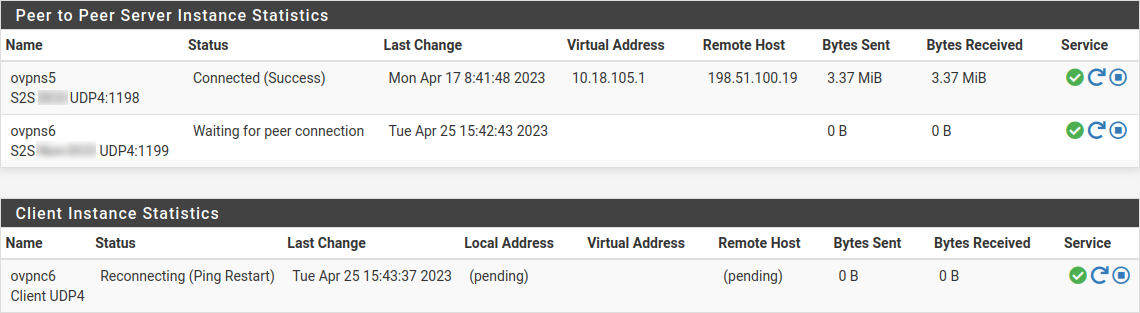
Fig. 3. Status > OpenVPN page - active connections and statistics
Related Sections
- OpenVPN Site-to-Site Tunnel - connecting sites via OpenVPN in Peer-to-Peer mode
- Client Configuration Export - generating ready-made configuration files and installers using the openvpn-client-export package
- IPsec Mobile Clients - an alternative remote access method using the built-in IPsec client
- pfSense Firewall Rules - creating and managing rules for VPN traffic control