Integration of pfSense with SecurityOnion
- To integrate and analyze traffic with pfSense, the user needs to set up a link between pfSense and Security Onion. To do this, open the SecurityOnion web interface and select Elastic Fleet (see Figure 1).
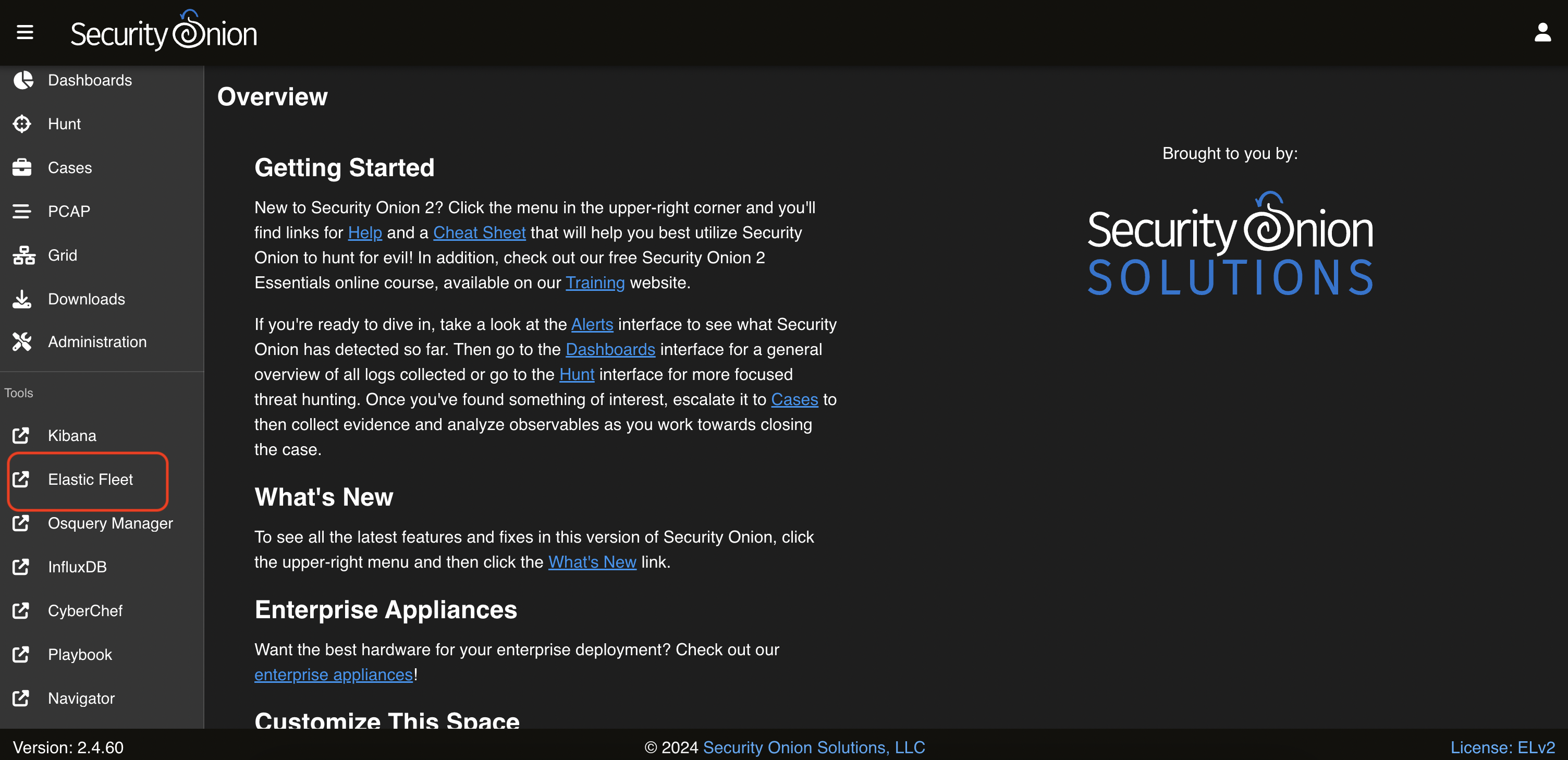
Figure 1. Selecting Elastic Fleet
- Go to the “Agent policies” tab and select “so-grid-nodes_general”. The next step is to click the “Add integration” button (see Figure 2).
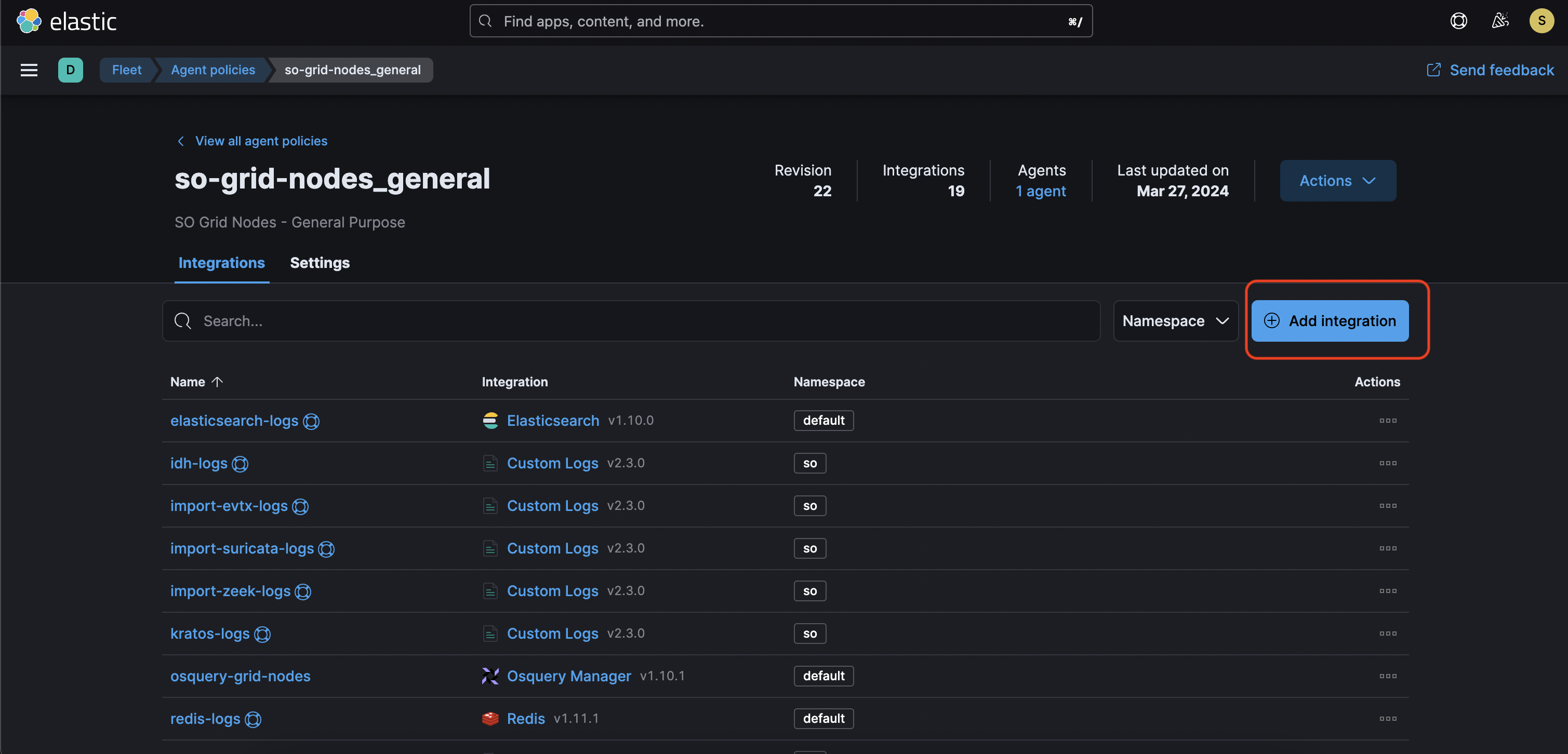
Figure 2. Adding Integration
- The user must type “pfsense” in the search bar (see Figure 3).
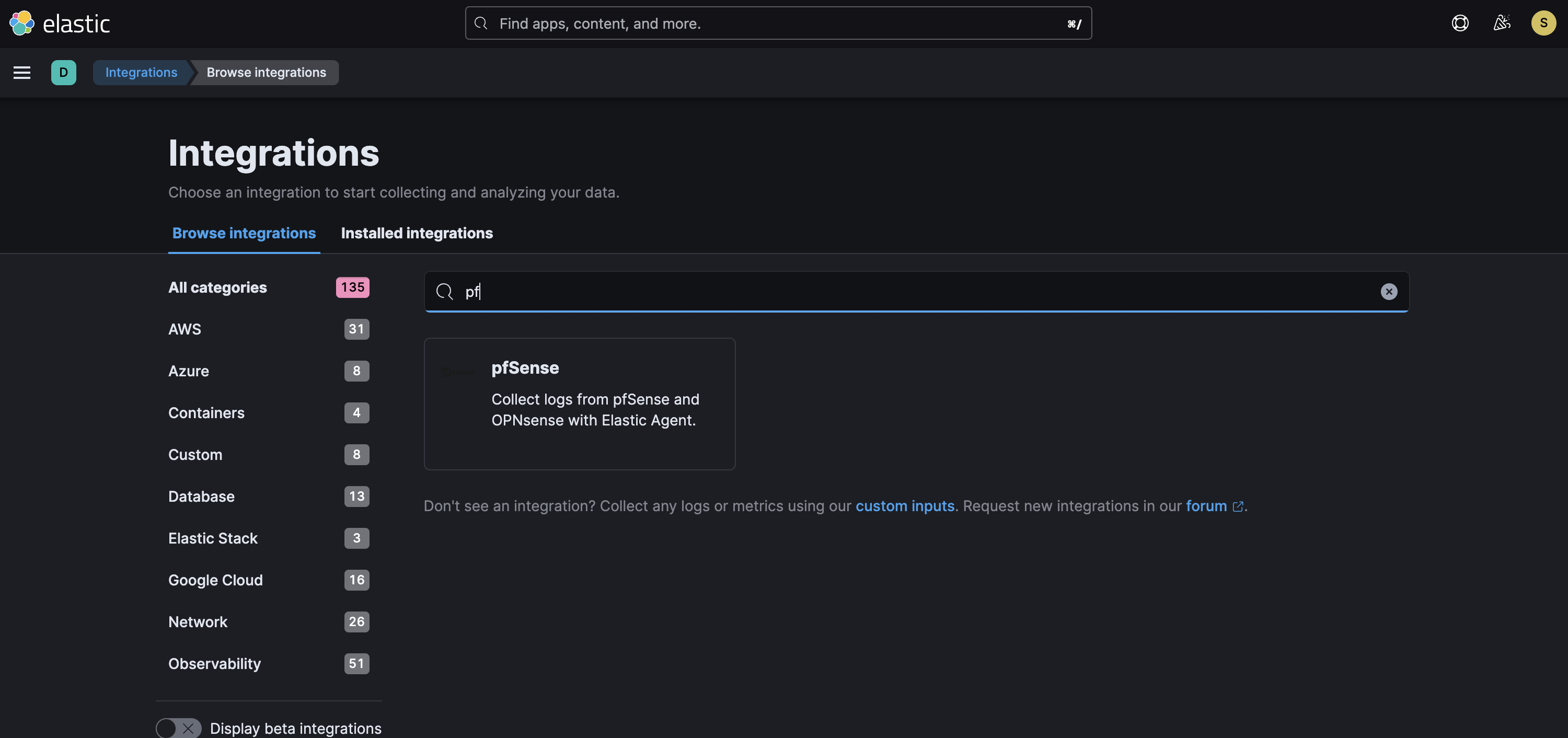
Figure 3. Selecting PfSense
- The next step is to click “Add pfSense” in the window that appears (see Figure 4).
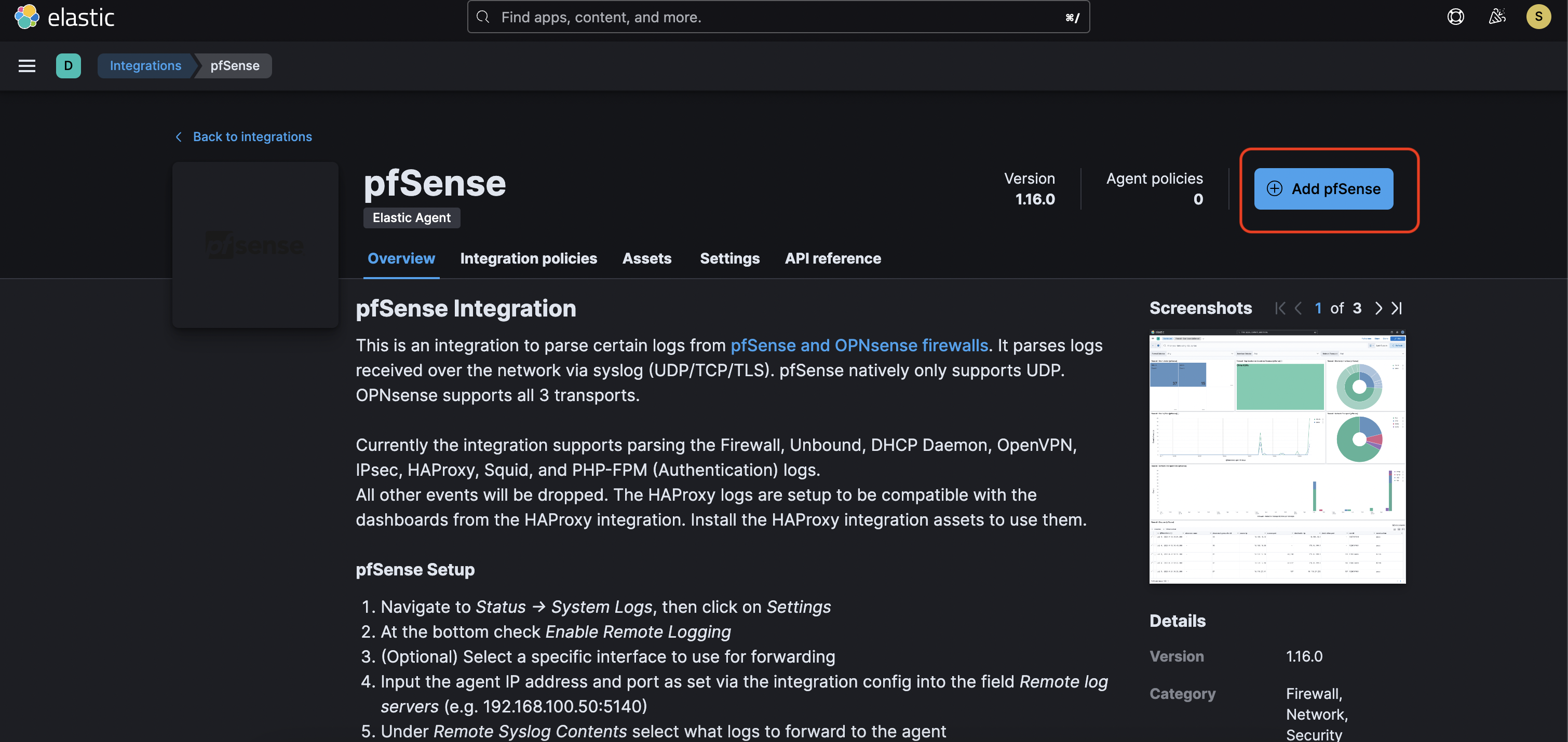
Figure 4. Adding PfSence
The settings should be filled out as follows:
- Integration name - at the user’s preference, e.g. yc-pfsense.
- Syslog host - 0.0.0.0.0.
The other values can be left as default and then click “Save and continue” (see Figure 5).
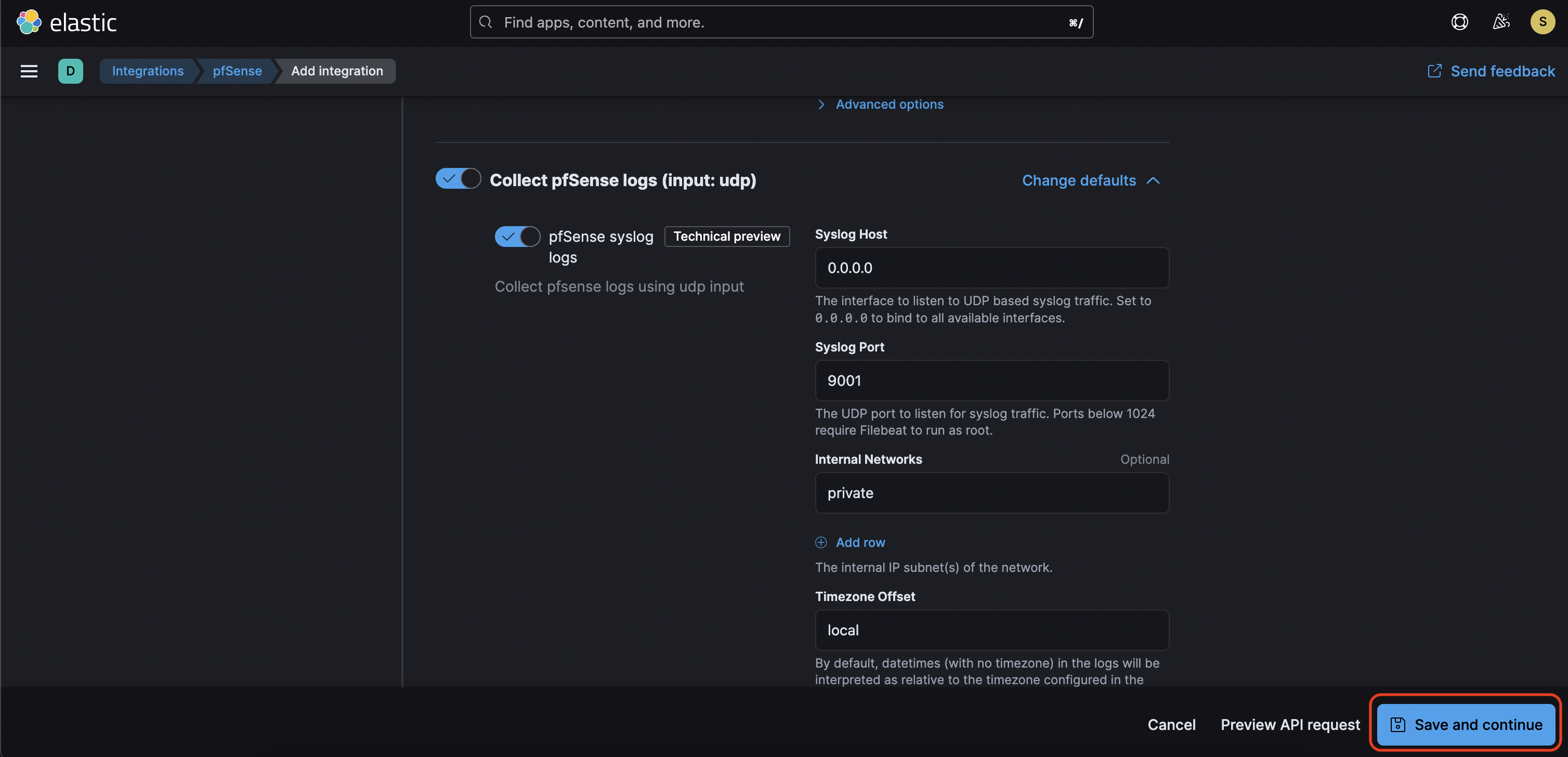
Figure 5. Windows Options
- The next step is to click on “Save” and “Deploy changes” (see Figure 6).
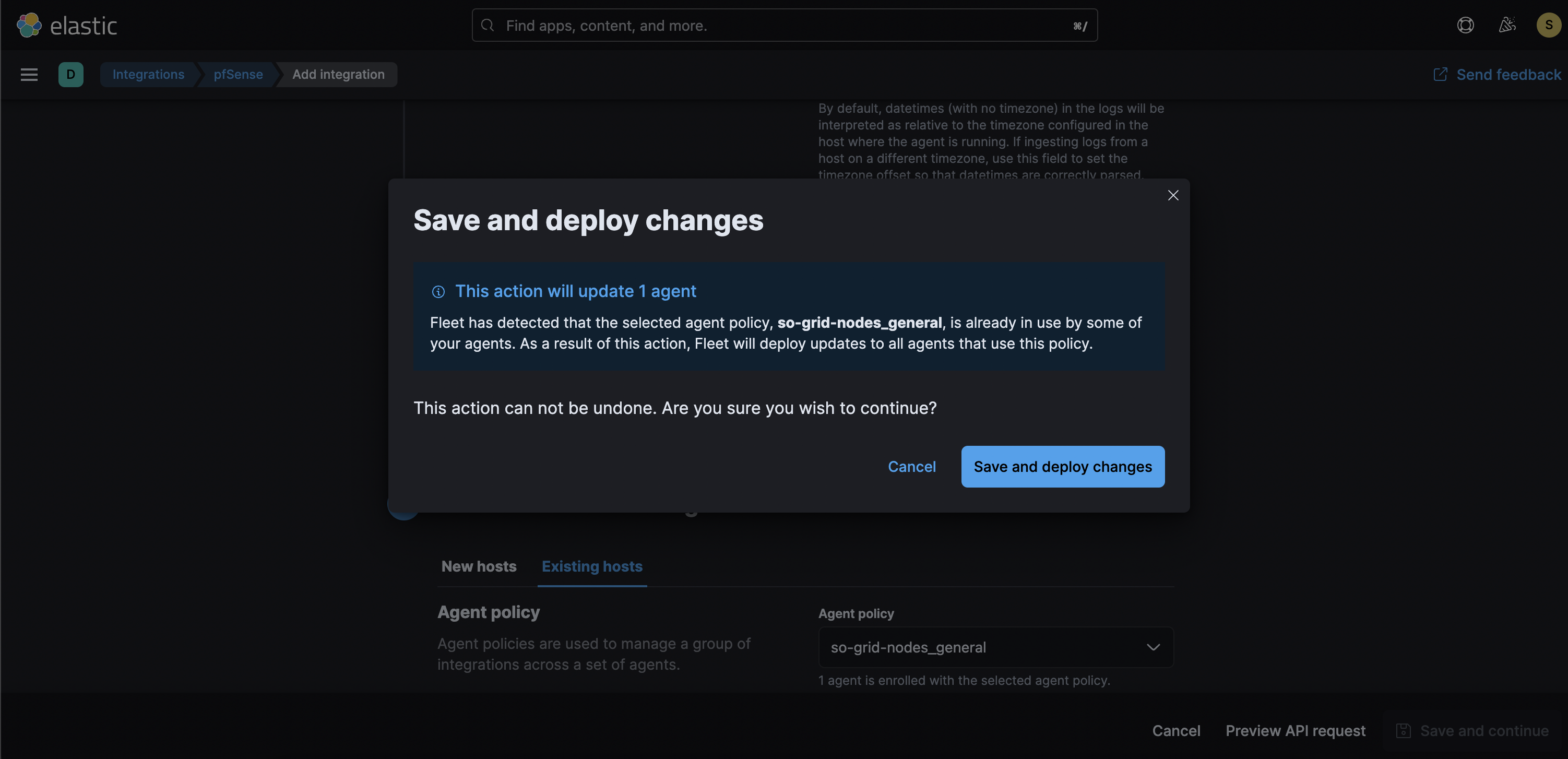
Figure 6. Apply the Changes
- The user needs to open the SecurityOnion web interface and go “Administration” -> “Configuration”, then click on “Option” and select “Show all configurable settings, including advanced settings” (see Figure 7).
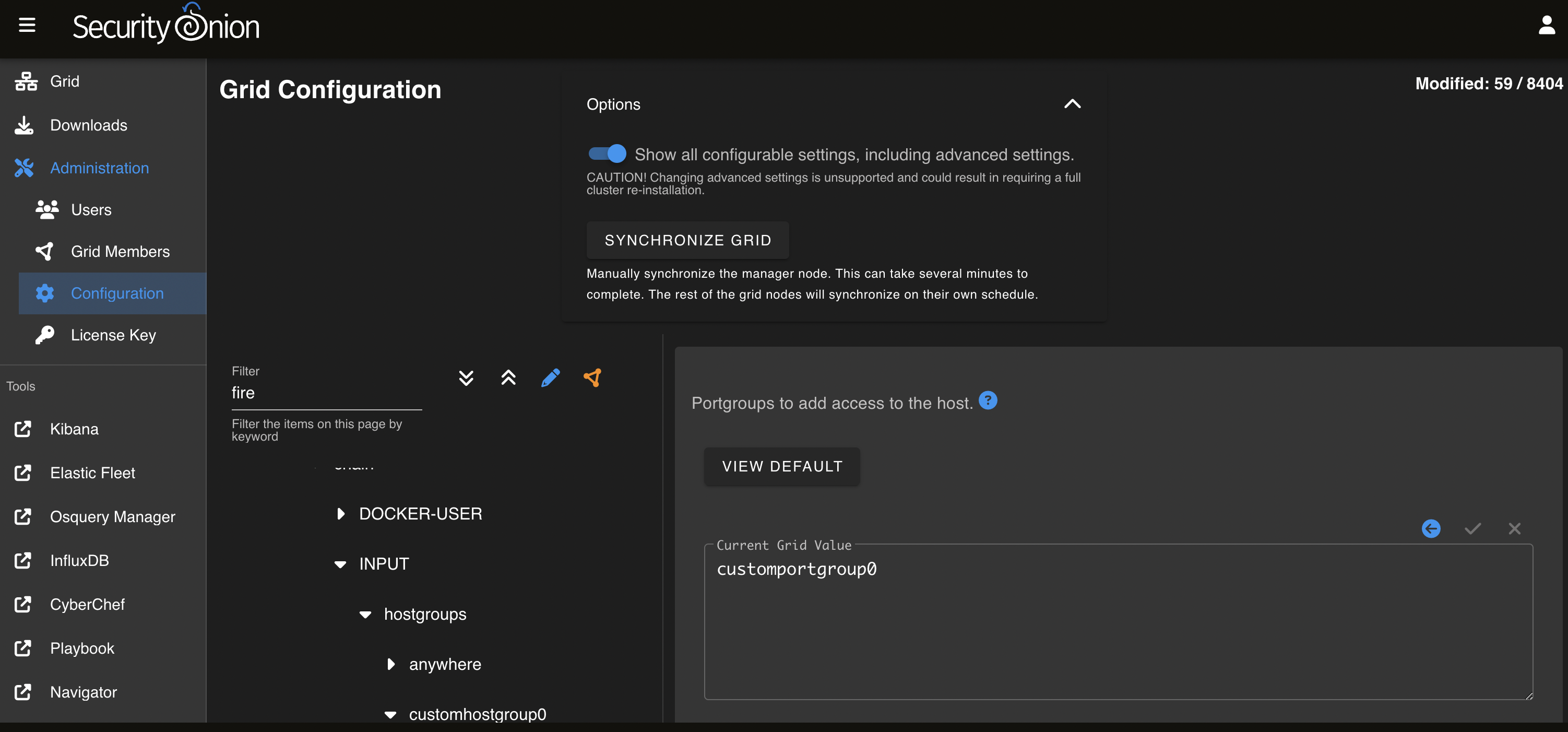
Figure 7. Advanced Setting Window
On the left pane, the user should go to “firewall settings”, select “hostgroups”, and click on “customhostgroup0”. On the right side of the window, they should enter the “IP address of pfSense” and click the “checkmark” to save it (see Figure 8).
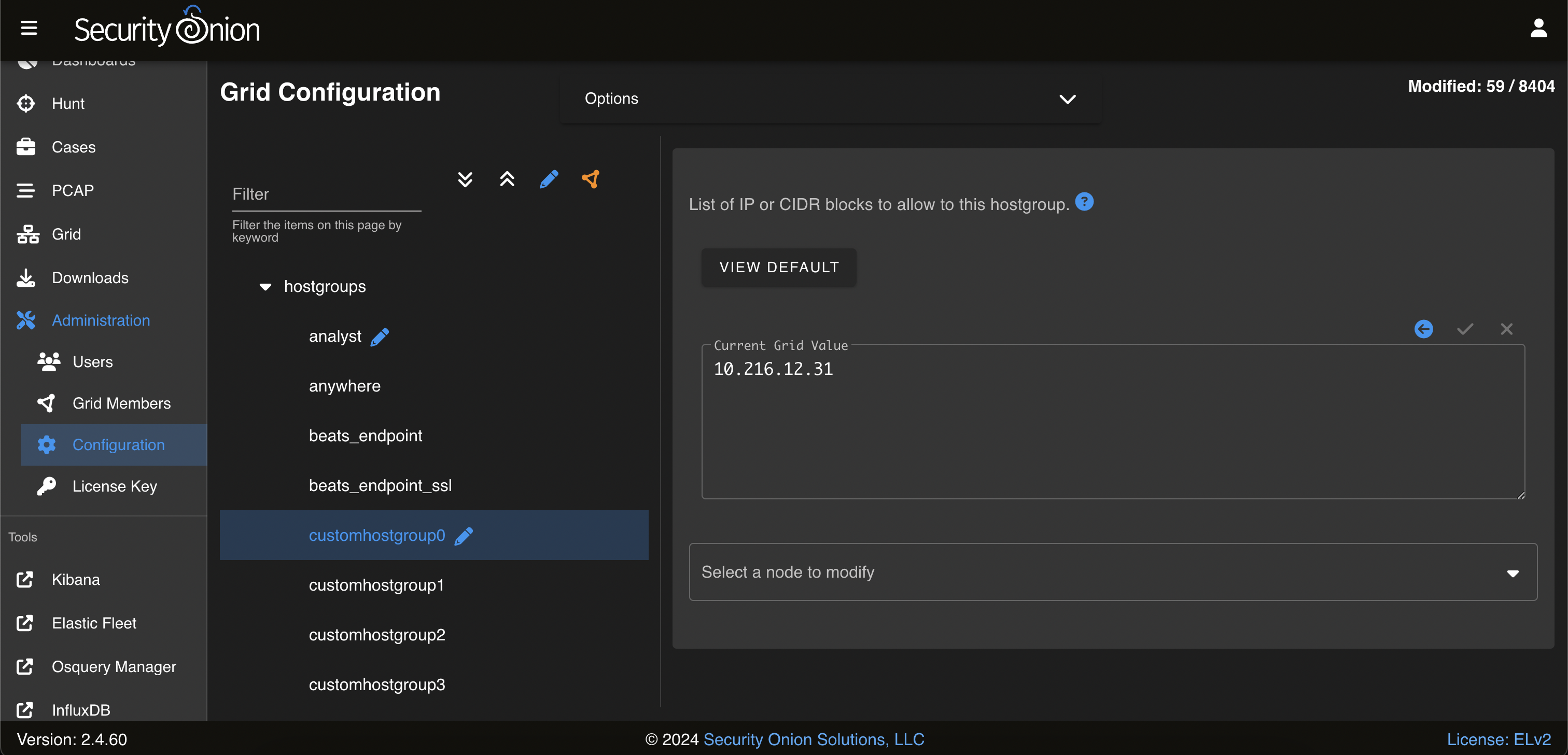
Figure 8. Entering the IP Address PfSense
Also on the left pane, the user needs to enter firewall settings, select portgroups, then select customportgroup0 and click on UDP protocol. On the right side of the window, they need to enter 9001 and click the “checkmark” to save it (see Figure 9).
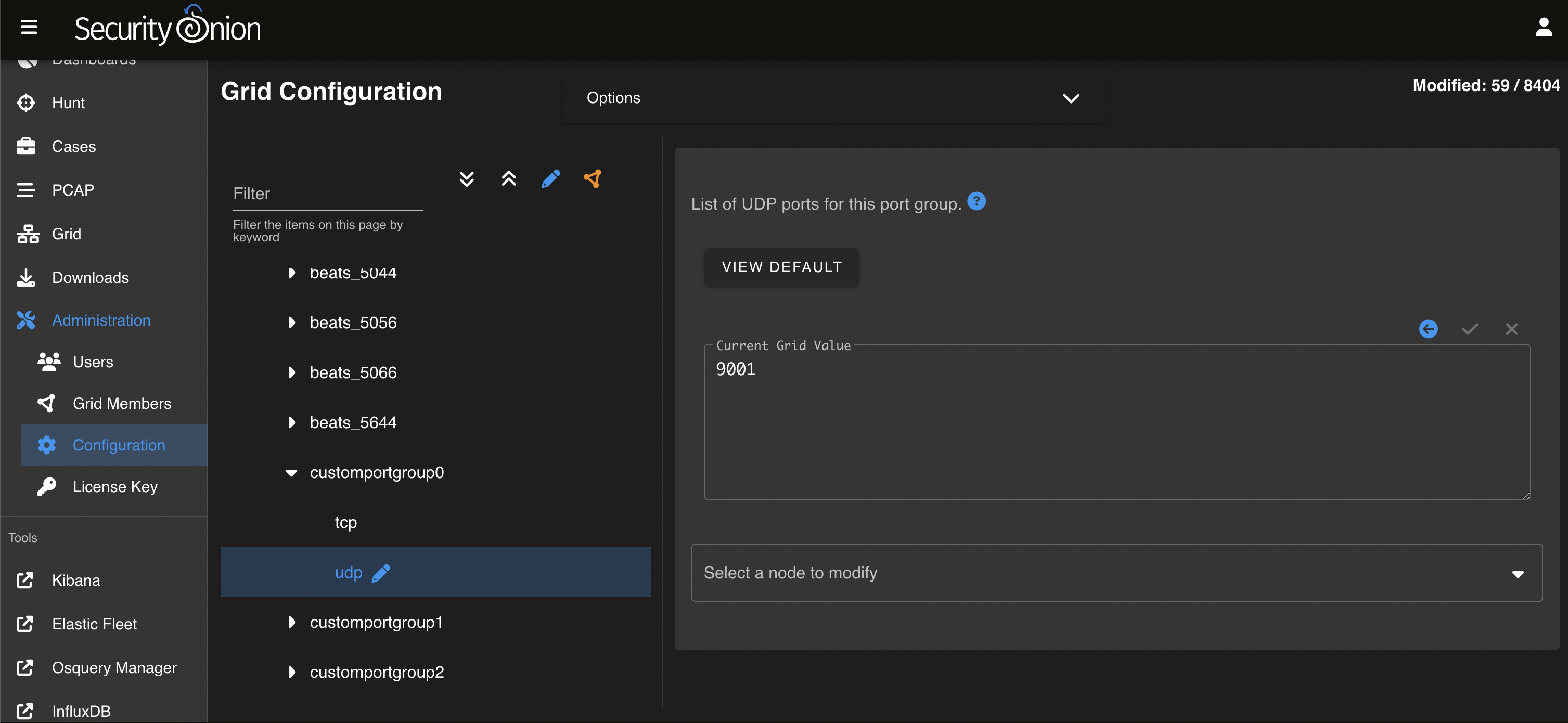
Figure 9. Adding the UDP Port
- In the left pane go to “firewall settings”, select a role, then select the type of host (e.g. standalone) that will receive pfSense logs.
The next step requires clicking on “chain -> INPUT -> hostgroups -> customhostgroup0 -> portgroups”. On the right side of the window, the user needs to enter “customportgroup0” and click the “checkmark” to save.
To immediately accept the rules, click the “SYNCHRONIZE GRID” button in the “Options menu” at the top of the page (see Figure 10).
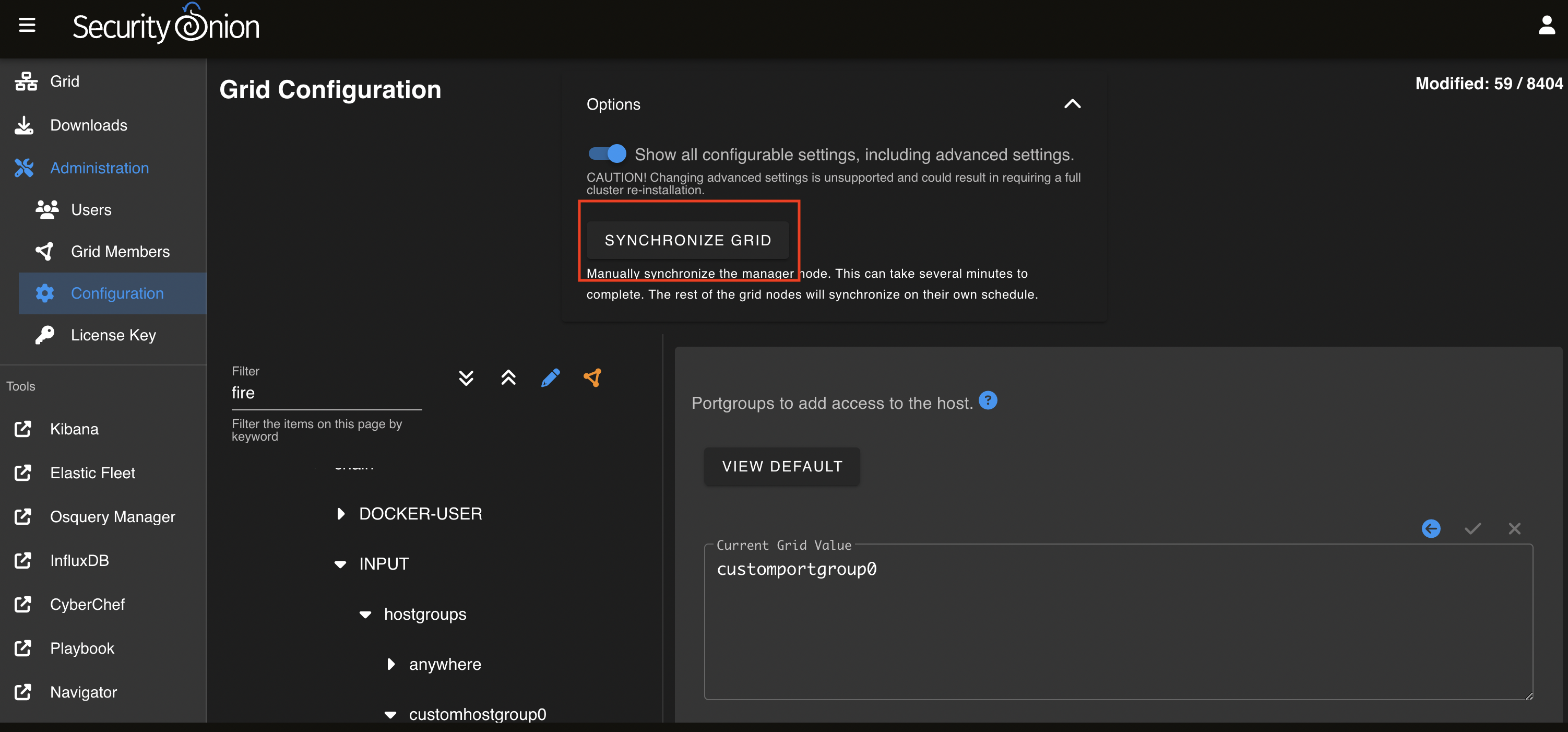
Figure 10. Applying Settings Immediately
This completes the settings for SecurityOnion.
- The next step is to configure the sending logs from pfSense. To do this, open the pfSense web interface and select “Status -> System Logs” in the menu (see Figure 11).
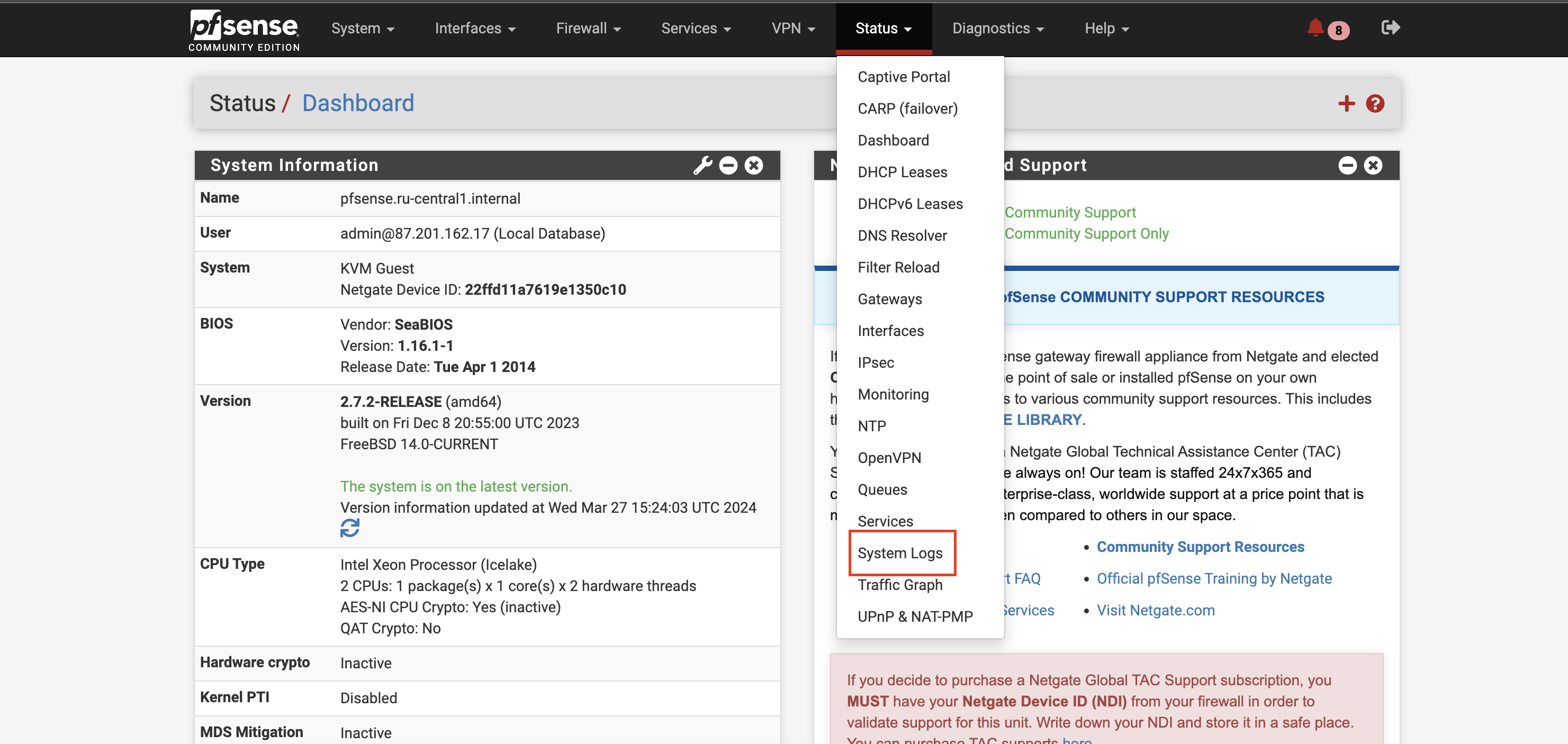
Figure 11. Configuring System Logs
“Enable Remote Logging” should be checked, “Source Address” should be set to “LAN”, I"P Protocol" should be set to “IPV4”. The next step is to enter the IP and port of “SecurityOnion in Remote” log servers.
For “Remote Syslog Contents”, select “Everything” and click the “Save button” (see Figure 12).
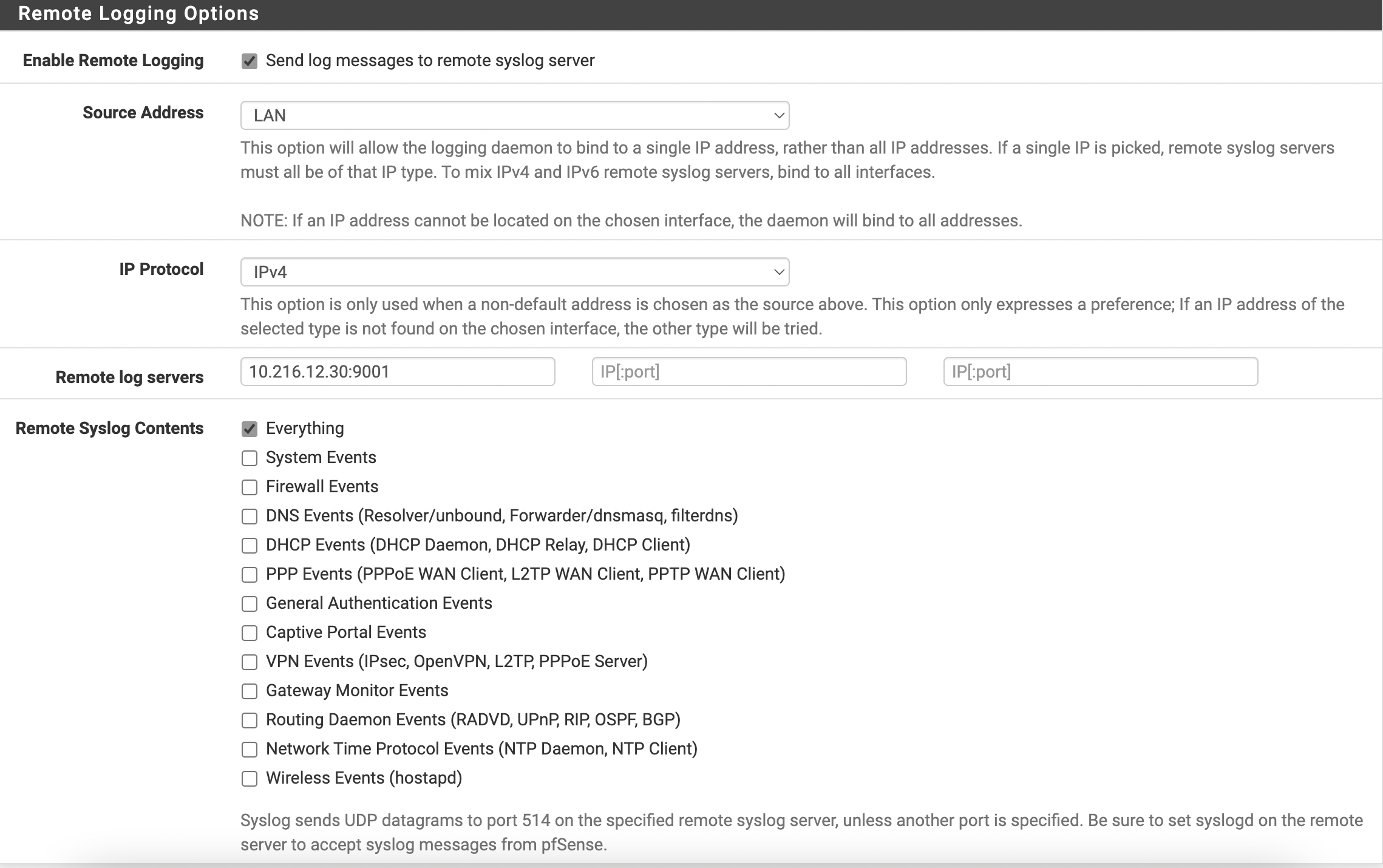
Figure 12. Selecting Logs Content to be Forwarded to SecurityOnion
After a few minutes, the user should check that the events are displayed in SecurityOnion.
To do this, open “Hunt” and add * | | groupby event.module* event.dataset to the search query then press “HUNT”. After processing the query, scroll down the page and see if the logs appear (see Figures 13 and 14).
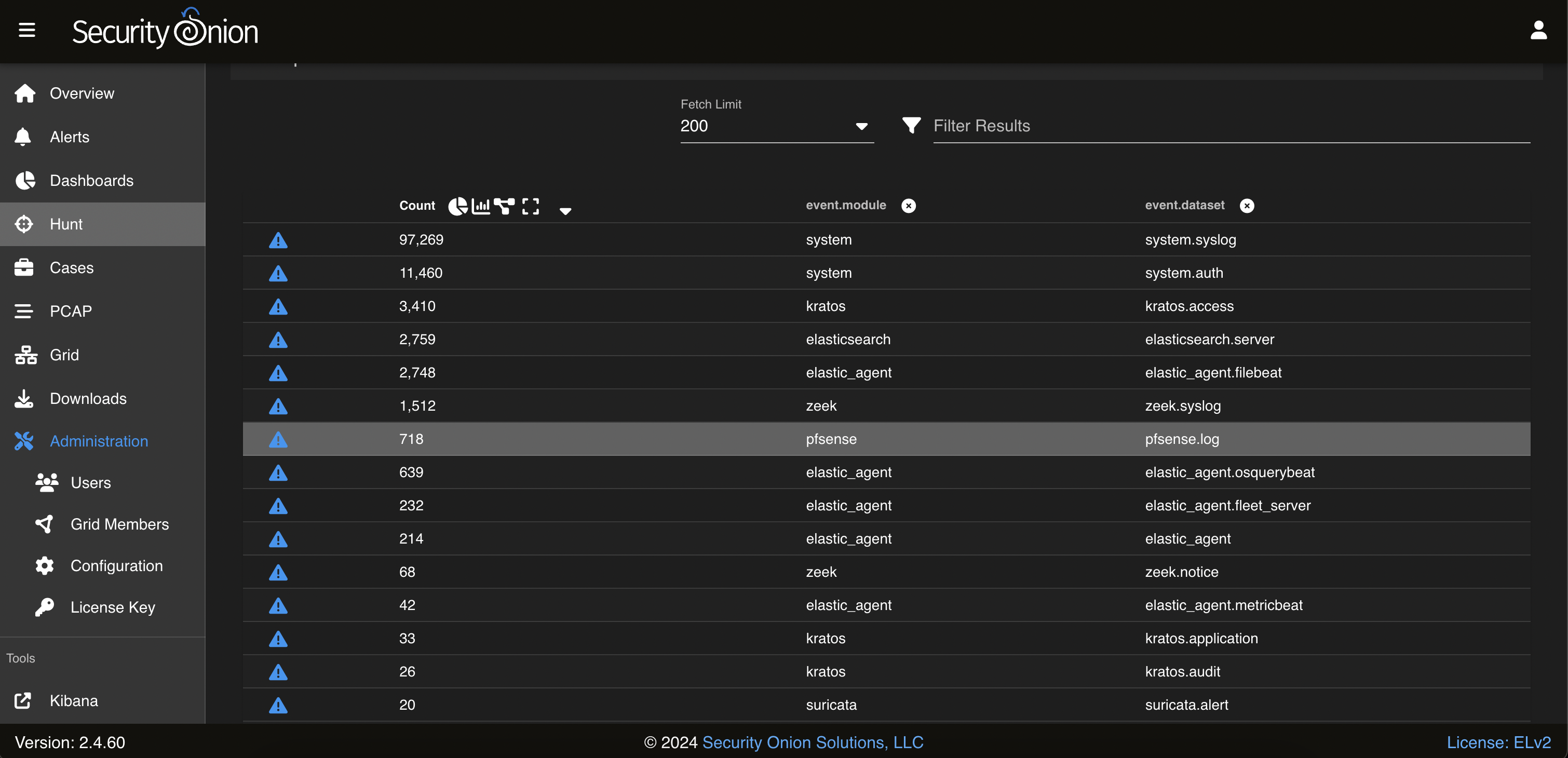
Figure 13. Event Example
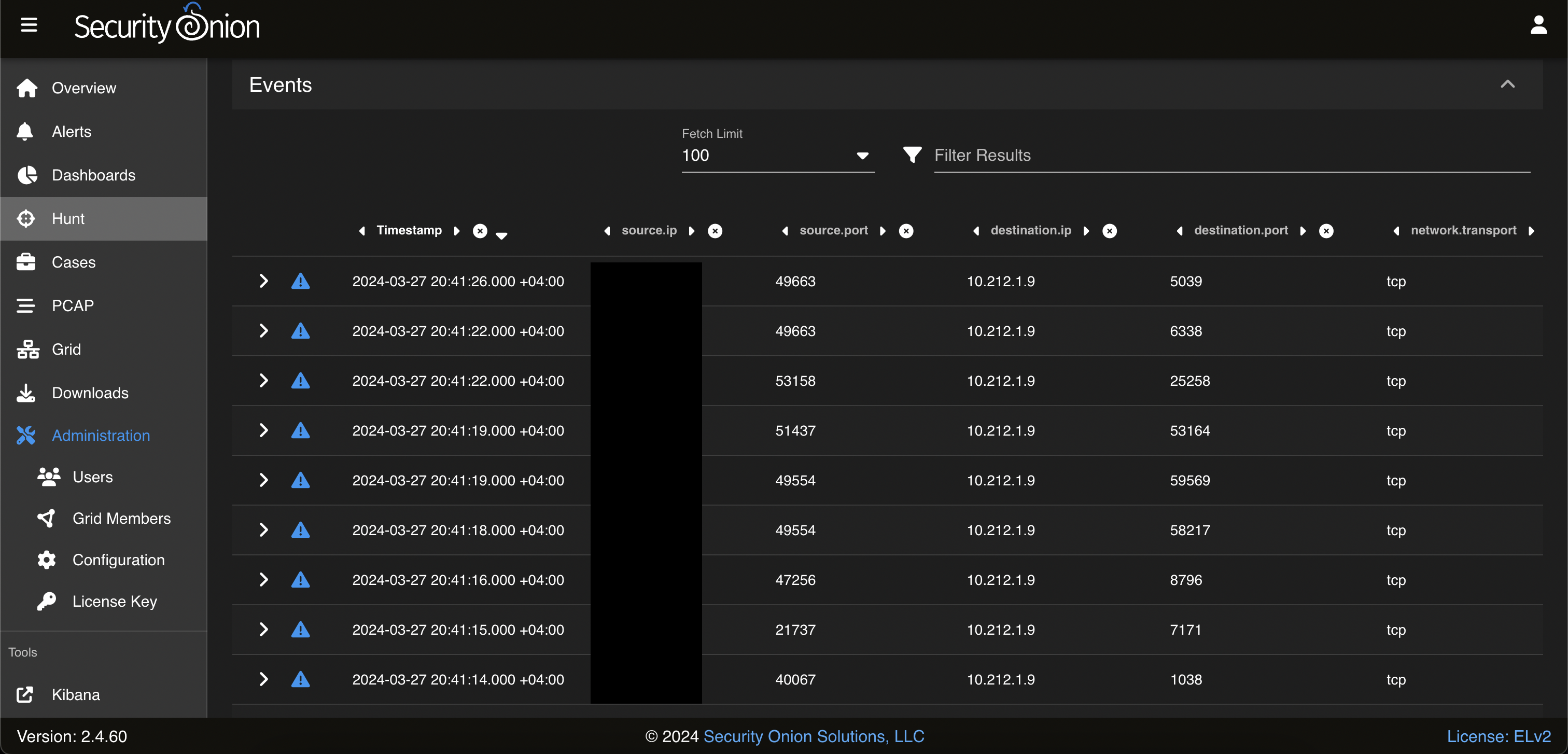
Figure 14. Event Example
This completes the integration.